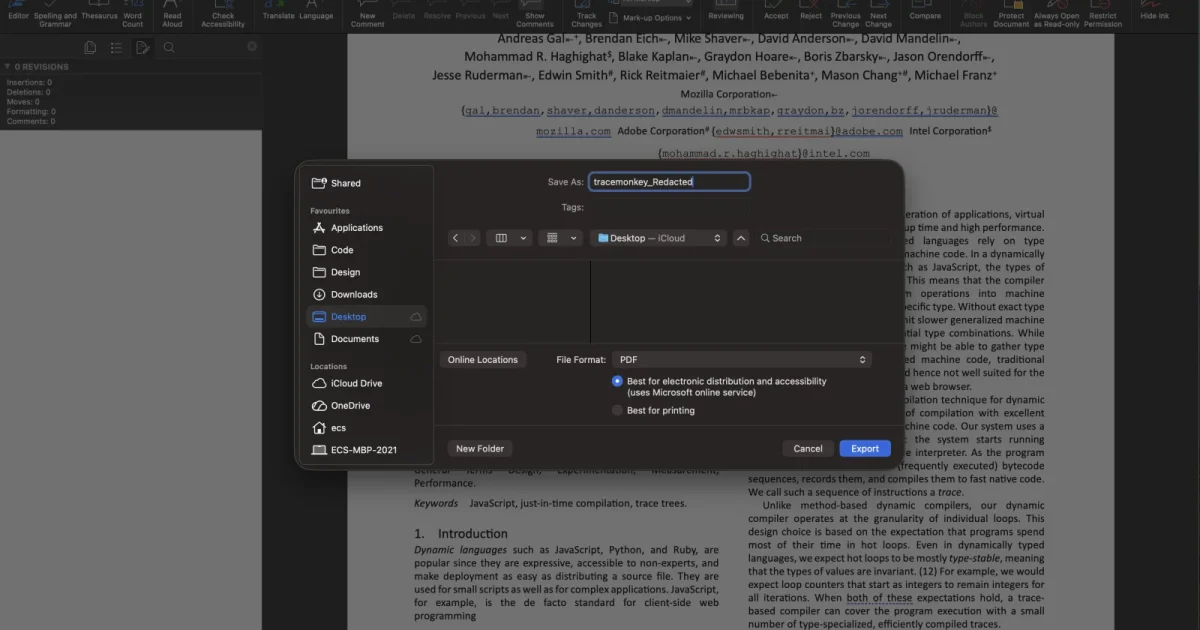
Ever tried to open a PDF and got a cryptic error message? Or maybe the file opens but shows gibberish, missing pages, or weird formatting? You’re not alone. PDFs can get corrupted from bad downloads, sudden shutdowns, or even software bugs. This guide is for anyone—no tech background needed—who wants to check if their PDF is broken and then fix it. By the end, you’ll have a clean, readable PDF (or at least a recovered version of it).
We’ll cover both quick validation methods and step-by-step repairs, from free online tools to manual command-line fixes for serious cases. You don’t need to be a programmer; just follow along. Ready to rescue your file? Let’s go.
What You’ll Need
- Your corrupted PDF file (have a backup copy just in case)
- A computer with internet access (for online tools and downloads)
- Free software: a PDF viewer (like Adobe Acrobat Reader), a command-line tool (like qpdf – we’ll show you how to get it), and optionally a hex editor
- About 15–30 minutes depending on the repair method
Step 1: Check If the PDF Is Really Corrupted
Before you start repairing, make sure the file is actually corrupt. Sometimes the issue is your viewer or a slow connection. Try opening the PDF in a different reader (like your browser or a phone app). Does it load? Check the file size—if it’s 0 KB or suspiciously small, it’s probably toast. Also, try downloading it again from the original source if possible.
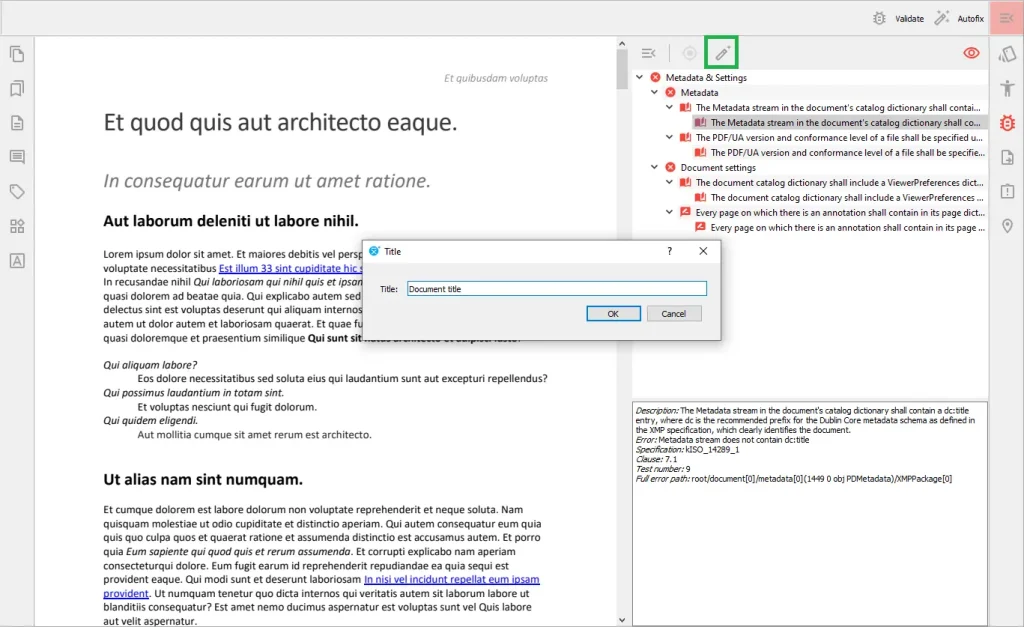
If the file looks fine in one viewer but not another, the problem might be compatibility. That’s not really corruption—just a viewer issue. But if it shows errors everywhere, move to the next step.
Step 2: Validate the PDF Structure Using an Online Tool
Online validators can quickly check if the PDF’s internal structure is intact. Try a free service like ‘PDF Tools’ or ‘PDF Validator’. Upload your file and let it scan. The tool will tell you if there are broken cross-references, missing objects, or syntax errors. This gives you a clear idea of what’s wrong.
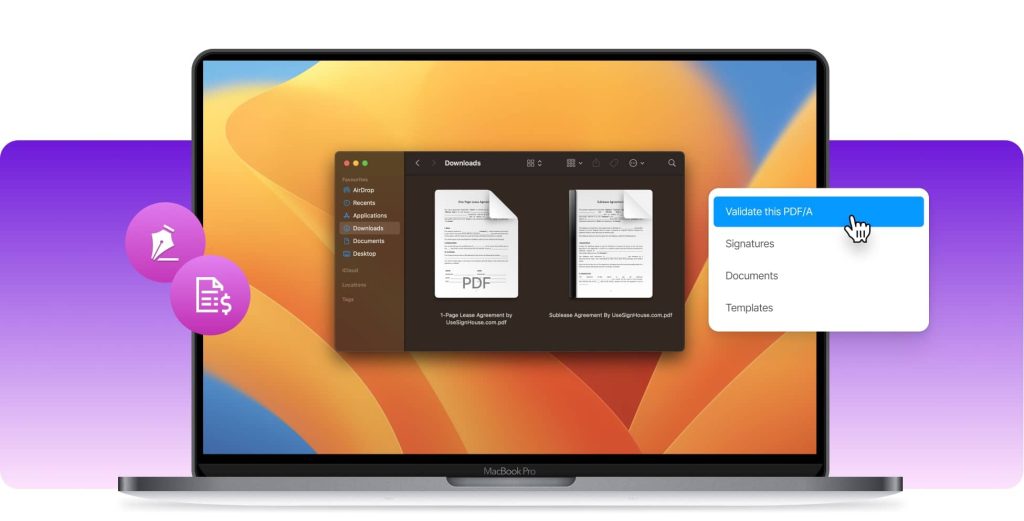
Many validators also offer a repair feature. If you see an option to ‘Fix errors’, give it a go. This often works for minor issues. For more stubborn problems, move to the next steps.
Step 3: Try a Simple Free Tool for Quick Repair
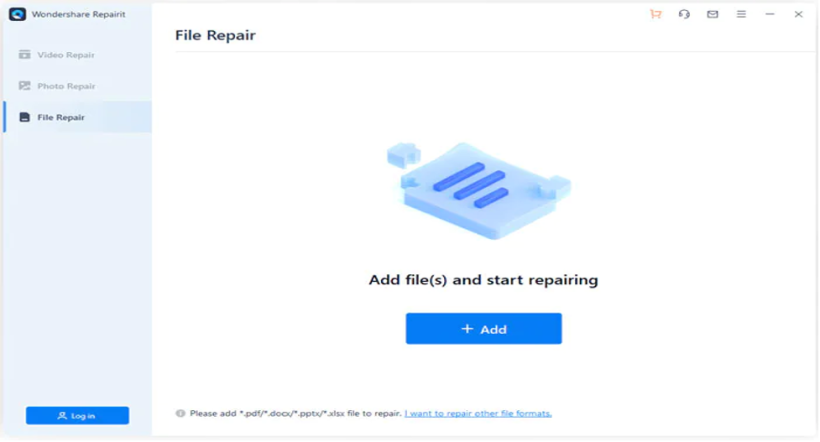
If online validation didn’t cut it, download a dedicated repair tool. There are several free ones that do a decent job on common corruption. For example, you can use the tool we cover in our guide to a simple free tool. It handles things like broken page references and missing fonts. Install it, open your PDF, and hit ‘Repair’. The software will create a new copy.
Most tools let you preview the result before saving. Check if the document looks right—pages in order, text selectable, images showing. If not, time to get a bit more hands-on.
Step 4: Manual Repair Using a Command-Line Tool (qpdf)
For tough cases, command-line tools like qpdf are incredibly powerful. Download qpdf from its official site (it’s free and open-source). Open a terminal (Command Prompt on Windows, Terminal on Mac/Linux) and run a command like: qpdf –normalize input.pdf output.pdf. This rebuilds the PDF structure from scratch, fixing many cross-reference issues.
If that doesn’t work, try –linearize or –replace-input. Need to repair a PDF xref table specifically? qpdf has options for that. It’s like magic—your file often comes out perfectly readable. If you still have problems, you might need to dig into the objects.
Step 5: Advanced Object Repair
Sometimes corruption is isolated to a few objects (like a font or image). You can use a hex editor (like HxD or Hex Fiend) to open the PDF and manually fix syntax errors—but this is for experts. A safer approach is to use a tool that can fix PDF objects, like PDF Repair Toolbox. These extract and rebuild damaged objects automatically.
If you’re comfortable editing raw PDF code, you can also try removing problematic objects by hand. But be careful—one wrong move can break the file further. For most people, the command-line method is enough.
Common Pitfalls
- Always keep a backup! Never work on the original file without a copy. One wrong command can ruin it forever.
- Beware of online tools that ask for your email or upload to sketchy servers. Your PDF might contain sensitive info—use trusted sites only.
- Don’t expect a perfect fix every time. Some corruption is irreversible, especially if the file was hit by ransomware or serious physical damage. In those cases, recovering text manually might be all you can do.
For more on why PDFs break and how to avoid it, check out our guide on fix a corrupted PDF. And if you need a faster approach, see quick PDF repair.
Where to Next
You’ve learned how to validate and repair a PDF. Now you might want to prevent future issues—read up on common causes of corruption and how to avoid them. Or if you deal with lots of files, our batch repair guide can save you time. Happy fixing!




