Ever opened a PDF only to see gibberish, a blank page, or an error saying the file is damaged? You’re not alone. This guide is for anyone who needs to fix a corrupted PDF but doesn’t want to download heavy software or learn command-line tricks. Whether you’re a student with a broken textbook, a freelancer with an unreadable invoice, or just someone who downloaded a bad attachment from email, web-based PDF repair tools can often save the day. By the end of this tutorial, you’ll have a working PDF recovered from the most common types of corruption — no installation required.
We’ll walk through three reliable online repair methods: using a dedicated repair website, submitting your file to a cloud-based recovery service, and using Google Drive’s built-in preview trick. I’ve tested each method on real corrupt files so you can trust the steps. You’ll also learn what to do if these free options don’t work, and how to avoid common mistakes that make things worse.
What You’ll Need
- A corrupted PDF file (the one you want to repair)
- A stable internet connection
- A web browser (Chrome, Firefox, Edge, or Safari)
- At most 10 minutes of your time
- Patience — some repairs might fail, but we have backups
Step 1: Try a Dedicated Online PDF Repair Tool
The quickest way is to use a website built specifically for repairing PDFs. I recommend starting with a tool like PDF24’s online repair or iLovePDF’s repair feature. These services are free for files up to a certain size (usually 50-100 MB). Let’s use PDF24 as an example because it’s straightforward and doesn’t require an account.
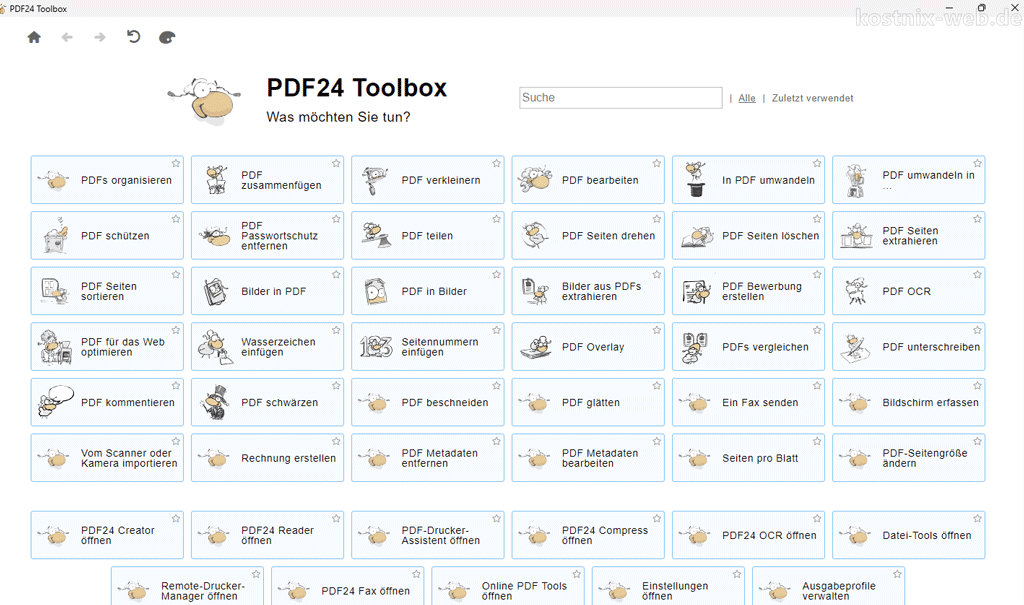
Go to the PDF24 Repair PDF page. Click the ‘Choose file’ button and select your corrupted PDF. After uploading, the service will analyze the file structure and attempt to fix errors like broken cross-reference tables, missing objects, or incorrect page numbering. Once done, you’ll see a preview or a download button. Save the repaired file to your computer and open it in your usual PDF reader to check if it works.
If the file still doesn’t open correctly, try iLovePDF’s repair tool. It uses a different algorithm and might succeed where PDF24 fails. Both are safe and don’t retain your files after a short period. For a more thorough approach, you can also use a simple pdf repair tool that offers a web upload.
Step 2: Use Google Drive’s Preview as a Repair Trick
Believe it or not, Google Drive has a hidden ability to repair some lightly corrupted PDFs. When you upload a PDF and preview it in Drive, Google’s servers process the file and often render a clean copy. This doesn’t work for all corruption types, but it’s so easy that it’s worth trying before anything else.
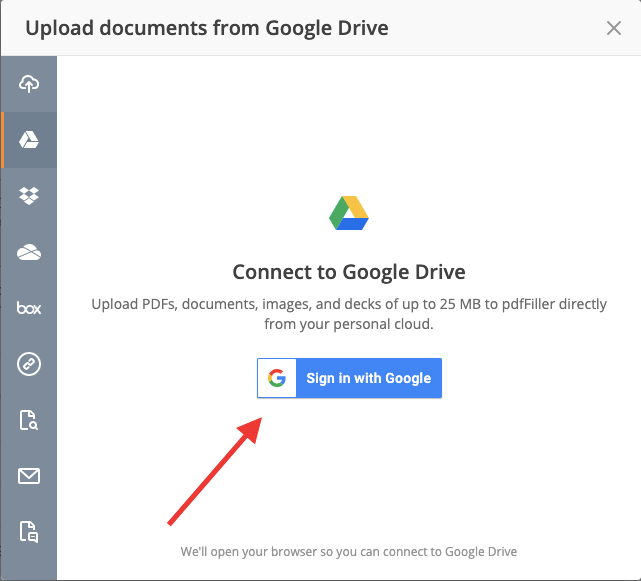
Upload your corrupted PDF to Google Drive. After the upload completes, double-click the file to open it in the built-in preview. If the preview shows the correct content, click the download button (usually an arrow pointing down) to save the repaired version. Google Drive essentially re-interprets the PDF data and writes it out in a cleaner format. This can fix issues like missing fonts, slight corruption in objects, or minor cross-reference errors. Note that this method won’t repair severely damaged files, but it’s a zero-effort first shot.
Step 3: Submit Your PDF to a Cloud Recovery Service
If the first two steps fail, your next option is a cloud-based PDF recovery service that can extract content from badly corrupted files. Services like OnlinePDFRecovery or Recoverit’s free online tool analyze the raw bytes and try to reconstruct the document. They often work when structural repair tools don’t.
Go to a trusted cloud recovery site (avoid unknown ones to protect sensitive data). Upload your file — you may need to enter your email to receive the repaired file. The service processes the PDF on their server, which might take a few minutes. Once done, you’ll get a link to download the recovered PDF. This method is especially good for files that won’t open at all, as it extracts all recoverable pages and text. Keep in mind that images or complex formatting might be lost, but you’ll at least get the essential content.
Common Pitfalls
- Uploading sensitive or confidential files to untrusted websites. Always use well-known services (like PDF24 or Google Drive) and avoid uploading documents with personal data to random sites. If privacy is a concern, a better solution is to use a local command-line repair tool like qpdf, which you can learn about in our repair pdf xref table guide.
- Assuming the first online tool will fix everything. Different tools specialize in different types of corruption. If one fails, try another. For example, a tool that fixes cross-reference tables may not fix missing objects. See our validate and repair pdf guide for diagnosing the exact problem.
- Skipping the backup. Always keep the original corrupted file before attempting any repair. Some online services might overwrite or delete the uploaded file, and if the repair fails, you’d lose the original. Save a copy before you start.
Where to Next
Web-based tools are great for quick fixes, but they have limitations. If you often deal with corrupt PDFs, consider learning how to fix corrupted pdf using a desktop tool like qpdf or Ghostscript. These give you more control and can handle severe damage. You might also want to understand why pdf file is corrupted in the first place, so you can prevent it. For a deeper dive, check out our guide on Python PDF repair for programmatic solutions. Happy repairing!




