If you’ve ever scanned a document and ended up with a PDF full of gibberish or missing text, you’re not alone. OCR (Optical Character Recognition) is amazing when it works, but it can mess up on blurry scans, unusual fonts, or low-quality images. This guide is for anyone who needs to salvage a scanned PDF that has garbled characters, wrong words, or blank areas where text should be. By the end, you’ll have a clean, searchable PDF with accurate text.
We’ll walk through three methods: an online tool for quick fixes, a desktop app for serious repairs, and a command-line option for power users. No prior experience needed—just follow along. Along the way, we’ll also point you to related guides like web based pdf repair and fix corrupted pdf for deeper dives.
What You’ll Need
- A PDF with OCR issues (garbled, missing, or wrong text)
- A computer with internet access (for online method)
- Optional: Adobe Acrobat Pro (free trial works) or Tesseract OCR (free, open-source)
- About 10-15 minutes
Step 1: Identify the Problem
Before fixing, figure out what’s wrong. Open your PDF and look for signs: random characters (like “ñl{^”), spaces where numbers should be, or text that’s completely missing. If the PDF is just a scanned image (no selectable text), you need to run OCR first, not repair it. But if OCR was already applied and it’s messed up, you’re in the right place.
Step 2: Try a Free Online OCR Repair Tool
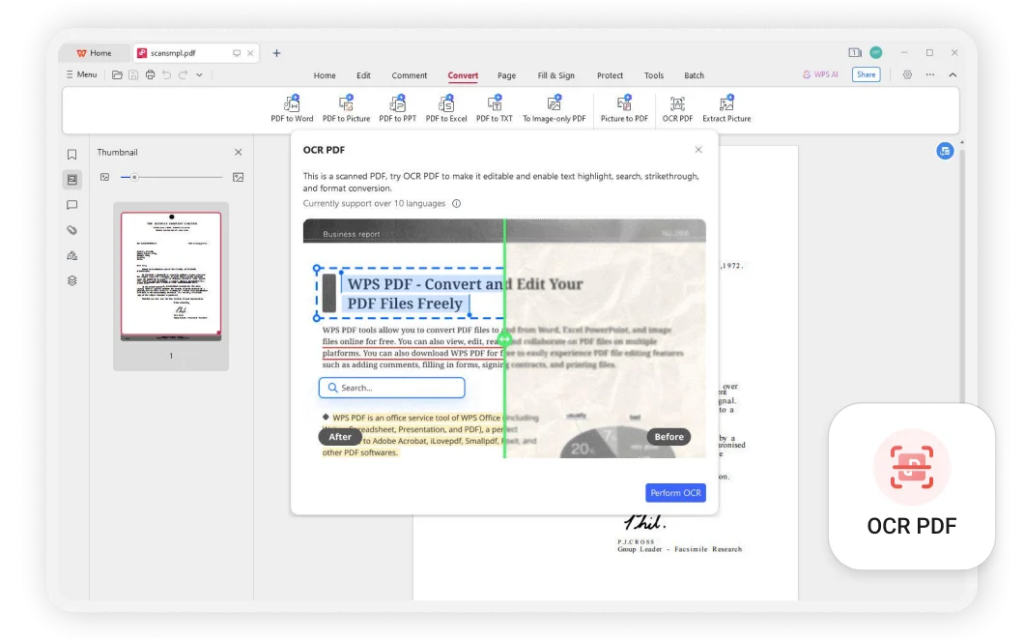
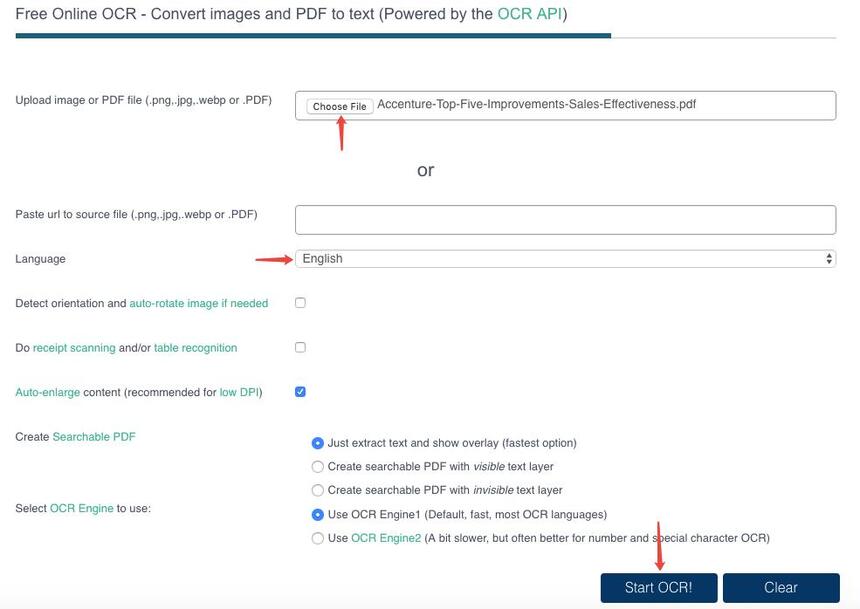
For a quick fix, use an online service like OCR.space or Adobe Acrobat online. Upload your PDF, let them re-run OCR, and download the result. This works best for small files (under 10 MB) and common fonts. For a full comparison of options, check out our web based pdf repair guide.
Step 3: Use Desktop Software for Stubborn OCR Errors
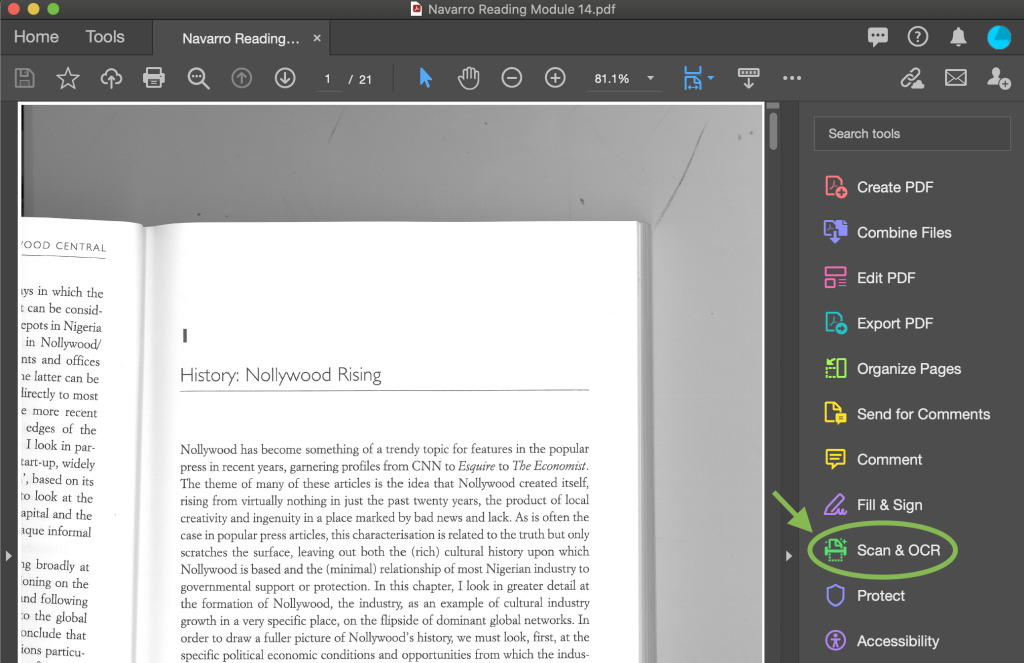
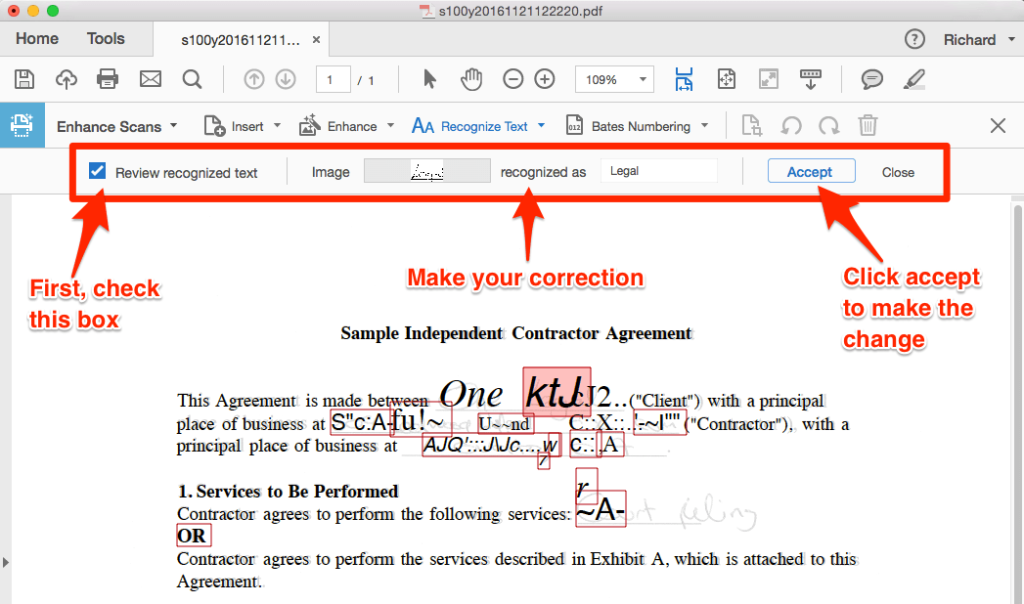
If online tools fail, move to a desktop app. Adobe Acrobat Pro has a “Enhance Scans” tool that lets you correct OCR manually. Open your PDF, go to Tools > Enhance Scans, and select “Correct OCR Text”. You can click on each suspect character and type the right one. This is tedious but precise. For other options, see our simple pdf repair tool article.
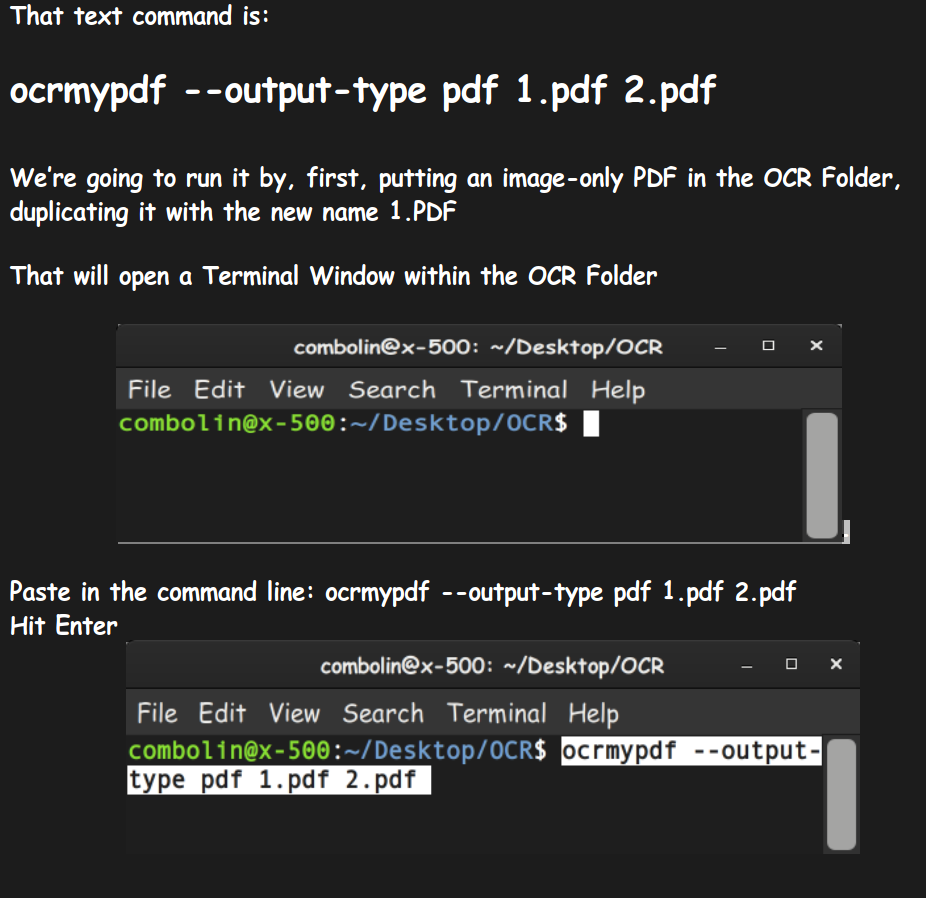
Step 4: Command Line OCR Repair with Tesseract
For bulk or automated fixing, Tesseract OCR is a free command-line tool. First, convert your PDF to images (using pdftoppm), then run Tesseract with language parameters: tesseract image.png output -l eng --psm 1. This creates a plain text file that you can re-insert into a new PDF using tools like pdftex. For a detailed walkthrough, see our repair pdf using python guide, which automates this process.
Step 5: Validate the Repaired PDF
After repair, check the output. Select text with your mouse — it should be correct. Try searching for words that were previously garbled. Also, check the file size and structure. Use a validator like Apache PDFBox to ensure the PDF isn’t corrupted. For a comprehensive check, follow our validate and repair pdf guide.
Common Pitfalls
- Skipping the source quality: If the original scan is blurry, no OCR tool can fix it perfectly. Always aim for 300 DPI or higher when scanning.
- Using wrong language settings: OCR tools need the correct language. If your PDF is in French but you use English, expect gibberish. Double-check language settings.
- Overlooking page numbers or headers: OCR often misreads small text in headers or footers. Manually check these areas.
Where to Next
You now have a clean, searchable PDF. If you run into other issues like pages out of order or corrupted xref tables, check our guides on fix corrupted pdf and simple pdf repair tool. Happy reading!




