
So you just downloaded your tax return PDF from the IRS, TurboTax, or your accountant, and when you try to open it, you see nothing but garbled text or an error message. Don’t panic. This guide is for anyone who needs to recover a crucial tax PDF that won’t open or looks wrong. By the end, you’ll have a clean, usable PDF that you can print, e‑file, or archive.
We’ll walk through four reliable methods, from quick online fixes to built‑in tools in Adobe Acrobat Reader. You don’t need any special skills—just a computer and a few minutes. Along the way, we’ll also cover common mistakes that can make things worse, so you can avoid them. Ready? Let’s get that tax document back in shape.
What You’ll Need
- The corrupted tax PDF file
- A computer with internet access
- A free PDF repair tool (options provided below)
- A backup copy of the original PDF (if possible)
Step 1: Check the Error and Make a Backup
Before trying any repair, open the PDF and note the exact error message. Common ones include “File is damaged,” “Cannot open,” or “Invalid cross‑reference table.” This will help you choose the best method later. Next, make a copy of the file so you have a fallback. Right‑click the PDF, select Copy, then paste it into a new folder—just in case something goes wrong.
Step 2: Use an Online PDF Repair Service
For quick fixes, an online tool is your best bet. Visit a reputable site like PDF24 or Smallpdf. Upload your corrupted file (they use encrypted connections, but be mindful of sensitive tax data—consider using a local tool if privacy is a concern). The service will attempt to reconstruct the PDF structure. After processing, download the repaired file. Most services work within seconds for small tax PDFs.
Step 3: Try Adobe Acrobat Reader’s Built-in Repair
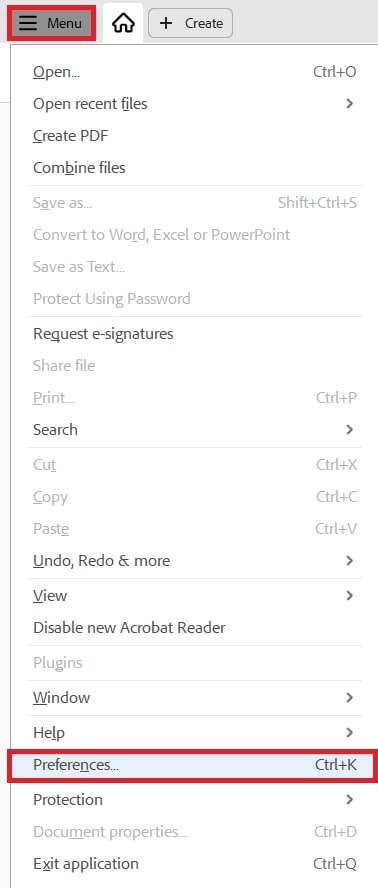
If you have Adobe Acrobat Reader (free), it can fix minor corruption. Open the program, go to Edit > Preferences > Documents, and check “Repair PDF when opening.” Then close and reopen your tax PDF. Reader will attempt to rebuild the file automatically. This method works well for common errors like missing fonts or broken links. For deeper issues, proceed to the next step.
Step 4: Re-download the Original Tax PDF
If the PDF is corrupted because of a bad download (e.g., interrupted connection or email glitch), the simplest fix is to get a fresh copy. Log back into your tax software, tax portal, or email and download the PDF again. Use a stable internet connection and avoid opening the file before it’s fully downloaded. This solves the majority of “corrupted” tax PDFs in seconds.

Common Pitfalls
- Forgetting to backup: Always keep the original corrupted file until you verify the repaired one works. Once you overwrite the original, you lose any chance of recovery if the repair goes wrong.
- Using untrusted online tools: Your tax PDF contains sensitive personal and financial data. Only use well‑known services with HTTPS encryption, or better, use a local tool like Adobe Reader.
- Ignoring the simplest fix: Re‑downloading the PDF from the original source often works. People waste time on complex repairs when a fresh download is all they needed.
Where to Next
If this guide helped you, check out our other resources: in-depth tax PDF recovery, how to fix a corrupted PDF step‑by‑step, and a simple PDF repair tool that runs entirely offline. You can also learn to validate and repair PDFs systematically, or understand why PDF files get corrupted in the first place. Happy filing!




