
Tax season is stressful enough without discovering your tax PDF is corrupted or won’t open. Maybe you downloaded your return from the IRS portal and got an error, or your file got scrambled after a computer crash. This guide is for anyone who needs to recover a tax PDF—whether it’s a 1040 form, a W-2, or a tax return copy. By the end, you’ll have a working file you can print, e-file, or archive.
We’ll walk through multiple recovery methods: checking backups, trying different readers, using online services, and desktop repair tools. You don’t need to be tech-savvy—just follow the steps. Most methods are free or low-cost, and you can recover your tax PDF in under 15 minutes.
What You’ll Need
- The corrupted or missing tax PDF file
- A computer with internet access
- Optional: the original source file (e.g., from tax software or email)
- Optional: a backup drive or cloud storage account
Step 1: Check Your Backups and Cloud Storage
Before trying any repair tools, look for an earlier version of your tax PDF. Check your local Downloads folder, Desktop, or Documents. Then search cloud services like Google Drive, Dropbox, or OneDrive—many automatically keep version history. If you use tax software, log in and re-download the PDF. This step alone saves tons of time.

Step 2: Try Opening in a Different PDF Reader
Sometimes the issue is your reader, not the file. If you normally use a browser’s built-in PDF viewer, try Adobe Acrobat Reader, Foxit Reader, or even Microsoft Edge. A different engine might render the file correctly. If it opens, save a new copy. If not, move to the next step.

Step 3: Use an Online PDF Recovery Service
For quick recovery without installing software, use an online PDF recovery service. Upload your corrupted tax PDF to a trusted site like PDFRepairs.click’s free tool or similar services. They’ll scan for recoverable data and let you download a fixed version. Always use a site with HTTPS and a privacy policy—tax documents are sensitive. If you prefer a no-signup option, check out our guide on online PDF recovery service.
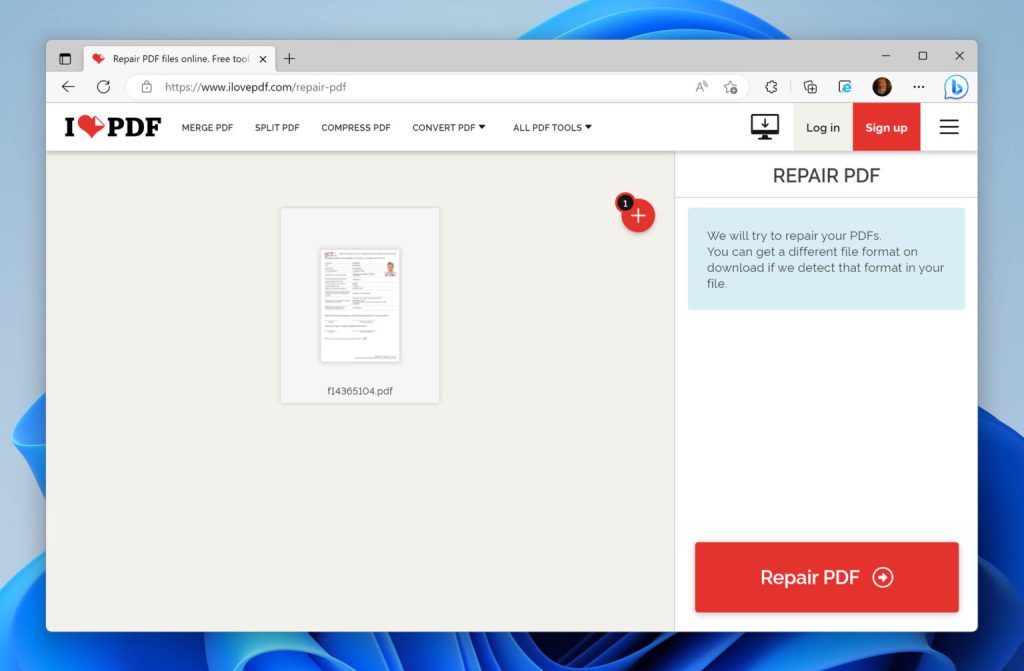
Step 4: Use a Desktop PDF Repair Tool
If online tools fail, desktop software often has more power. Programs like PDF Repair Kit or Wondershare Repairit can handle severe corruption. Install, select your tax PDF, run repair, and save the output. Some tools offer a free trial that just shows a preview—if that works, you can decide to buy. For a fast option that doesn’t require installation, see our quick PDF repair guide.
Step 5: Recover from Email Attachment
Did you originally receive the tax PDF via email? Check your sent or inbox for the original attachment. Gmail, Outlook, and Yahoo keep attachments even if the email body gets corrupted. Download it again—often a fresh copy works. If you can’t find it, your email provider may have a restore feature. For help with email attachments specifically, see our article on how to fix PDF attachment from email.
Common Pitfalls
- Using untrusted online services: Uploading tax PDFs to shady sites risks data theft. Stick to reputable services with clear privacy policies.
- Overwriting the original file: Always save the repaired version as a new file. If the repair goes wrong, you’ll still have the original to try another method.
- Ignoring file extension issues: Sometimes corrupted files have the wrong extension (e.g., .pdf.exe). Show file extensions in Explorer and rename to .pdf if needed.
Where to Next
Got your tax PDF back? Great. If you ever encounter similar issues with other files, check out our guides on how to fix corrupted PDF, recover PDF after virus, or fix startxref PDF error. And remember: always keep backups of important tax documents—that way you’ll rarely need these recovery tips.




