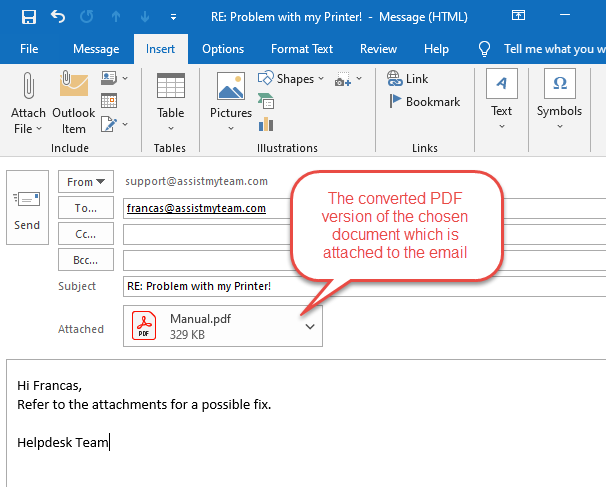
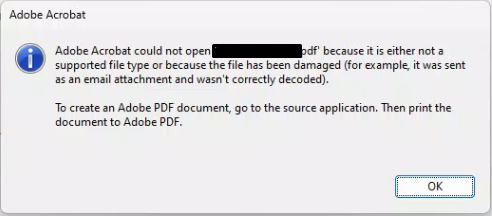
You open an important email, see a PDF attachment, click it, and… nothing. Or you get an error message like ‘The file is damaged and could not be repaired.’ Frustrating, right? This guide is for anyone who’s ever received a PDF attachment that just won’t open — whether it’s a contract, invoice, or report. By the end, you’ll have a working PDF you can open, save, and share.
We’ll cover three proven methods to fix a PDF attachment from email: downloading it properly, using an online repair tool, and advanced tricks with free software. You don’t need to be tech-savvy — just follow the steps in order. Most fixes take under five minutes.
What You’ll Need
- The email with the PDF attachment
- A computer (Windows, Mac, or Linux) or a smartphone
- Internet connection (for online repair tools)
- A PDF viewer like Adobe Acrobat Reader or your browser
- Optional: free PDF repair software (we’ll point you to options)
Step 1: Download the Attachment Correctly
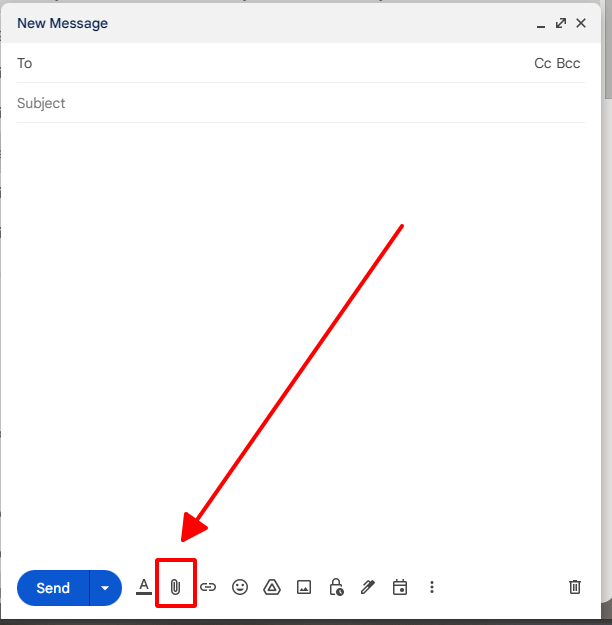
Often the problem is that the PDF didn’t download fully or got corrupted during download. Always save the attachment to your computer first — never try to open it directly from your email client. Click the download icon (usually a downward arrow) and save the file to your desktop or a dedicated folder. Then close the email and try opening the saved file.
Step 2: Try an Online PDF Repair Tool
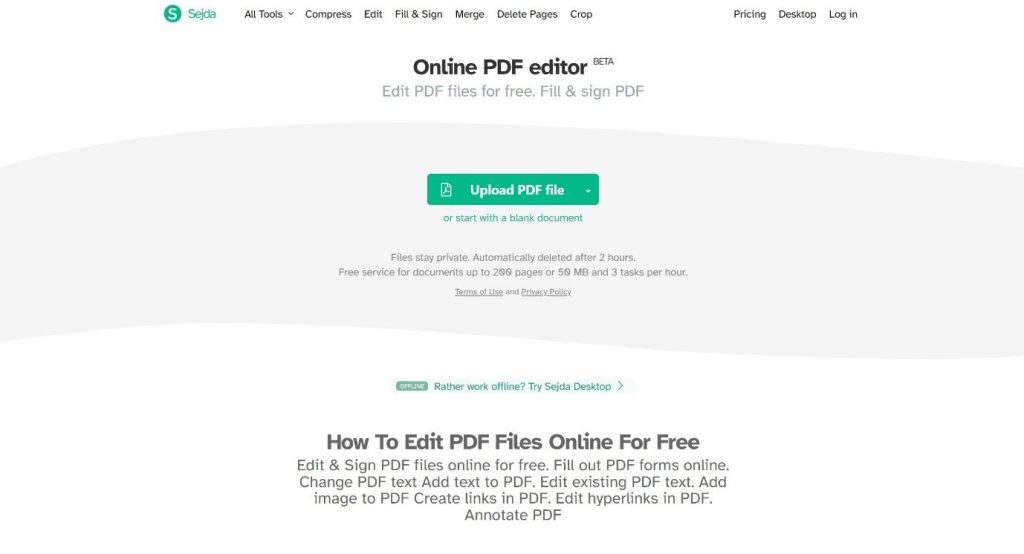
If the file still won’t open, it’s likely corrupt. Use a free online PDF repair service. These tools can fix common corruption issues without installing anything. Upload your file, let the tool process it, then download the repaired version. For a reliable option, check out our guide to online pdf recovery service if you need a no-signup solution.
After repair, try opening the PDF again. If it works, you’re done! If not, move to the next step.
Step 3: Re-save the PDF with a Different Viewer
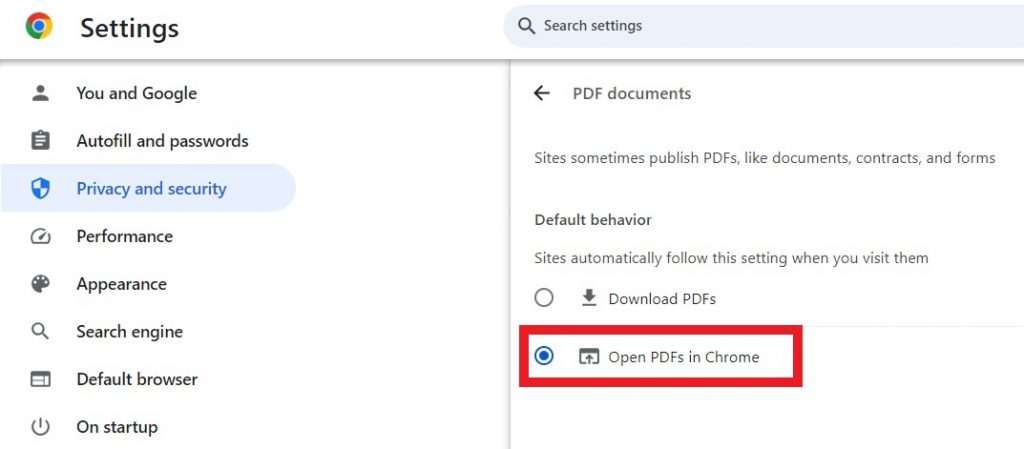
Sometimes the PDF is fine but your viewer is having a bad day. Try opening the PDF in a different program. For example, right-click the file and choose ‘Open with’ then select your web browser (Chrome, Firefox, Edge). Browsers are surprisingly good at rendering PDFs. If it opens, you can then print to PDF (File > Print > Save as PDF) to create a fresh copy. This effectively re-encodes the file and often eliminates small glitches.
Step 4: Use a Desktop PDF Repair Tool (If Still Not Working)
For stubborn files, you need dedicated software. Free tools like PDFtk (command-line) or the built-in ‘Repair’ option in Adobe Acrobat Pro (paid) can work wonders. If you’re comfortable with code, you can also repair pdf using python to automate the fix. For most people, I recommend a simple tool like ‘Repair PDF’ (search online). Download, install, open your PDF, and click repair.
Step 5: Still Broken? Try Recovering from the Email Server
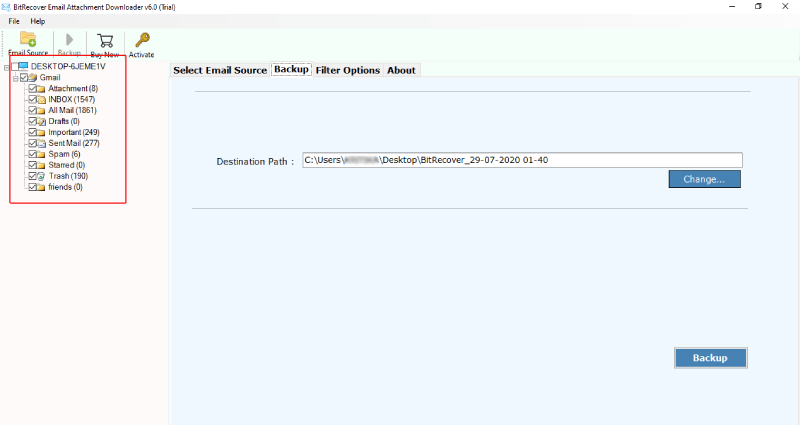
If all else fails, the original file on the email server might be fine. Log into your email account via a web browser (Gmail, Outlook.com, etc.), download the attachment again, and save it with a new name. Sometimes the email client on your phone or desktop corrupts the file during download. Also, ask the sender to re-attach the PDF and resend it — occasionally the file was already corrupt before they sent it. See our guide on how to fix pdf from google drive for similar recovery scenarios.
Common Pitfalls
Three things that often go wrong:
- Trying to open the PDF directly from the email client without downloading. Always save locally first.
- Using a corrupted download due to slow internet — check file size against the original. If it’s smaller, download again.
- Ignoring the file extension. Sometimes email attachments are renamed or lose the .pdf extension. If you see a file named ‘attachment.pdf’ that still doesn’t open, try renaming it to ‘attachment.pdf’ (if it’s something else).
Where to Next?
Now that you’ve fixed your PDF attachment, you might want to explore other common issues. If your PDF is still acting up, learn how to fix corrupted pdf in a more systematic way. For batch jobs, check out how to fix multiple pdf files at once. And if bookmarks are missing, our fix pdf bookmarks guide can help. Happy repairing!




