If you’ve ever had a PDF that refuses to open, shows garbled text, or throws errors, you know the frustration. Maybe the file was corrupted during download, a crash, or a virus. Instead of relying on online tools that may compromise privacy, you can fix it yourself with Python. This tutorial is for anyone comfortable with basic Python scripting who wants to take control of their PDF repair process.
By the end, you’ll have a working Python script that can detect corrupt PDFs, attempt to repair the internal structure, extract recoverable text, and even regenerate a clean PDF. We’ll use lightweight libraries like pypdf and PyMuPDF—no heavy installations. Let’s dive in.
What You’ll Need
- Python 3.7 or later installed on your system (get it from python.org)
- A corrupted PDF file to test with (make a backup!)
- Terminal or command prompt access
- Basic knowledge of Python – installing packages and running scripts
- An IDE or text editor (VS Code, PyCharm, or even Notepad works)
Step 1: Install Required Libraries
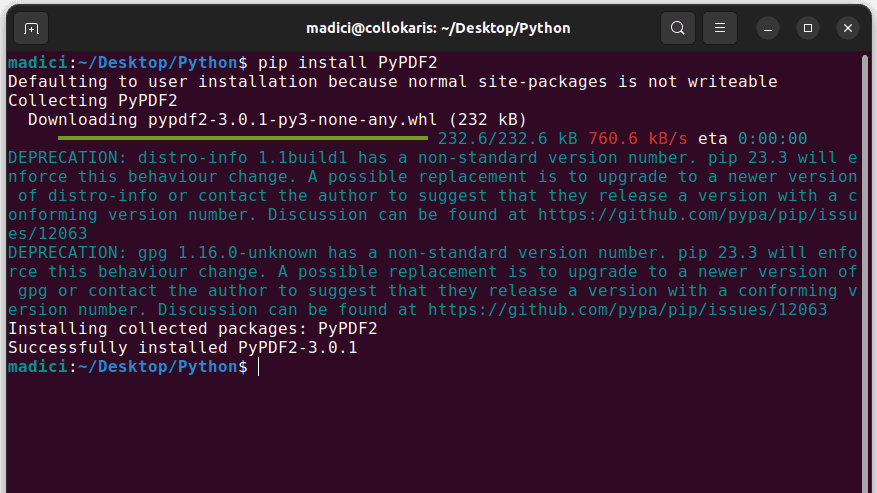
Open your terminal and run the following command to install the two main libraries we’ll use: pypdf (for reading/writing PDFs) and PyMuPDF (for robust parsing and text extraction).
pip install pypdf PyMuPDF
If you prefer a lighter option, you can also install pdfminer.six (though we’ll stick with the first two). The pypdf library handles basic repair like rebuilding the cross-reference table, while PyMuPDF (fitz) can salvage content from even badly damaged files.
Step 2: Try to Open the PDF with pypdf
Create a new Python script (e.g., repair_pdf.py) and add the following code. It attempts to open the corrupted file and report any errors.
from pypdf import PdfReader
try:
reader = PdfReader('corrupted.pdf')
print('PDF loaded successfully.')
print(f'Number of pages: {len(reader.pages)}')
except Exception as e:
print(f'Failed to open PDF: {e}')
Run the script. If you get an error like ‘Cannot find xref table’, the file’s internal reference table is broken. That’s a common issue that pypdf can sometimes rebuild.
Step 3: Force Repair with pypdf
pypdf can attempt to fix a damaged cross-reference table using the strict parameter. Change your script to read the file with strict=False:
from pypdf import PdfReader
reader = PdfReader('corrupted.pdf', strict=False)
print('Loaded with strict=False')
print(f'Pages: {len(reader.pages)}')
If this succeeds, you can then write a new clean PDF using PdfWriter:
from pypdf import PdfWriter
writer = PdfWriter()
for page in reader.pages:
writer.add_page(page)
with open('repaired.pdf', 'wb') as f:
writer.write(f)
print('Written repaired.pdf')
This process often works for simple corruption. For more stubborn files, proceed to the next step.
Step 4: Extract Text and Rebuild with PyMuPDF
PyMuPDF (imported as fitz) is excellent at extracting text even from damaged PDFs. If pypdf failed, try this approach:
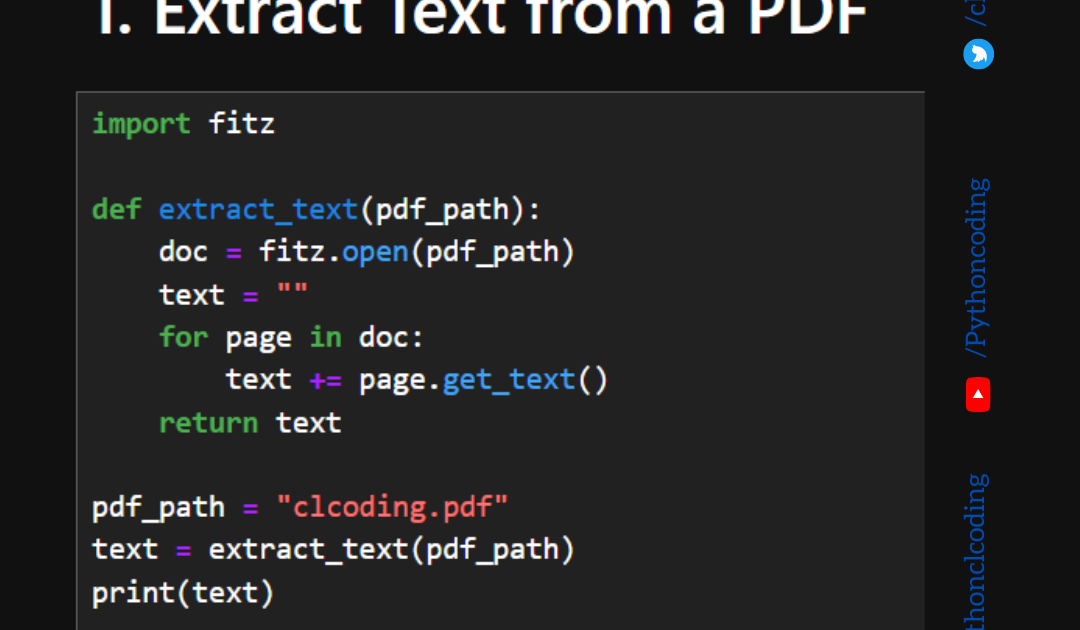
import fitz
doc = fitz.open('corrupted.pdf')
print(f'Pages: {doc.page_count}')
new_doc = fitz.open() # empty document
for page_num in range(doc.page_count):
page = doc[page_num]
new_page = new_doc.new_page(width=page.rect.width, height=page.rect.height)
new_page.insert_text((72, 72), page.get_text())
new_doc.save('repaired_pymupdf.pdf')
new_doc.close()
doc.close()
This creates a brand new PDF containing only the recoverable text. Formatting and images may be lost, but the content is saved.

Step 5: Automate the Process with a Function
Wrap everything into a reusable function that tries pypdf first, then falls back to PyMuPDF:
def repair_pdf(input_path, output_path):

    from pypdf import PdfReader, PdfWriter

    import fitz
# Try pypdf repair
try:
reader = PdfReader(input_path, strict=False)
writer = PdfWriter()
for page in reader.pages:
writer.add_page(page)
with open(output_path, 'wb') as f:
writer.write(f)
print('Repaired with pypdf')
return
except:
pass
# Fallback to PyMuPDF text extraction
try:
doc = fitz.open(input_path)
new_doc = fitz.open()
for page in doc:
new_page = new_doc.new_page(width=page.rect.width, height=page.rect.height)
new_page.insert_text((72, 72), page.get_text())
new_doc.save(output_path)
print('Repaired with PyMuPDF (text only)')
except Exception as e:
print(f'Repair failed: {e}')
repair_pdf('corrupted.pdf', 'fixed.pdf')
This script covers most scenarios. Test it on multiple corrupted files to see how robust it is.
Common Pitfalls
- **Missing dependencies** – If you forget to install pypdf or PyMuPDF, the script will throw ImportError. Always run pip install in a virtual environment.
- **Output file not opening** – The repaired PDF might still be broken if the corruption is severe. Try the quick pdf repair methods online, but our Python script works in most cases.
- **Text extraction loses images** – PyMuPDF’s get_text() only retrieves text. If you need images, consider using pdfminer.six or OCR. For a complete pdf corruption fix, combine multiple tools.
Where to Next
You’ve now built a Python PDF repair tool. To go further, explore advanced recovery techniques like parsing raw PDF streams or using online services for a quick fix – check out our guide to repair pdf instantly. You can also learn how to handle bulk repairs with batch processing. Happy coding!




