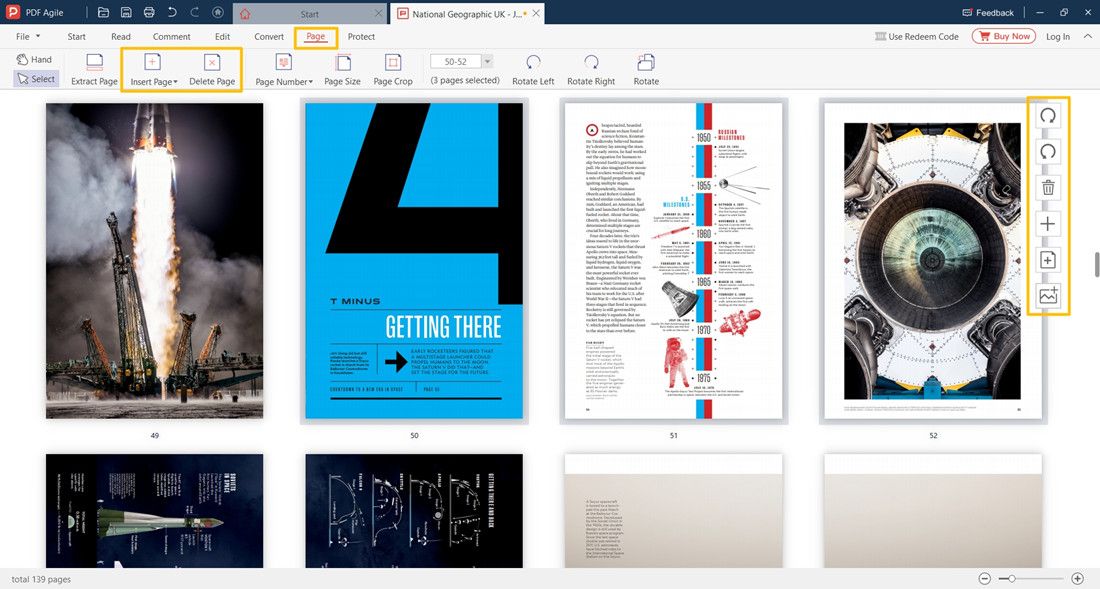
Ever opened a PDF only to find that image pages are blank, pixelated, or missing altogether? Maybe you scanned a document and the images came out garbled, or a PDF you downloaded from email shows broken picture icons. This guide is for anyone who needs to get those image pages back to normal. By the end, you’ll be able to extract corrupted images, recompress blurry ones, or convert scanned image-only pages into searchable text using free tools.
We’ll keep things simple and practical. No expensive software or coding required. Whether your PDF has a few bad image pages or a whole batch of scanned documents gone wrong, these steps will help. You’ll learn how to use a pdf repair service for quick fixes, and manual methods for more control.
What You’ll Need
- A computer with internet access
- The broken PDF file (make a backup!)
- Free tools: Adobe Acrobat Reader, GIMP (or any image editor), and a PDF extractor like PDF24 or Smallpdf (online)
- Optional: an ocr pdf repair tool if you need text from scanned images
Step 1: Identify the Problem – Extract the Image Pages
First, figure out exactly which image pages are broken. Open your PDF and scroll through. If the image is missing, you might see a placeholder icon. If it’s blurry or distorted, note the page numbers. The easiest way to work with image pages is to extract them from the PDF so you can edit them individually.
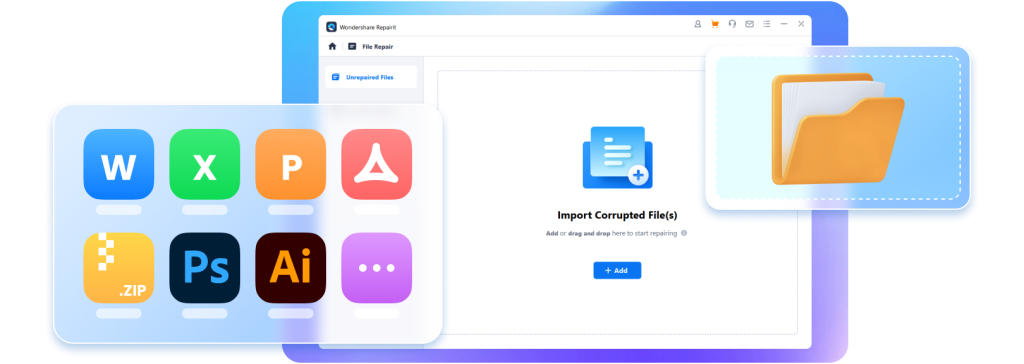
Use a free online PDF extractor like PDF24 or Smallpdf. Upload your PDF, choose ‘Extract Images’ or ‘Extract Pages’ depending on the tool. Save the extracted images as PNG or JPEG. If the tool fails, try a desktop app like GIMP (File > Open) which can open PDF pages as images directly.
Step 2: Repair or Replace the Extracted Images
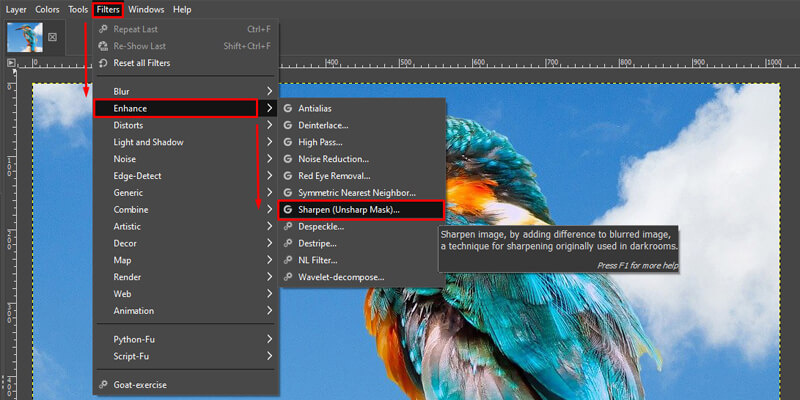
Now that you have the image files, open them in GIMP (free) or any image editor. If the image is blurry, try sharpening: Filters > Enhance > Sharpen. If it’s corrupted (pixelated bands), try re-saving the image as a new PNG – sometimes re-encoding fixes corruption. For missing images, you’ll need to recreate them from original sources or replace them with blank placeholders.
If you have a clean copy of the image (e.g., rescan the document), swap it in. Otherwise, you can insert a simple ‘Image Unavailable’ placeholder so the PDF layout isn’t broken. Save each repaired image as a high-quality PNG.
Step 3: Reinsert the Fixed Images Back into the PDF
You need to replace the old image pages with your repaired versions. Use a PDF editor like PDF24’s online ‘Edit PDF’ tool or Adobe Acrobat (free trial). In PDF24, upload your original PDF, select page, and choose ‘Replace Page’ with your new image. Make sure the image matches the page size (usually A4 or Letter).
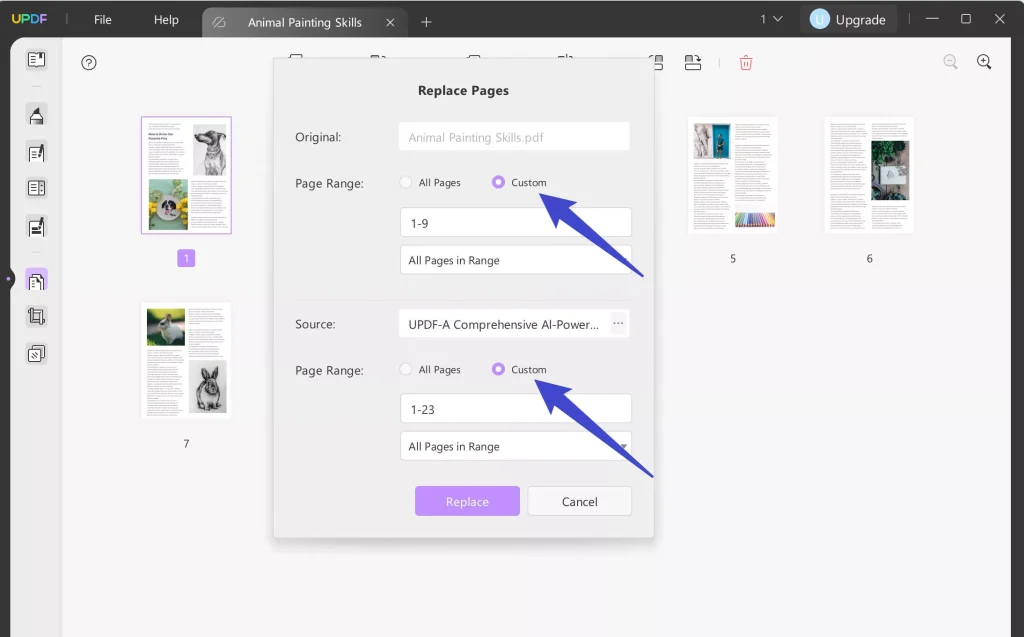
If you need to add multiple images, do them one by one. For a repair pdf created by printer issue where pages come out as all images, this method works perfectly. Save the repaired PDF and check every page.
Step 4: Convert Scanned Image Pages to Text (Optional)
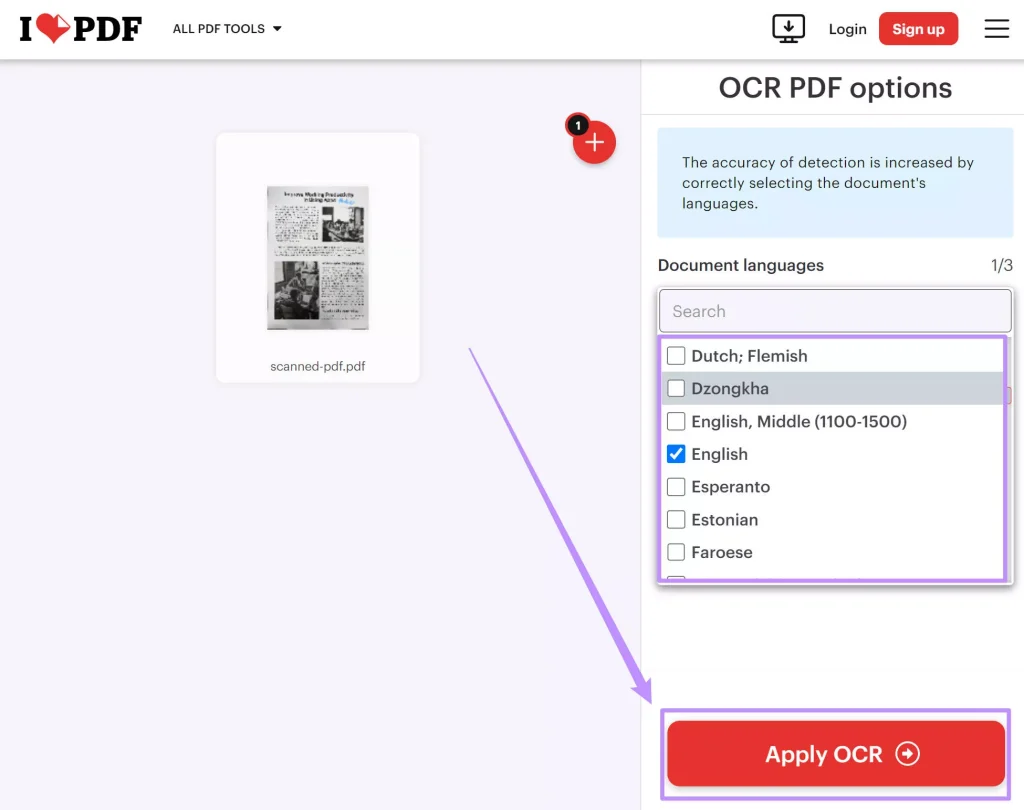
If your PDF is a scan of a document and you want searchable text, use an OCR tool. Many web based pdf repair services include OCR. Upload your PDF to a site like iLovePDF or onlineocr.net, choose ‘Convert to Word’ or ‘Searchable PDF’. This will create a layer of text over the image. For accuracy, make sure the original scan is clear.
Common Pitfalls
- Skipping backups: Always work on a copy of your PDF. One wrong edit can ruin the whole file. If you need to fix pdf printing error later, you’ll want the original.
- Assuming online tools don’t save your data: For sensitive docs, use offline tools like GIMP or desktop PDF editors. A pdf repair service online might store your file temporarily.
- Overlooking image resolution: If you replace an image with a low-res copy, the PDF will look bad. Use at least 300 DPI for print-quality pages.
Where to Next
Now you know how to fix PDF image pages. Try these steps on your broken PDF. If images still won’t display, the PDF structure itself might be damaged. Check out our guides on ocr pdf repair and web based pdf repair for deeper fixes. For printable documents, our fix pdf printing error article can help with output issues.




