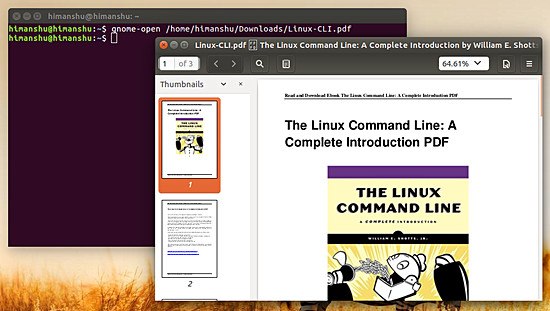
If you’ve ever opened a PDF only to see garbage text, blank pages, or an error message, you know the frustration. Maybe the file downloaded incompletely, or a transfer got corrupted. While there are GUI tools, sometimes the quickest fix is right in your terminal. This guide is for anyone comfortable with the command line and who wants to repair broken PDFs without installing heavy software. By the end, you’ll know how to use three powerful open-source tools—qpdf, pdfcpu, and Ghostscript—to salvage most corrupted PDFs.
We’ll walk through each tool step-by-step, from the gentlest repair to the nuclear option. These commands work on Linux, macOS (via Homebrew), and Windows (via WSL or native builds). No matter how your PDF got damaged—whether it’s a symptom of a bad drive or a transfer glitch—you’ll have a plan. If you prefer a more visual approach, check out our guide on fixing a damaged PDF with desktop tools.
What you’ll need
- A terminal (Command Prompt, PowerShell, or any shell)
- qpdf – install via your package manager (e.g., ‘brew install qpdf’ or ‘apt install qpdf’)
- pdfcpu – download from pdfcpu.io or ‘go install github.com/pdfcpu/pdfcpu/cmd/pdfcpu@latest’
- Ghostscript – ‘brew install gs’ or ‘apt install ghostscript’
- Your corrupted PDF file (make a backup first!)
All three tools are free and open source. For a broader overview of similar utilities, see our open source PDF repair roundup.
Step 1: Identify the Problem
Before throwing tools at the file, see what your system already tells you. Try opening the PDF in a simple viewer or run ‘pdfinfo’ (from Poppler) to check metadata. If you get an error like ‘PDF error: xref table not found’, you know it’s a structural issue. Note the exact error—it helps choose the right repair strategy. For tips on repairing PDFs with Poppler, we have a dedicated guide.
Step 2: Try qpdf –linearize
qpdf is your first-aid kit. Its ‘–linearize’ option rewrites the PDF structure, often fixing cross-reference table issues. Run: ‘qpdf –linearize broken.pdf fixed.pdf’. If it succeeds, you’re done. If it fails with ‘unable to find xref’, try ‘qpdf –repair broken.pdf fixed.pdf’ instead. qpdf can also recover objects that are out of order. This method works great for minor corruption, like when you’re trying to repair a PDF that came from OneDrive and got slightly mangled.
Step 3: Use pdfcpu repair
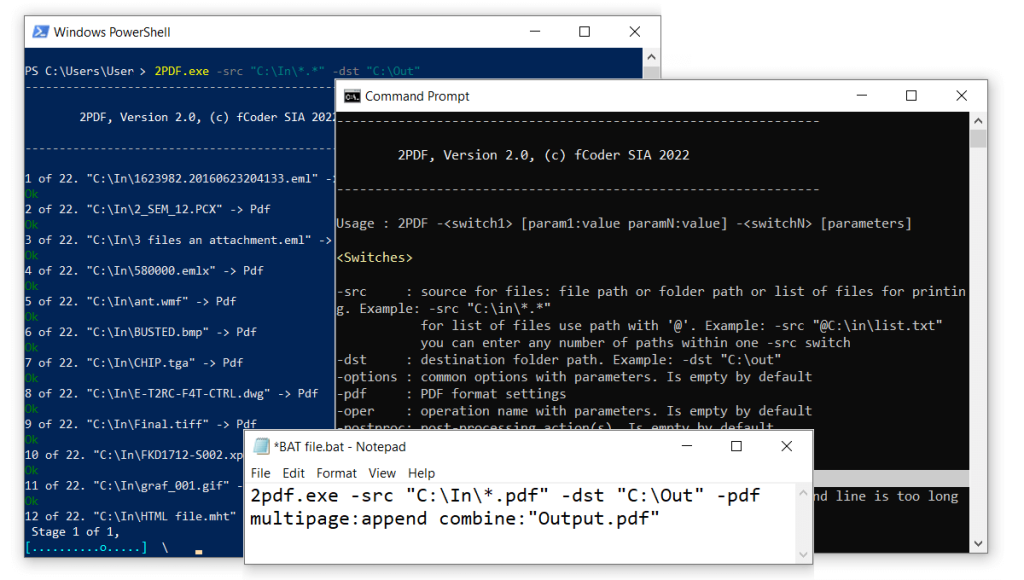
If qpdf can’t fix it, pdfcpu is your next bet. pdfcpu is a Go-based tool that can validate, optimize, and repair PDFs. Run: ‘pdfcpu repair broken.pdf’. It’ll overwrite the file with a repaired version. pdfcpu is especially good at fixing broken page trees and dangling references. It also has a ‘sanitize’ command if you need to strip problematic elements. When dealing with severe corruption, like fixing PDF error 109, pdfcpu often succeeds where other tools fail.
Step 4: Ghostscript for Severe Damage
For the worst cases—where the PDF is almost unreadable—Ghostscript can reinterpret the content stream. Use: ‘gs -dNOPAUSE -dBATCH -sDEVICE=pdfwrite -sOUTPUTFILE=fixed.pdf -dPDFSETTINGS=/prepress broken.pdf’. This essentially renders the PDF into a clean new one. Ghostscript can also downscale images or flatten transparency. Be warned: the output may lose some interactive elements like forms. But for content, it’s a lifesaver. This is the tool we recommend when repairing PDFs with Poppler alone doesn’t cut it.
Step 5: Verify the Repaired PDF
Always check the result. Open the repaired file in multiple viewers—Acrobat, a browser, and a simple PDF reader. Run ‘pdfinfo’ on it to see if metadata is intact. Browse through pages to ensure no content is missing. If you still see issues, try a combination: run qpdf first, then Ghostscript. Sometimes you need to run pdfcpu’s ‘validate’ command afterwards. For a more thorough workflow, our open source PDF repair article covers multiple tools in sequence.
Common pitfalls
- **Not making a backup** – Always keep the original broken file. If a repair makes things worse, you can start over.
- **Overwriting the original** – Many tools modify the file in place. Use a different output filename until you’re confident.
- **Ignoring security settings** – Encrypted PDFs need the password before repair. Tools like qpdf require ‘–password=’ flag.
Where to next
You’ve successfully repaired a PDF from the command line! If you still have issues, consider whether the file came from a specific source—like a cloud sync problem. Check our guide on repairing PDFs with Poppler for another lightweight option. For more stubborn cases, our open source PDF repair list has advanced techniques. And if you’re dealing with a specific error code, our fixing PDF error 109 article might help. Finally, if your PDF originated from a cloud service, see how to repair a PDF that came from OneDrive.




