You’ve got a PDF sitting in your OneDrive that just won’t open properly. Maybe it’s blank, shows garbage characters, or throws an error. This is super common — cloud sync glitches, interrupted uploads, and file corruption happen to the best of us. This guide is for anyone who needs to get that PDF working again without hiring a specialist.
By the end of these steps, you’ll have a repaired PDF that opens correctly in your viewer. We’ll start with the easiest fix (re-downloading), then move to free online tools, Adobe Acrobat, and even a command-line option. No tech wizardry required — just follow along.
What You’ll Need
- Your corrupted PDF file from OneDrive (keep the original, don’t delete it)
- A computer with internet access
- Optional: Adobe Acrobat Reader or Pro installed
- Optional: A free account on an online PDF repair service
- Optional: Command-line tools like pdftk or ghostscript (if you’re adventurous)
Step 1: Re-download the PDF from OneDrive
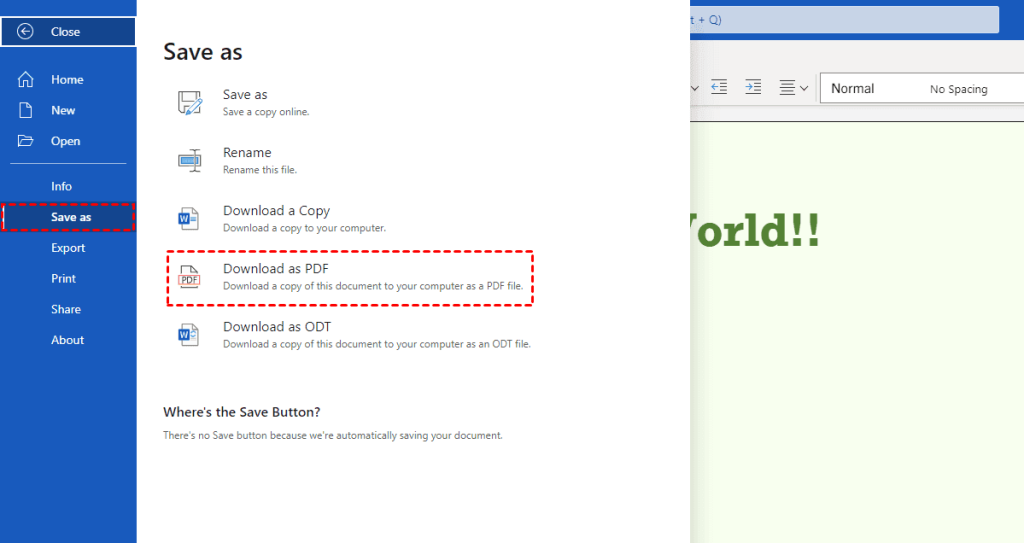
Sometimes the file got corrupted during the initial download. Go back to OneDrive in your browser, right-click the PDF, and choose “Download.” If you’re using the OneDrive desktop app, sync the file again. This quick action fixes many minor glitches.
Once downloaded, try opening the new copy. If it works, awesome — you’re done. If not, move on to the next step. This tip is similar to how you might repair pdf from email when that attachment gets garbled.
Step 2: Use a Free Online PDF Repair Tool
Online tools can fix many corruption issues without installing software. Websites like PDF24, iLovePDF, or Smallpdf have repair features. Upload your file, let the tool process it, then download the repaired version. These services are fast and work on most common errors.
If the online tool fails, don’t worry — you still have options. For more stubborn cases, try a dedicated pdf repair service that can handle complex corruption.
Step 3: Use Adobe Acrobat’s Built-In Repair
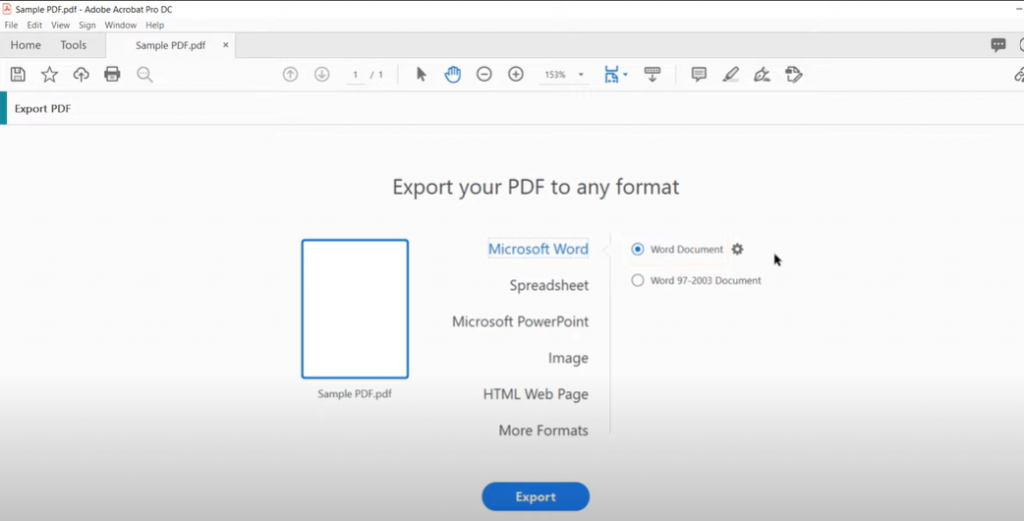
Adobe Acrobat (Reader or Pro) has a hidden repair function. Open the file — if it doesn’t open, go to File > Open and select the PDF. Acrobat will detect corruption and offer to repair it automatically. You can also use the “Save As” trick: open the PDF, click File > Save As Other > Optimized PDF, then save a new copy. This often rebuilds the internal structure.
If Acrobat can’t fix it, the PDF may have deeper damage. Try the next step. Knowing how to fix damaged pdf with these tools is a handy skill.
Step 4: Repair Using Command-Line Tools (Advanced)
For tech-savvy users, command-line tools like pdftk and ghostscript can work miracles. Here’s a quick method:
- Install pdftk (or use a portable version).
- Open a terminal/command prompt in the folder with your PDF.
- Run: pdftk corrupted.pdf output repaired.pdf
- Or use ghostscript: gs -o repaired.pdf -sDEVICE=pdfwrite -dPDFSETTINGS=/prepress corrupted.pdf
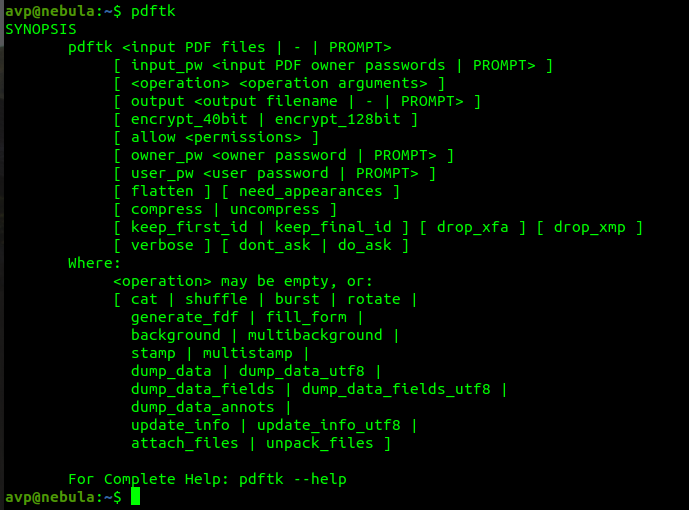
This rebuilds the PDF structure and often resolves corruption. If you prefer a graphical interface, consider open source pdf repair tools like PDF Chain (a pdftk GUI).
Step 5: Verify the Repaired PDF
Open the repaired PDF in a couple of different viewers (Edge, Chrome, Adobe Acrobat) to make sure it displays properly. Scroll through all pages, check for missing images or text. If you see issues with images, you might need to fix pdf image pages separately.
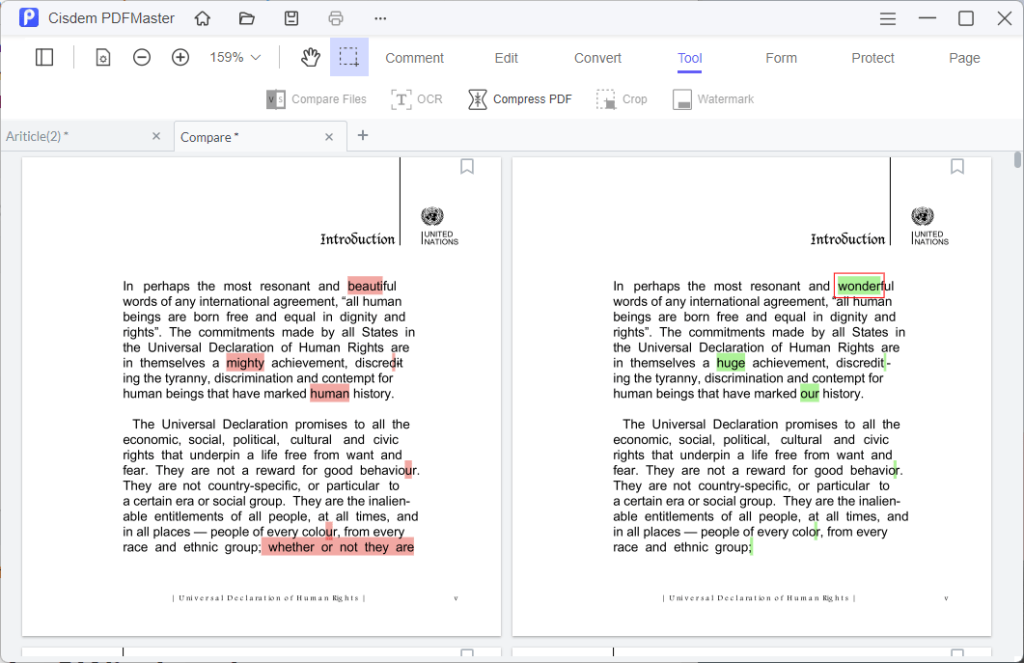
If everything looks good, you’re all set! Save the repaired file back to OneDrive with a new name so you don’t lose the original.
Common Pitfalls
- Not downloading the file completely: Large PDFs can time out. Make sure your download finishes before trying to open it.
- Using a tool that damages the file further: Some sketchy online repair sites might add malware. Stick to reputable ones like those mentioned.
- Overwriting the original: Always work on a copy. If the repair goes wrong, you still have the original to try another method.
Where to Next
Congratulations — you’ve successfully repaired your PDF from OneDrive! If you run into similar trouble with other file sources, check out our guide on repair pdf from email for attachments. Or if you deal with corrupted files often, our article on pdf repair service can save you time. Happy repairing!




