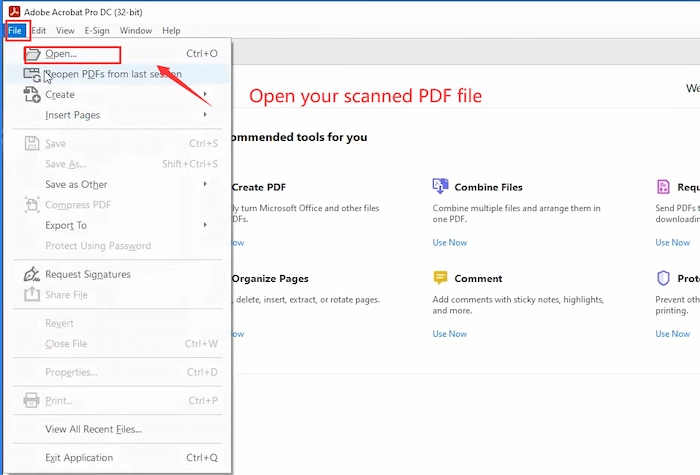
Got a scanned PDF that’s blurry, skewed, or doesn’t let you copy text? I’ve been there. Scanned PDFs are just images trapped inside a PDF wrapper, so they can be a pain to work with. This guide is for anyone who needs to turn a messy scanned document into a clean, searchable, and editable PDF. By the end, you’ll have a professional-looking file with selectable text—no more squinting or retyping.
We’ll cover the whole process: assessing the scan quality, cleaning up the image, running OCR (optical character recognition), and fixing common errors. I’ll also point you to related resources like how to fix damaged pdf if your file is corrupted, or how to fix pdf image pages if you’re dealing with a pure image PDF. Grab your scanned PDF and let’s get started.
What You’ll Need
- A computer with internet connection
- The scanned PDF file you want to fix
- A PDF editor (Adobe Acrobat Pro is great, but free options like Sejda or PDFescape work too)
- OCR software (I’ll show you both a free open-source tool and an online service)
- Optional: image editing software like GIMP or Photoshop for heavy cleaning
Step 1: Assess the Condition of Your Scanned PDF
Open your PDF and flip through every page. Look for common issues: blurriness, skew (crooked pages), low contrast, and dust specks. Also note if pages are out of order or missing. If your PDF is also corrupted or won’t open, check out our guide on fix damaged pdf first. For now, we’ll assume it opens but looks rough.
Step 2: Clean Up the Image Quality
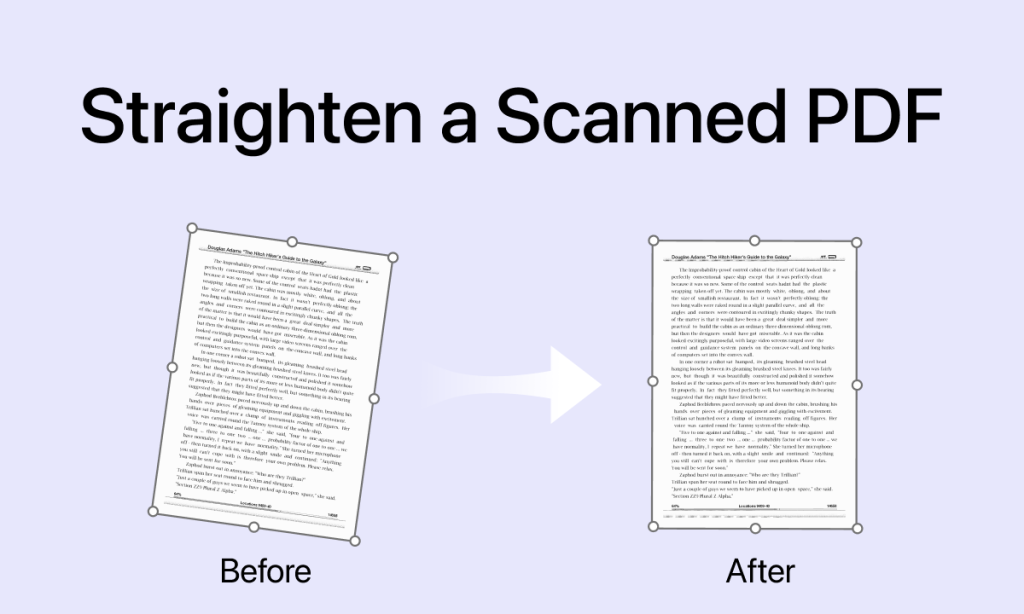
Good OCR starts with a clean image. If your scanned PDF is a bit blurry or low-contrast, use an image editor to adjust levels, increase contrast, and straighten pages. For example, in GIMP, go to Colors > Levels and drag the sliders. If your scan came from a printer, the issue might be hardware-related—our article on repair pdf created by printer can help. Once you’re happy, export each page as a PNG or TIFF in high quality.
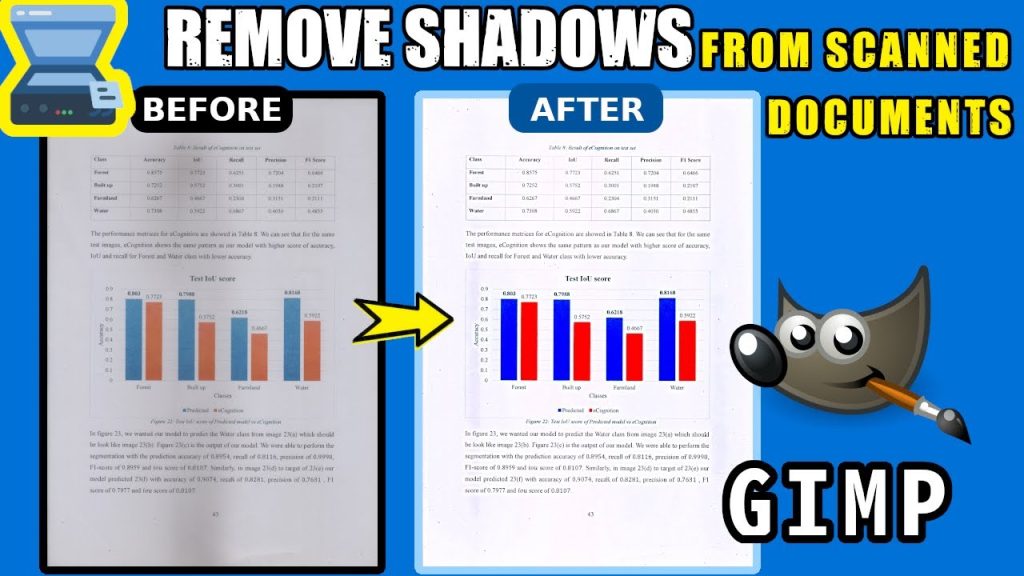
Step 3: Perform OCR to Extract Text
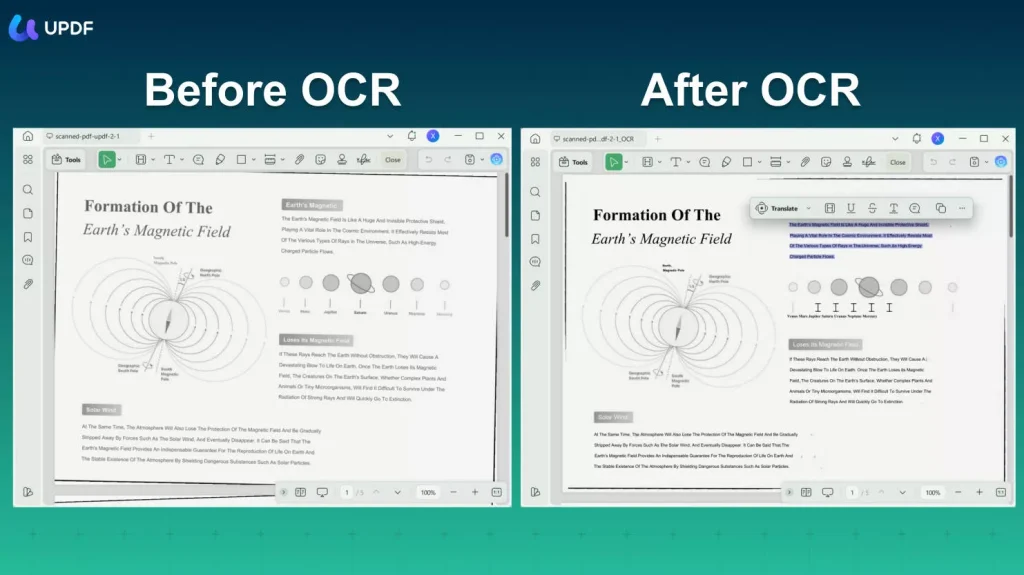
OCR software recognizes the text in each image and creates a hidden text layer. My favorite free tool is Tesseract, an open source pdf repair engine that works from the command line. Install it, then run a command like: tesseract input.png output -l eng pdf. This produces a searchable PDF. If you prefer a graphical interface, online tools like OCR.space work too. For image-based PDFs specifically, see our guide on fix pdf image pages.
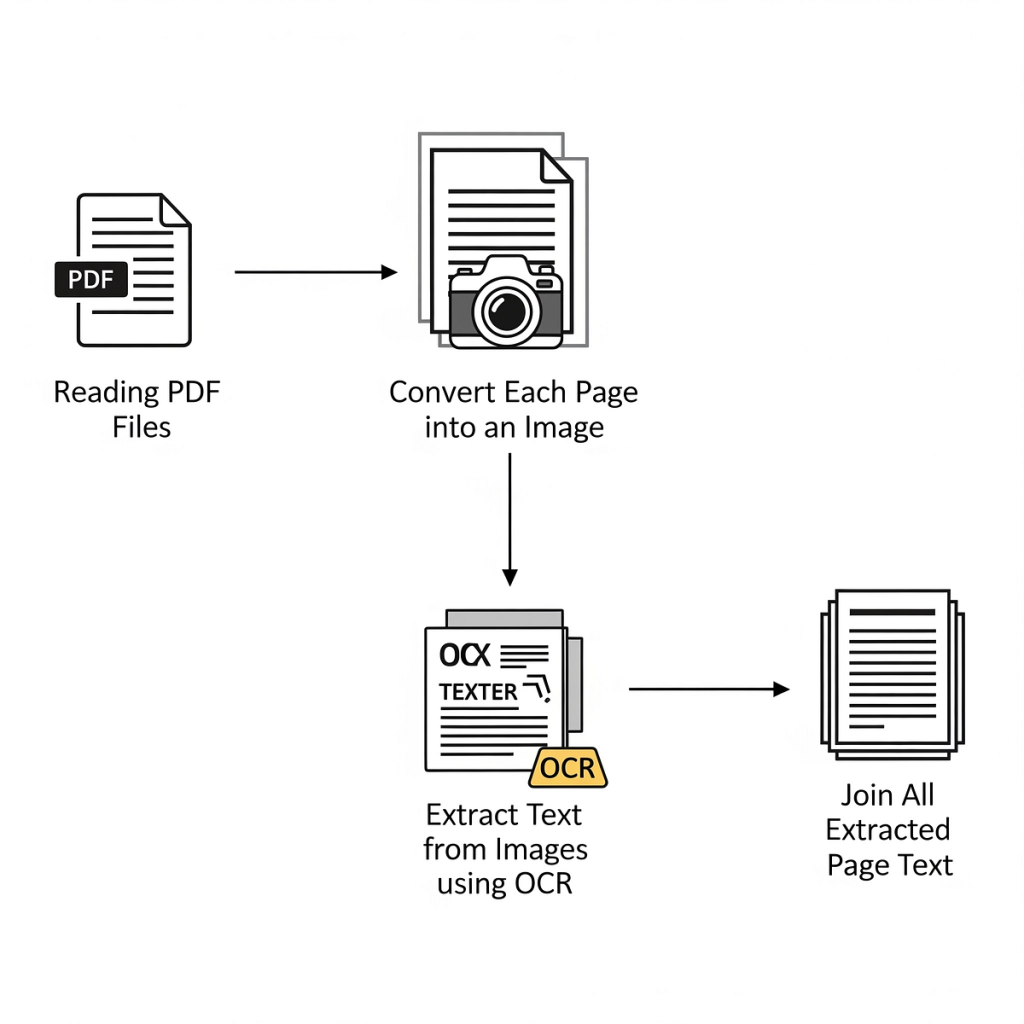
Step 4: Review and Correct OCR Errors
No OCR is perfect. Open your new PDF and check for weird characters, especially in numbers, names, and formatting. Use the search function to spot errors quickly. In most PDF editors, you can correct the hidden text layer directly. Pay extra attention to tables and columns—they often get jumbled. If the scan was too low-res, you might need to retake it at 300 DPI.
Step 5: Save as Searchable PDF
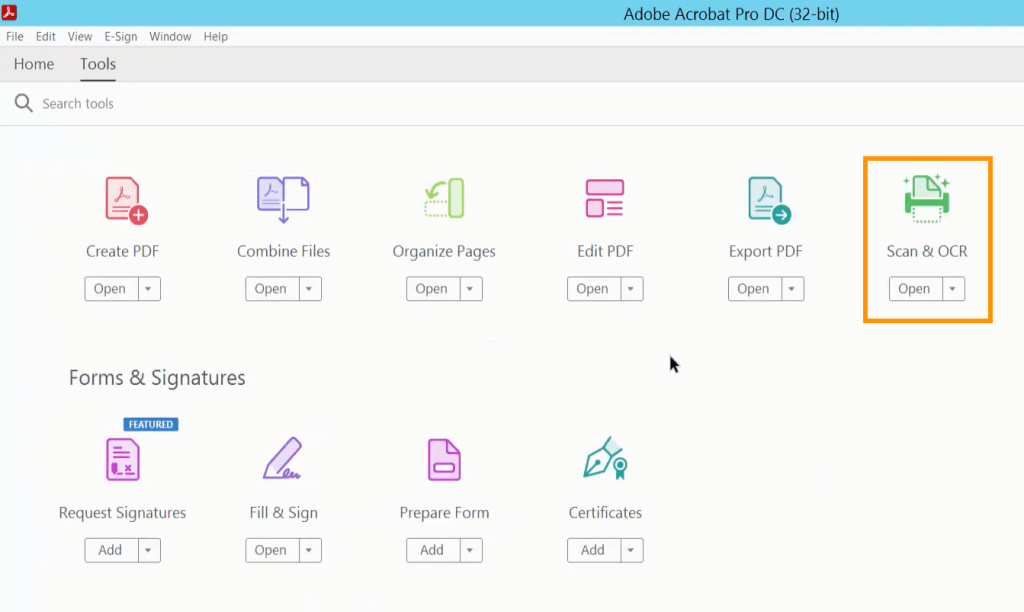
Once you’ve corrected the OCR errors, save the document as a searchable PDF. In Adobe Acrobat Pro, choose File > Save As Other > PDF (Scanned) and make sure ‘Make PDF searchable’ is enabled. Free editors like LibreOffice can also export as PDF with a text layer. To avoid compression artifacts, use minimal compression—or if you get errors, check our guide on fix pdf compression error.
Common Pitfalls
- Skewed pages cause terrible OCR results. Always deskew your images before running OCR—most editors have an automatic deskew tool.
- Low resolution (less than 300 DPI) makes text recognition unreliable. Scan or resave your images at 300 DPI or higher.
- Over-compression artifacts (like blocky JPEG noise) confuse OCR. Always export cleaned images as PNG or TIFF, not JPEG.
Where to Next
Now you’ve got a clean, searchable PDF from your scanned mess. If you run into other PDF issues—like a file that won’t open, has download errors, or was corrupted during transfer—browse our other guides. For example, learn how to fix damaged pdf if your original file was corrupted, or explore open source pdf repair methods. Happy fixing!




