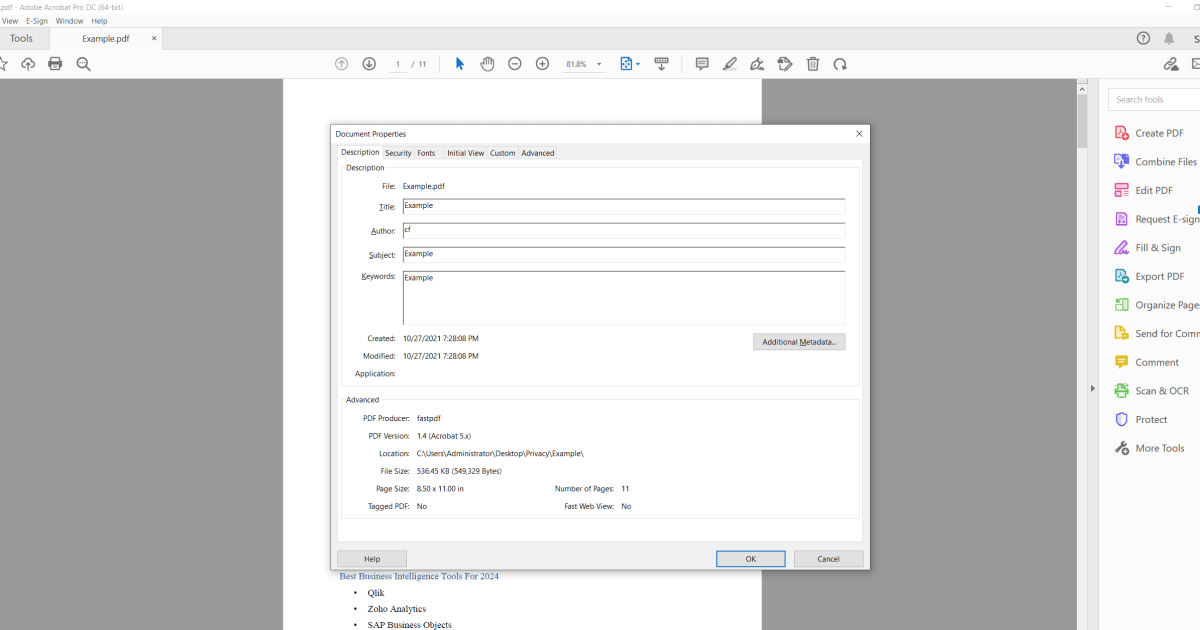
Ever opened a PDF and seen a weird title like “Draft_v2_FINAL(2)” or no author at all? That messy metadata can look unprofessional, especially when you’re sharing files with clients or colleagues. This guide is for anyone who wants to clean up PDF metadata—whether you’re a student submitting a thesis, a freelancer sending invoices, or just someone who likes tidy files. By the end, you’ll know exactly how to edit the title, author, subject, and keywords in your PDF using free tools or Adobe Acrobat.
We’ll cover three methods: using Adobe Acrobat (if you have it), using the free command-line tool exiftool, and using the free GUI tool PDFtk. Each method is broken down step by step so you can follow along even if you’re not a tech wizard. No more mystery file names—let’s get your PDF metadata looking sharp.
What You’ll Need
- A PDF file whose metadata you want to change.
- A computer (Windows, macOS, or Linux).
- Optional: Adobe Acrobat Pro or Standard (paid) – if you have it, great.
- Optional: ExifTool (free) – download from exiftool.org.
- Optional: PDFtk (free) – download from pdftk.com or use the server version.
Don’t worry if you don’t have Adobe Acrobat—exiftool and PDFtk are completely free and work on all major operating systems. I’ll include links to download each one.
Step 1: Understand What PDF Metadata Is
PDF metadata is the hidden information inside your file—things like the document title, author name, subject, and keywords. This info shows up in search results, file properties, and even in some PDF readers’ title bars. Fixing it makes your file look professional and easier to find. Common metadata fields include: Title (the visible name), Author (who created it), Subject (a short description), and Keywords (tags for search). You can also change the creation date, but most people just fix the basics.
Step 2: Fix Metadata with Adobe Acrobat
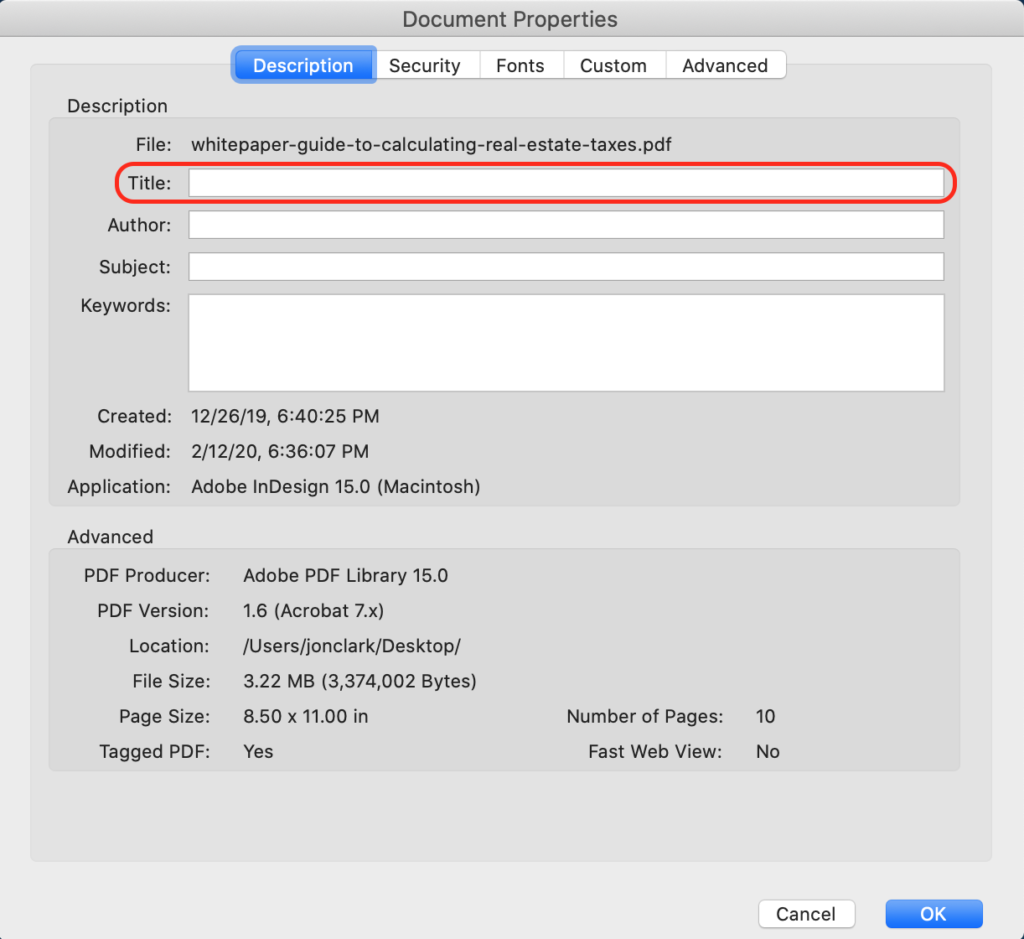
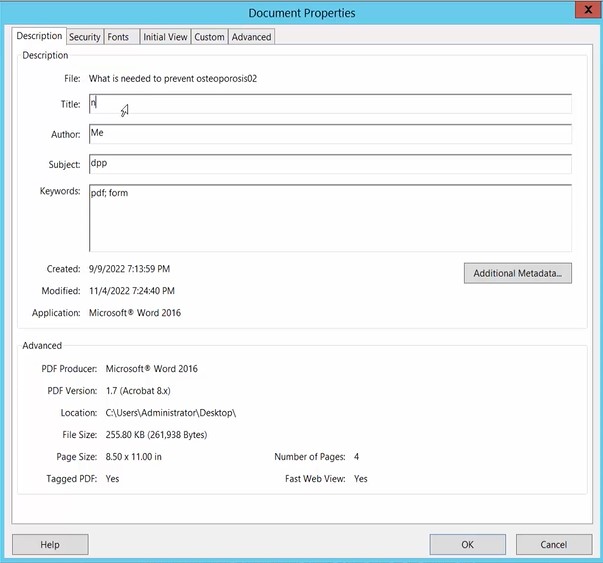
If you have Adobe Acrobat Pro or Standard, this is the easiest method. Open your PDF in Acrobat, then go to File > Properties (or press Ctrl+D / Cmd+D). A dialog box will pop up. Click the Description tab and you’ll see fields for Title, Author, Subject, and Keywords. Type your new values and click OK. Then save the file (File > Save). That’s it! The metadata is updated. Note: Acrobat Reader (free version) cannot edit metadata—you need the paid version or another tool.
Step 3: Fix Metadata with ExifTool (Free, Command Line)
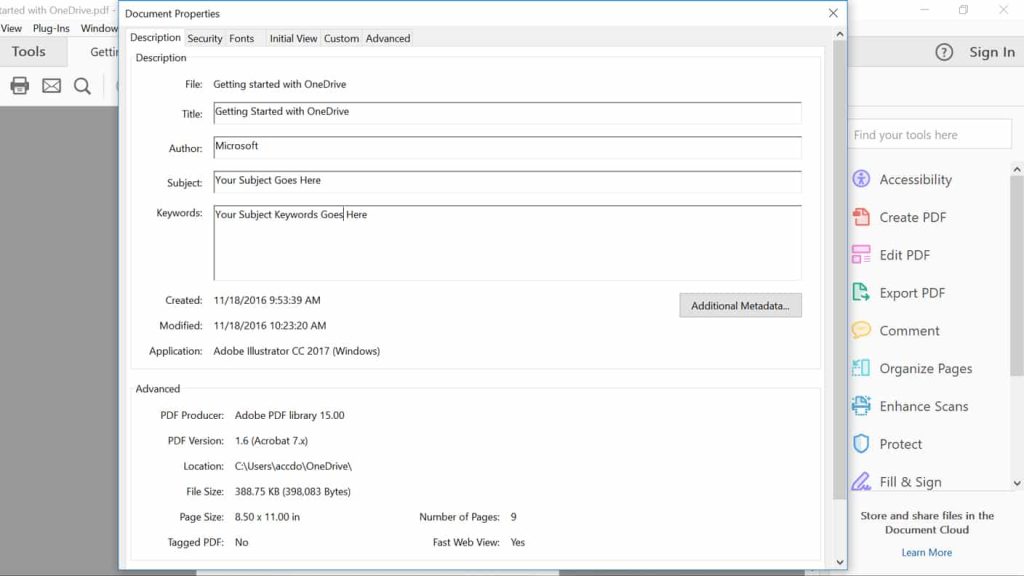
ExifTool is a powerful command-line tool that works on Windows, macOS, and Linux. First, download and install it from exiftool.org. Then open your terminal (Command Prompt on Windows, Terminal on Mac/Linux). Navigate to the folder containing your PDF. Use the following command: exiftool -Title="New Title" -Author="Your Name" -Subject="A short subject" -Keywords="keyword1, keyword2" yourfile.pdf. Replace the field values and filename as needed. Press Enter. ExifTool will create a backup of the original file (with _original appended). To overwrite without backup, add -overwrite_original after exiftool. Verify the changes with exiftool yourfile.pdf to see the updated metadata.
Step 4: Fix Metadata with PDFtk (Free, GUI or Command Line)
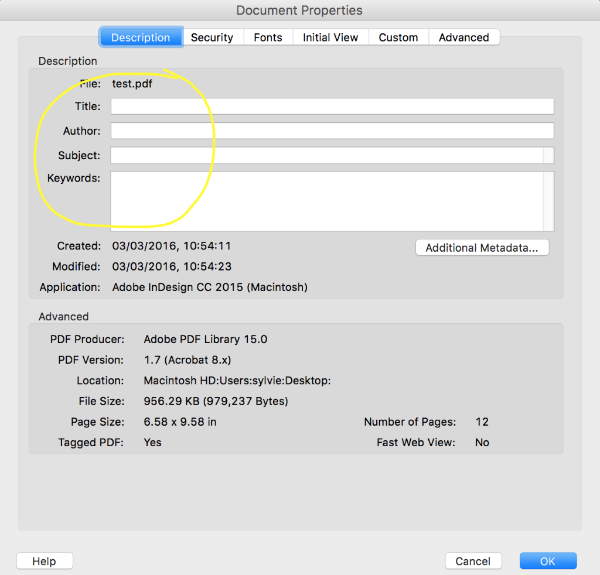
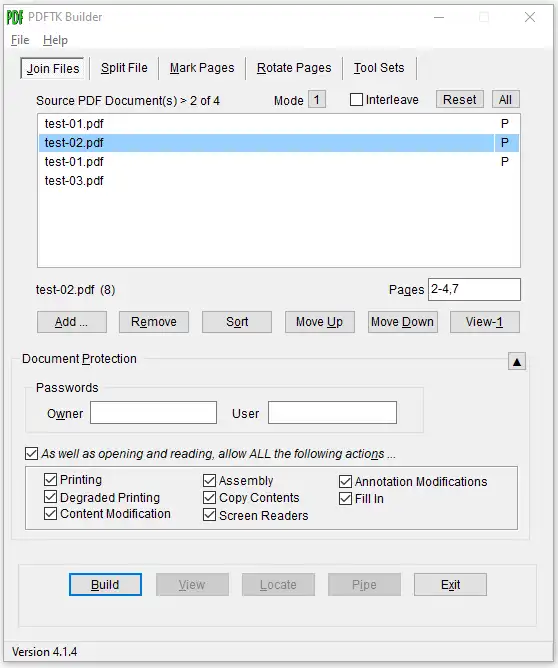
PDFtk offers both a command-line version and a simple GUI for Windows (PDFtk Builder) and Mac (PDFtk Free). Download from pdftk.com. If using the GUI: Open PDFtk Builder, click Select PDF, choose your file. Then click the Info tab. Edit the Title, Author, Subject, and Keywords fields. Click Create PDF to generate a new file with the updated metadata. If you prefer the command line (pdftk), use: pdftk input.pdf update_info info.txt output output.pdf, where info.txt is a plain text file with lines like: InfoKey: Title, InfoValue: New Title, etc. Check the PDFtk documentation for exact syntax.
Step 5: Verify the Changes
Once you’ve saved your edited PDF, open it in any PDF reader and go to File > Properties (or Document Properties). You should see your new metadata. On Windows, you can also right-click the file > Properties > Details tab to see the metadata. If it doesn’t update, double-check that you saved the file after editing. Also, some metadata fields (like creation date) might be locked—don’t worry about those unless you have a specific need.
Common Pitfalls
- Forgetting to save after editing. In Adobe Acrobat, the metadata change doesn’t stick until you save the document. In exiftool, it’s immediate, but you might forget to include the overwrite flag and end up with a backup file that’s not the one you want.
- Using the wrong tool for encrypted PDFs. If your PDF has a security password, you won’t be able to edit metadata without first removing the restrictions. Check out our guide on how to unlock a damaged PDF if you run into this.
- Corrupting the file with improper commands. Especially with command-line tools, a typo can break the PDF. Always work on a copy first. If your PDF gets corrupted, we have a guide to fix a damaged PDF.
Another thing: some free online PDF editors claim to edit metadata but often re-encode the entire file, potentially losing formatting. Stick with desktop tools or trusted web-based PDF repair services that specifically mention metadata editing.
Where to Next?
Now that your PDF’s metadata is clean, you might want to explore other fixes. If you’re dealing with a file that came from an email attachment, learn how to repair a PDF from email. Or if you’re into free tools, check out our guide on open source PDF repair for more advanced operations. Happy editing!




