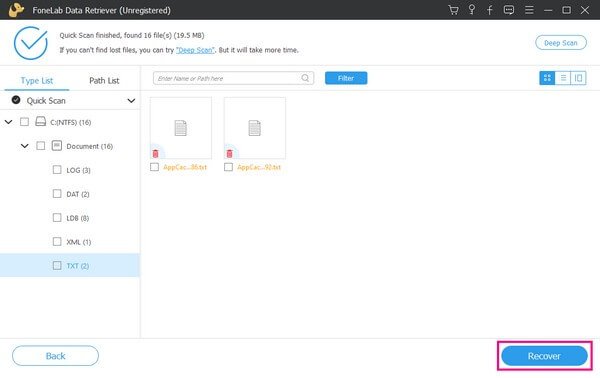
Did you accidentally delete an important PDF or lose it due to a drive crash? Don’t panic — you’ve got options. This guide is for anyone who needs to rescue a PDF from a hard drive, whether it was just a slip of the finger or a full-on disk failure. By the end, you’ll have your file back (or know exactly what to try next), and if it’s corrupted, you’ll also learn how to repair it.
We’ll walk through five steps, from the simplest (checking the Recycle Bin) to more advanced tricks like using recovery software and command-line tools. Even if your PDF is damaged after recovery, I’ll point you to resources that can fix it — including how to handle a damaged PDF or unlock a damaged PDF. Let’s get started.
What You’ll Need
- Your computer (Windows or Mac) with the hard drive containing the lost PDF
- Admin access (for installing recovery software)
- A second storage device or cloud backup (to save recovered files without overwriting data)
- Optional: data recovery software (e.g., Recuva, PhotoRec, Disk Drill)
- Optional: a USB drive to boot a live Linux environment if the drive is failing
Step 1: Check the Recycle Bin and Backups

Start with the obvious: open your Recycle Bin (or Trash on Mac). If you deleted the PDF recently, right-click it and select Restore. If it’s not there, check your backup solutions — maybe you have a copy in File History (Windows) or Time Machine (Mac). Also check cloud services like OneDrive, Google Drive, or Dropbox — sometimes files sync there even after local deletion. For tips on recovering from OneDrive, see our related guide.
Step 2: Use Data Recovery Software
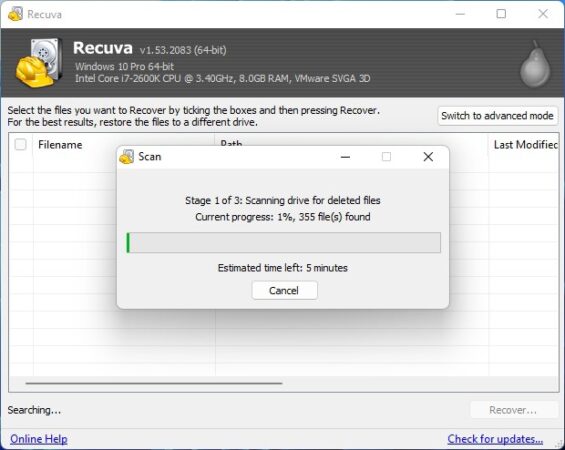
If the PDF isn’t in backups, it’s time for recovery software. Tools like Recuva (Windows, free) or Disk Drill (Mac/Windows) scan the drive for deleted files. Install the software on a different drive or partition to avoid overwriting the lost PDF. Run a deep scan if the quick scan doesn’t find it. Once found, save the recovered file to a different location — never the same drive you’re recovering from. These tools often recover files with generic names, so look for .pdf extensions or recent dates.
Step 3: Advanced Recovery with TestDisk & PhotoRec
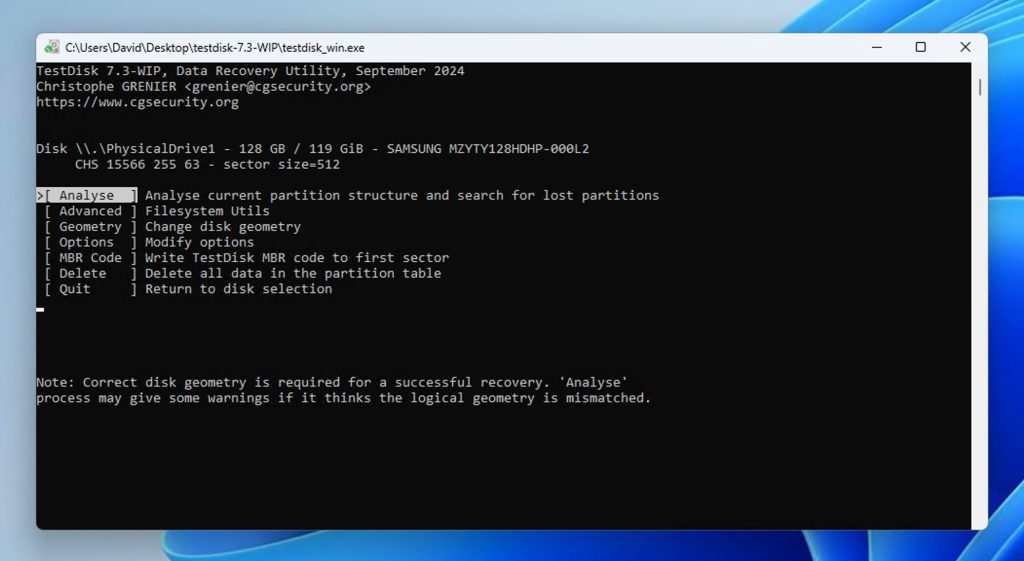
For tougher cases — like a formatted drive or damaged file system — command-line tools TestDisk and PhotoRec (both free, open-source) are powerhouses. PhotoRec recovers files by their signatures, so it can find PDFs even if the directory is gone. It doesn’t care about filenames, but it’s thorough. If you’re unfamiliar with the command line, look for a GUI wrapper like QPhotoRec. After recovery, you might have a PDF after transfer that’s incomplete — but don’t worry, we’ll fix that next.
Step 4: Repair the Recovered PDF
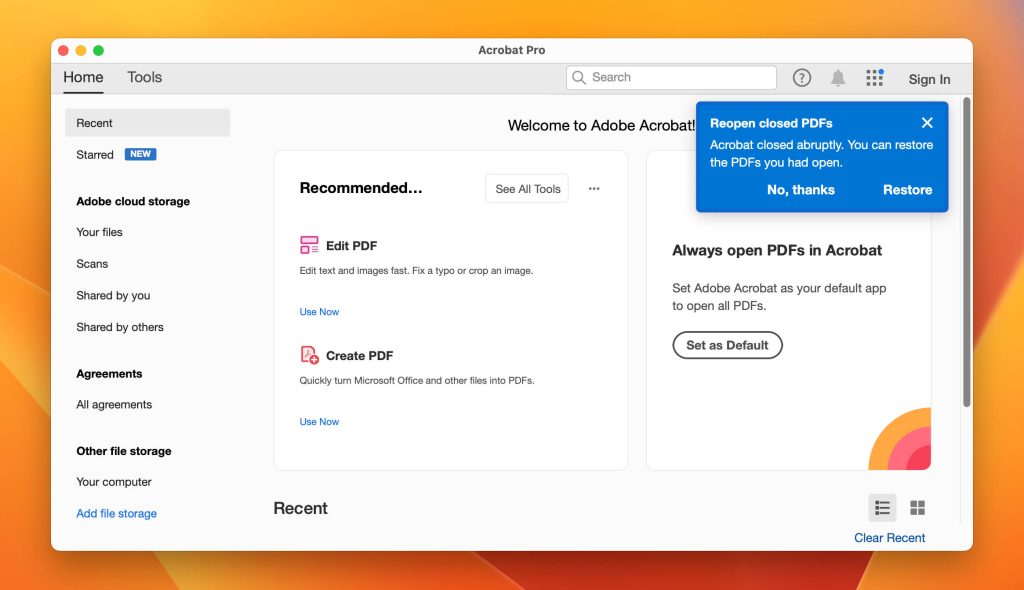
Recovered PDFs are often corrupted because the file wasn’t fully intact. Before you give up, try a repair. Adobe Acrobat Pro has a built-in repair function (File > Properties > Advanced > Repair). If you don’t have Acrobat, use online services or open source PDF repair tools like pdftk or Ghostscript. You can also use the command-line tool pdfrepair from the poppler-utils package. If the PDF is password-protected and damaged, check our guide on how to unlock a damaged PDF.
Step 5: Prevent Future Loss
Once you’ve recovered your PDF, set up a solid backup routine. Use the 3-2-1 rule: three copies of your data, on two different media, with one offsite. Cloud backups (OneDrive, Google Drive, Backblaze) are great, but also keep a local external drive. Enable File History or Time Machine. Also, consider regular health checks of your hard drive using tools like CrystalDiskInfo to catch failures early.
Common Pitfalls
- Continuing to use the drive after data loss — every write can overwrite your PDF. Stop using the drive immediately.
- Saving recovered files back to the same drive — always save to a different drive or partition to prevent overwriting.
- Ignoring the Recycle Bin or backups first — many people jump straight to software and waste time.
Where to Next
Now that you’ve recovered your PDF, make sure it’s fully usable. If you’re still having issues, check our guides on fixing a damaged PDF or handling a PDF after transfer that’s broken. For more tools, explore open source PDF repair tools and other recovery scenarios. Good luck!




