So your computer got hit by malware, and now some of your PDFs won’t open or look like garbage. Don’t panic—you’re not alone, and most corrupted PDFs can be fixed. This guide is for anyone who needs to recover important documents after an infection. By the end, you’ll have a clean, working PDF and know how to prevent future headaches.
We’ll use free tools that run on Windows, Mac, or Linux, plus a couple of online backups. No expensive software required. Let’s get your files back in shape.
What You’ll Need
- A working computer (the one with the malware is fine after cleaning)
- Antivirus software (Malwarebytes or similar) to ensure no active threats
- A backup of your corrupted PDF (external drive or cloud storage)
- qpdf – free command-line tool (download from sourceforge.net)
- pdftk – optional but handy for structural fixes
- A PDF repair service (as a last resort – we have a guide on that)
Step 1: Eliminate the Malware First
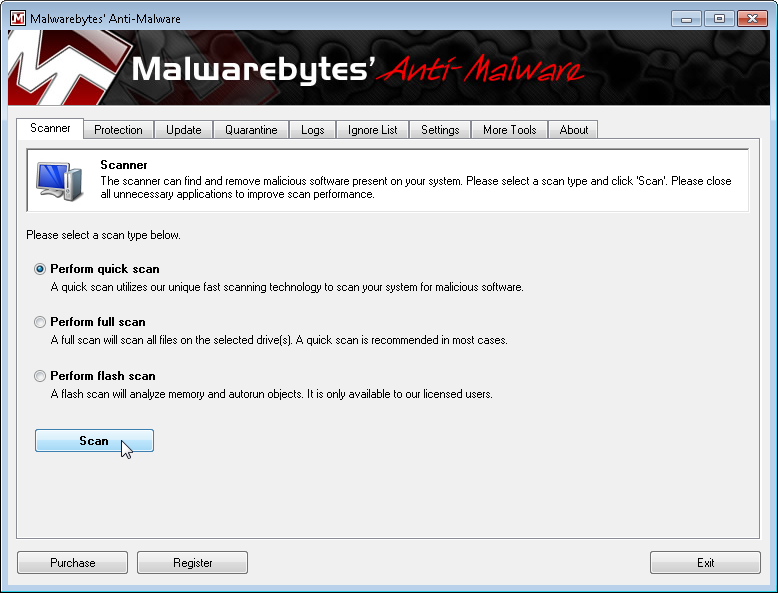
Before touching any PDFs, make sure the malware is gone. Run a full system scan with your antivirus. If you don’t have one, grab Malwarebytes free version and scan. Reboot if it finds anything. Do not open the corrupted PDF until you’re sure the system is clean—you might reinfect it or trigger another attack.
Step 2: Back Up the Original Corrupted PDF
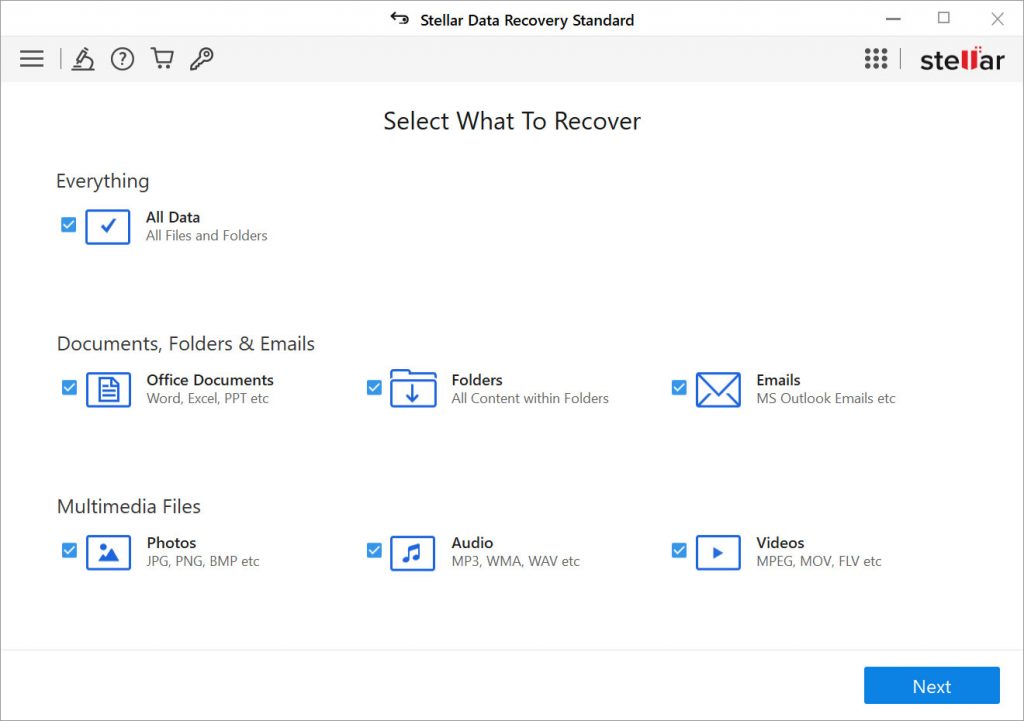
Copy the bad PDF to a safe location—an external drive or cloud storage. This is your safety net in case something goes wrong. Don’t work on the original file in its original folder. Name it something obvious like ‘corrupted_backup.pdf’ so you don’t accidentally delete it.
Step 3: Use qpdf to Linearize and Repair
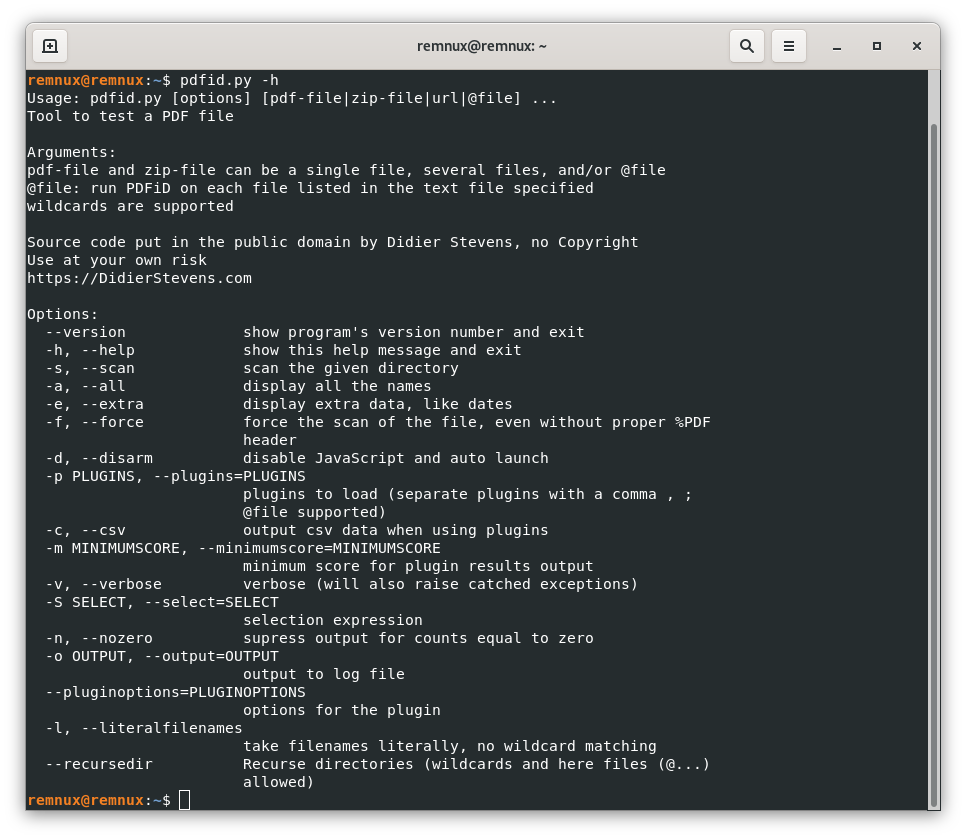
qpdf is a rock-solid tool for fixing structural issues. Open a terminal or command prompt and run: qpdf --linearize corrupted.pdf repaired.pdf. This rewrites the file structure, often fixing corruption caused by malware. If that fails, try qpdf --replace-input corrupted.pdf (on a copy!). Need more details? Check our guide on open source pdf repair.
If the PDF still won’t open, try qpdf --no-check-corrupted.pdf repaired.pdf to skip some validation checks. Sometimes malware corrupts only metadata, and this bypasses it.
Step 4: Try pdftk for Structural Damage
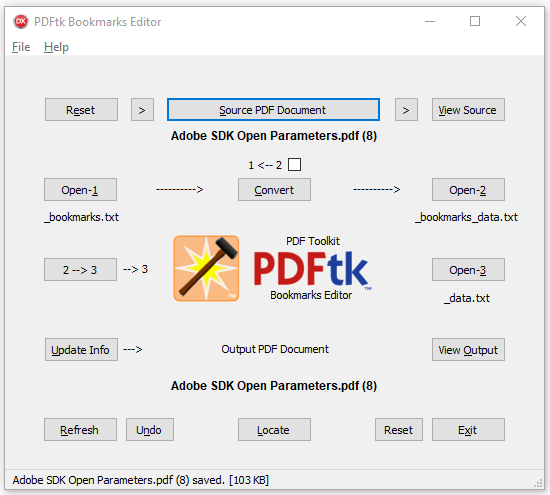
pdftk can reconstruct the PDF from scratch. Install it and run: pdftk corrupted.pdf output repaired.pdf. This rebuilds the PDF and can fix issues like missing cross-reference tables. If you get errors about encryption, the PDF might be password-protected by malware—try a different approach (see repair pdf error 109 for encrypted PDF issues).
For stubborn files, use pdftk corrupted.pdf cat output repaired.pdf (the ‘cat’ operation flattens the file). This works especially well if the PDF has multiple pages but some are damaged.
Step 5: Use a PDF Repair Service (Last Resort)
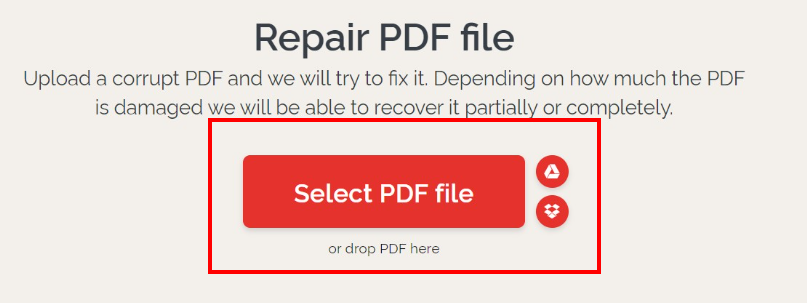
If qpdf and pdftk fail, an online service might save the day. Upload your PDF to a reputable repair site (we have a list in our pdf repair service guide). Be careful: never upload sensitive PDFs to unknown sites. Use this only for non-critical files. The service will return a downloadable repaired PDF.
Common Pitfalls
- Skipping the antivirus step – you might repair the PDF while malware is still active, leading to immediate reinfection.
- Working on the original file without a backup – if something goes wrong, you lose everything.
- Assuming a ‘fixed’ file is clean – malware often hides in PDF objects. After repair, rescan with antivirus and check for unusual size or metadata.
Where to Next
Your PDF should be readable now. If you still have issues, try our fix damaged pdf guide for more advanced methods. And to prevent future malware corruption, always keep backups and run regular scans. You’ve got this!




