Got a huge PDF file—500MB or less—that won’t open, shows errors, or is just corrupted? You’re in the right place. This guide is for anyone dealing with a chunky PDF that needs fixing, from a 400MB scanned manual to a 200MB report that suddenly broke. By the end, you’ll have a fully functional PDF (or at least recovered pages) using free tools, no tech degree required.
We’ll walk through three methods: using online tools (for quick fixes), using free desktop software (for serious corruption), and a last-resort trick to extract pages. Each method works for files under 500MB, so grab your PDF and let’s get it working again.
What You’ll Need
- Your corrupted PDF file (size under 500MB)
- A stable internet connection (for online tools)
- A computer with Windows, Mac, or Linux
- Optional: PDFsam Basic or qpdf (free, open-source)
All tools we use are free or have free tiers. No credit card required.
Step 1: Try an Online PDF Repair Tool
Online tools are quick and work for many common issues like broken links, missing fonts, or minor corruption. Use them first if your PDF isn’t severely damaged.
Go to a reputable online PDF repair service (like PDF24 or iLovePDF). Upload your file—make sure it’s under 500MB. Most services handle up to 2GB on paid plans, but free tiers often cap at 100MB. If your file is larger, skip to Step 2. After upload, click repair. Download the fixed PDF and check if it opens properly. If not, move to the next step.
Step 2: Use Desktop Software for Stubborn Corruption
When online tools fail, desktop software is more powerful. We’ll use PDFsam Basic (free, open-source) which has a ‘Merge’ feature that can repair certain structural issues, or qpdf for command-line users.
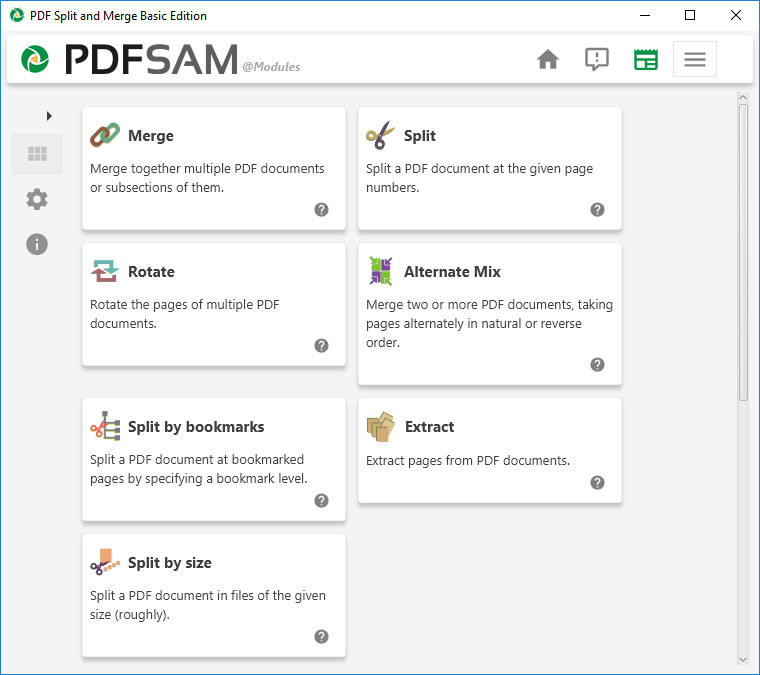
Download and install PDFsam Basic. Open it and select ‘Merge’. Add your corrupted PDF as the only file. Set the output to a new name. Click ‘Run’. This creates a new PDF by rewriting the internal structure, often fixing corruption. If it fails, try qpdf: install it (available for all platforms), then run this command in terminal: qpdf --linearize corrupted.pdf repaired.pdf. This flattens the file and can fix many errors.
Step 3: Extract Pages as a Last Resort
If the whole PDF can’t be fixed, you might still salvage individual pages. Use a tool like PDFsam’s ‘Split’ or an online extractor. This works even if the file is partially corrupted.
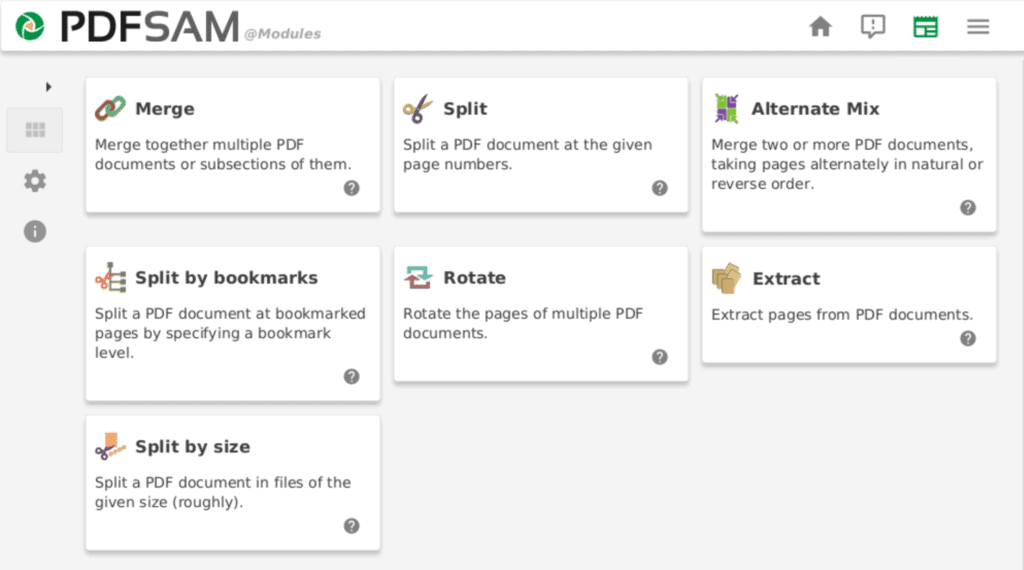
Open PDFsam, choose ‘Split’. Add your PDF, then split by page ranges (e.g., pages 1-10, 11-20). Save each chunk. Check which chunks open. Combine the good ones using the ‘Merge’ function from Step 2. This way you retain most of your content.
Common Pitfalls
- Using online tools for files over 100MB: Many free online services throttle larger files. If your PDF is 300MB, the upload may fail or process extremely slowly. Use desktop software instead.
- Ignoring password protection: If your PDF is password-protected, corruption may be masked. Try removing the password first using tools like PDFsam’s ‘Protect’ or online unlockers, then repair.
- Not backing up the original: Always keep a copy of the corrupted file. Some tools may make it worse. If Step 1 fails, you still have the original to try other methods.
Where to Next
Fixed your PDF? Great! If your file was under 200MB, our guide on repair pdf under 200mb has extra tips. For malware-damaged files, check out how to repair pdf after malware. If you work with interactive forms, our fix fillable pdf guide is for you. For general pdf repair, we’ve got you covered. And if you prefer command-line tools, see open source pdf repair methods.
Happy repairing!




