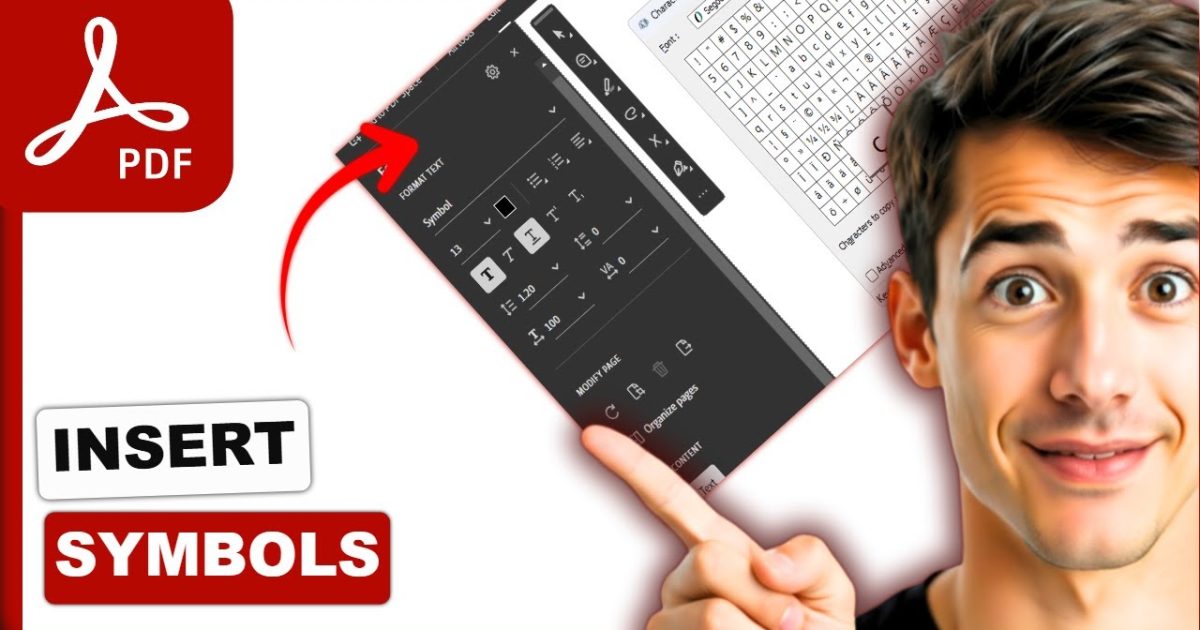
You open a PDF expecting readable text, but instead see a mess of symbols, boxes, or question marks. This happens more often than you’d think, and it’s usually caused by missing fonts, corrupted encoding, or a damaged file. This guide is for anyone who’s frustrated by garbled PDF characters and wants a clear, working document by the end.
By the time you finish these steps, you’ll have your PDF displaying properly—no more symbols. You’ll learn quick fixes like re-embedding fonts, using repair tools, or converting the file. Let’s get that text back.
What You’ll Need
- The garbled PDF file
- A PDF viewer (like Adobe Acrobat or a browser)
- Internet connection (for online tools or font downloads)
- Optional: font pack for your OS (e.g., Microsoft’s core fonts)
Step 1: Check If It’s a Font Issue
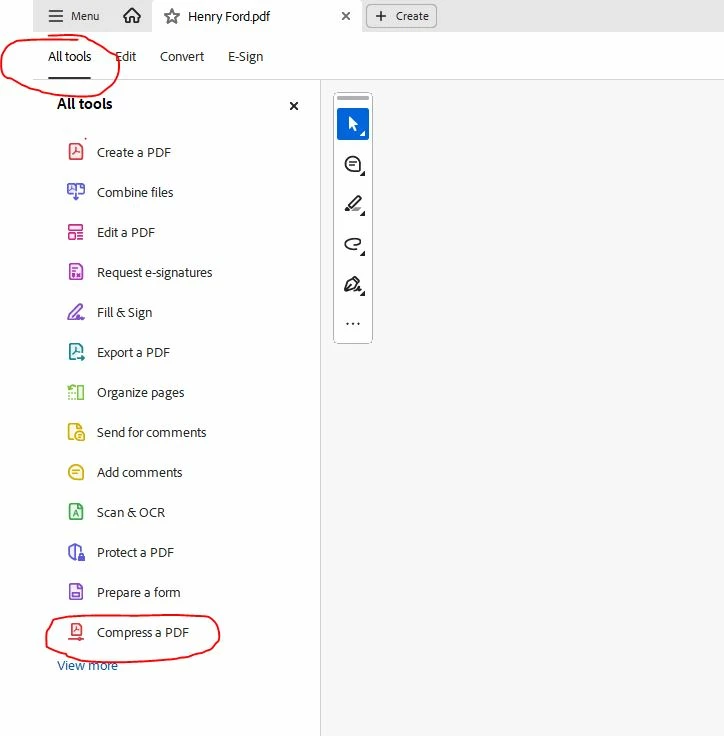
The most common reason for symbols is that your computer lacks the fonts used in the PDF. Open the file in Adobe Acrobat Reader. Look for a font substitution warning (often a pop-up). If you see rectangles, it’s a missing font. Try opening the PDF in a different viewer (like a web browser) – sometimes they handle substitutions better. If the text appears correctly elsewhere, the issue is viewer-specific.
Step 2: Use a PDF Repair Tool
If a missing font isn’t the problem, the PDF itself might be corrupted. Dedicated repair tools can fix encoding errors and re-embed fonts. Try a free tool like PDFtk Free or online services like iLovePDF. Upload your file and run the repair. This often resolves symbol issues by restoring the font data. For larger files, you might want to use a tool designed to repair a PDF under 500MB or handle specific errors.
Step 3: Convert and Reconvert
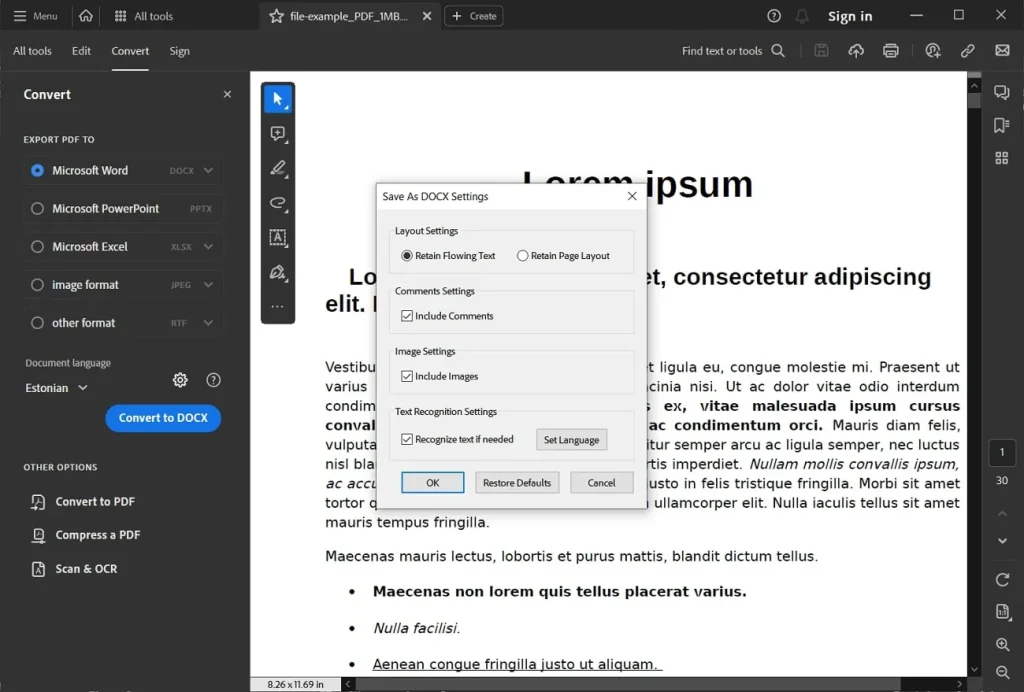
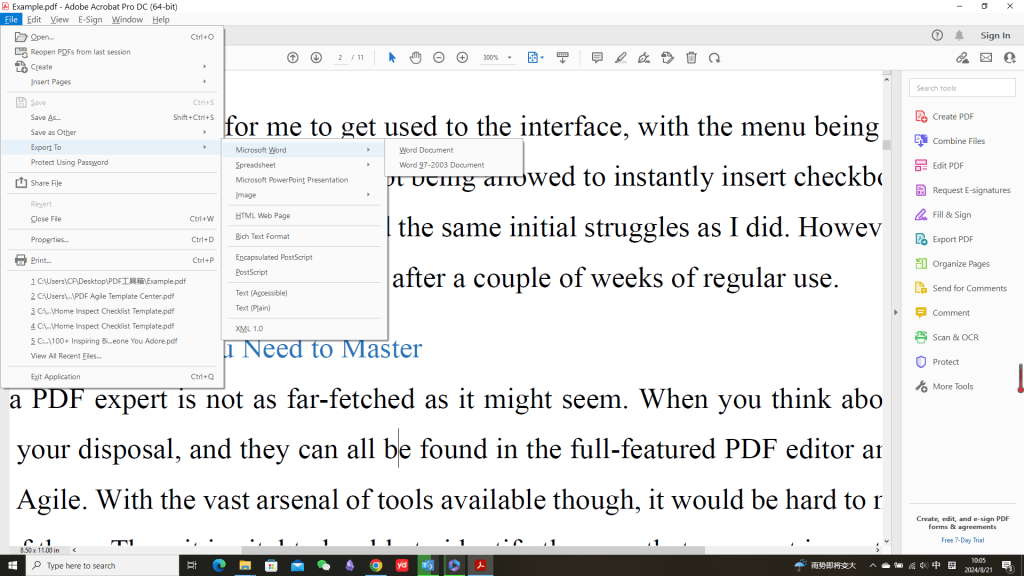
Converting the PDF to another format and back can strip problematic encoding. Use a tool like Adobe Acrobat or an online converter to save the PDF as a Word document (.docx). Open the Word file – if the text looks fine, save it back as a PDF. This rebuilds the font references cleanly. If the Word file still shows symbols, try a plain text conversion first, then paste into a new document.
Step 4: Update or Replace Fonts
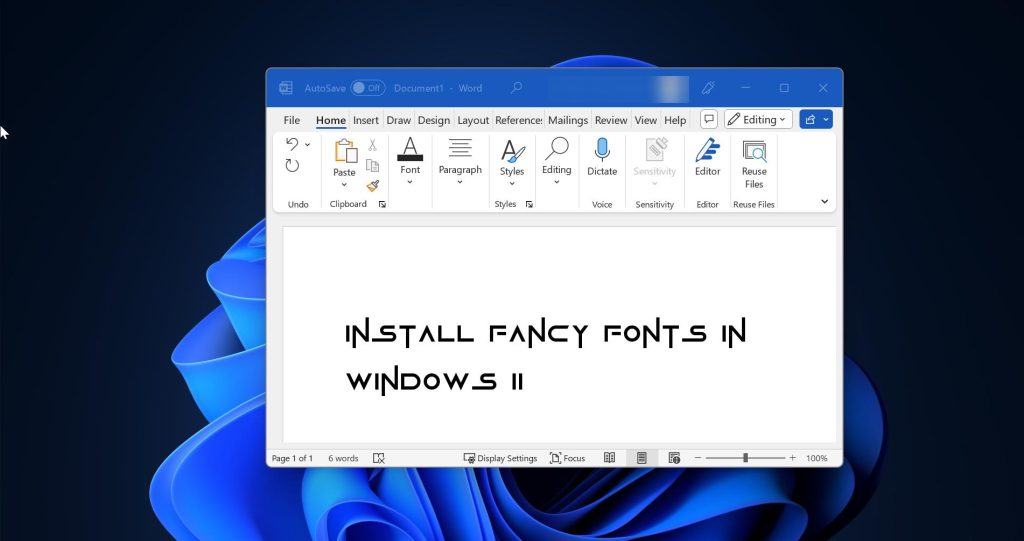
If the PDF uses a specific font you don’t have, install it. Check the PDF’s properties for font names (File > Properties > Fonts in Acrobat). Download and install those fonts on your system. For PDFs with embedded but corrupted fonts, you can replace them using a PDF editor like PDF-XChange Editor. Select the garbled text and assign a local font. This works best for short documents.
Step 5: Try an Online PDF Repair Service
When other methods fail, specialized online services can deep-scan the file. Upload your PDF to a reputable site like PDFRepair.click (free tier available). They rebuild the file structure and font tables. This is especially effective for corrupted PDFs from email attachments or downloads. After downloading the repaired file, open it to verify the symbols are gone.
Common Pitfalls
- Missing fonts: The simplest fix is often installing the font. Don’t assume the file is broken – check font availability first.
- Corrupted PDF file: If the file is damaged from a bad transfer or virus, repair tools are your best bet. Always keep backups.
- Incorrect encoding: Sometimes the PDF uses a non-standard character encoding. Converting to a different format and back can reset it.
Where to Next
Now that your text is readable, you might encounter other PDF quirks. Learn how to fix a damaged PDF that won’t open, or if you see blank pages instead of content, check our guide on that issue. For scanned PDFs with OCR problems, we’ve got a dedicated tutorial. Keep your PDF toolkit handy – you never know when symbols will strike again.




