Ever opened a PDF only to see garbled text, blank pages, or an error message? Or maybe you accidentally deleted an important file and need it back. This guide is for anyone who needs to restore a PDF—whether it’s corrupted, damaged, or just gone. By the end, you’ll have a working PDF again, and you’ll know how to avoid this headache in the future.
We’ll cover everything from checking your Recycle Bin to using specialized recovery tools. No tech wizardry required—just follow the steps below. Let’s get your PDF back!
What You’ll Need
- The corrupted or missing PDF file (know its name/location)
- A computer with internet access (for online tools)
- Patience—some steps take a few minutes
- Optional: backup or cloud storage account (e.g., Google Drive, OneDrive)
Step 1: Check Your Recycle Bin or Trash
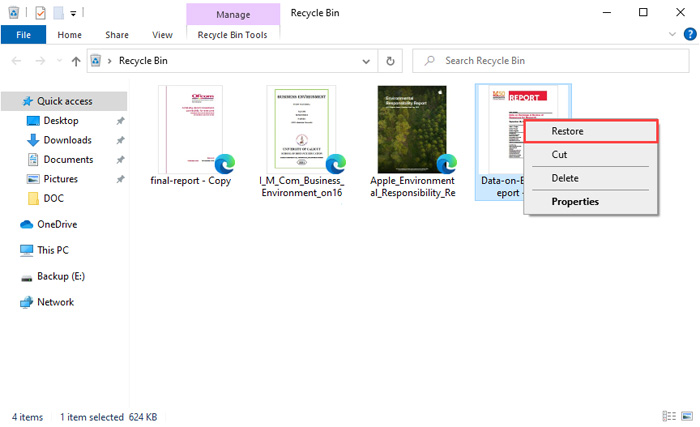
If you accidentally deleted the PDF, it might still be in your system’s Recycle Bin (Windows) or Trash (Mac). Open it, search for the file, right-click, and select “Restore.” This is the quickest fix.
Step 2: Look for Backups or Version History
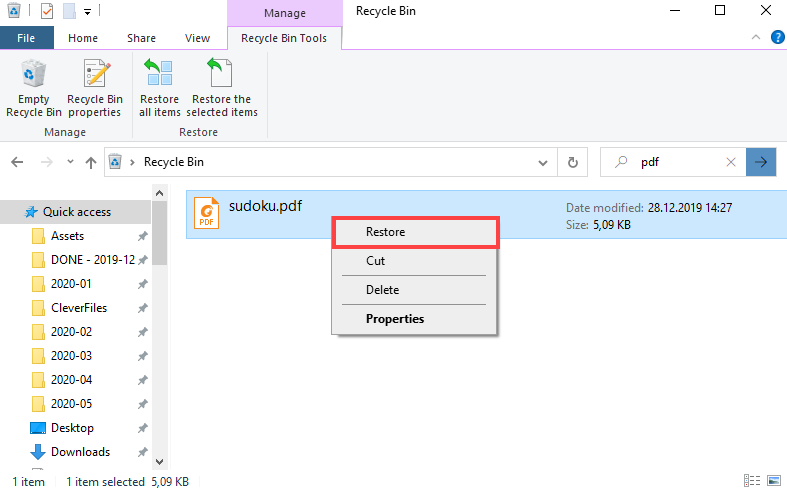
Many apps keep older versions. If you use Google Drive, right-click the file and choose “Manage versions” to see previous copies. In Microsoft OneDrive or Dropbox, look for “Version history.” Also check your local backup drive or Time Machine (Mac).
Step 3: Try a Free Online PDF Repair Tool
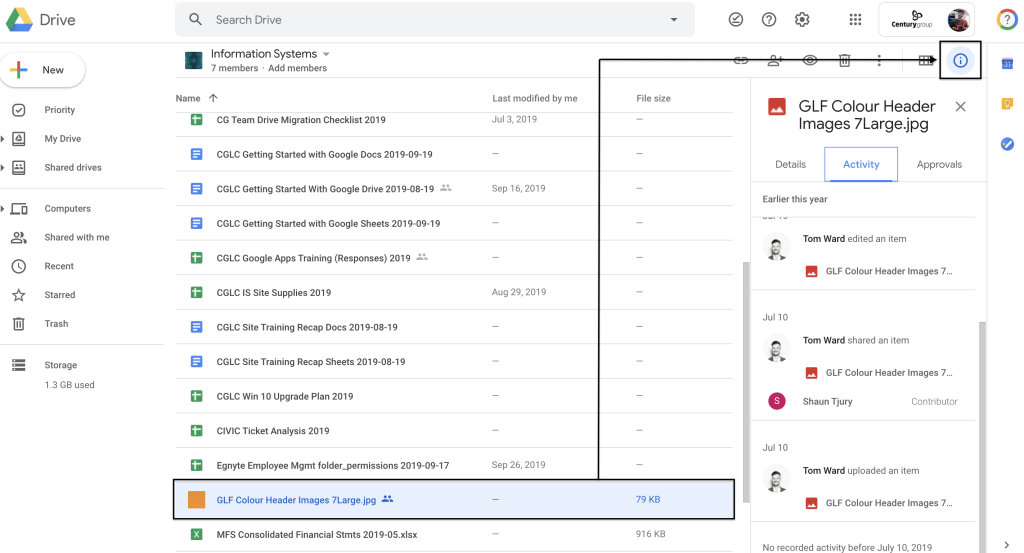
If the PDF is corrupted but not deleted, online tools can often fix it without watermarks. For example, you can learn how to fix corrupted pdf online free no watermark using a site like PDFRepairs.click. Upload the file, wait a few seconds, and download the repaired version.
Step 4: Use Dedicated PDF Repair Software
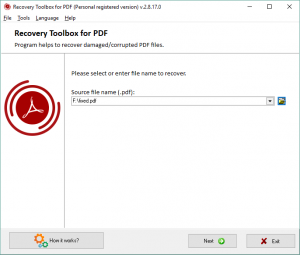
For stubborn corruption, a desktop tool works better. Adobe Acrobat Pro has a built-in repair feature (File > Repair). Free alternatives like PDF-XChange Editor also work. If you’re on a command line, check out our guide on command line pdf repair for advanced fixes.
Step 5: Recover a Deleted PDF from Your Hard Drive
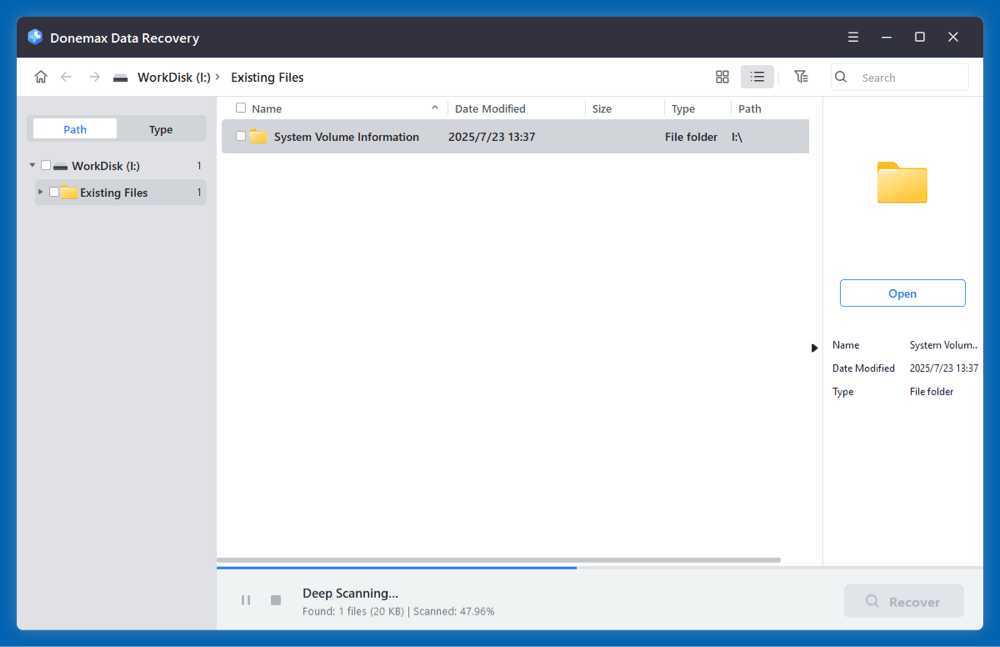
If the file is permanently deleted, use file recovery software like Recuva (Windows) or Disk Drill (Mac). Install it, scan the drive where the PDF was stored, and look for the file with its original name or .pdf extension. This can recover pdf from hard drive even after emptying the Recycle Bin.
Step 6: Prevent Future PDF Loss
Once your PDF is restored, set up automated backups. Use cloud storage with versioning, or enable File History (Windows) / Time Machine (Mac). Also, regularly run pdf repair scans on critical files to catch corruption early. For blank pages, read our article on why pdf shows blank pages and how to fix it.
Common Pitfalls
- Using untrusted online tools that add watermarks or malware. Stick to reputable sites like PDFRepairs.click for free corrupted pdf recovery.
- Overwriting the original file by saving the corrupted version. Always save repairs as a new file first.
- Ignoring backups until it’s too late. Set up automatic backups today.
Where to Next
Now that your PDF is restored, explore more fix-it guides on our site. For example, learn how to repair a fix corrupted pdf online free no watermark or recover bank statements. You’ve got the skills—keep your documents safe!




