Ever downloaded a PDF only to find it stops at page 3, or it opens but shows garbage? You’re not alone. Incomplete PDFs happen all the time — a bad internet connection, a server glitch, or a corrupted file can cut your document short. This guide is for anyone stuck with a partial PDF. By the end, you’ll have a complete, readable file using free tools and a few tricks.
We’ll walk through five methods, from simple file checks to command-line repairs. You don’t need to be a tech wizard; just follow along and you’ll recover your missing content. Let’s turn that sad, incomplete PDF into a fully functional document.
What You’ll Need
- Your incomplete PDF file (keep a backup copy)
- A computer with internet access (for online tools)
- A PDF reader like Adobe Acrobat Reader or Foxit
- Optional: Adobe Acrobat Pro or a command-line tool (Ghostscript / qpdf)
Step 1: Check File Integrity
Before diving into repair, see what you’re working with. Open the PDF in your default reader. Does it show any pages? Note how many pages are missing. Also check the file size — an incomplete download often results in a suspiciously small file. Right-click the file, go to Properties, and compare the size to the expected file size (if you know it). If the file is significantly smaller, it’s likely truncated.
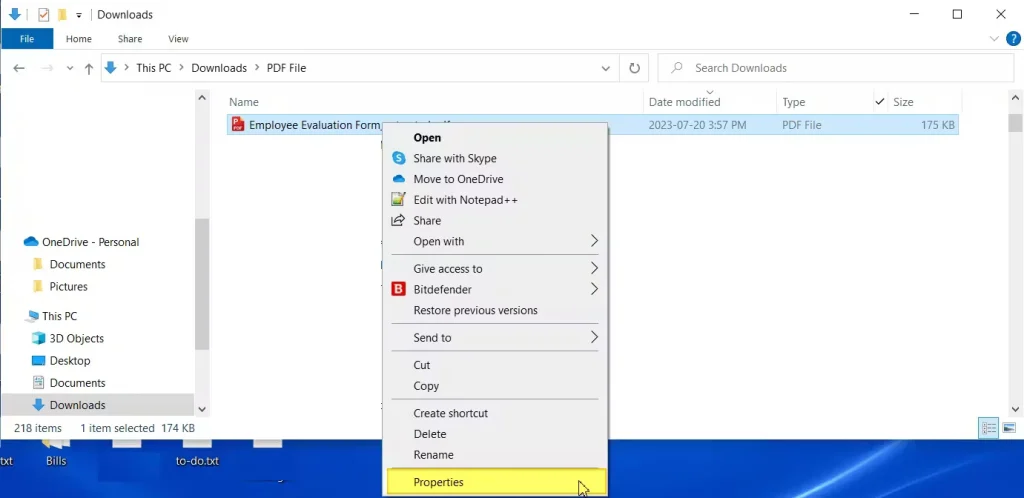
Try opening the PDF in a different reader. Sometimes the reader itself is the problem. If the file opens fine elsewhere, you might just need to update your reader. If it still looks incomplete, move on to the next step.
Step 2: Use an Online PDF Repair Tool
Online tools are the easiest fix for most incomplete PDFs. They don’t require installation and work on any OS. Head to a reputable site like PDFRepairs.click — we have a guide on how to fix corrupted pdf online free no watermark that walks you through the process. Upload your incomplete file, let the tool analyze it, and download the repaired version. Most online tools can reconstruct truncated data by reinterpreting the file structure.
Step 3: Repair with Adobe Acrobat Pro
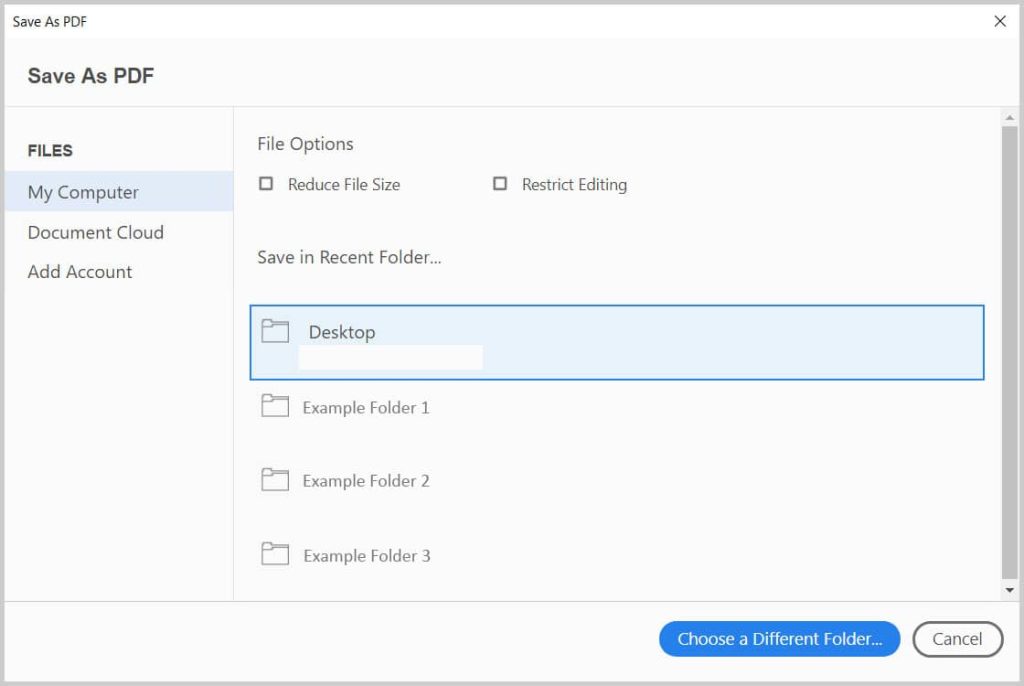
If you have Adobe Acrobat Pro (the paid version), it has built-in repair features. Open the PDF, then go to File > Save As Other > Optimized PDF. Click the Audit Space Usage button to see if any objects are broken. Then, try File > Export To > Image > PNG or JPEG — this forces Acrobat to render each page as an image, which can bypass corruption. Export all pages, then recombine them into a new PDF. For a full guide on using Acrobat for tricky cases, see our article on repair corrupted pdf.
Step 4: Command-Line Repair with Ghostscript or qpdf
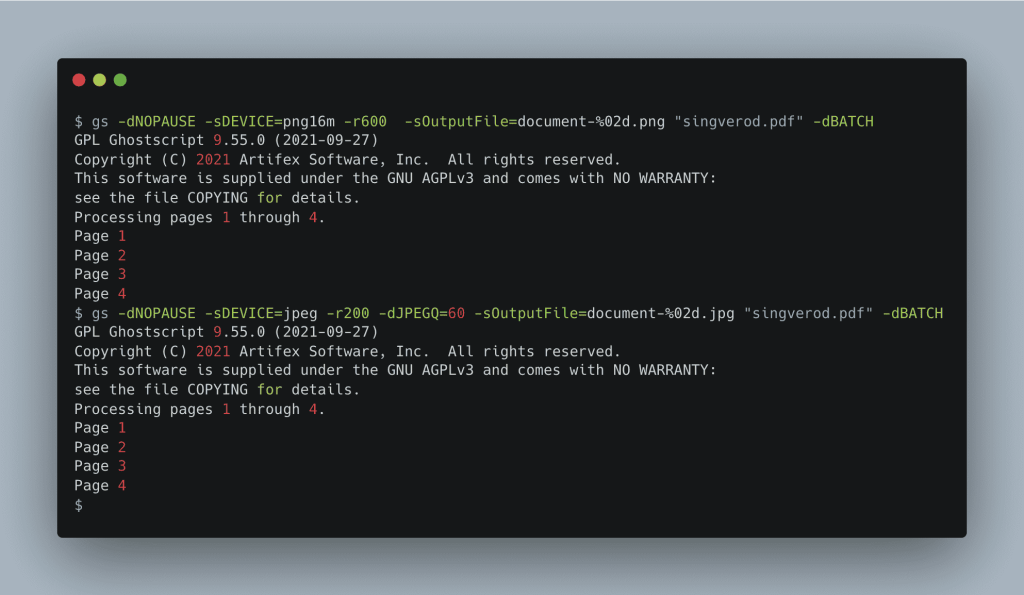
When other methods fail, command-line tools like Ghostscript and qpdf can salvage a PDF by rewriting its internal structure. For Ghostscript, install it and use: gs -o output.pdf -sDEVICE=pdfwrite -dPDFSETTINGS=/prepress input.pdf. This often fixes incomplete streams. qpdf is even simpler: qpdf –linearize input.pdf output.pdf. Both tools are free and powerful. If you’re on Android, check out our pdf repair for android guide for similar mobile options.
Step 5: Recover from the Source
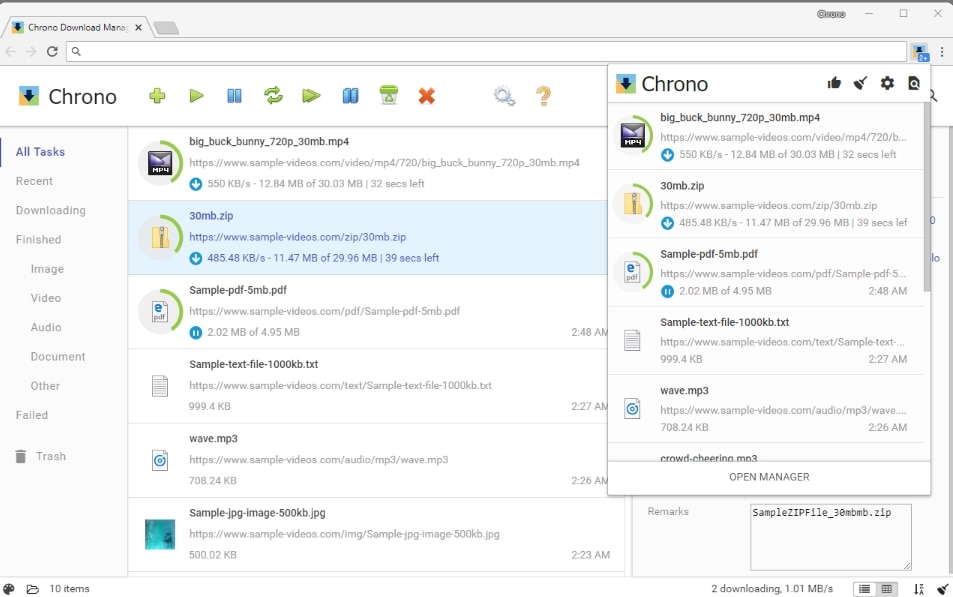
If the file is still broken after all repairs, try re-downloading it from the original source. Sometimes the issue was a bad connection. Clear your browser cache, then download again. If you lost it from a hard drive failure, we have a guide on how to recover pdf from hard drive. For documents from email, ask the sender to re-attach the file. Prevention is key: always verify your PDFs immediately after download.
Common Pitfalls
- Using untrusted online tools that leave watermarks or malware — stick to reputable sites like PDFRepairs.click.
- Overwriting the original file before testing the repair — always keep a backup.
- Trying to fix a PDF that is actually encrypted or password-protected — decryption is a separate process. If your repaired PDF opens but shows nothing, check our article on why pdf shows blank pages.
Where to Next
Congratulations! You’ve likely recovered your incomplete PDF. Now, to keep your files safe, learn how to prevent corruption — check out our guides on maintaining healthy PDFs. And if you run into other PDF issues, browse the PDF Repair & Tools category for more solutions.




