You’re on your iPhone, trying to open an important PDF, and nothing happens—or you get a blank screen. Sound familiar? This guide is for anyone whose PDF files refuse to open on their iPhone, whether you’re using the built-in Files app, iBooks, or a third-party reader. By the end of these steps, you’ll have your PDF open and readable, and you’ll know how to avoid this headache in the future.
We’ll walk through easy fixes you can do right on your iPhone, then move to more advanced options like using an online repair tool if the file itself is damaged. No need to be a tech whiz—just follow along and you’ll be back to your PDF in no time.
What You’ll Need
- Your iPhone with the latest iOS (check in Settings > General > About)
- The PDF file that won’t open (maybe saved in Files, Mail, or a third-party app)
- A stable internet connection (for online repair methods)
- Optional: a computer to transfer the file if needed
Step 1: Check If the PDF Is Actually Corrupt
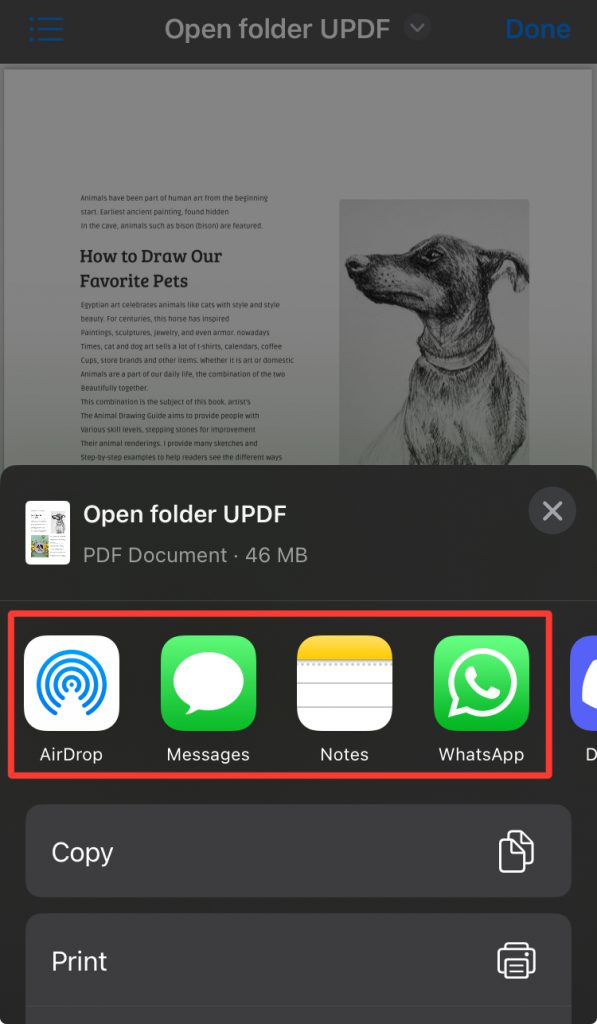
Before diving into complex fixes, make sure the problem isn’t just a one-time glitch. Try opening the same PDF in a different app. If you normally use the Files app, try iBooks (Apple Books) or a free app like Adobe Acrobat Reader. You can also send the PDF to yourself via email and open it on a computer. If it opens fine elsewhere, the issue is with your iPhone’s app or settings. If it’s also broken on a computer, you’ll need to repair the file—skip to Step 4 for online repair.
Step 2: Update iOS and Apps
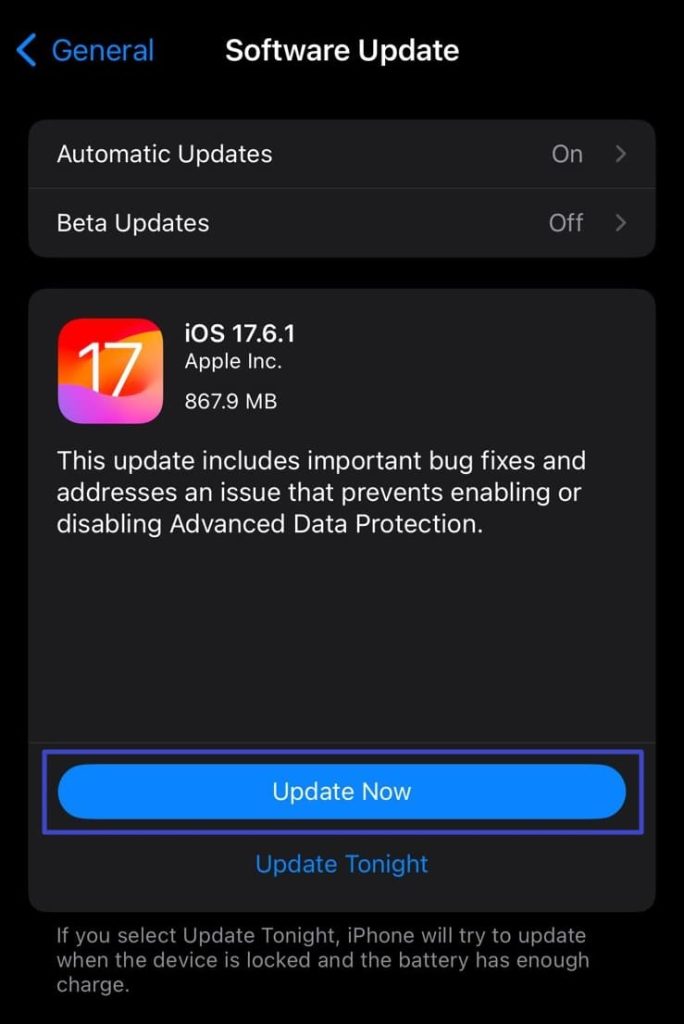
Outdated software can cause compatibility issues. Go to Settings > General > Software Update and install any pending updates. Then open the App Store, tap your profile icon, and scroll down to update all apps—especially any PDF viewer you use. A simple update often fixes stubborn PDF problems.
Step 3: Clear App Cache (Offload or Reinstall)
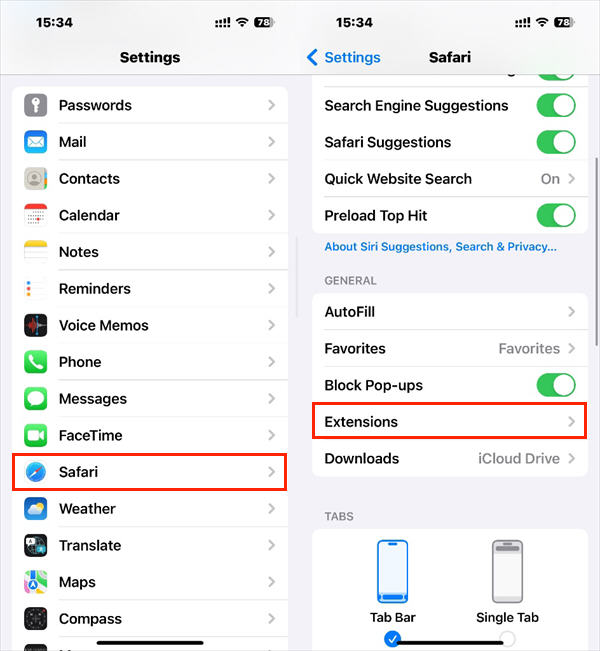
If the app that opens PDFs (like Files or Adobe Reader) has a corrupted cache, it may refuse to open any PDF. On iOS, you can offload an app without deleting its data: go to Settings > General > iPhone Storage, tap the app, then select “Offload App.” This clears the cache while keeping your documents. Reinstall the app from the App Store and try opening the PDF again. If that doesn’t work, delete and reinstall the app entirely.
Step 4: Transfer and Repair the PDF Online
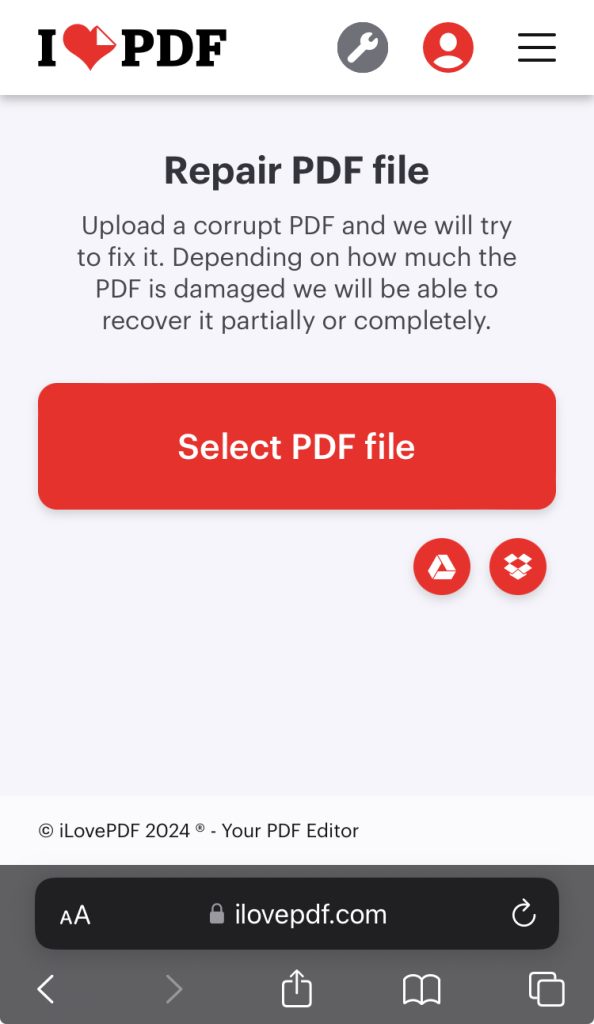
If the PDF itself is corrupted, you’ll need to repair it. The easiest way is to transfer the file to a computer and use an online pdf repair tool. Email the PDF to yourself or use AirDrop, then open it on your computer. Visit a reputable site like the one in our guide on free corrupted pdf recovery—it can fix most common corruption issues. Upload the file, download the repaired version, and send it back to your iPhone. For very large files, check our tips on repair pdf under 200mb.
Step 5: Use iCloud Drive as a Middleman
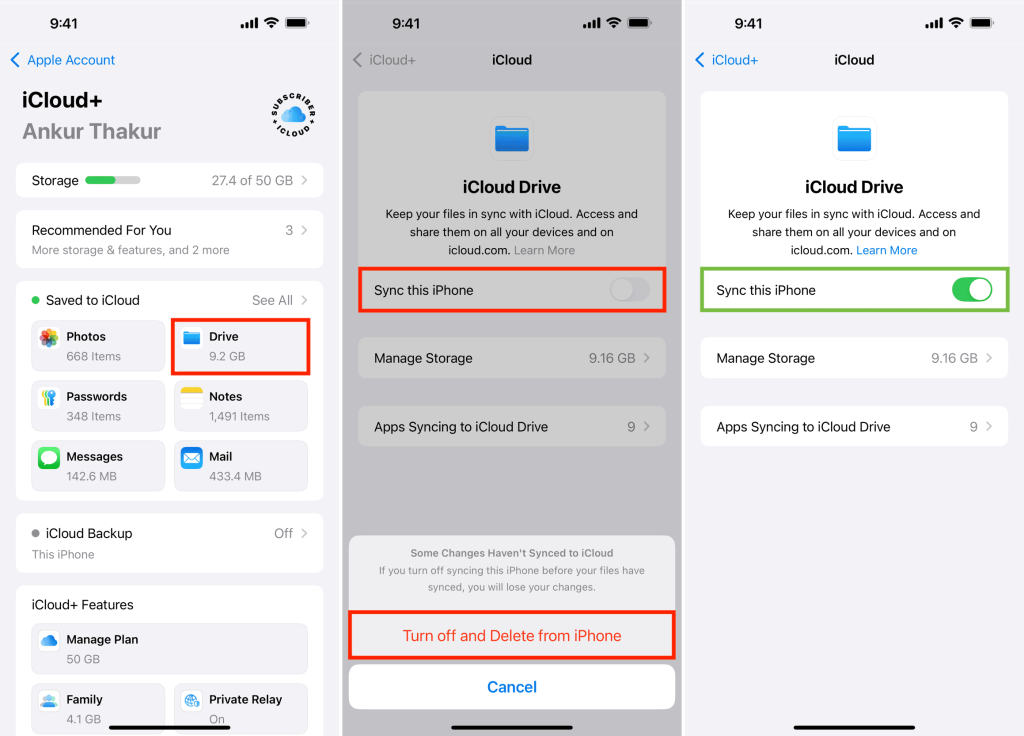
Sometimes the problem is with local storage. Move the PDF to iCloud Drive and then open it from there. Go to the Files app, locate the PDF (if accessible), tap and hold, then choose Move > iCloud Drive. Once it’s uploaded, open iCloud Drive on your iPhone and tap the file. This bypasses any local glitches and forces a fresh load.
Step 6: Convert the PDF to Another Format and Back
If nothing else works, convert the PDF to a different format (like JPG or PNG) using a free online converter, then convert it back to PDF. This can strip out corruption. Use a site that handles the conversion without watermarks. The resulting PDF is essentially a brand-new file, and it should open on your iPhone. This trick works well for PDFs that show garbled text or images.
Common Pitfalls
- Assuming the file is fine when it’s actually corrupted. Always test on another device first.
- Forgetting to restart your iPhone after updates or app reinstalls—a simple reboot can clear temporary glitches.
- Using unreliable free online tools that add watermarks or malware. Stick to trusted services mentioned in guides like our pdf repair resource.
Where to Next
Your PDF should now be opening on your iPhone without issues. If you frequently deal with damaged PDFs, you might want to explore more advanced topics like repair pdf after malware or using a dedicated desktop tool. For other common PDF headaches, check our guides on fixing fillable PDFs or recovering bank statements. Happy reading!




