You’re on your Android phone, urgently need to open a PDF, and it just won’t load—or it’s full of gibberish. Don’t panic. This guide is for anyone who’s ever faced a corrupted PDF on their Android device, whether it’s a work document, a school file, or a personal PDF. By the end, you’ll have a working PDF again, using free apps and online tools you can access right from your phone or tablet.
I’ll walk you through four practical methods: using a dedicated PDF repair app, leveraging an online repair service, converting the PDF to another format and back, and finally, some manual tricks in a full-featured PDF reader. No technical skills required—just a bit of patience and your Android device. Let’s get that PDF back in shape.
What You’ll Need
- An Android phone or tablet (Android 6.0 or newer recommended)
- A corrupted PDF file stored on your device or accessible via cloud storage
- Internet connection (for online repair methods)
- Approximately 5–10 minutes of time
- Optional: a file manager app like Files by Google (for locating files)
Step 1: Install a Dedicated PDF Repair App
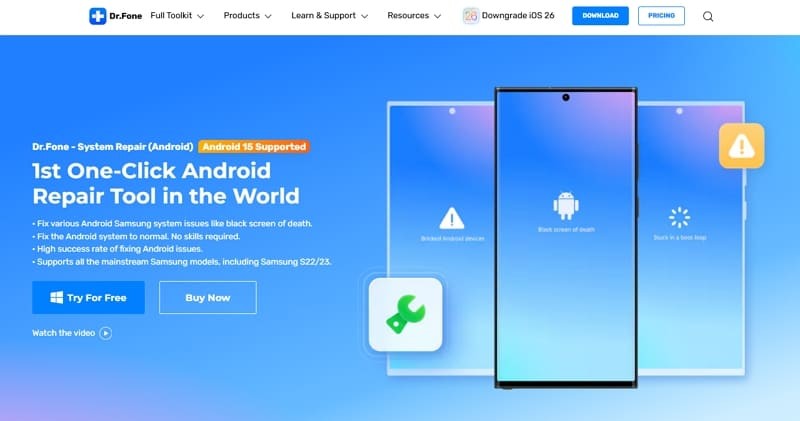
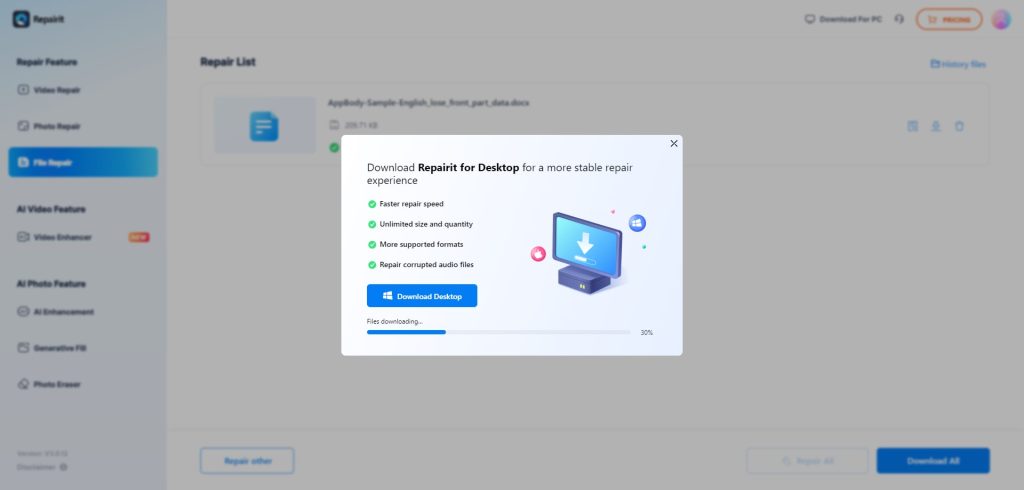
The quickest way to repair a PDF on Android is by using a dedicated app. Head to the Google Play Store and search for “PDF repair” or “fix PDF.” Look for apps with high ratings and recent reviews—I recommend “PDF Repair Tool” or “PDF Fixer.” Download and install one. Open it, and you’ll usually see a “Select PDF” button. Tap it and navigate to your corrupted file. The app will analyze and attempt to fix it. Once done, you can preview the repaired PDF and save it to a new location.
Step 2: Use an Online PDF Repair Service
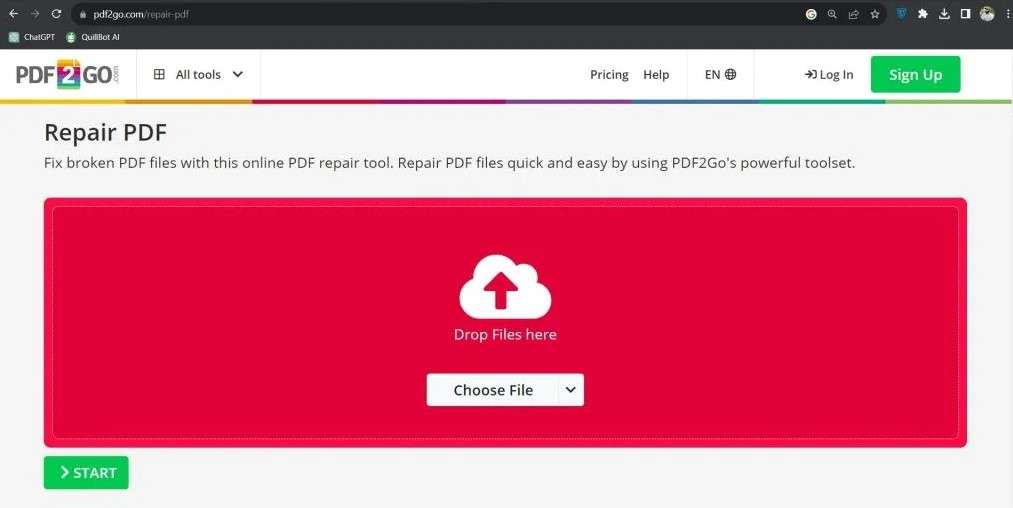
If you prefer not to install an app, an online PDF repair tool works directly in your browser. Open Chrome or any browser on your Android, and go to a site like ilovepdf.com or pdftools.com. Look for the “Repair PDF” option. Upload your corrupted file (usually under 200MB; for larger files, check our guide to repair large PDFs under 500MB). Wait for the service to process—most take less than a minute. Download the repaired version. This method is great for one-off fixes and works with all types of corruption, including incomplete PDFs.
Step 3: Convert to Another Format and Back
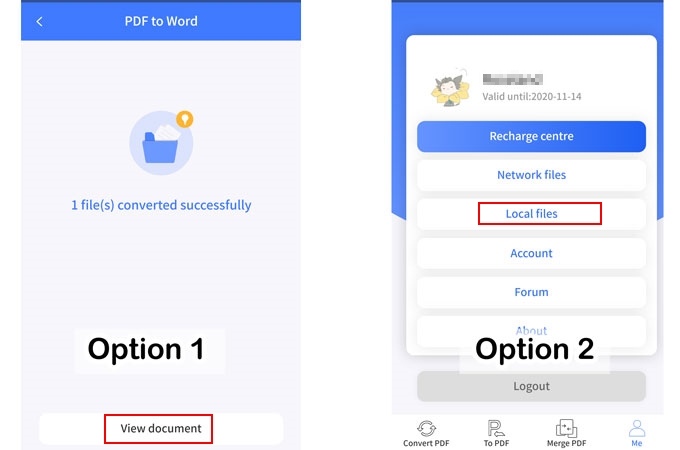
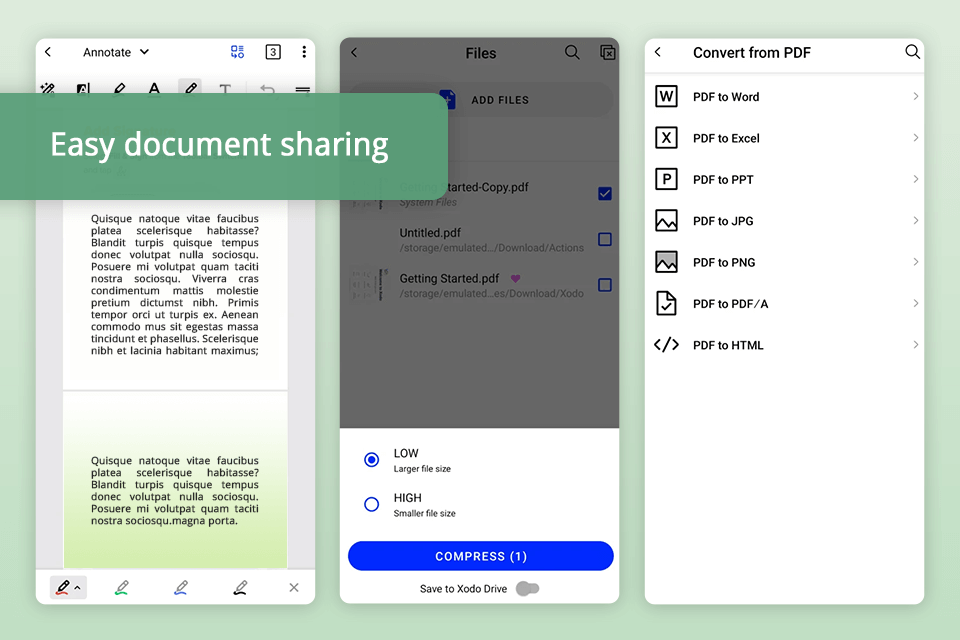
Sometimes a direct repair fails, but converting the PDF can strip out corruption. Use a free converter app like “PDF to Word” or an online service to turn the PDF into a Word document or image (JPEG). Then convert that back to PDF using another converter. This method often salvages text and images, even if the original PDF’s structure is damaged. It’s a bit roundabout, but it’s a reliable fallback if the previous steps didn’t work. For severe issues, you might want to explore free recovery options using specialized tools.
Step 4: Repair with a Full-Featured PDF Reader
Some advanced PDF readers have built-in repair features. Apps like Adobe Acrobat Reader or Xodo PDF Reader can sometimes open a corrupted file and offer to repair it. Open the app, tap the file, and if it detects an issue, you’ll see a message like “This PDF may be damaged. Do you want to repair it?” Tap yes. The app will attempt to reconstruct the file. This method works best for minor corruption, like a PDF repair for Android that has a missing page or garbled text. Save the repaired version to avoid overwriting the original.
Common Pitfalls
- Overwriting the original file: Always save a repaired PDF as a new file. If the repair goes wrong, you still have the original to try another method. Use the ‘Save as’ or ‘Export’ option.
- Using unreliable apps: Not all PDF repair apps on the Play Store are trustworthy. Avoid apps with few downloads or poor reviews. Stick to ones with thousands of downloads and consistent positive feedback. When in doubt, use an online PDF repair tool instead.
- Ignoring file size limits: Many online tools restrict uploads to under 100MB. If your PDF is larger, use a dedicated app or convert it. Our guide on repair large PDFs under 500MB covers workarounds for bigger files.
Where to Next
Now that your PDF is working, consider exploring more advanced topics like how to fix a fillable PDF or recover a bank statement PDF. If you run into repeated corruption, your file might be stored on a failing SD card—consider backing up your data regularly. Happy reading!




