So you’ve got an ebook PDF that’s acting up — maybe it won’t open, shows garbled text, or you only downloaded half before your internet went kaput. Don’t panic. This guide is for anyone who’s bought or downloaded an ebook PDF and now can’t read it. By the end, you’ll have a clean, readable PDF (or at least the text extracted) using free tools you can find online.
We’ll cover everything from simple checks to advanced recovery using free online tools. If you’re in a hurry, skip to the online repair step — it works most of the time. And if none of that works, we’ll show you how to pull the text out manually. Ready? Let’s fix that ebook.
What You’ll Need
- The corrupted ebook PDF file
- A computer with internet access (or a phone/tablet — check our guide on how to repair PDF on Android)
- A free online PDF repair tool (we’ll link one below)
- A backup of the original file (just in case)
- Patience — some steps take a few minutes
Step 1: Identify the Problem
Before you dive into repairs, figure out what’s wrong. Try opening the PDF in a different reader (like Adobe Acrobat Reader vs. your browser). If it opens but looks weird, it might be a font issue. If it won’t open at all, it’s probably corrupted. If you see only part of the book, you might have an incomplete download.
For incomplete downloads, re-download the file from your original source. Use a download manager that can resume. If that doesn’t help, check our guide on how to repair incomplete PDF.
Step 2: Use an Online PDF Repair Tool
The easiest fix is a free online tool. Go to a site like the one we review in fix corrupted PDF online free no watermark — it’s reliable and leaves no watermark. Upload your file, let it process, and download the repaired version. This works for most corruption issues.
If you’re on a mobile device, the process is similar. Use your phone’s browser and follow the same steps.
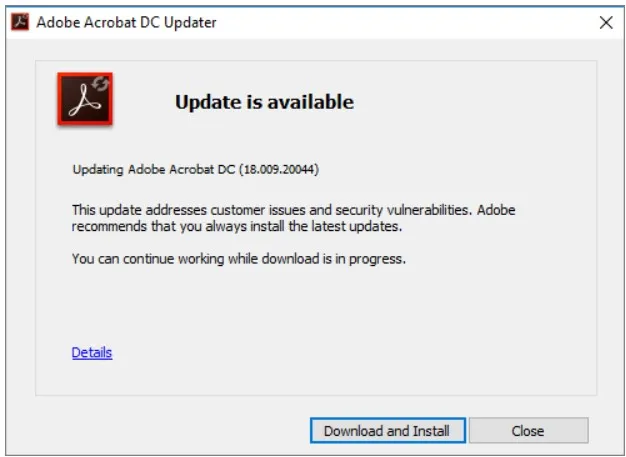
Step 3: Try Adobe Acrobat Pro (or Free Alternative)
If the online tool didn’t work, use Adobe Acrobat Pro’s built-in repair: open the file, go to File > Properties, and check if it’s damaged. Acrobat may offer to repair it automatically. No Acrobat? Try a free alternative like PDF24 or Sejda. These tools also do a good job with minor corruption.
Step 4: Recover the Text Manually
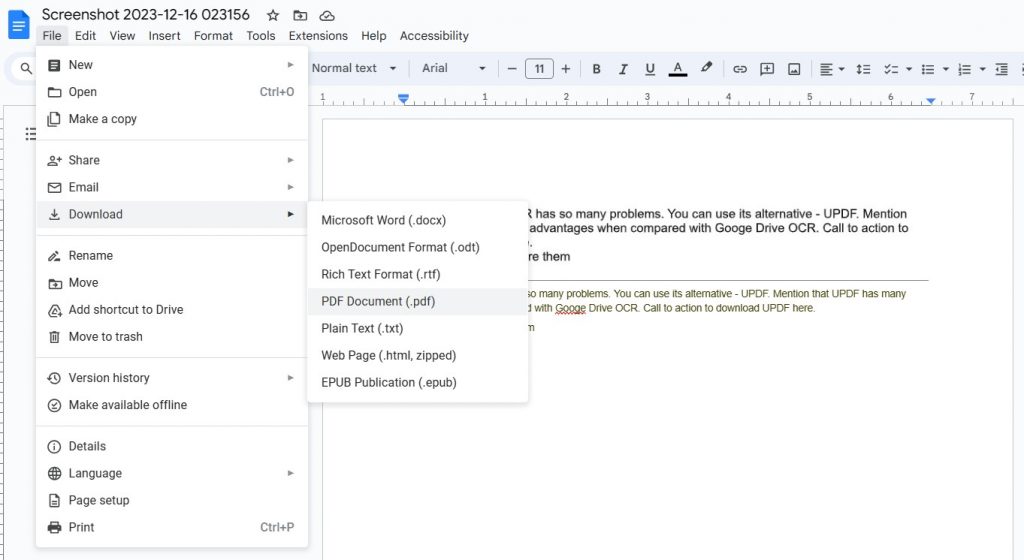
If the above steps fail, you can still get your text out. Open the PDF in a text editor (like Notepad) — you’ll see a mess, but the readable words are in there. Search for a common word from your ebook. Alternatively, use an OCR tool like Google Drive’s built-in OCR or online OCR services. Upload the PDF, convert to text, and save as a new file. This doesn’t preserve formatting, but you’ll have the content.
Common Pitfalls
- Overwriting the original file: Always keep a backup before trying any repair, because some tools can make things worse.
- Using the wrong tool: Not all repair tools handle ebook PDFs well. Stick with ones specifically tested for PDFs, like the online tool mentioned earlier.
- Skipping the basics: Sometimes the problem is a simple download error. Try re-downloading before spending time on advanced repairs.
Where to Next?
Now that your ebook is back, you might want to restore PDF file for safekeeping, or check out our general pdf repair guide for more tips. If you’re a digital librarian, consider converting to a more stable format. Happy reading!




