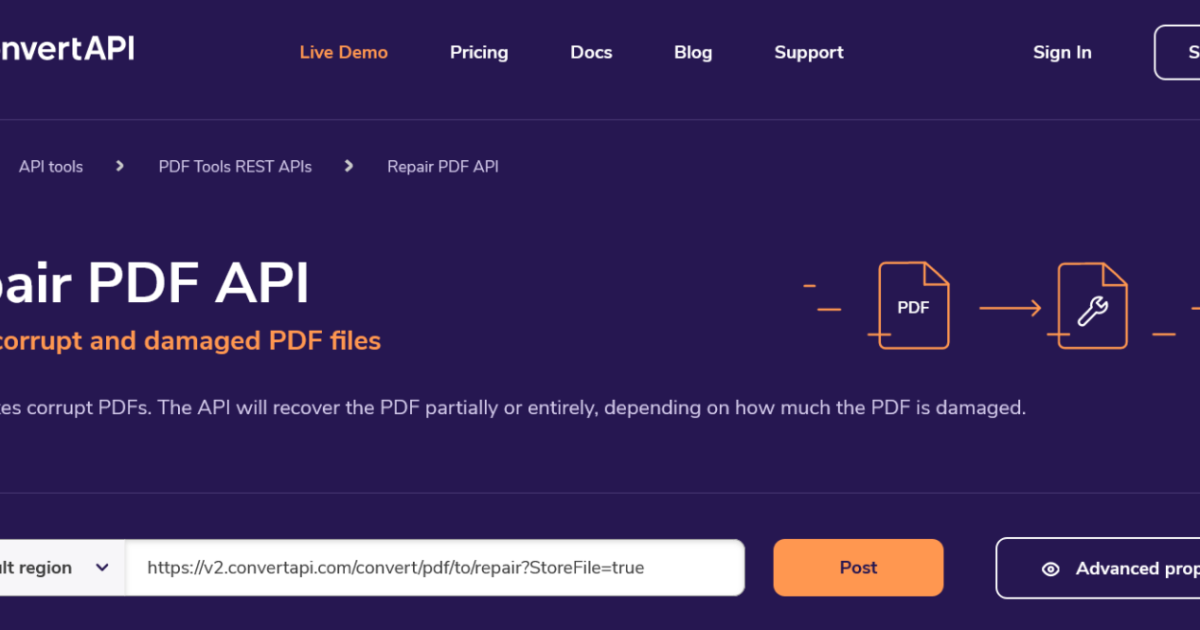
You’ve got a bunch of corrupted PDFs piling up, and manually fixing each one with an `online pdf repair tool` is eating your day. Maybe you’re building a mobile app or a batch-processing script and need a programmatic solution. That’s where a PDF repair API comes in. By the end of this guide, you’ll have a working integration that sends broken PDFs to an API and receives repaired files – all with a few lines of code.
This guide is for developers who know the basics of HTTP requests and JSON. You don’t need deep PDF internals – we’ll keep it practical. You’ll walk away with a reusable snippet you can drop into any project. Let’s get started.
What You’ll Need
- A PDF repair API key (sign up at a service that offers one, e.g., PDFRest, PDF.co, or iLovePDF)
- A corrupted PDF file to test (grab one from our `fix corrupted pdf online free no watermark` guide if you need a sample)
- A tool to make HTTP requests – curl, Postman, or a language like Python, JavaScript, or PHP
- Basic familiarity with your programming language of choice
- A text editor or IDE
If you want to learn how to `restore pdf file` manually, we’ve got a separate tutorial. But here we’re going fully automated.
Step 1: Get Your API Key and Read the Docs
Every PDF repair API works slightly differently, but the flow is the same. First, create an account on the provider’s website and generate an API key. Copy it somewhere safe – you’ll send it as a header or parameter in every request.
Next, open their documentation and find the endpoint for repairing PDFs. Usually it’s something like `POST /pdf/repair`. Pay attention to whether they expect the file as a multipart form upload, a base64-encoded string, or a URL. Most modern APIs use multipart.
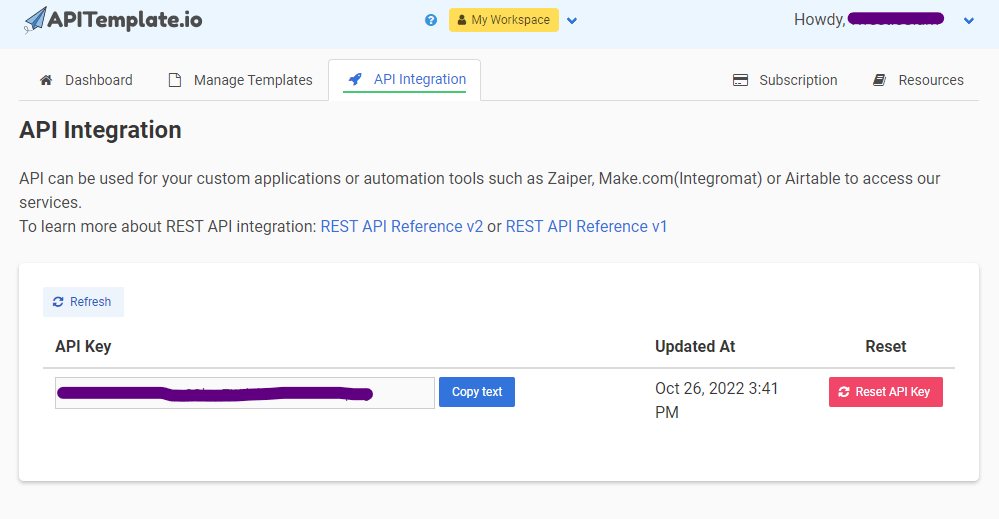
Note the max file size limit and any authentication method. Some require the key in the query string, others as a `Bearer` token. That’s all you need for now.
Step 2: Upload a Corrupted PDF (Test with cURL)
Let’s try a quick smoke test using cURL in your terminal. Replace the placeholders with your actual key and file path:
curl -X POST https://api.pdfrepair.example.com/v1/repair
-H “Authorization: Bearer YOUR_API_KEY”
-F “file=@/path/to/corrupted.pdf”
-o repaired.pdfcURL command example
If everything works, the repaired PDF will be saved as `repaired.pdf` in your current directory. Open it to verify the content is intact. If you get an error, check the HTTP status code – 401 means bad key, 413 means file too large, 422 means invalid input.
This API can even `repair pdf stream` issues like corrupt data streams – it’s pretty powerful.
Step 3: Build a Simple Python Integration
Now let’s code a reusable function in Python. Create a new file `repair_pdf.py` and import `requests`. This script will upload a PDF and save the repaired version.
Run it with `python repair_pdf.py`. This is the same logic you’d use to `repair pdf on android` via a mobile app – just swap the file source.
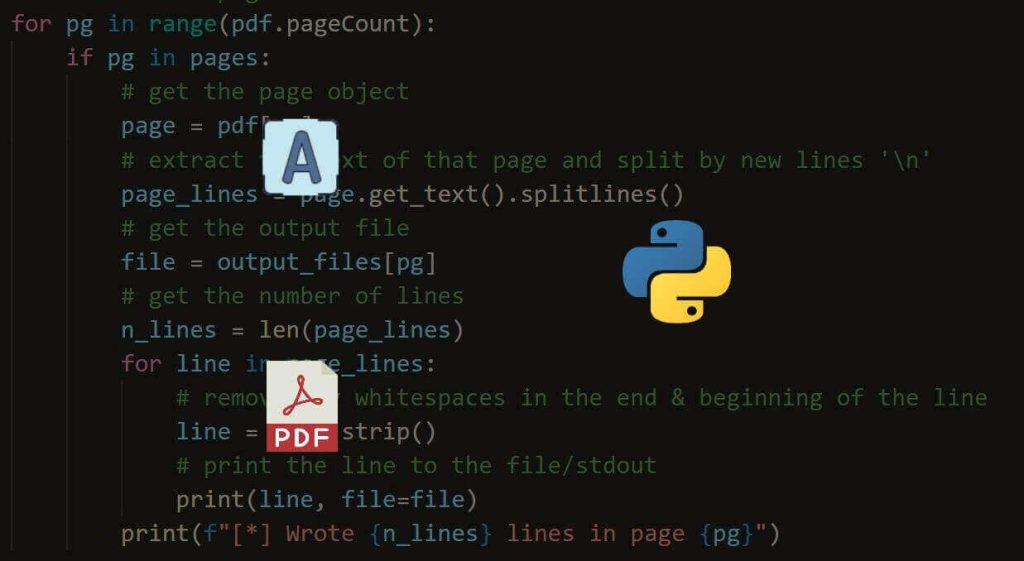
Pro tip: wrap the function in a loop to process a whole folder of corrupted PDFs.
Step 4: Handle Errors and Retries
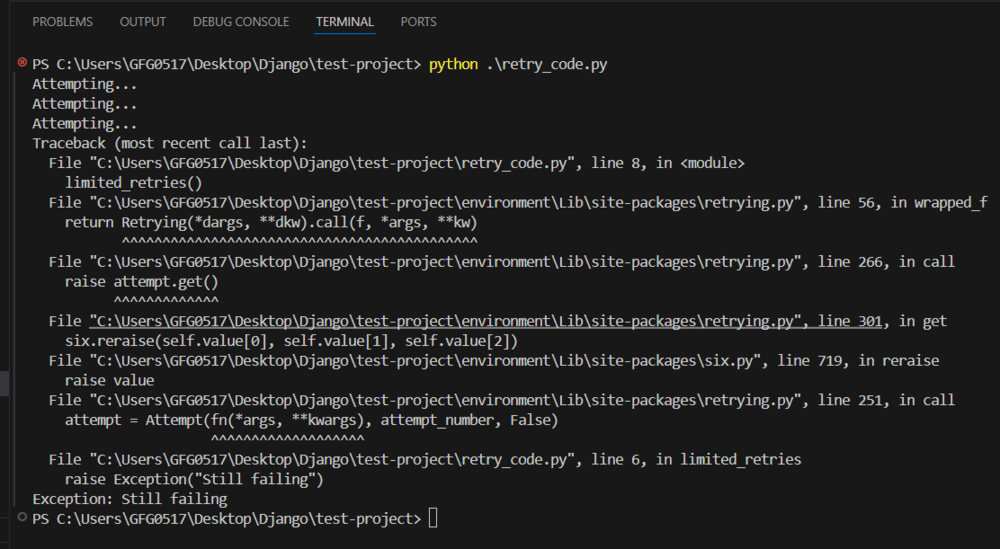
Production code needs robustness. The API might fail temporarily, or your file could be too large. Implement retries with exponential backoff and check for specific error codes:
- `429 Too Many Requests` – slow down and retry after the `Retry-After` header
- `413 Payload Too Large` – split the PDF or use a compressed version
- `422 Unprocessable Entity` – the file is not a valid PDF (maybe not even a PDF)
Here’s a quick retry decorator in Python:
Step 5: Integrate into a Web App or Mobile Backend
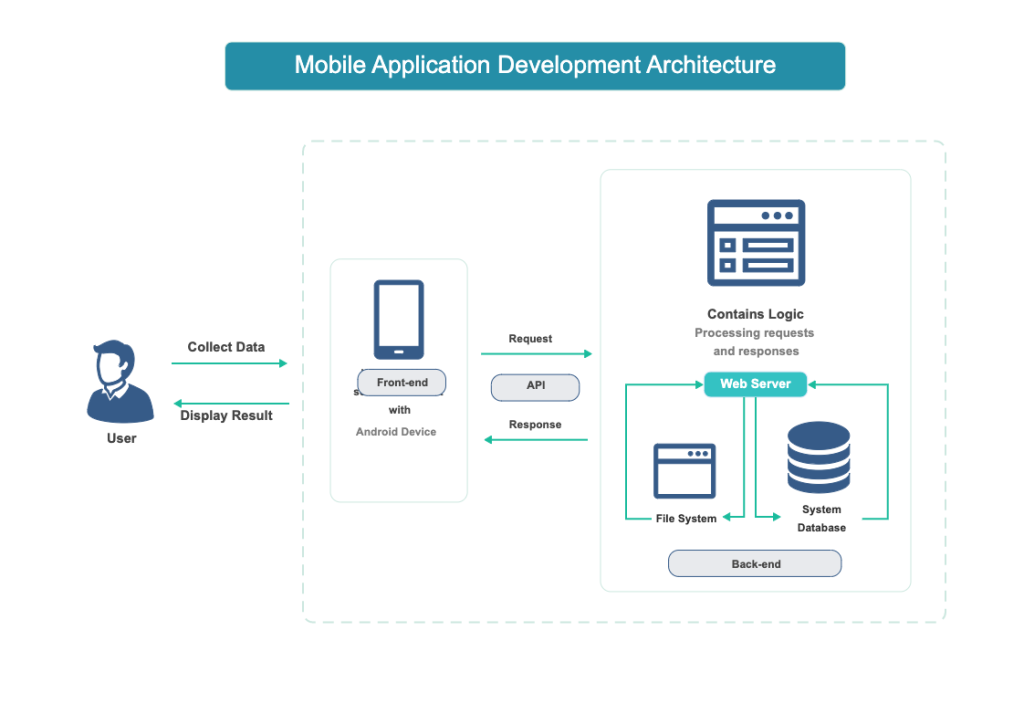
Now you can plug this into a Flask endpoint, a Lambda function, or an Android app. For example, if you’re building a mobile tool to `repair pdf on android`, your backend calls the API and sends back the fixed file. The integration is identical regardless of platform.
Remember to keep your API key on the server side – never expose it in client-side code. Use environment variables or a secrets manager.
Common Pitfalls
- **Wrong authentication method**: Many APIs use `Bearer` token in the header, but some use `X-API-Key` or query parameter `?key=`. Double-check the docs.
- **Missing multipart boundary**: When sending files via POST, ensure you’re using `multipart/form-data`. Using raw JSON with base64 may hit size limits or be rejected.
- **Ignoring response status codes**: A 200 doesn’t always mean success – some APIs return 200 with an error JSON inside the body. Always validate the response structure.
If you hit a wall, our `online pdf repair tool` guide covers manual fixes that can rescue super-stubborn files.
Where to Next
You’ve now got a fully automated PDF repair pipeline. Next, you could add a webhook callback for async processing, or chain it with a PDF parsing API to extract text after repair. If you still need manual methods, check out how to `restore pdf file` and `repair pdf stream` for edge cases. Happy coding!




