Ever tried opening a PDF and got an error like “Not a PDF file” or “Invalid header”? That’s often a sign the PDF header got corrupted. If you’re a beginner who needs to get that document back, you’re in the right place. By the end of this guide, you’ll have a working PDF with a fixed header—no advanced skills required.
The PDF header is the very first line inside the file. It typically looks like %PDF-1.4 (with any version number). If that line gets mangled—maybe from a bad download, sync issue, or software crash—the PDF reader won’t recognize the file. We’ll walk through two methods: manually restoring the header with a hex editor, and using a dedicated tool if manual work feels risky.
What You’ll Need
- The corrupted PDF file (make a backup first!)
- A hex editor like HxD (free, Windows) or Hex Fiend (Mac)
- A basic text editor (Notepad++ works well) – optional
- A PDF repair tool like PDF Repair Toolbox or Adobe Acrobat (trial)
- A few minutes of patience
Step 1: Identify the Header Problem
Open the PDF in a plain text editor (like Notepad++) to see the first few characters. If it doesn’t start with %PDF- but shows random symbols or garbage, the header is corrupted. Alternatively, if you see a readable header but the file still won’t open, other parts may be damaged—check our guide on restore damaged pdf for more help.

Step 2: Open the PDF in a Hex Editor
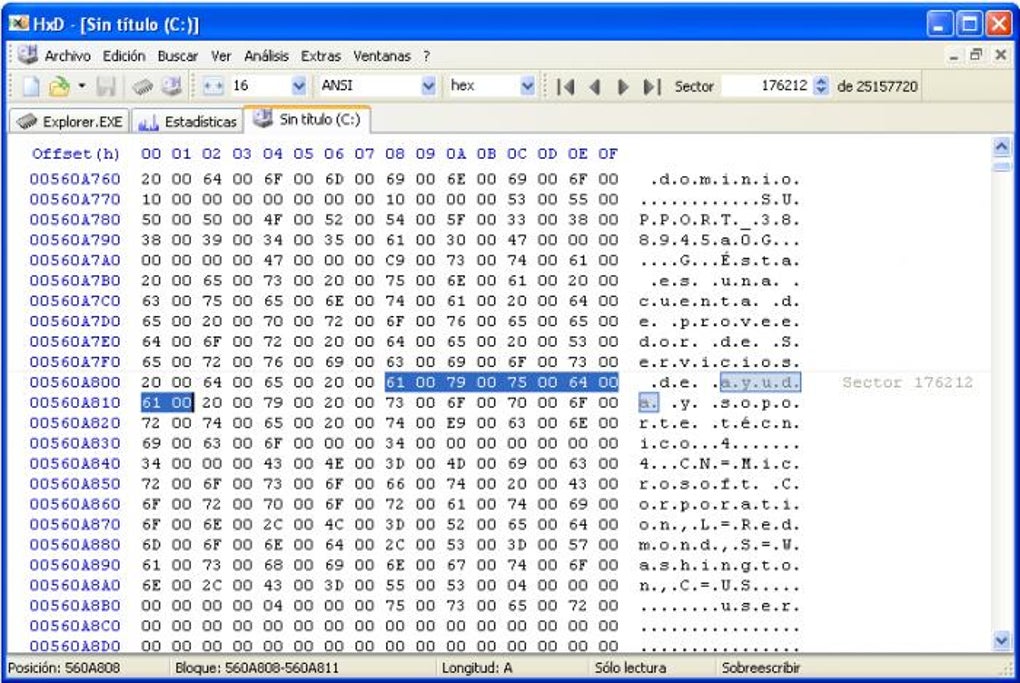
Download and install a hex editor like HxD. Open the corrupted PDF in the hex editor. You’ll see the raw bytes of the file. The first few bytes should be 25 50 44 46 2D (hex for %PDF-). If those bytes are missing or wrong, you’ll need to restore them.
Step 3: Manually Repair the Header
In the hex editor, navigate to the very beginning of the file. Overwrite the incorrect bytes with the correct header: %PDF-1.4 (or whatever version the PDF originally was; 1.4 is a safe default for most documents). Make sure you only change the header bytes—don’t touch anything else. Save the file with a new name to avoid overwriting your backup.
Step 4: Use a PDF Repair Tool If Manual Fix Fails
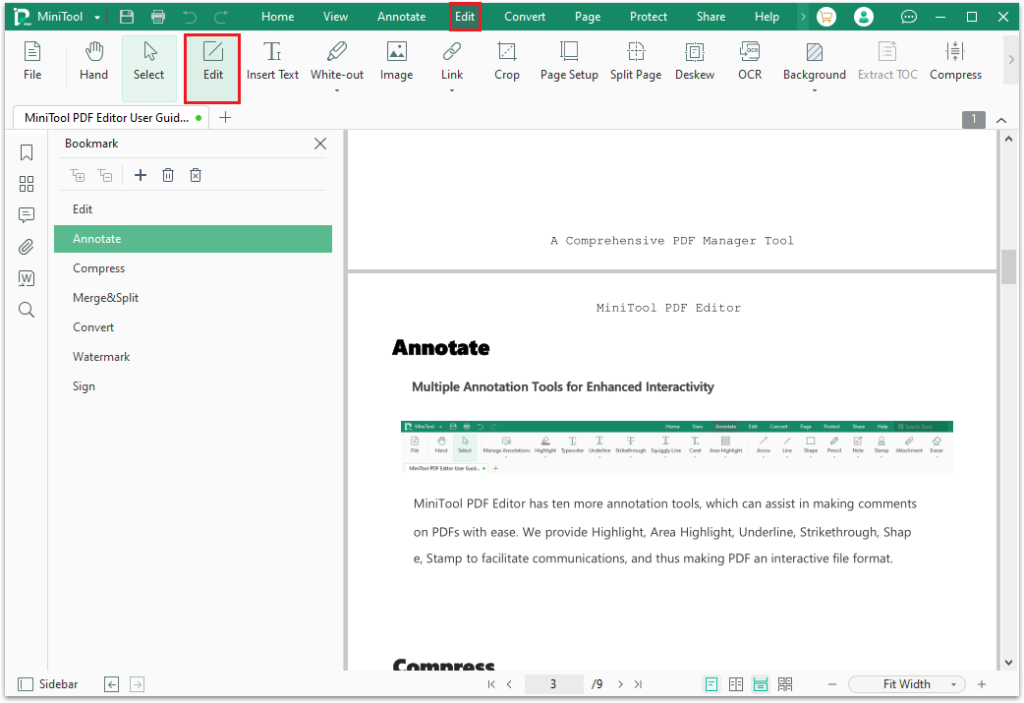
If the manual edit doesn’t work or you aren’t comfortable editing bytes, use a dedicated PDF repair tool. Many tools can scan the file and fix header corruption automatically. For example, PDF Repair Toolbox can fix not just headers but also pdf stream repair and cross-reference tables. Some tools also let you repair pdf trailer issues in one pass.

Step 5: Verify the Repair
Try opening the repaired PDF in your usual PDF reader. If it opens without errors, congratulations! If not, the file might have additional corruption—consider using a pdf repair library for programmatic fixes or try to fix compressed pdf if the file was zipped. Always keep your backup handy.

Common Pitfalls
- Changing too many bytes: Only modify the first line. Editing beyond the header can break the PDF structure.
- Forgetting to backup: If you save without a copy, you risk losing the original. Always duplicate the file first.
- Using the wrong PDF version: If you put
%PDF-1.7but the file uses 1.4, some readers may still reject it. When in doubt, match the version from a known working PDF from the same source.
Where to Next
A fixed header is just the beginning. If your PDF still has problems, dive into related guides like repair pdf trailer, pdf stream repair, or pdf repair library for deeper fixes. For files that are simply too compressed, check out our fix compressed pdf article. And for complete walkthroughs, the restore damaged pdf guide covers every scenario.




