Ever opened a PDF only to see garbled text, missing pages, or an error message? Don’t panic. You don’t need expensive software or tech skills to fix it. This guide is for anyone—students, freelancers, office workers—who needs to repair a PDF file online for free with no watermark. By the end, you’ll have a fully usable PDF, no strings attached.
We’ll walk through using trustworthy free online tools that leave zero watermarks. Whether your PDF is corrupted after an incomplete download, a cloud sync hiccup, or just a bad export, you’ll learn the exact steps to restore it. No downloads, no sign-ups, just results.
What You’ll Need
- A corrupted or damaged PDF file (the one you want to repair)
- A stable internet connection
- A modern web browser (Chrome, Firefox, Edge, Safari)
- Optional: A backup of the original PDF in case something goes wrong
Step 1: Choose a Reliable Online PDF Repair Tool
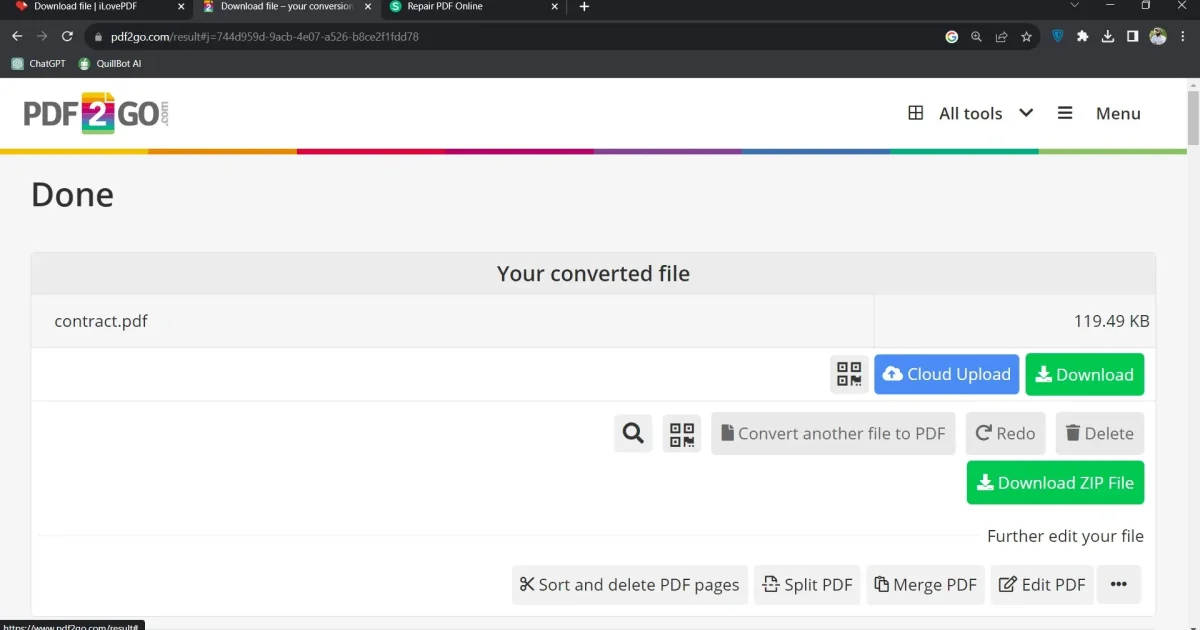
First, pick a free online PDF repair tool that explicitly states ‘no watermark’ on output. Popular options include Smallpdf, iLovePDF, and PDF2Go. For this guide, we’ll use PDF2Go because it’s straightforward and doesn’t add watermarks. Head to pdf2go.com and look for the ‘Repair PDF’ option.
Step 2: Upload Your Corrupted PDF
Click the ‘Choose File’ button and select your damaged PDF from your computer. Some tools also allow drag-and-drop. Make sure the file size is within the free limit (usually 100 MB or less). If your file is larger, you may need to compress it first—check our guide to fix compressed pdf for tips.

Step 3: Run the Repair Process
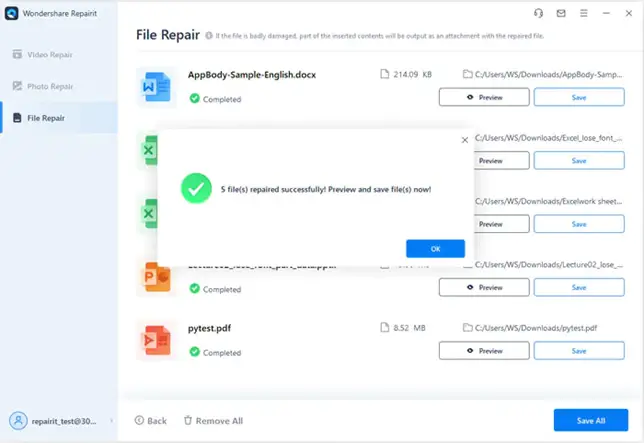
After uploading, click the ‘Start’ or ‘Repair’ button. The tool will analyze and fix common issues like broken headers, missing objects, or corrupt streams. This usually takes a few seconds to a minute. You’ll see a progress bar—don’t close the tab.
Step 4: Download the Repaired PDF
Once the repair is done, a ‘Download’ button will appear. Click it to save the fixed PDF to your computer. The file name is often the same as the original but with ‘repaired’ added. Importantly, there is no watermark—unlike some trial software, these online tools keep your document clean.
Step 5: Verify the PDF
Open the downloaded PDF in your preferred viewer. Check that all pages are present, text is selectable, and images display correctly. If it still looks off, try a second tool or refer to our more detailed guide on how to repair damaged pdf for advanced methods.
Common Pitfalls
- File too large: Free online tools often cap file size at 100–150 MB. If your PDF exceeds that, use a compression tool first or split the file.
- Privacy concerns: Avoid uploading sensitive documents (like contracts with personal info) to free online tools. Use a trusted service or offline software for confidential files.
- Incomplete repair: Some corruptions are too severe for free tools. If the output is still broken, try a dedicated tool or a manual method like repairing the PDF trailer.
The best tool is the one you actually use. Start simple, then explore advanced fixes if needed.
PDF Repair Tips
Where to Next
You’ve successfully repaired your PDF without spending a dime or dealing with watermarks. If you want to dive deeper, check out our guides on root object is missing pdf repair for stubborn errors, or learn how to repair pdf after incomplete download if that’s your recurring issue. For offline solutions, see how to repair pdf without watermark using desktop tools.




