Ever opened a PDF that looked like it got run over by a truck? Blurry text, missing images, or just won’t open at all? You’re not alone. Compressed PDFs (the kind you get when you email a file or use a quick online compressor) often get corrupted during the process. This guide is for anyone who has a compressed PDF that’s gone wrong — whether it’s a scanned document, a report, or a form. By the end, you’ll have a fully readable PDF back, and you’ll know how to avoid this mess in the future.
We’ll cover three main methods: using Adobe Acrobat’s built-in repair, a free online tool, and a manual trick with a PDF printer. No command line magic or expensive software. Just real steps that work.
What You’ll Need
- The compressed PDF file you want to fix
- A computer (Windows or Mac) with an internet connection
- Optional: Adobe Acrobat Pro (free trial works) – if you don’t have it, use the free online method
- A web browser (Chrome, Firefox, Edge)
Step 1: Try Adobe Acrobat’s Built-In Repair
If you have Adobe Acrobat Pro (or even the free Acrobat Reader with a Pro trial), this is the easiest fix. Acrobat can often salvage compressed PDFs because it reads the file’s raw structure. First, open the damaged PDF in Acrobat — it might give you an error, but try anyway. Go to File > Open and select your file. If it opens, great! If not, proceed to the next step.
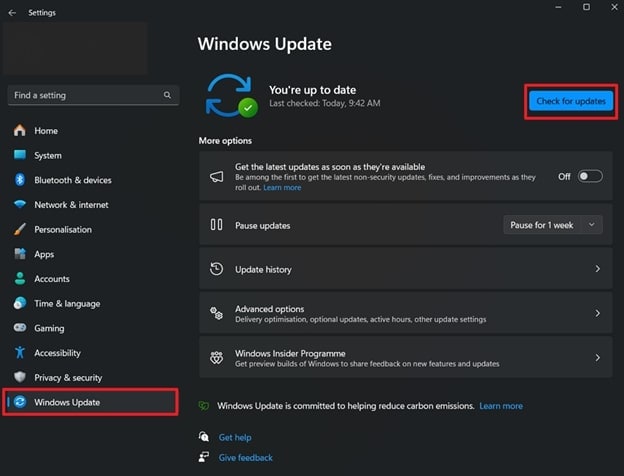
Once open, go to Tools > Use the ‘Optimize PDF’ tool (or ‘Reduce File Size’). This might sound counterintuitive, but re-saving with optimization often repairs internal structure. Click ‘Advanced Optimization’ and make sure you aren’t downsampling images further. Then re-save the PDF under a new name. Check if the result is readable. If not, move to Step 2.
Step 2: Use an Online PDF Repair Service
When Adobe fails, online tools are your next bet. Head to a trusted site like iLovePDF or Smallpdf. They have dedicated ‘Repair PDF’ features. Upload your compressed PDF, let the service process it, and download the fixed file. These tools work by stripping out corrupted data and rebuilding the PDF’s internal structures. For a free option with no signup required, check out our guide to repair pdf free no signup.
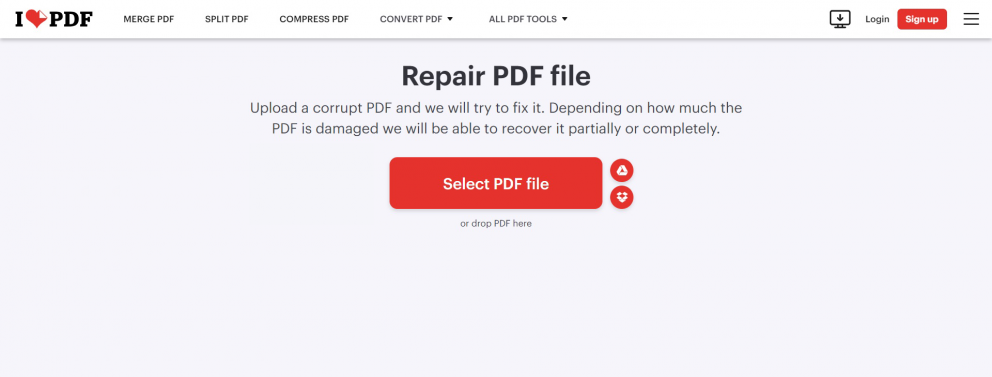
After downloading, open the new PDF. If it’s still broken, try a different online tool — sometimes one service handles certain compression artifacts better than another. For a list of reliable options, see our post on repair pdf online free.
Step 3: Recompress with a PDF Printer (Manual Fix)
If online repair doesn’t work, try this: ‘print’ the PDF to a new PDF using a PDF printer. On Windows, you can use Microsoft Print to PDF; on Mac, use the built-in Save as PDF. Open the corrupted PDF in any viewer (even a web browser), go to Print, choose the PDF printer, and save as a new file. This essentially re-creates the PDF from scratch, often bypassing compression errors.
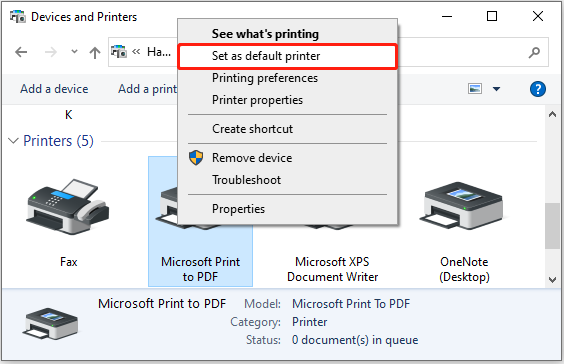
The downside is that interactive elements (forms, links) might be lost. But for simple text and images, this works great. If you need to preserve form fields, see our guide on repair pdf forms (but note that’s a different process).
Step 4: Use a Dedicated PDF Repair Tool (If All Else Fails)
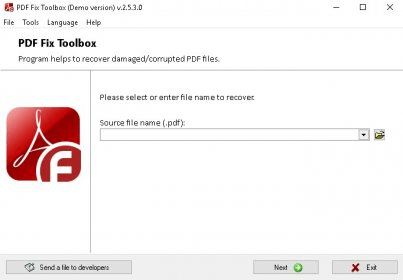
For tough cases, consider a specialized desktop tool like PDF Repair Toolbox or Recovery Toolbox for PDF. These are paid but offer deep scanning. However, try the free methods first. If you’re on Windows, you can also try repair pdf on windows using built-in commands like ‘select-object’ in PowerShell, but that’s advanced. For most users, one of the earlier steps will do the job.
Common Pitfalls
- Don’t re-compress the repaired PDF: After you fix it, save a high-quality copy. Applying another compression could break it again.
- Avoid sketchy online tools: Some sites upload your PDF to public servers. Use only reputable services; we recommend the ones linked in our guides.
- Missing fonts or images: If the compressed PDF is missing fonts because they were stripped during compression, the repair might embed fallback fonts. But sometimes images are permanently lost. In that case, you might need the original source file.
Where to Next
Now you’ve got your fixed PDF. To prevent future issues, avoid aggressive compression — use Acrobat’s ‘Reduce File Size’ with careful settings instead. If you often deal with corrupted PDFs, bookmark our pdf repair for reports guide. And if your PDF came from Word, check out repair pdf generated from word for specific tips. Happy repairing!




