Ever plugged in your USB drive, double-clicked that important PDF, and got hit with ‘File is damaged and could not be repaired’? Yeah, it stinks. Maybe you yanked the drive out too fast, or the file got corrupted during transfer. Whatever the reason, don’t panic. This guide is for anyone who has a PDF on a USB drive that just won’t open. By the end, you’ll have a working copy of your PDF back on your computer or drive.
We’ll walk through a few different methods—from quick online tools to more powerful desktop apps—so you can pick the one that fits your comfort level. You won’t need any special technical skills, just a bit of patience. Let’s get that PDF back in action.
What you’ll need
- USB drive with the corrupted PDF (obviously)
- A computer with internet access (for online tools) or admin rights (to install software)
- Patience – don’t rush the repair process
- Optional: a second USB drive to back up the file before making changes
Step 1: Copy the PDF to your computer first
Before you do anything else, copy the corrupted file from the USB drive to your computer’s desktop or a folder. This prevents further damage if the USB is finicky. Right-click the file, select ‘Copy’, then paste it somewhere safe. If the USB isn’t recognized, try a different port or another computer.
Step 2: Run a quick check on the USB drive
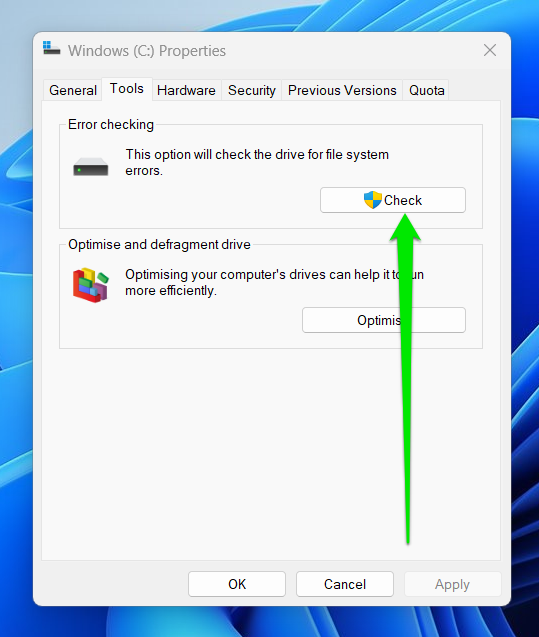
Sometimes the PDF isn’t actually corrupted—the USB is. Use Windows’ built-in error checking tool: right-click the USB drive in ‘This PC’, go to Properties > Tools > Check. On Mac, use Disk Utility First Aid. If errors are found and fixed, try opening the PDF again. If still broken, move on.
Step 3: Use a free online PDF repair tool
The quickest way to fix a mildly corrupted PDF is with an online service. Head to a site like PDF24 or iLovePDF, upload your file, and let them run a repair. Most are free and don’t require signup. This works well for files that open but look garbled. If your file is completely unreadable, the next step might work better. Check out our guide on how to repair pdf online free for more options.
Step 4: Repair using a dedicated desktop tool
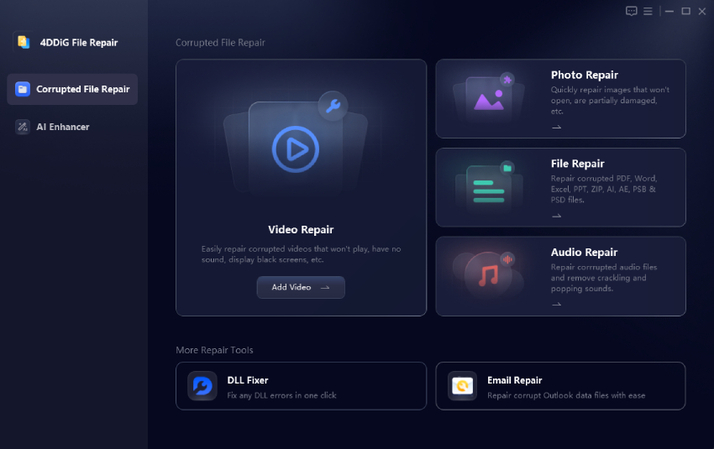
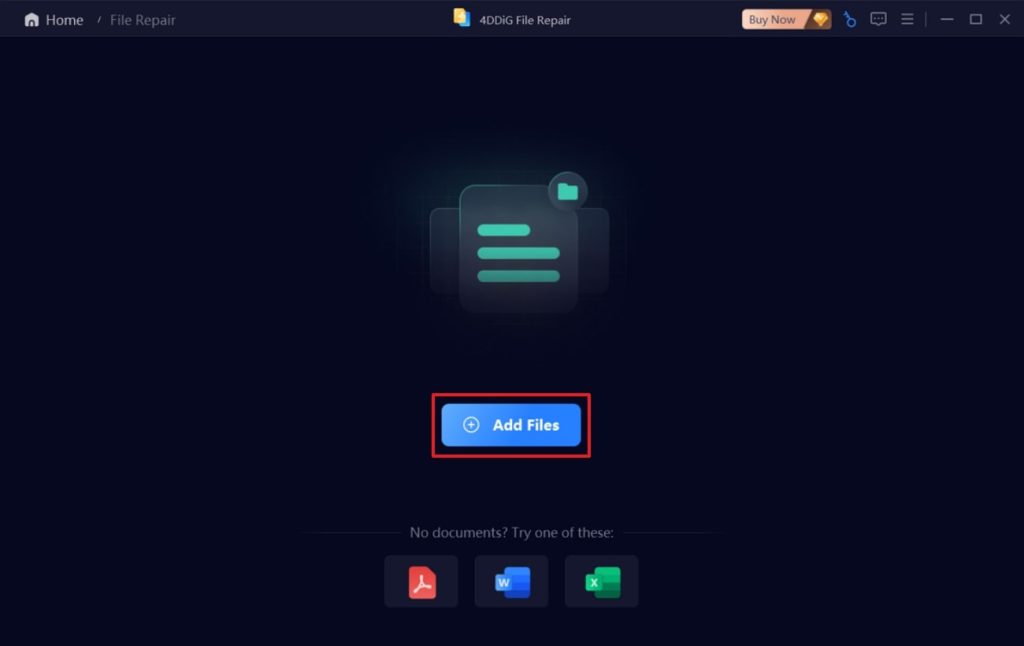
If online tools fail, try a desktop application like Adobe Acrobat Pro (trial) or a free tool like Recoll or PDF Repair Toolbox. With Acrobat, open the file, and if it prompts you to repair, click ‘Yes’. You can also go to File > Repair. For other tools, follow their instructions. This method often works for files after an incomplete download or sync error—similar to the process for a fix pdf after cloud sync issue.
Step 5: Try opening the PDF in a different application
Sometimes the file is fine, but your viewer is broken. Try Google Chrome’s built-in PDF viewer: drag the PDF file into a Chrome window. Or use LibreOffice Draw: open Draw, then File > Open, select the PDF. If it opens, you can export it as a new PDF. This trick is especially useful for invalid pdf repair cases.
Step 6: Use a command-line tool as a last resort
If all else fails, you can try a command-line tool like pdfresurrect (for Linux) or qpdf (cross-platform). These can recover raw data from corrupt files. For example, with qpdf you’d run ‘qpdf –linearize input.pdf output.pdf’. This is more technical but can salvage reports and forms. Check our guide on pdf repair for reports for more details.
Step 7: Copy the repaired file back to USB
Once you have a working PDF, save it with a new name, then copy it to your USB drive. Eject the drive safely (right-click > Eject) to prevent corruption again. If the original file was critical, consider keeping a backup on your computer or cloud.
Common pitfalls
- Trying to repair while the file is still on the USB – move it to your computer first to avoid further damage.
- Assuming the file is repairable – if the PDF is too damaged, you might only recover text or images. Accept partial recovery.
- Forgetting to safely eject the USB – always use ‘Safely Remove Hardware’ to prevent future corruption.
Where to next
Now that your PDF is back, take steps to avoid the same headache. Consider using a reliable backup solution and always safely eject USB drives. If you run into other PDF issues, browse our guides on repair pdf after incomplete download or invalid pdf repair. Happy reading!




