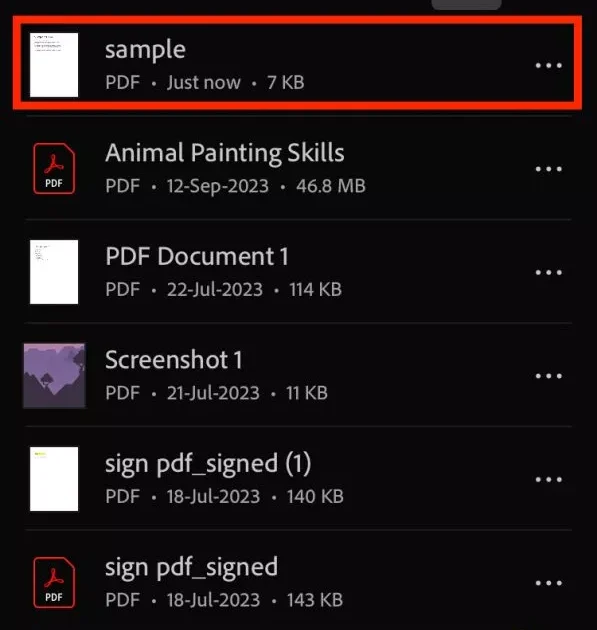
So you synced a PDF to the cloud — Google Drive, Dropbox, OneDrive, whatever — and now when you try to open it, you get gibberish, a blank page, or an error message. You’re not alone. Cloud sync services sometimes chop up files or miss bytes, leaving your PDF corrupted. This guide is for anyone who’s dealing with a jacked-up PDF after a sync and wants a working copy back. By the end, you’ll have a step-by-step plan to recover that file.
I’ll walk you through checking the original, downloading fresh copies, using repair tools, and even converting the file. Most steps are free and don’t require special software. You’ll also learn what to avoid so it doesn’t happen again. Let’s get your PDF back in shape.
What You’ll Need
- Your cloud account (Google, Dropbox, etc.)
- A stable internet connection
- A PDF reader (Adobe Acrobat Reader, browser, etc.)
- Optional: a backup of the original file before sync
Step 1: Check the Original File
Before you panic, verify if the PDF was corrupted before or during sync. Open the file on the device where you uploaded it (the original save location). If it opens fine there, the corruption happened during sync. If it’s already broken, you’ll need to follow our guide to repair pdf after incomplete download to fix the source.
Step 2: Download a Fresh Copy
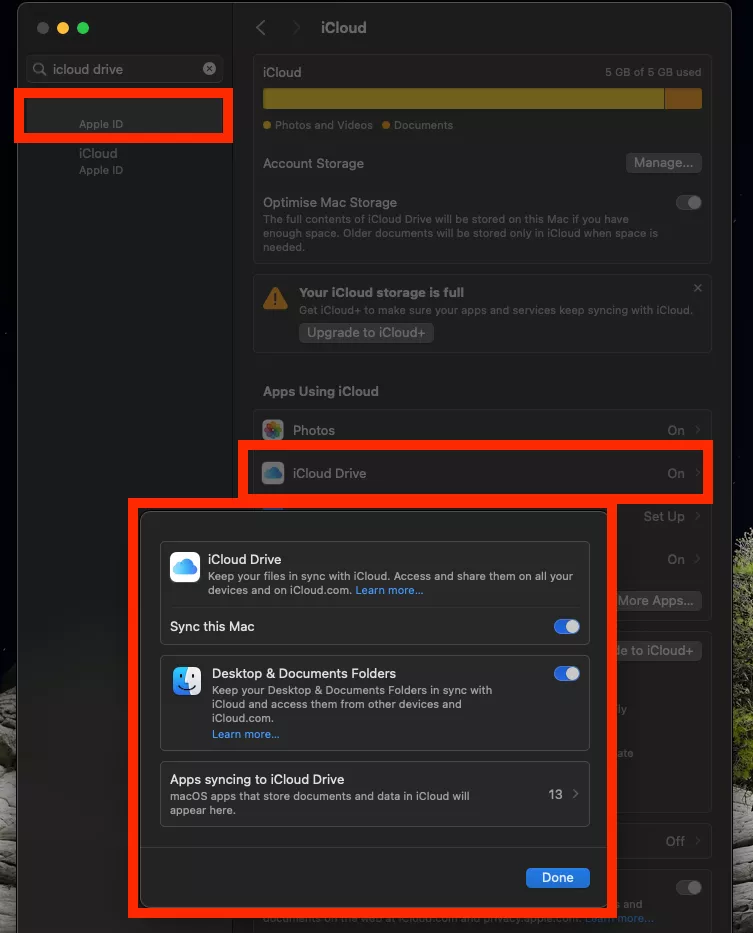
Sometimes a fresh download solves the issue. Delete the synced file from your local folder (make sure you have a backup) and force a re-download from the cloud. On Google Drive, click “Download” instead of opening in preview. This bypasses the synced copy and pulls the original from the server.
Step 3: Use a PDF Repair Tool
If a fresh download still gives you a broken file, try an online repair tool. Many services let you fix unreadable pdf online for free. Upload your corrupted PDF, let the tool fix structural issues, and download the repaired version. For a no-hassle option, use a service that offers repair pdf online free without signup.
Step 4: Try Adobe Acrobat
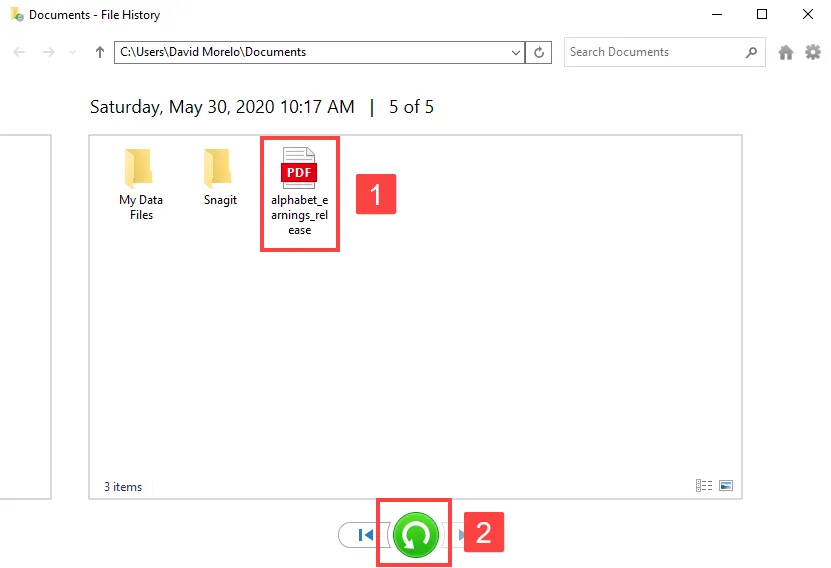
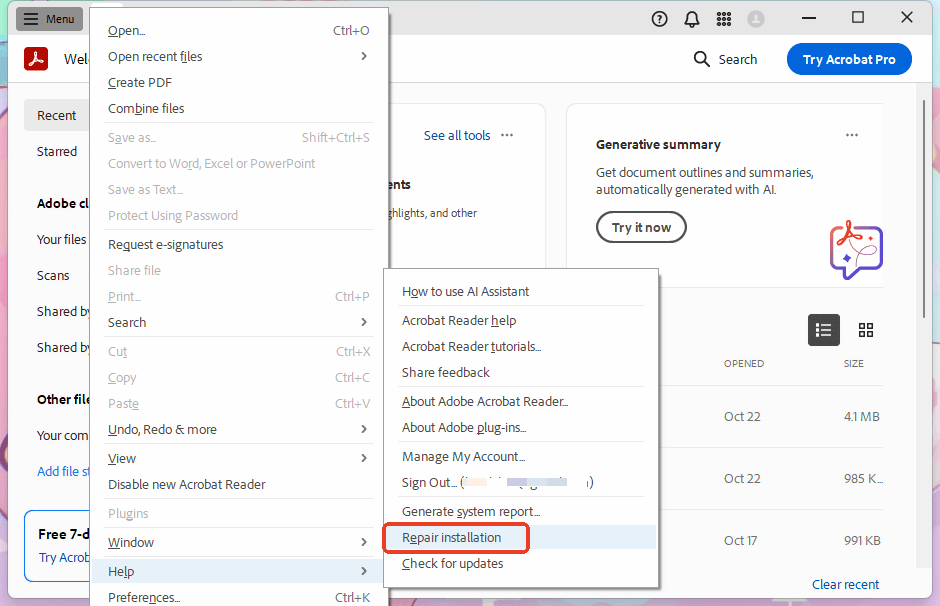
Adobe Acrobat’s built-in repair features can often salvage a PDF after a bad sync. Open the file in Acrobat, go to File > Save As Other > Optimized PDF, and check “Make compatible with older versions.” This rewrites the internal structure. If that doesn’t work, try the “Inspect PDF” tool. For a full breakdown, see our guide on how to repair pdf in adobe.
Step 5: Convert and Reconvert
If the PDF is truly stubborn, convert it to another format (like Word or image) and then back to PDF. Use an online converter or software like LibreOffice. This action strips out corrupted metadata and rebuilds the file. For Windows users, check our dedicated tutorial to repair pdf on windows for additional methods.
Common Pitfalls
- Sync conflicts: If multiple people edit the file, cloud services create duplicate versions. Check for “Conflicted copy” files — those often contain the correct data.
- Partial upload: A drop in internet during upload leaves a truncated PDF. Always wait for the sync to complete before closing your device.
- Renaming after sync: Changing the file extension after syncing (e.g., from .pdf to .txt) can corrupt it further. Keep the .pdf extension intact.
Where to Next
You’ve fixed your PDF! If you ran into other issues like damaged links or forms, check out our guides on fix unreadable pdf online and repair pdf free no signup. For recurring problems, consider disabling offline sync or using a dedicated backup routine. Happy reading!




