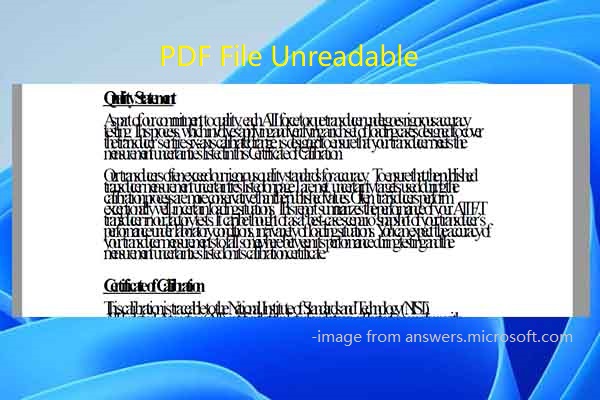
Ever opened a PDF only to see a wall of garbled text, blank pages, or an error message saying ‘File is damaged and could not be repaired’? You’re not alone. Unreadable PDFs happen for all sorts of reasons — a bad download, an interrupted upload, disk errors, or even a simple rename gone wrong. The good news? You don’t need to be a tech wizard or buy expensive software to fix them. In this guide, I’ll show you how to repair unreadable PDFs entirely online, using free tools that work right in your browser. By the end, you’ll have a readable, working PDF — or at least know exactly why it can’t be saved.
This tutorial is for anyone who’s ever stared at a PDF that just won’t display properly. Whether you’re a student with a busted lecture handout, a professional with a scrambled report, or someone trying to open an important document from an email attachment, these steps will help. We’ll start with the simplest fixes (that often work) and move to more advanced tricks. And because everything is online, there’s nothing to install. Ready? Let’s get that PDF readable again.
What You’ll Need
- A web browser (Chrome, Firefox, Edge, or Safari)
- The unreadable PDF file
- An internet connection
- Optional: a cloud storage account (Google Drive, Dropbox) for uploading larger files
Step 1: Try Opening in a Different PDF Viewer
Sometimes the problem isn’t the PDF itself — it’s the program you’re using to open it. Different viewers handle minor corruption differently. Before you panic, try opening the file in a different viewer. You can test it right in your browser (most browsers have a built-in PDF viewer) or use an online viewer like Google Docs.
To try with Google Docs: go to drive.google.com, upload the PDF, right-click it, and select ‘Open with’ > ‘Google Docs’. Google converts the PDF to an editable document — if the text comes through, you can then download it as a fresh PDF. This trick alone fixes many unreadable PDFs because Google’s conversion often strips out minor corruption.
Step 2: Use a Dedicated Online PDF Repair Tool
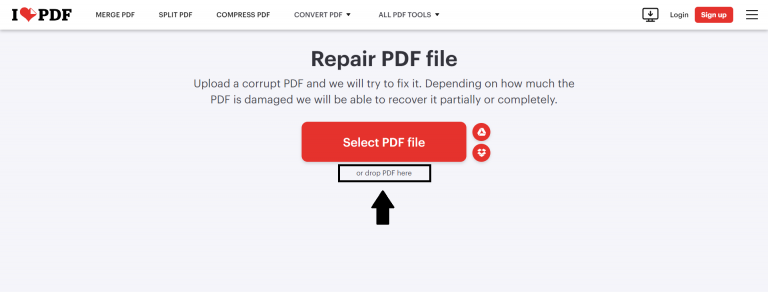
If switching viewers didn’t help, it’s time for a proper online repair tool. There are several free options that can handle common corruption. One of my favorites is iLovePDF’s Repair PDF tool. It’s free, no sign-up required, and works well for minor to moderate corruption. Another solid choice is Smallpdf’s Repair PDF tool. Both let you upload the broken file and download a repaired version in seconds.
For a more powerful option, check out PDF24 Tools’ PDF Repair. It handles larger files and more severe corruption. Upload your PDF, click ‘Repair’, and wait a few seconds. Download the repaired file and open it. If you want to learn more about the best free tools, see our guide on how to repair a PDF online for free.
Step 3: Convert to Another Format and Back
Sometimes the corruption is in the internal structure of the PDF. Converting the file to a different format (like Word or images) and then back to PDF can rebuild that structure from scratch. Many online converter tools do this automatically. Let’s try it.
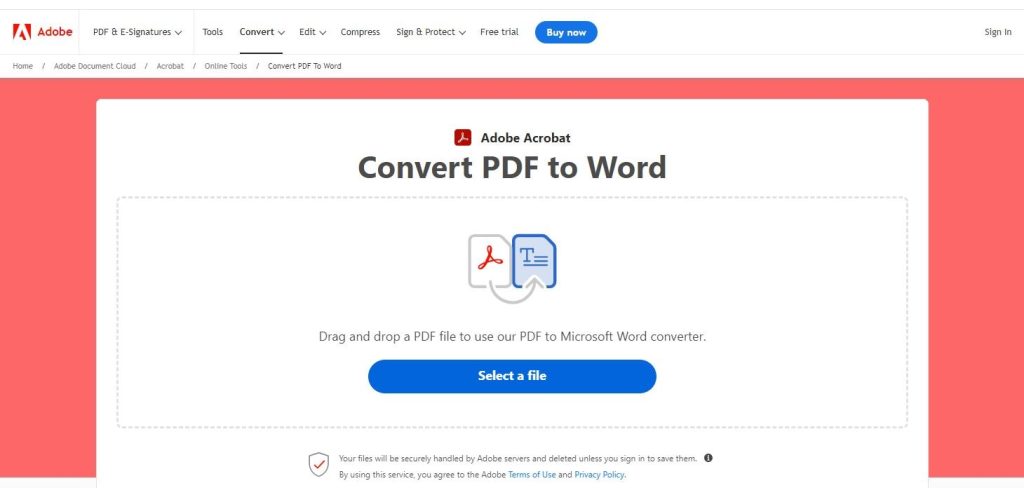
- Go to a free online converter like Zamzar or CloudConvert.
- Upload your broken PDF.
- Choose ‘DOCX’ as the output format (or ‘JPG’ if text isn’t needed).
- Download the converted file.
- Now convert that DOCX (or images) back to PDF using the same or another tool.
- Open the new PDF — it should be readable.
This method is especially effective for PDFs that are blank or show garbled text. It essentially discards the broken parts and re-creates the content. For more severe cases, check out our article on how to restore a PDF file for additional steps.
Step 4: Use the ‘Save As’ or Print Trick in Your Browser
This is a quick hack that often works when the PDF is partially readable. If you can see some content but not all, or if the PDF opens but looks messed up, try this: open the PDF in your browser, then print it using the ‘Save as PDF’ option. This re-renders the entire file and can salvage a lot of data.
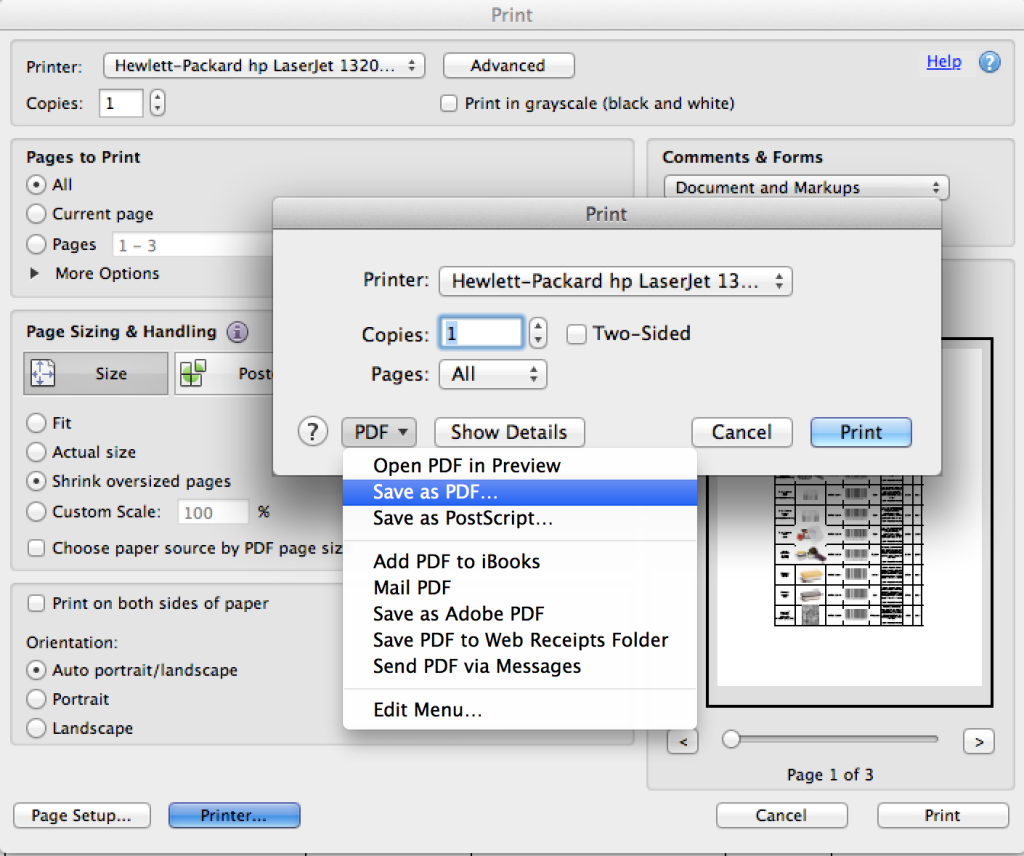
- Open the unreadable PDF in Chrome or Edge (drag it into a new tab).
- Press Ctrl+P (Cmd+P on Mac) to open the Print dialog.
- Change the destination printer to ‘Save as PDF’.
- Click ‘Save’ and choose a location.
- Open the newly saved PDF.
This trick essentially makes the browser interpret the PDF and output a clean copy. It works surprisingly often for mildly corrupted files. If it fails, don’t worry — there’s still hope.
Step 5: Try a Different Web-Based Viewer or PDF API
If none of the above works, the corruption might be deeper. You can try uploading the file to a service like Adobe Acrobat’s online PDF repair (which has a free tier) or use a PDF repair API. But for most users, the next best option is to try an alternative viewer like PDF.js (a browser-based viewer) or even open the file in a text editor to check if the raw content is there. However, that’s more technical. For a programmatic approach, see our article on how to use a PDF repair API.
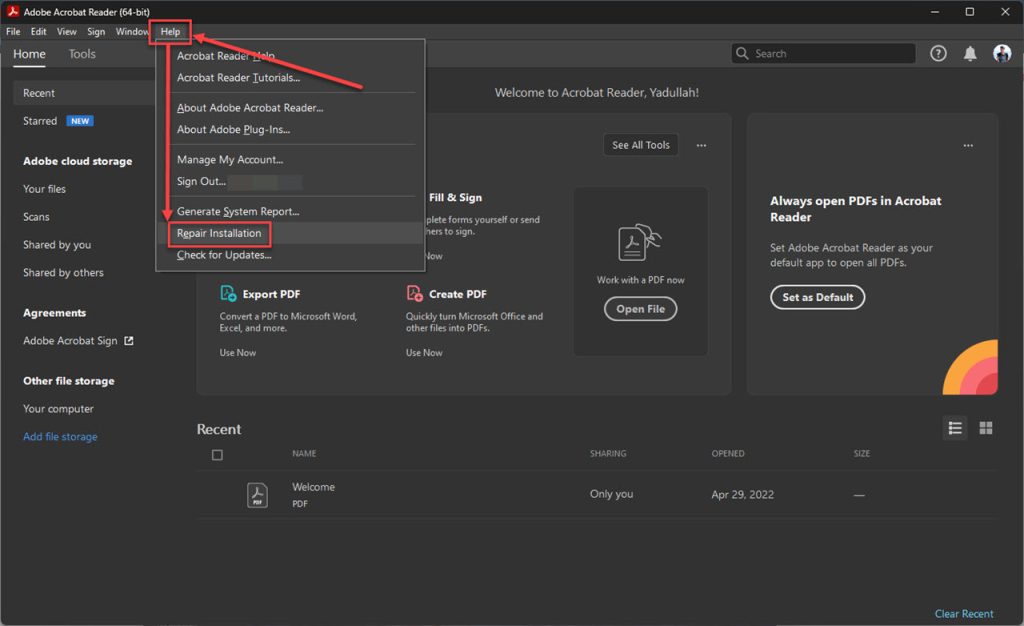
At this point, if the file is still unreadable, it may be severely corrupted or even a zero-byte file. In that case, check out our guide on how to repair a zero-byte PDF or how to fix a corrupted PDF online free no watermark. Sometimes the file simply needs a different tool.
Common Pitfalls
- The file is password-protected: Some online tools can’t repair encrypted PDFs. You’ll need the password first. Try removing the password using a suitable tool, then attempt repair again.
- The file is actually not a PDF: Sometimes a file with the .pdf extension is really something else (like a renamed .exe or .doc). Check the file’s true type by opening it in a text editor; if you see ‘%PDF’ at the start, it’s a valid PDF. If not, change the extension back.
- Large files timeout: Free online tools often have upload limits (e.g., 10-50 MB). If your file is too big, compress it first using an online compressor, or split it into smaller parts.
Where to Next
You’ve now tried multiple ways to fix an unreadable PDF online. In most cases, one of these methods will work. If you’re still stuck, remember that some files are truly beyond repair — especially if they were only partially downloaded or generated in error. In that case, try to get a fresh copy from the source. For more specialized scenarios, explore our other guides: repair an incomplete PDF, restore a PDF file, or if you see the dreaded message that the PDF is damaged and could not be repaired, don’t give up — there are still options. Good luck!




