Ever tried opening a PDF only to see a blank page, random characters, or an error? If you’re staring at an unreadable PDF right now, don’t panic. This guide is for anyone — whether you’re a student, office worker, or just someone with a corrupted file — who needs to recover the contents without expensive software. By the end, you’ll have a readable PDF that you can open, print, or share.
We’ll use free online tools because they’re fast, don’t require installation, and work on any device. I’ll walk you through each step, from diagnosing the issue to downloading a fixed file. Along the way, I’ll link to other helpful tutorials like how to repair PDF online free and how to handle a zero-byte PDF. Ready? Let’s get your PDF back.
What You’ll Need
- Your unreadable PDF file (keep a backup copy)
- A computer or smartphone with internet access
- A web browser (Chrome, Firefox, Safari, etc.)
- About 5 minutes of your time
Step 1: Identify the Problem
Before choosing a repair tool, figure out what’s wrong. Is the file completely empty (zero bytes)? Does it show an ‘invalid PDF‘ error? Or is it partially readable? Knowing the issue helps pick the right method. For example, a zero-byte PDF is different from a structurally damaged file. Check the file size in your file manager. If it’s 0 KB, you have a zero-byte PDF — that requires special recovery.
If the file size looks normal but the content is gibberish, it’s likely a corruption during transfer or saving. Sometimes you’ll see messages like ‘This PDF is damaged and could not be repaired’ — don’t give up; many online tools can still recover data. For more on that, check our guide on invalid PDF repair.
Step 2: Choose a Reliable Online PDF Repair Tool
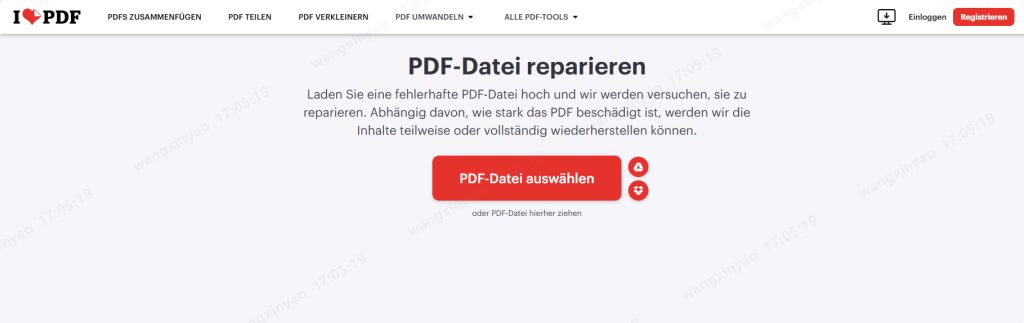
There are dozens of free PDF repair websites. Look for ones that don’t require sign-up and don’t add watermarks. Popular options include iLovePDF, PDF24 Tools, and Smallpdf. For this tutorial, we’ll use iLovePDF’s ‘Repair PDF’ tool because it’s simple and works for most cases. To repair PDF online free, just visit their site and click ‘Repair PDF’.
Step 3: Upload Your Unreadable PDF
Click on the upload area or drag and drop your file. The website will accept files up to a certain size (usually 100 MB for free users). If your file is larger, you may need to compress it first or use a desktop tool. Once uploaded, the tool will analyze the file. This usually takes a few seconds.
Step 4: Run the Repair Process
After uploading, click the ‘Repair’ button. The tool will attempt to reconstruct the PDF structure. You’ll see a progress bar or a spinning icon. Be patient — if the file is badly damaged, it might take a minute. If the tool fails, try a different service like PDF24 or use the ‘fix corrupted PDF online free no watermark’ method from our related post. Another option is to restore PDF file using Google Drive’s preview, but that’s less reliable.

Step 5: Download and Verify the Fixed PDF
Once repair finishes, a download link appears. Click it and save the file. Open it with your PDF reader. Check if all pages are intact and texts are readable. If something is still off, try the same tool again or use a different one. For instance, if you plan to print, you might want to repair PDF before printing to avoid wasting paper.
Common Pitfalls
- File too large: Free online tools have size limits. If your PDF is over 100 MB, compress it first or use a desktop alternative.
- Tool adds watermark: Some free services put a watermark. Always check the tool’s policy. Use one that advertises ‘no watermark’ like the one in our fix corrupted PDF free no watermark guide.
- Not all content recovered: Badly damaged files may still have missing parts. Try multiple tools or use a dedicated recovery software if the content is critical.
Where to Next
You’ve now got a working PDF! If you run into other issues like missing links or fast web view problems, check our guides on repair PDF links and repair fast web view PDF. For mobile users, we also have a tutorial on how to repair PDF on Android. Keep these resources bookmarked — you never know when the next corrupted file will appear.




