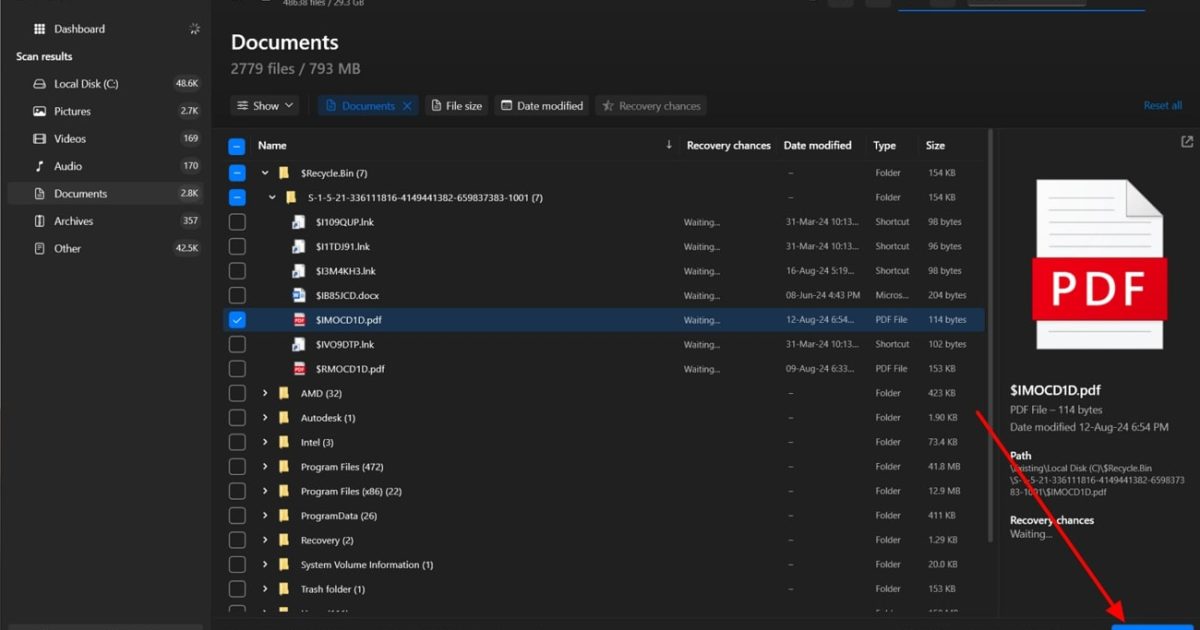
Ever spent hours filling out a PDF form only to have it crash, show blank fields, or refuse to open altogether? You’re not alone. This guide is for anyone who needs to recover PDF form data—whether you lost entries due to a corrupted file, a failed download, or an accidental close. By the end, you’ll have your form fields back and know how to prevent future loss.
We’ll cover several methods: using Adobe Acrobat’s built-in recovery, extracting data from a damaged file, and leveraging free online tools. No advanced tech skills required. Let’s get that data back.
What You’ll Need
- The corrupted or problematic PDF form file
- A computer with internet access (for online tools)
- Adobe Acrobat Reader DC (free) or Adobe Acrobat Pro (trial works)
- A backup copy of the file if possible
- Patience—sometimes recovery takes a few tries
Step 1: Try Opening in a Different Viewer
Sometimes the issue is your PDF reader, not the file itself. Before diving into recovery, open the form in a different application. Use a web browser (Chrome, Firefox, Edge) or another reader like Foxit. If the form displays correctly, save a copy from that reader. If not, move on.
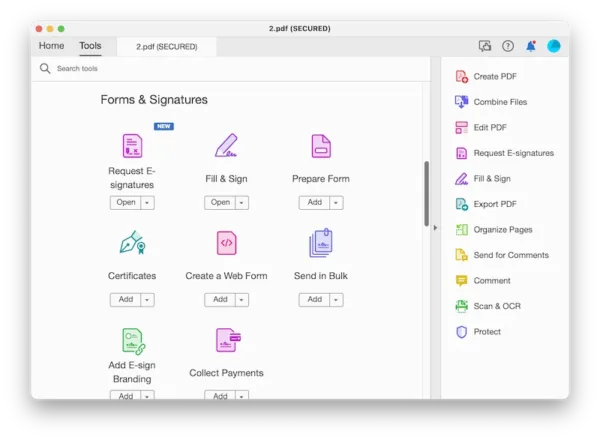
Step 2: Use Adobe Acrobat’s ‘Export Form Data’ Feature
If the form partially opens but fields are blank, Adobe Acrobat Pro can often extract the underlying data. Open the file in Acrobat, go to Tools > Forms > More Form Options > Export Data. Choose a file format like FDF or XFDF and save it. This pulls out just the field values into a separate file. You can then import that data into a fresh copy of the form.

Step 3: Use an Online PDF Recovery Tool
When your PDF won’t open at all, online services can often repair the structure. Try a tool like PDF24 or Smallpdf’s repair feature. Upload your file (make sure it’s not sensitive data unless you trust the service), let it process, then download the repaired version. Many tools also work as a restore pdf file option, bringing back content from severely damaged documents.
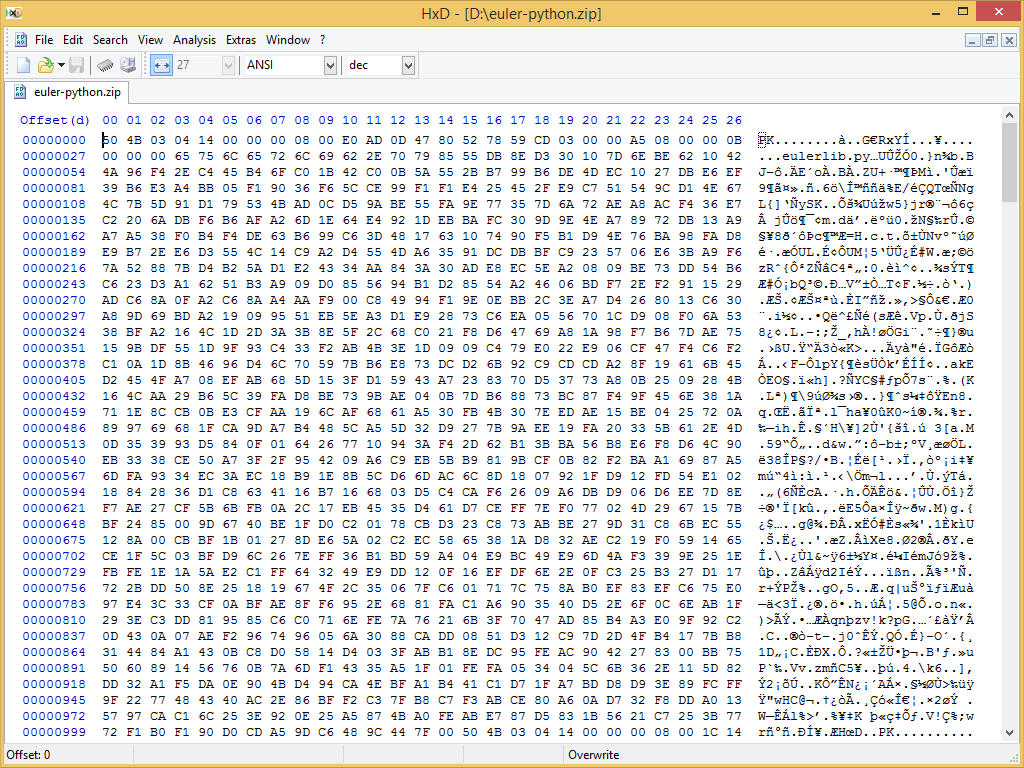
Step 4: Manually Extract Data with a Hex Editor (Advanced)
If automated tools fail, and you’re comfortable with technical work, you can dig into the raw data. Open the PDF in a hex editor (like HxD) and search for text strings you remember entering. Form field values are often stored as plain text between parentheses. Copy and paste them into a blank form. This method is tedious but effective—similar to how experts recover medical pdf or repair academic pdf files when standard tools fall short.
Step 5: Use Adobe Acrobat’s Form Trace (Pro Only)
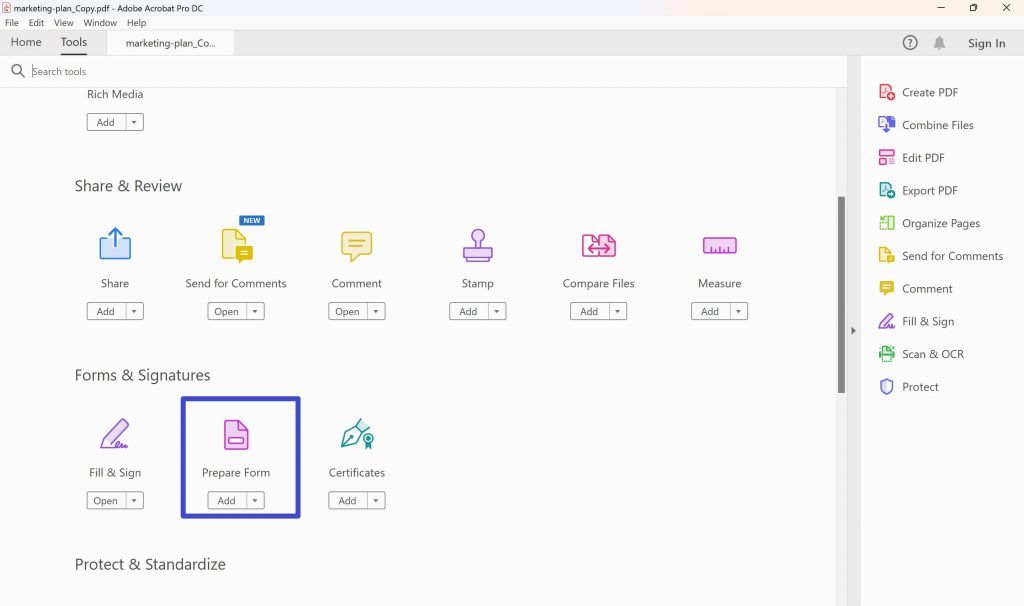
Acrobat Pro includes a ‘Form Trace’ tool (under Forms > Form Trace) that analyzes the file and attempts to rebuild field definitions. This is particularly useful when the form’s structure is corrupted but data still exists. Run the trace, then save the recovered form with a new name.
Common Pitfalls
- Opening a form after closing it without saving – always use ‘Save As’ before closing to avoid losing data.
- Using unreliable online tools – some services may not encrypt uploads, risking sensitive data. Stick to trusted names.
- Assuming the file is beyond repair – even if a tool says pdf damaged and could not be repaired, try another method or edit the hex manually.
Where to Next
Now that you’ve recovered your form data, consider preventive steps: always keep backups, use ‘Save As’ regularly, and avoid using complex JavaScript in fillable forms. If you need a broader solution, check out our guide on how to repair unreadable pdf online for other file types. Happy form filling!




