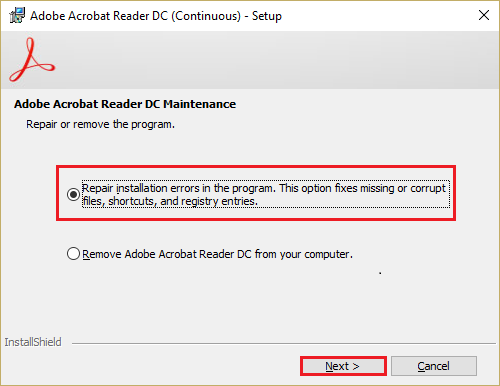
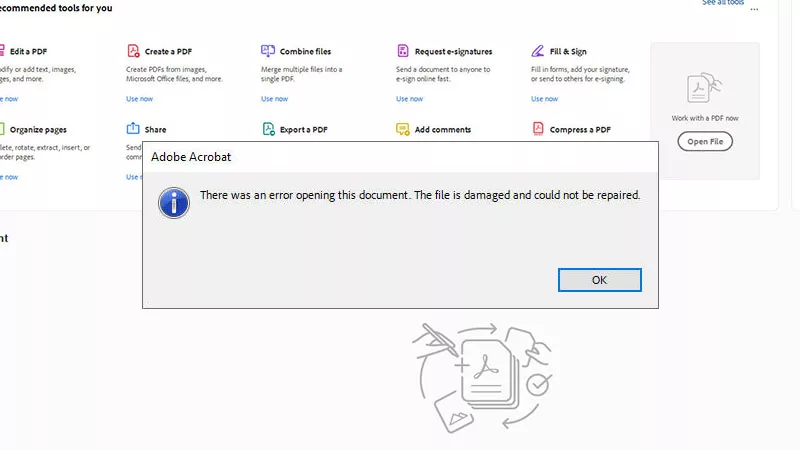
So you’ve tried everything — online tools, desktop software, even the ‘repair’ button in Adobe — and your PDF is still broken. The error message says it all: ‘PDF damaged and could not be repaired.’ Don’t give up just yet. This guide is for anyone stuck with a corrupted PDF that refuses to be fixed by standard methods. By the end, you’ll have a handful of last-ditch techniques to extract your data, from raw text recovery to binary salvage.
You’ll walk away knowing exactly how to squeeze every drop of usable content out of even the most hopeless PDF. Whether it’s a work report, an ebook, or an invoice, these steps have saved me more times than I can count. Let’s get your data back.
What You’ll Need
- The damaged PDF file (keep the original untouched)
- A backup copy of the PDF (if you have one)
- A computer with internet access
- Free or trial versions of: Adobe Acrobat Reader, a different PDF viewer (e.g., Foxit Reader, SumatraPDF), an online PDF repair tool, and optionally a hex editor (HxD for Windows, Hex Fiend for Mac)
- Patience and a willingness to try multiple approaches
Step 1: Try Opening in a Different PDF Viewer
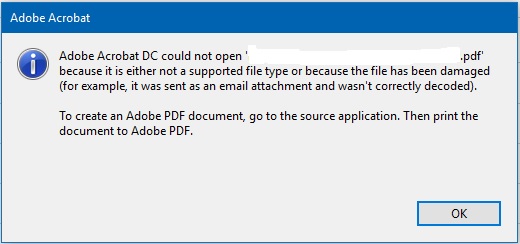
Sometimes the issue isn’t the PDF itself but the viewer. Download a different PDF reader — Foxit Reader, SumatraPDF, or even your web browser (Chrome, Edge). Open the damaged PDF there. If it works, even partially, you can copy the text or use the ‘Print to PDF’ feature to create a new, working copy. This is the easiest fix, so start here.
Step 2: Use a Dedicated Online Repair Tool
If a different viewer doesn’t cut it, try an online repair tool. Services like PDF24, iLovePDF, or Smallpdf can fix minor corruption. Upload your file and download the repaired version. For a list of tested free options, check out our guide to repair PDF online free. If the tool says it can’t repair, move to the next step.
Also consider tools that work without signups — we’ve covered those in our repair PDF free no signup article. No login required, just upload and fix.
Step 3: Extract Text and Images Using Data Retrieval Methods
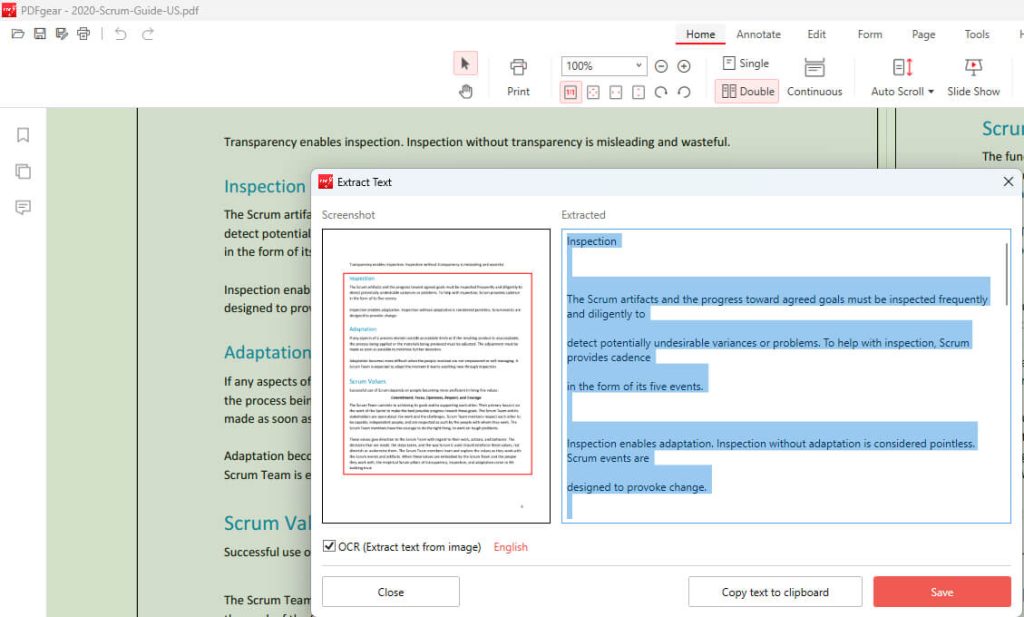
Even if the PDF won’t open normally, you might be able to extract raw text. Open the file in a text editor (like Notepad) — you’ll see a bunch of gibberish, but search for recognizable strings. Use Ctrl+F to find keywords. If you see readable text, copy it out. Alternatively, use a tool like pdftotext (part of Xpdf) or online PDF text extractors. For images, try opening the PDF in an image viewer that reads raw PDF streams.
Step 4: Open the PDF in a Hex Editor to Salvage Fragments
When all else fails, go low-level. Download a hex editor (HxD for Windows, Hex Fiend for Mac) and open the damaged PDF. Look for readable text among the hex values. You can also search for PDF markers like ‘%PDF’, ‘obj’, ‘stream’, or ‘endstream’. Copy any recognizable content between these markers. This is tedious but can recover entire paragraphs or images. For a more detailed walkthrough, see our guide on how to restore a PDF file using a hex editor.
Step 5: Use Recovery Software or Cloud Version History
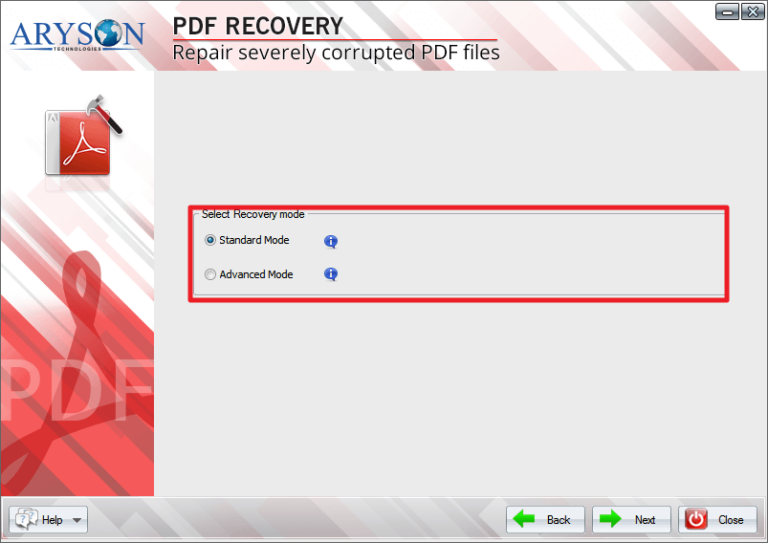
If you have a backup of the PDF from cloud storage (Google Drive, Dropbox, OneDrive), check the version history. Often you can revert to an earlier, uncorrupted version. If not, specialized PDF recovery tools like Wondershare Repairit or SysTools PDF Repair might do the trick. Some of these offer free trials. We’ve compiled the best options in our free corrupted PDF recovery article — many allow you to preview recovered data before paying. Also, if you’re dealing with an ebook, our recover ebook PDF guide has specific tips for that format.
Common Pitfalls
- Thinking a single repair attempt is enough: Sometimes you need to try multiple tools or methods. Don’t give up after one ‘cannot repair’ message.
- Forgetting to work on a copy: Always keep the original file untouched. If you overwrite it with a bad repair, you lose the chance to try other methods.
- Ignoring re-download or source: If the PDF came from an email attachment or download, try re-downloading it. The corruption might have happened during transfer, not in the file itself.
Where to Next
If your PDF is still giving you trouble after these steps, check out our specialized guides. For academic papers, read our repair academic PDF guide. For invoices specifically, we have a dedicated recovery article. And if you’re on mobile, our guide on how to repair PDF on Android might help. Don’t let a damaged PDF ruin your day — there’s almost always a way to get your data back.




