So you made a PDF from a Word document, and it came out looking like a glitchy mess — scrambled text, missing images, or just won’t open. Don’t panic. This guide is for anyone who needs to rescue a PDF that went wrong during the Word-to-PDF conversion. By the end, you’ll have a working PDF that looks how you intended, whether you still have the original Word file or not.
I’ll walk you through five practical steps that have worked for me and countless readers. We’ll start with the easiest fix (re-saving correctly), move to free online repair tools, then dig into professional software like Adobe Acrobat. You don’t need to be a tech wizard — just follow along and you’ll be back on track in minutes.
What You’ll Need
- The corrupted PDF file
- The original Word document (if you still have it)
- A computer (Windows or Mac)
- A stable internet connection (for online tools)
- Optional: Adobe Acrobat Pro (trial or full version)
Step 1: Identify the Problem
Before jumping into fixes, figure out what’s wrong. Try opening the PDF in a few different viewers (browser, Adobe Reader, etc.). Is it completely blank? Do images show up but text is garbled? Does it give an error like “There was an error opening this document”? Knowing the symptoms helps you pick the right fix.
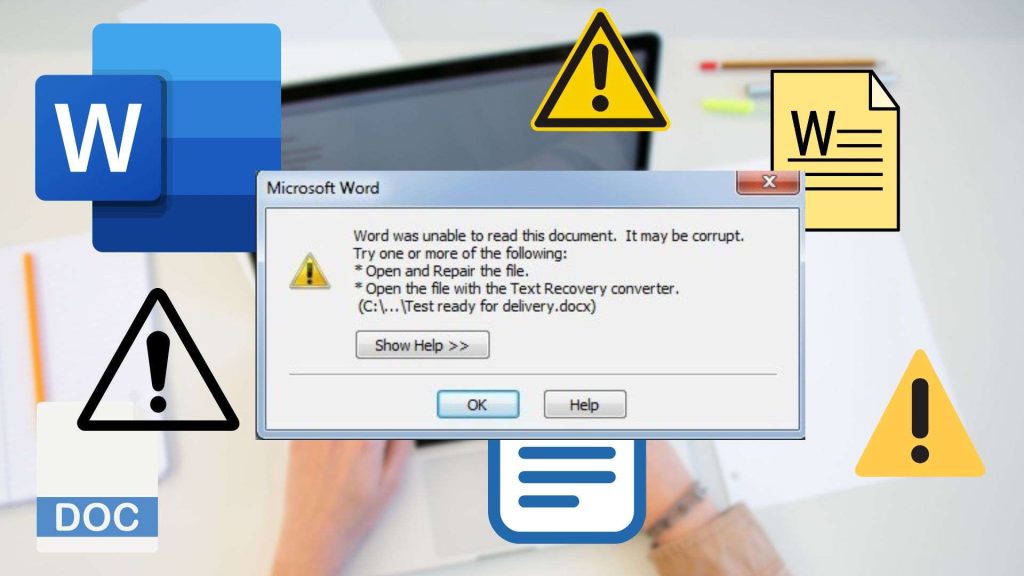
Common issues from Word exports include font embedding problems, image compression errors, or incomplete metadata. If you see specific error codes, jot them down — they might help during repair.
Step 2: Re-save from Word (If You Have the Source)
If you still have the original .docx file, this is the quickest fix. Open the document in Word, then go to File > Save As and choose “PDF” again. But this time, before saving, click “Options” and make sure “Document structure tags for accessibility” is unchecked — that often causes glitches. Also, try “Best for printing” instead of “Minimum size”.
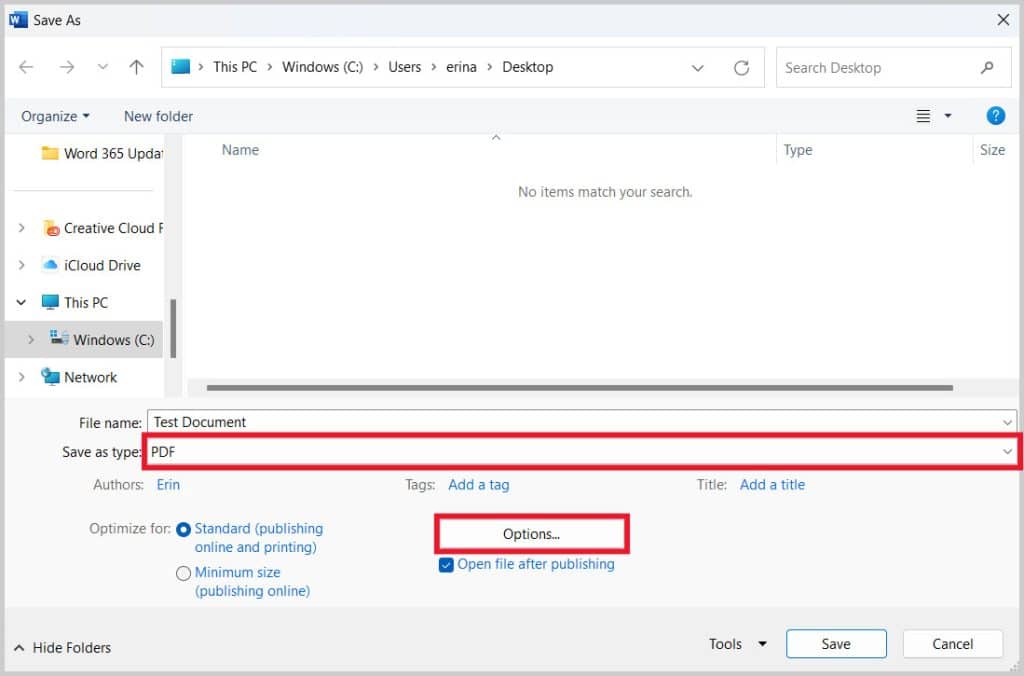
If the corrupted PDF was created using “Print to PDF” (like the built-in Windows print driver), try using Word’s native “Export” instead. The export path is usually cleaner.
Step 3: Use a Free Online Repair Tool
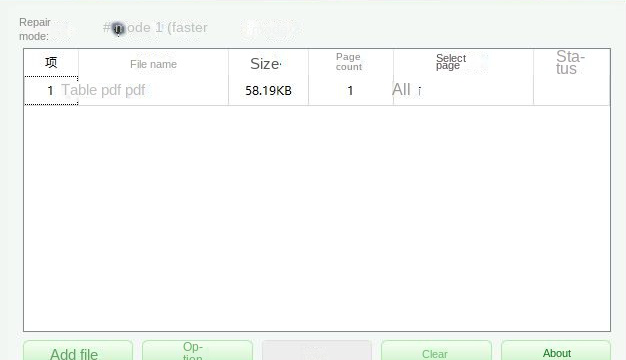
No source file? No worries. You can repair pdf online free using tools like iLovePDF, Smallpdf, or PDF24. These sites let you upload the broken PDF, run an automatic repair, and download a fixed version. They’re great for minor corruption — scrambled text or missing page elements.
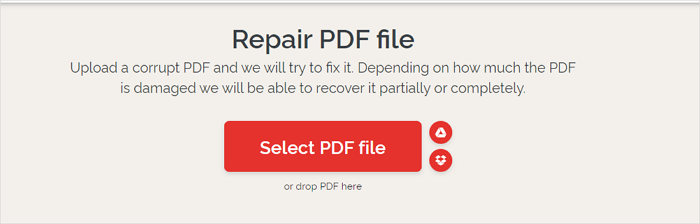
Some tools even let you extract pages or convert the PDF back to Word (then re-save as PDF). That two-step dance can bypass deep corruption. Just make sure you use a reputable site — avoid sketchy uploaders if your document is sensitive.
Step 4: Try Adobe Acrobat (If Available)
If the free online fix doesn’t cut it, it’s time to learn how to repair pdf in adobe. Open the file in Adobe Acrobat Pro, go to the Tools pane, and run the “Save As Other > Optimized PDF…” command. This rebuilds the internal structure. You can also go to File > Properties > Fonts to check if fonts are embedded — missing fonts are a common cause of garbled text.
Another Acrobat trick: go to File > Export To > Microsoft Word Document, then open the resulting .docx and re-export as PDF. This strips out the encoding errors from the original PDF.
Step 5: Manual Fixes for Extreme Cases
Still broken? For truly invalid files, you might need invalid pdf repair techniques. Try opening the PDF in a text editor like Notepad++ to look for the first line — if it doesn’t start with “%PDF-1.x”, you’ve got a header corruption. You can often paste the correct header from a working PDF. Also, check for huge chunks of null bytes — those can be removed.
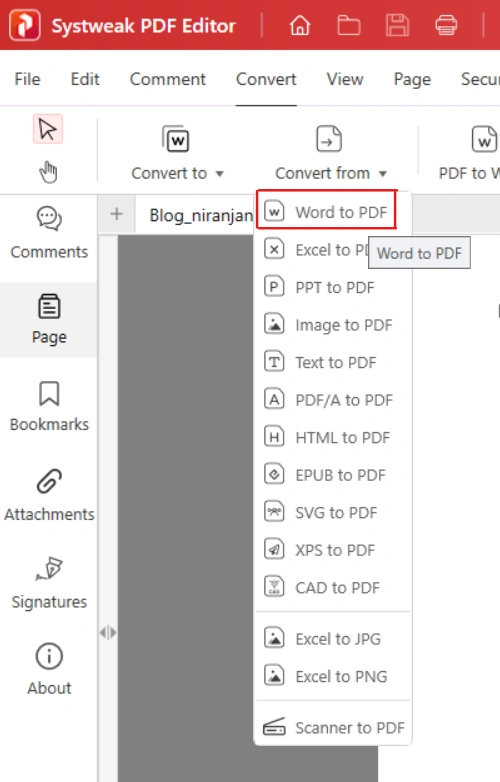
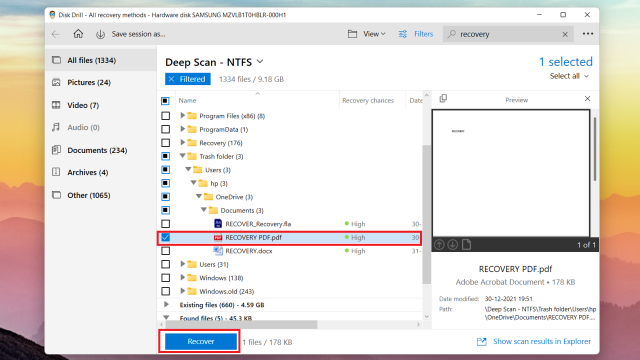
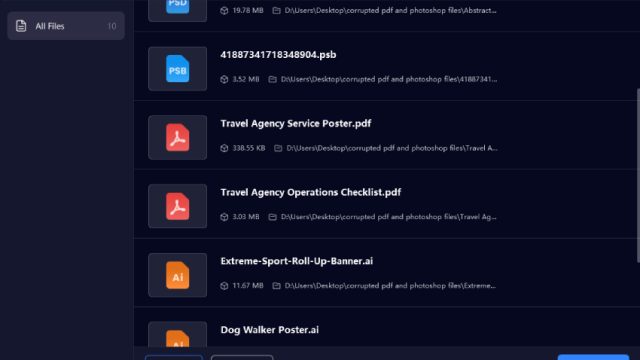
If you’re on Windows, another option is to repair pdf on windows using dedicated software like SysTools PDF Repair or Kernel for PDF Repair. These tools can scan deep and reconstruct the file structure.
Common Pitfalls
- Saving as “Print to PDF” from Word instead of using the built-in “Export” — the print driver can introduce artifacts. Always use Export if available.
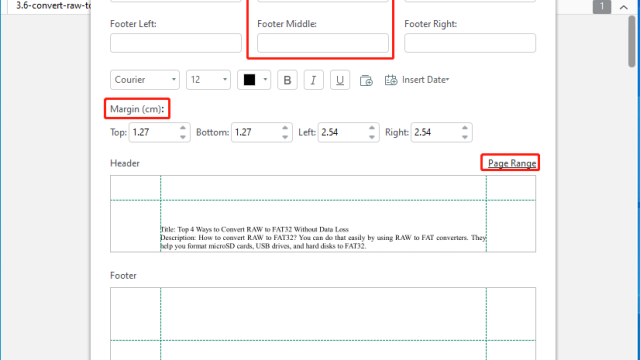
- Forgetting to embed fonts — if the recipient’s system lacks your font, text can reflow or turn to garbage. Embed fonts in Word’s PDF options.
- Not checking image resolution — hi-res images can bloat the PDF or cause compression errors. Reduce image size before converting.
Where to Next
Got other PDF nightmares? Check out our guides on fixing PDFs after incomplete downloads or dealing with that scary “there was an error opening this document” message. I’ve covered most common scenarios — just browse the categories and you’ll likely find your exact fix.