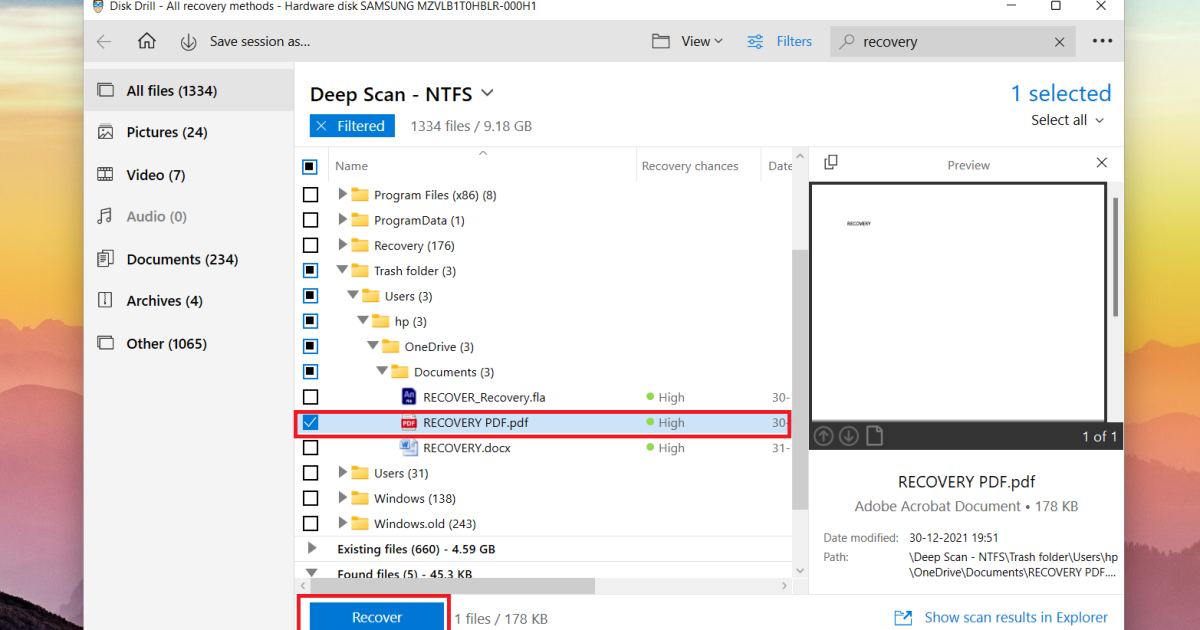
Ever had a PDF that just won’t open? Maybe you’re staring at an error message like “The file is damaged and could not be repaired” or “Root object is missing.” It’s frustrating, especially when that file contains a contract, study material, or a critical report. This guide is for anyone who’s not a tech wizard—students, freelancers, office workers—who needs practical ways to recover a PDF without spending a dime on expensive software.
By the end of this article, you’ll know exactly what to do when a PDF goes rogue. You’ll learn multiple recovery methods, from simple browser tricks to using specialized free tools. We’ll also cover the most common pitfalls so you can avoid wasting time. Ready to save your file? Let’s get started.
What You’ll Need
- The corrupted PDF file (keep a backup copy just in case)
- A computer with internet access (Windows, Mac, or Linux)
- A web browser (Chrome, Firefox, Edge – any modern one works)
- Optional: Adobe Acrobat Reader (free version is fine)
- Optional: A free PDF repair tool like PDF Repair Toolbox or online service
Step 1: Try a Different PDF Viewer
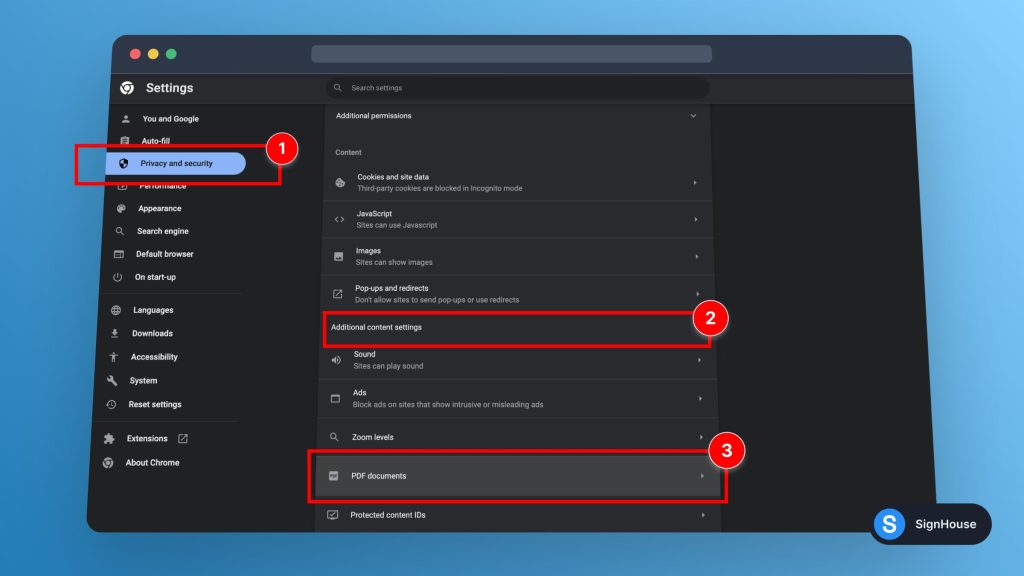
Sometimes the file isn’t truly broken—your PDF viewer might just be struggling. Open the same PDF in a different program. Chrome and Firefox have built-in PDF viewers. Drag and drop your file into a new browser tab. If it opens, you can then save a copy (Ctrl+S or Cmd+S) to a new location. This often fixes minor display glitches.
Step 2: Use the “Open and Repair” Feature in Adobe Acrobat
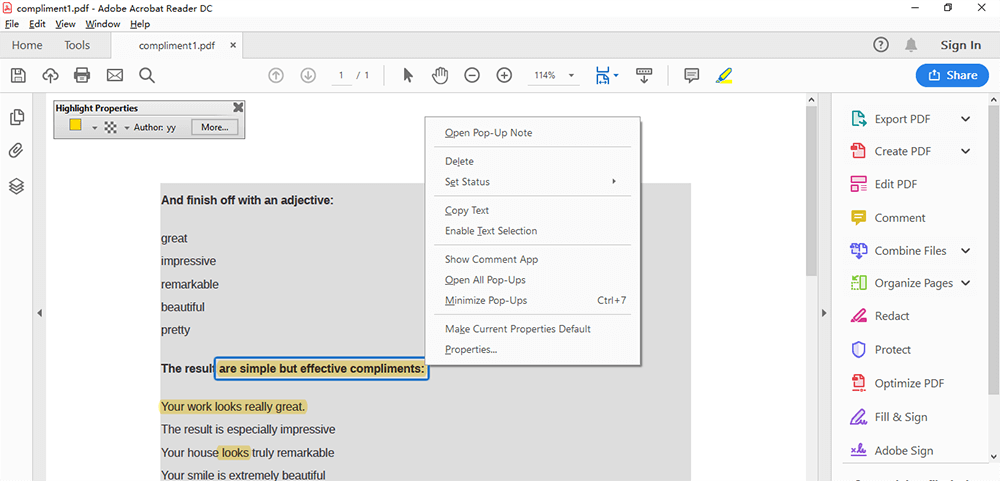
If you have Adobe Acrobat Reader (free!), there’s a built-in repair option. Open Acrobat, go to File > Open, select your corrupted PDF, but instead of just double-clicking, click the arrow next to the Open button and choose “Open and Repair.” Acrobat will try to fix the file internally. This works for many common issues like partial downloads or tiny corruptions. For a deeper dive into this method, check out our guide on how to repair PDF in Adobe.
Step 3: Repair PDF After an Incomplete Download
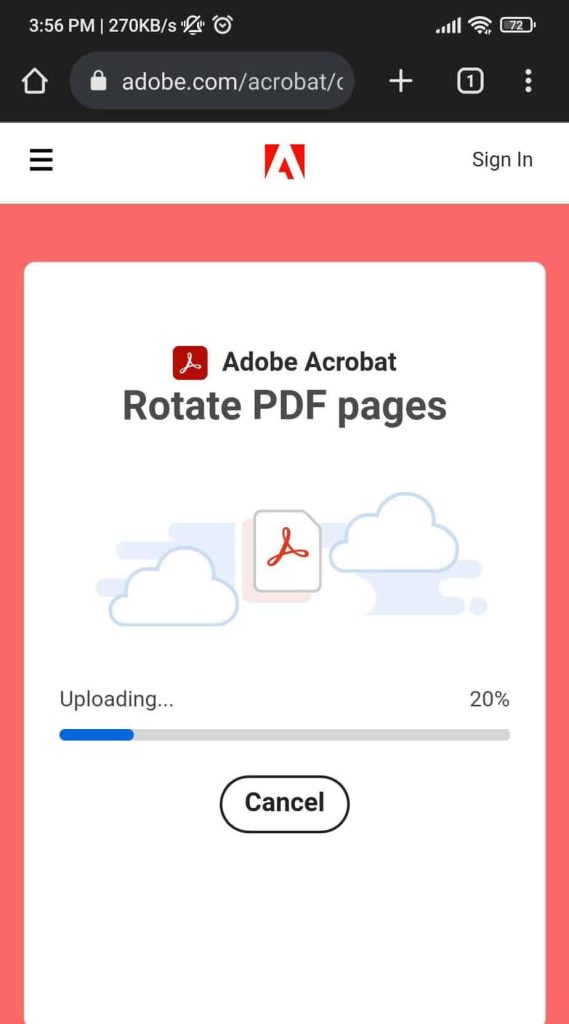
Did you download the PDF but the download got interrupted? The file may be incomplete. First, re-download from the source if possible. If that’s not an option, try using an online repair service that can reconstruct the file. Upload the partial PDF to a site like PDF Repair Toolbox (free for small files). They often fill in missing parts. You can also use a tool like qpdf (command-line) to check the structure. For a full walkthrough, see our guide on how to repair PDF after incomplete download.
Step 4: Repair a Damaged PDF with Online Tools
When local methods fail, free online PDF repair tools come to the rescue. Upload your file to a reputable service like PDF2Go or iLovePDF’s repair tool. They run server-side algorithms to fix headers, cross-references, and streams. The process is simple: upload, wait a minute, download the repaired version. Always ensure you’re not uploading sensitive data to an unknown server. For a comprehensive guide, read our article on how to repair damaged PDF.
Step 5: Restore Damaged PDF via Command-Line (Advanced)
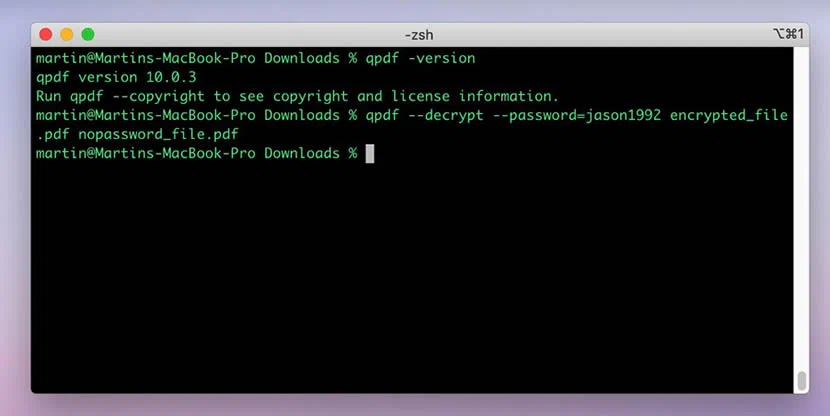
If you’re comfortable with a terminal, tools like qpdf or pdftk can strip out corruption. For example, with qpdf installed, run: qpdf –linearize corrupt.pdf output.pdf. This re-writes the file and often fixes issues. On Windows, you can use the PDF Repair Command Prompt tool. This method works well when other options fail. For a detailed tutorial, see our guide on how to restore damaged PDF.
Step 6: Repair PDF on Windows Using Built-in Tools
Windows users have a hidden gem: the Microsoft Print to PDF feature. Open the corrupted file in any program that can read it (like Word or a browser), then File > Print > choose “Microsoft Print to PDF.” This creates a brand new PDF from the rendered content. It won’t preserve interactive elements, but it’s great for text and images. For more specialized Windows techniques, check our guide on how to repair PDF on Windows.
Common Pitfalls
- Using the same viewer repeatedly: If one viewer can’t open it, don’t keep trying with the same app. Switch browsers or tools first.
- Uploading sensitive files to unknown websites: Not all online repair services are secure. Only use trusted ones or local tools for confidential docs.
- Skipping the backup: Always keep the original corrupted file until you verify the repair. Some tools can make things worse if misused.
Where to Next
You’ve now got a toolkit full of PDF recovery tips for every scenario. If one method doesn’t work, don’t give up—try another. For more advanced cases, like when the root object is missing, read our step-by-step guide. And if you’re using PDFs from a specific source like a scanned document or a Word export, we have targeted guides for those too. Keep your files safe, and happy recovering!




