Ever opened a PDF form only to find the text fields are blank, buttons don’t work, or the whole thing looks like a scrambled mess? You’re not alone. PDF forms are prone to corruption—especially after incomplete downloads, cloud sync issues, or being generated from Word. This guide is for anyone who needs to get a broken form back to working order, fast. By the end, you’ll have a fully functional, fillable PDF form.
We’ll walk through five practical steps, from simple tricks like re-saving the file to using dedicated repair tools. No technical degree required—just your PDF and a few minutes. Let’s fix that form.
What You’ll Need
- The corrupted PDF form file.
- A PDF reader (Adobe Acrobat Reader is free and works great).
- Optional: Adobe Acrobat Pro for advanced repair features (trial works).
- Optional: An online PDF repair tool (like the ones on this site) for stubborn cases.
- A backup of the original file (just in case).
Step 1: Diagnose the Problem
Open the PDF form in your reader. Look for obvious issues: missing or garbled text, unclickable checkboxes, or error messages like ‘Failed to load form.’ Note which elements are broken—this will guide your repair approach. For example, if only the form fields are missing, the issue might be with the form’s XFA or AcroForm structure. If the entire document is unreadable, it’s probably a deeper corruption.
Step 2: Use the ‘Save As’ Trick
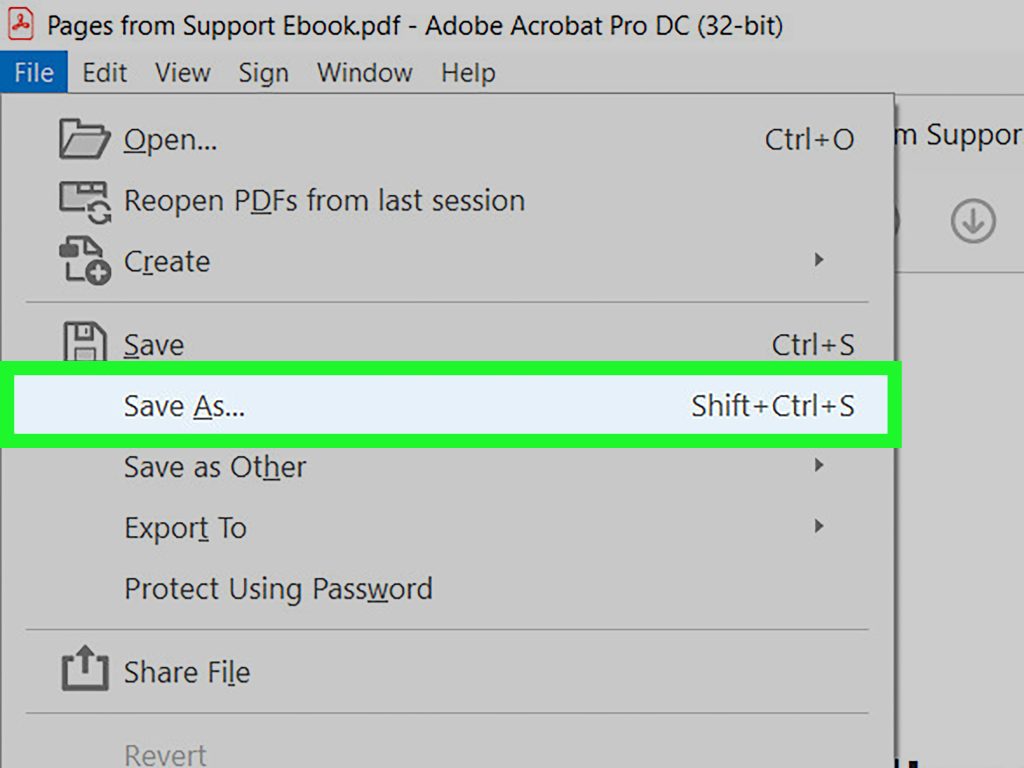
Often, simply re-saving the PDF flattens the file and rebuilds internal references. In your reader, go to File > Save As and save the PDF under a new name (e.g., ‘form_repaired.pdf’). Then reopen the new file. This simple step fixes many minor corruptions, especially those caused by partially bad downloads or partial edits.
Step 3: Try Adobe Acrobat’s Built-in Repair Tools
If you have Adobe Acrobat Pro, you have a secret weapon: the repair tool. Go to Tools > Print Production > Preflight. In the preflight panel, click ‘Reports and Cleanups’ and then select ‘Verify compliance with PDF/A’ or ‘Repair broken PDF.’ This scans and fixes structural issues. Also check ‘Optimize Scanned PDF’ if the form is scanned. After running, save as a new file.

Step 4: Use an Online PDF Repair Tool
No Acrobat Pro? No problem. Many online services can repair PDF forms. For instance, our site offers a free tool that fixes common form corruptions. Upload your file, let it process, and download the repaired version. This works great for forms that won’t open at all or have multiple broken fields. For tips on choosing the best service, check out our guide on repairing PDF forms.
Step 5: Extract and Rebuild (Advanced)
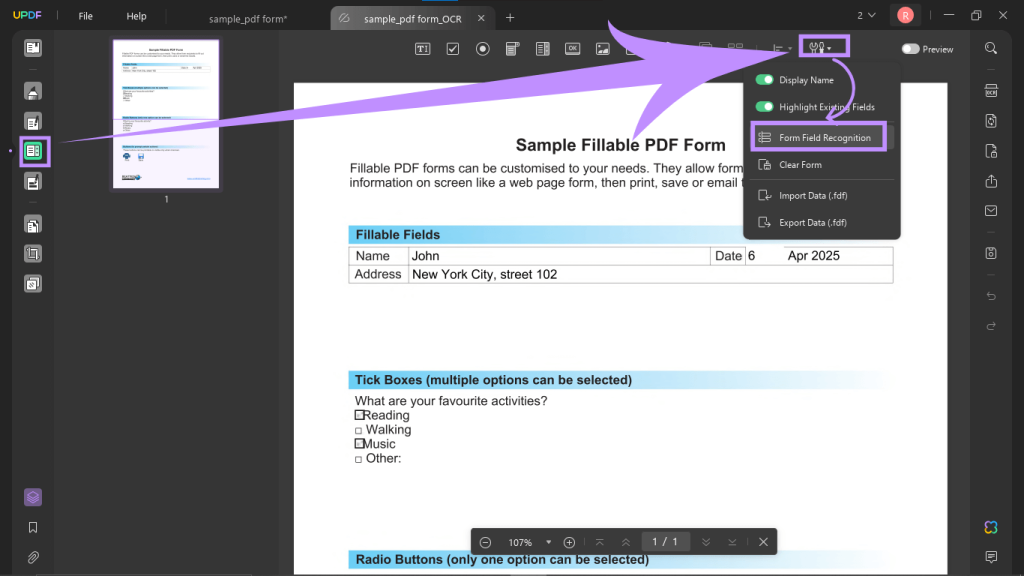
If the form structure is beyond repair, you may need to extract the form data and rebuild the form. This is more technical but doable. Use a tool like a PDF repair library (for developers) or manually copy fields into a new PDF using Adobe Acrobat’s Prepare Form tool. If you need to recover form data from a damaged file, our guide on recovering lost form data can help. Alternatively, if the corruption came from an incomplete download, read up on repairing incomplete downloads.
Common Pitfalls
- Not making a backup first: If the repair goes wrong, you’ll have no alternative. Always copy the original before trying fixes.
- Using the wrong tool: Some online tools add watermarks or strip form fields. Stick to reputable services and test the result offline first.
- Ignoring dependencies: Forms often rely on specific fonts or JavaScript. If those are missing, the form may still not work. Re-embed fonts or check form scripts.
Where to Next?
Your form is back in action! If you run into other PDF issues, check out our related guides: fixing unreadable PDFs online, repairing PDFs from Word, or dive into the complete PDF repair toolbox. Keep your forms healthy with regular backups and cautious downloads.




