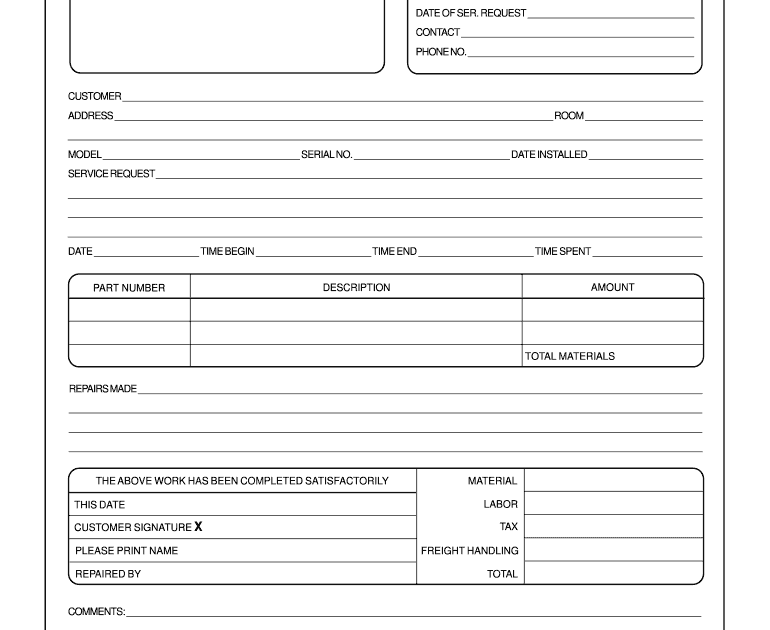
Ever opened a PDF form only to find the fillable fields are broken, the data you entered vanished, or the whole thing just won’t load? You’re not alone. PDF forms are finicky, and they can corrupt from bad downloads, software glitches, or even just age. This guide is for anyone who needs to get a broken form working again—quickly. By the end, you’ll have three reliable methods to repair PDF forms, whether you use Adobe Acrobat, free online tools, or a manual workaround.
We’re going to keep things casual and practical. No jargon you need a degree to understand. Just clear steps that have worked for me and many others. You’ll learn how to fix form fields, recover lost data, and prevent future headaches. Let’s dive in.
What You’ll Need
- The broken PDF form file
- Adobe Acrobat Pro (or the free trial—that’s enough)
- A stable internet connection (for online repair tools)
- Optional: a backup of the original form (always a good idea)
Step 1: Use Adobe Acrobat’s ‘Save As Optimized PDF’
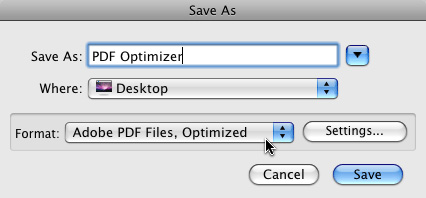
This is the built-in repair trick that often fixes corrupted forms. Open your PDF in Adobe Acrobat Pro. Go to File > Save As Other > Optimized PDF. In the dialog that appears, click ‘OK’ without changing any settings. Acrobat will rebuild the PDF structure, often repairing form fields in the process. Save the optimized version with a new name, then test it by filling in a couple of fields. If the fields work, you’re golden.
If you don’t have Acrobat, don’t worry. You can still use the free online PDF repair tool we’ve linked below. Many users have success with it when Acrobat fails.
Step 2: Repair Using an Online Tool
When Acrobat isn’t an option, or if Step 1 didn’t fully fix the form, use a dedicated online PDF repair service. Head over to the online PDF repair tool (it’s free and requires no signup). Upload your broken form, wait a few seconds, and download the repaired version. This tool is especially good at fixing form field data and making the file readable again. It’s also great if you need to fix unreadable PDF issues where the form won’t even open.
Pro tip: Always keep a backup of the original file in case the online tool changes the layout. In my experience, it preserves forms well, but better safe than sorry.
Step 3: Recreate Missing Form Fields with Prepare Form
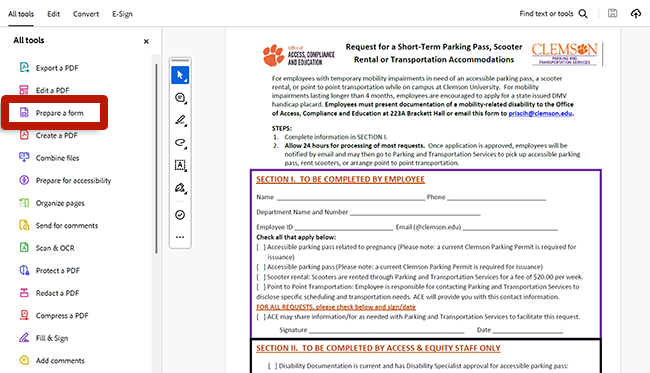
Sometimes the form structure is intact but the fillable fields themselves are gone. In that case, open the repaired PDF in Adobe Acrobat and click on Tools > Prepare Form. Acrobat will scan the document and automatically detect form fields. If it finds any, you can regenerate them. For fields it misses, you can add them manually using the toolbar. This method is perfect for recovering PDF forms that lost their interactive parts.
After recreating the fields, be sure to test each one. If some fields still don’t respond, check the field properties (right-click > Properties) to ensure they are set to ‘Read Only’ or ‘Visible’ correctly. You can also adjust tab order here.
Common Pitfalls
- Not saving a backup. Always keep the original file—if a repair goes wrong, you lose the form completely.
- Using a generic PDF reader to repair. Free readers like Sumatra or Preview won’t rebuild form structure. Use Acrobat or a dedicated online tool instead.
- Forgetting to test all fields after repair. A quick visual check isn’t enough—fill in data, save, and reopen to ensure everything persists.
If you run into a situation where PDF damaged could not be repaired even after these steps, don’t give up. You can sometimes extract the underlying data using text extraction tools or contact the form creator for a fresh copy.
Where to Next
You’ve just learned how to repair PDF forms like a pro. For more specific scenarios, check out our guides on how to recover PDF forms from corrupted files, or fix unreadable PDF issues. And if you ever need a quick fix on the go, remember our online PDF repair tool is always free. Happy form-filling!




