If you’ve ever opened a PDF only to see a blank page or a scary error message, you know the panic. Corrupted PDFs are common — they can come from an incomplete download, a cloud sync glitch, or just a bad save. This guide is for PHP developers who want to repair PDFs programmatically without clicking around in GUI tools. By the end, you’ll have a working PHP script that uses Ghostscript to fix most corruption issues, and you’ll know how to handle stubborn cases with libraries like FPDI.
We’ll keep things casual and practical. No fluff — just the commands and code you need. Whether you’re dealing with a PDF that won’t open, a compressed PDF that became unreadable, or a file that simply says ‘PDF damaged and could not be repaired,’ you’ll find a reliable PHP fix here.
What You’ll Need
- A PHP-enabled server (local or remote) with shell_exec enabled
- Ghostscript installed on that server (version 9.50 or later recommended)
- A sample corrupted PDF file to test on
- Composer (optional, for PHP libraries like FPDI or TCPDF)
- Basic familiarity with PHP and command line
Step 1: Assess the Damage
Before you write any code, find out what’s wrong with your PDF. Try opening it in a regular PDF reader. Note the error: is it a ‘root object is missing’ message? An ‘incomplete download’ warning? Or just a blank document? This tells you which repair approach to use. For minor corruption, a simple Ghostscript pass works. For heavy damage, you might need to extract pages with FPDI.
If the file is large and you suspect an incomplete download, try downloading it fresh. Sometimes the easiest fix is just to re-download. But if that’s not possible, move on to the next step.
Step 2: Install and Verify Ghostscript
Ghostscript is a command-line tool that can read, interpret, and rewrite PDF files. Installing it on your server is straightforward. On Ubuntu/Debian, run:
sudo apt-get install ghostscript
On CentOS/RHEL, use:
sudo yum install ghostscript
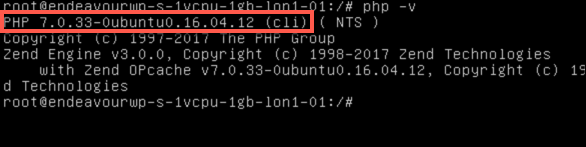
On Windows, download the installer from the official site and add it to your PATH. After installation, verify by running:
gs –version
Step 3: Write a Basic PHP Repair Script Using Ghostscript
Create a new PHP file, say `repair.php`. We’ll use the `exec()` function to call Ghostscript. The key Ghostscript command for repair is:
gs -o output.pdf -sDEVICE=pdfwrite -dPDFSETTINGS=/prepress input.pdf
This reads `input.pdf`, re-interprets it, and writes a clean `output.pdf`. The `-dPDFSETTINGS=/prepress` switch preserves high quality. Now wrap it in PHP:
Run the script: `php repair.php`. If you get no errors, check the output PDF. If it opens fine, you’re done! For tough cases, move to Step 4.
Step 4: Use FPDI to Rebuild the PDF Page by Page
When Ghostscript can’t handle the corruption (e.g., ‘root object is missing’), try using FPDI (FPDF + FPDI). First install via Composer:
composer require setasign/fpdi
Then use this script to copy pages from the corrupt PDF into a new document:

FPDI can often salvage pages that Ghostscript can’t. If this script fails, the PDF may have corrupt content streams — you might need a more advanced tool or a free online PDF repair service.
Step 5: Automate with a Simple Function
To make your repair workflow reusable, wrap the logic in a PHP function:
Common Pitfalls
- **Ghostscript not installed or not in PATH** – Always test with `gs –version` first. If that fails, check your installation and web server’s PATH.
- **Incomplete downloads causing zero-byte output** – Verify the input file size. A file that’s too small likely needs a fresh download. See our guide on incomplete download for more.
- **Permission issues** – Ensure your PHP script has write permission to the output directory. Often forgotten, this silently fails. Check `exec()` return value.
Where to Next
You now have a solid PHP-based PDF repair toolkit. If you’re still stuck, try a free online PDF repair tool — sometimes a different engine makes the difference. Also check our guide on how to repair in Adobe Acrobat for manual fixes. And if you’re dealing with a compressed PDF that’s acting up, we’ve got you covered. Remember, most PDFs can be saved with a little scripting. Happy repairing!




