So you have a corrupted PDF file that won’t open in any viewer, and you’re tired of clicking ‘repair’ buttons in online tools that never seem to work. If you’re a developer or a power user who’s comfortable with a command line, a PDF repair library might be exactly what you need. By the end of this guide, you’ll have a working script that can analyze, fix, and save damaged PDFs programmatically—giving you full control over the repair process.
This tutorial is for anyone who has basic coding skills (we’ll use Python, but the concepts apply to other languages) and wants to automate PDF repair. You don’t need to be a PDF expert; we’ll break down the common issues and show you how to tackle them step by step. Whether you’re dealing with a truncated download, a missing root object, or a borked cross-reference table, a PDF repair library can save the day. Ready to dive in?
What You’ll Need
- A computer running Windows, macOS, or Linux
- Python 3.6+ installed (check with python –version)
- A PDF repair library: we recommend pypdf (pip install pypdf) or pdfminer.six (pip install pdfminer.six)
- A sample corrupted PDF file (grab one from your inbox or intentionally break a copy of a good PDF)
- A text editor or IDE (VS Code works great)
Step 1: Choose and Install a PDF Repair Library
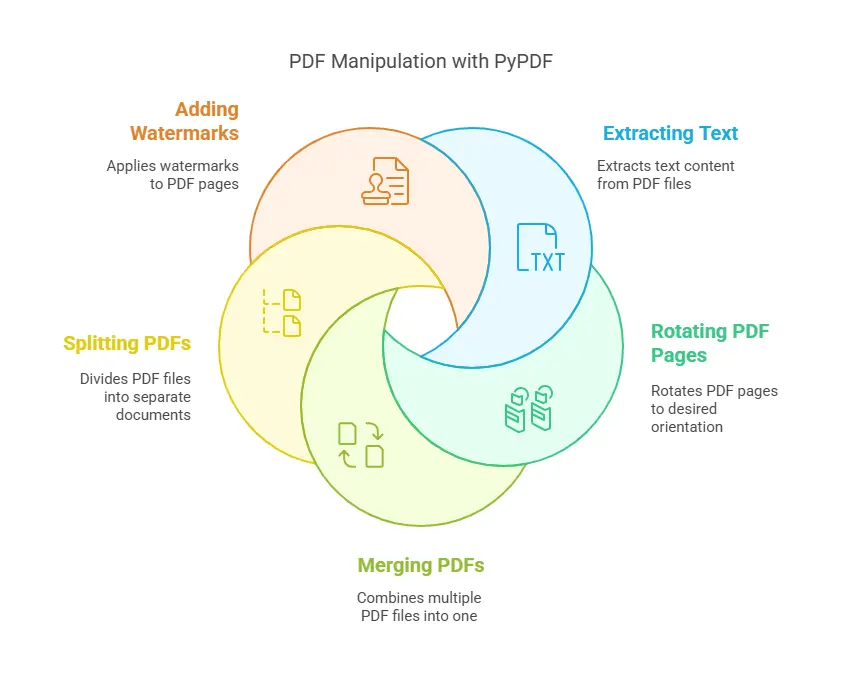
First, decide which library fits your needs. pypdf (formerly PyPDF2) is great for general reading, writing, and simple repairs. pdfminer.six is more powerful for low-level parsing and can handle deeply broken files. For this guide, we’ll use pypdf because it’s beginner-friendly. Open your terminal and run:
If you’re using PHP, check out the PHP PDF repair approach for a different language. Once installed, you’re ready to load your corrupted file.
Step 2: Load the Corrupted PDF
Create a new Python file (e.g., repair.py) and start by importing the library and opening the PDF. pypdf throws a PdfReadError if the file is too messed up, so wrap it in a try-except:

Step 3: Analyze the Structure
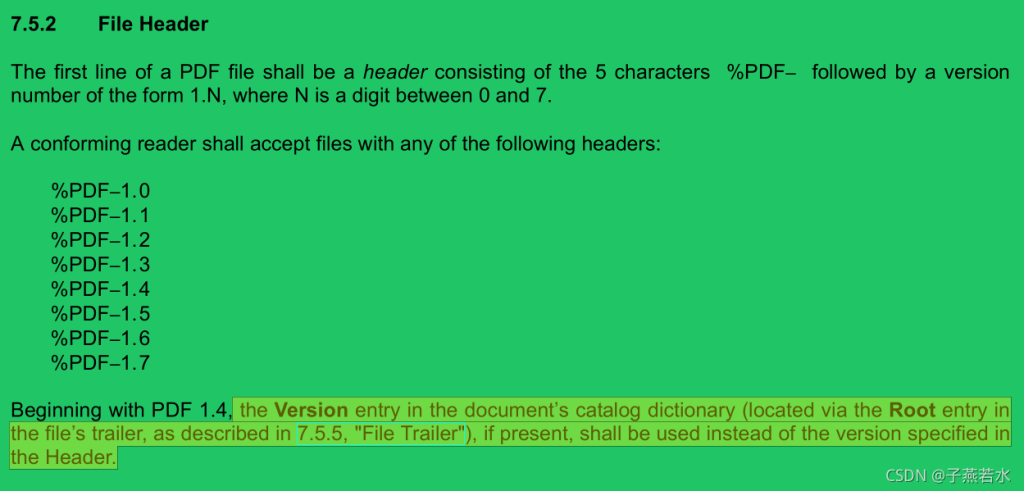
Now that the PDF is loaded (or at least attempted), let’s examine its internal structure. pypdf gives access to the trailer, root object, and page tree. Print the number of pages and check for missing root object or broken trailer. If you see a ‘Root object is missing’ error, you’ll need to rebuild it. For trailer issues, refer to the dedicated guide on repairing a PDF trailer.
If the PDF throws an error during loading, you might need to inspect the raw bytes. pdfminer.six is better for that, but for now we’ll focus on common fixes.
Step 4: Repair Common Issues
Different corruptions require different repairs. Here’s how to tackle the most frequent ones:
- Missing root object: Create a new root object referencing the pages and catalog. Check the invalid PDF repair guide for details.
- Broken trailer: Use pypdf’s built-in rebuild_trailer() method or manually reconstruct it. See repairing a PDF trailer.
- Corrupt cross-reference table: Remove the old xref table and write a new one with correct offsets. This is complex but doable with low-level tools.
- Unreadable content streams: If the content is there but garbled, try decompressing streams with pypdf’s decompress() method.
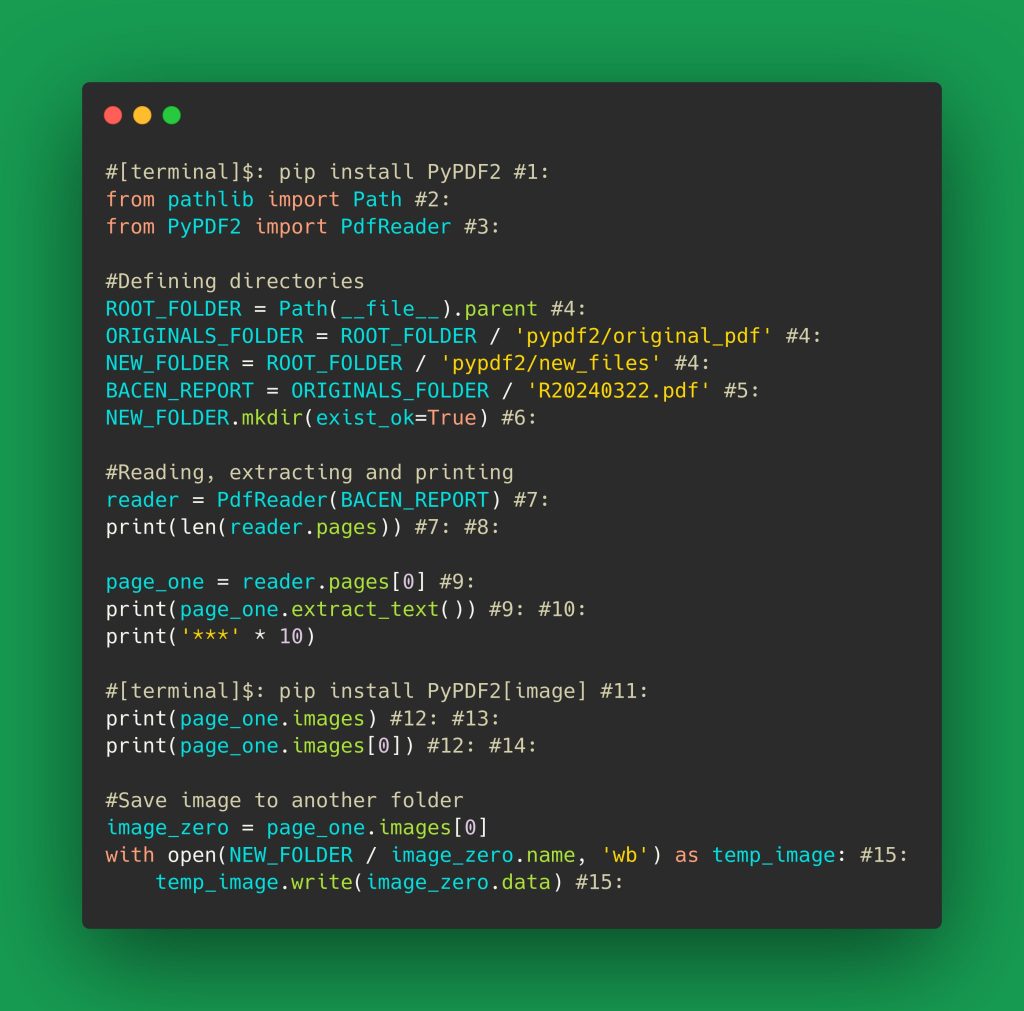
For example, to rebuild the trailer if it’s missing or corrupted, you can write a new trailer dictionary with the correct keys. pypdf doesn’t have a one-click repair for all cases, but you can often get away with saving the PDF again using a PdfWriter:
Step 5: Save the Repaired PDF
After applying repairs, write the output to a new file. Always test the repaired PDF by opening it in Adobe Acrobat or a robust viewer. If it still fails, you may need to dive deeper—for instance, using PHP PDF repair libraries if you’re more comfortable with that language. Also, if you’re on a Windows machine, check out the Windows-specific repair tips.
Common Pitfalls
- Memory overload with huge PDFs: Large files can eat up RAM. Use streaming approaches or increase your system’s memory limit.
- Ignoring indirect objects: Every PDF object reference must be correctly mapped. If you miss an indirect reference, the repaired PDF may still be broken.
- Assuming one library fits all: pypdf handles many cases, but severely corrupted files may require pdfminer.six or even hex editing.
Where to Next
You’ve now got a solid foundation for repairing PDFs with a library. Next, you could automate the process with a script that processes batches of files, or integrate it into a web service. For more complex repairs like fixing forms or recovering medical PDFs, check out the other guides on this site. Happy repairing!




