Ever opened a PDF only to see a cryptic error like ‘Trailer not found’ or ‘Cross-reference table missing’? Don’t panic—that’s just the PDF trailer, a small but critical chunk of data at the end of the file that tells readers where everything is. When it gets corrupted (often from an incomplete download or bad sync), your document becomes unreadable. This guide is for anyone who’s hit that wall: students, office workers, or just folks trying to open an important file. By the end, you’ll have a working PDF and know how to prevent it from happening again.
We’ll cover four methods: using free online tools, Adobe Acrobat’s built-in repair, a text-editor tweak for advanced users, and a command-line fix with open-source software. You don’t need to be a tech wizard—just follow the steps in order. Ready? Let’s fix that trailer.
What You’ll Need

- The corrupted PDF file (keep a backup!)
- A computer with an internet connection (for online tools)
- Adobe Acrobat Pro (optional, but recommended)
- A text editor like Notepad++ or Sublime Text (for manual fix)
- A tool like qpdf (free, open-source) if you want the command-line route
Step 1: Try an Online PDF Repair Tool

The quickest fix is letting a specialized website rebuild the trailer. Many online tools are free for small files. Go to a trusted site like PDF24 or Smallpdf, upload your file, and hit repair. They scan for the damaged trailer and reconstruct the cross-reference table. This works about 70% of the time for simple corruptions. If it fails, don’t worry—we’ve got more options. For an alternative method, check out our guide on how to repair unreadable PDF online.
Step 2: Use Adobe Acrobat’s ‘Save As’ Trick
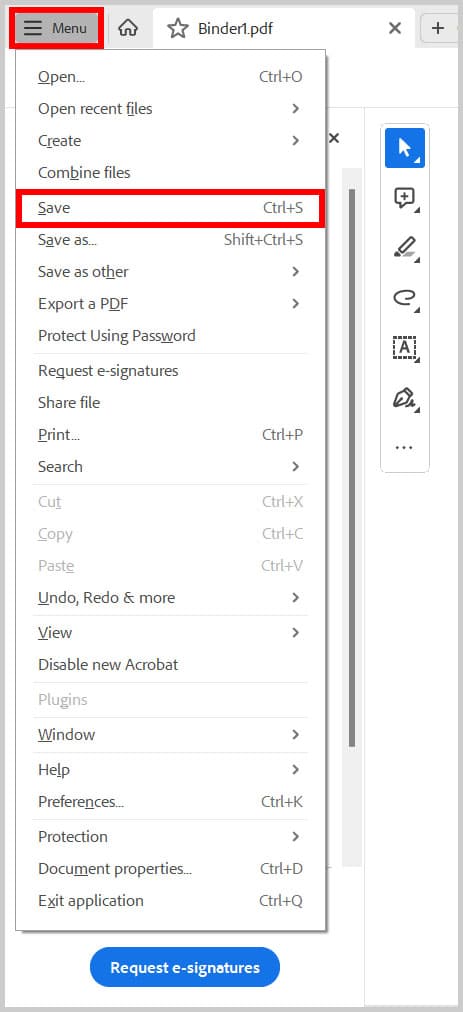
If you have Adobe Acrobat Pro (not just Reader), open the damaged PDF (it might still open partially). Go to File > Save As Other > Optimized PDF. In the dialog, uncheck everything and click OK. This forces Acrobat to rewrite the entire file structure, effectively creating a new trailer. It’s a simple fix that often works when the file is mostly intact. For more details, see our full guide on how to repair PDF in Adobe Acrobat.
Step 3: Manually Edit the Trailer (Advanced)
If automated tools fail, you can manually fix the trailer. Open the PDF in a text editor (like Notepad++) . Scroll to the very end. You should see ‘trailer’ followed by a dictionary. If it’s missing or garbled, you can often reconstruct it by copying the trailer from a backup or from a similar PDF. Another common error is a missing ‘startxref’ value—the byte offset to the cross-reference table. Calculate the offset: look for the ‘xref’ keyword (usually a few lines before the trailer), note the byte position from the file’s beginning, and write that number after ‘startxref’. This is tricky, but it’s saved many documents. For similar structural repairs, refer to our root object is missing PDF repair guide.
Step 4: Use qpdf Command-Line Tool
For the most robust fix, use qpdf—a free command-line tool that can linearize and repair PDFs. Download it from the official site. Open your terminal and run: `qpdf –linearize input.pdf output.pdf`. The `–linearize` flag forces a complete rebuild, generating a fresh trailer and cross-reference table. This method handles severe corruption. It’s also great for batch repairs. If your file is incomplete, you might first want to read our repair PDF after incomplete download post to recover lost data.
Common Pitfalls
- Not backing up the original file before attempting repair. If a tool damages it further, you have no fallback.
- Using an online tool with large or sensitive files. Always check privacy policies and never upload confidential documents.
- Misreading the byte offset in manual edit. One wrong digit and the file won’t open. Double-check your numbers.
Where to Next
Now that your PDF trailer is fixed, you might run into other issues like missing fonts or images. Check out our guide on fixing compressed PDFs if the file size seems off. And if you ever get a ‘PDF damaged and could not be repaired’ error, we’ve got a dedicated post for that too. Happy reading!




