Hey there! So your PDF won’t open, gives you some cryptic error, or looks like a mess of garbled text. You’ve come to the right place. This guide is for anyone who has a corrupted PDF and wants to fix it without spending a dime or uploading sensitive files to some online service. By the end, you’ll have a working PDF, repaired using a free, open-source command-line tool called qpdf.
qpdf is a powerful utility that can straighten out all sorts of PDF problems: missing objects, broken cross-reference tables, invalid streams, you name it. It’s not a magic wand—it won’t fix every single corruption—but it handles the vast majority of common issues. And it runs offline, so your privacy is intact. Ready to rescue your file? Let’s go.
What you’ll need
- A computer (Windows, macOS, or Linux).
- qpdf installed (free, open-source).
- The corrupted PDF file you want to repair.
- Basic comfort with the command line / terminal.
Step 1: Install qpdf
First, you need to get qpdf on your machine. The installation varies by OS:
- macOS: If you have Homebrew, just run
brew install qpdf. - Linux: Use your package manager. For Ubuntu/Debian, it’s
sudo apt install qpdf. - Windows: Download the installer from the official qpdf website and run it.
Once it’s installed, move on to the next step to confirm everything is working.
Step 2: Verify the installation
Open your terminal (Command Prompt on Windows) and type:
qpdf –version
You should see the version number printed. If you get a “command not found” error, make sure qpdf is in your PATH, or reinstall it.
Step 3: Run the basic repair

Now for the main event. Navigate to the folder containing your corrupted PDF. Then run this command (replace damaged.pdf with your file’s name):
qpdf –replace-input damaged.pdf
The --replace-input flag tells qpdf to overwrite the original file with the repaired version. If everything goes well, the command finishes silently. No news is good news here.
For safety, you can create a new file instead: qpdf damaged.pdf repaired.pdf. Then open repaired.pdf to check.
Step 4: Check the repaired PDF
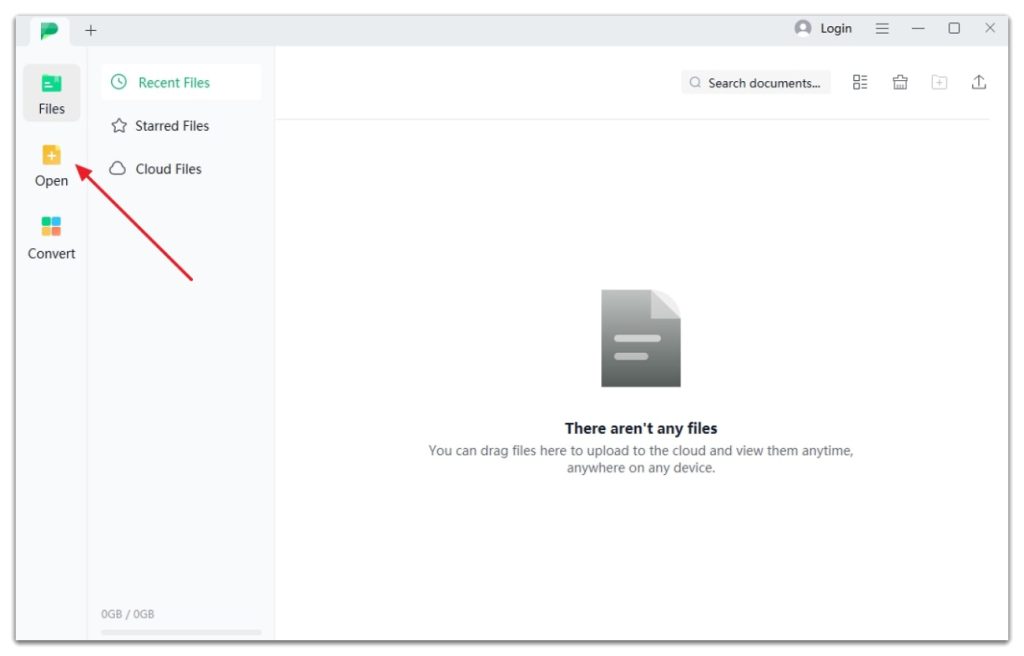
Open the repaired PDF in your preferred reader. If it loads and looks correct, congratulations—you’ve fixed it! If it still has issues, don’t give up yet. Sometimes qpdf needs a little extra help.
Step 5: Advanced options for stubborn files

If the basic repair didn’t cut it, try these additional flags:
--linearize: Reorganizes the PDF for faster web viewing and often fixes structural issues.--object-streams=disable: Turns off object compression, which can resolve some corruption.--check: Reports on the file’s health without modifying it. Use this to diagnose the problem first.
For example: qpdf --linearize --object-streams=disable damaged.pdf repaired.pdf. Experiment with combinations to find what works.
Common pitfalls
- Permission errors: If you get “Permission denied”, try running the terminal as administrator (Windows) or use
sudo(macOS/Linux). - Forgetting –replace-input: Running qpdf without specifying an output file or using
--replace-inputwill just print warnings and not produce a repaired file. Always include an output path. - qpdf can’t fix everything: Severe physical damage, encrypted PDFs without the password, or files that are entirely empty are beyond qpdf’s scope. For those cases, check out other pdf recovery tips.
Where to next
You’ve successfully repaired your PDF with qpdf! If you want to dive deeper, check out our guides on pdf syntax repair for tricky header errors, repair damaged pdf files with other tools, and pdf stream repair for content-level fixes. And for a broader look at saving files, see our pdf recovery tips article. Happy repairing!