Ever downloaded a PDF that just won’t open? Or maybe it opens as a blob of garbled text and random characters. You’re not alone. This guide is for anyone stuck with a file that has a .pdf extension but doesn’t behave like a PDF — either it’s actually a different format in disguise, or it’s genuinely corrupted. By the end, you’ll know how to identify the real problem, repair the file if possible, or confirm it’s a lost cause.
We’ll walk through five steps: verifying the file, checking its internal header, using online tools, trying advanced repair, and recovering after ransomware or other damage. No coding skills required — just a computer and a few free tools.
What You’ll Need
- The suspicious .pdf file (keep a backup copy!)
- A hex editor – HxD (Windows) or Hex Fiend (Mac) are free
- Adobe Acrobat Reader (or Pro for advanced repair)
- A reliable internet connection for online repair tools
- Optional: a text editor (Notepad++) to view raw content
Step 1: Try Opening the File and Check the Extension
First, double‑click the file. If it opens with any errors, note the exact message. Also right‑click > Properties (Windows) or Get Info (Mac) and confirm the file type says “PDF” or “Portable Document Format”. If it says “Text Document” or “Word Document”, the extension may be wrong.
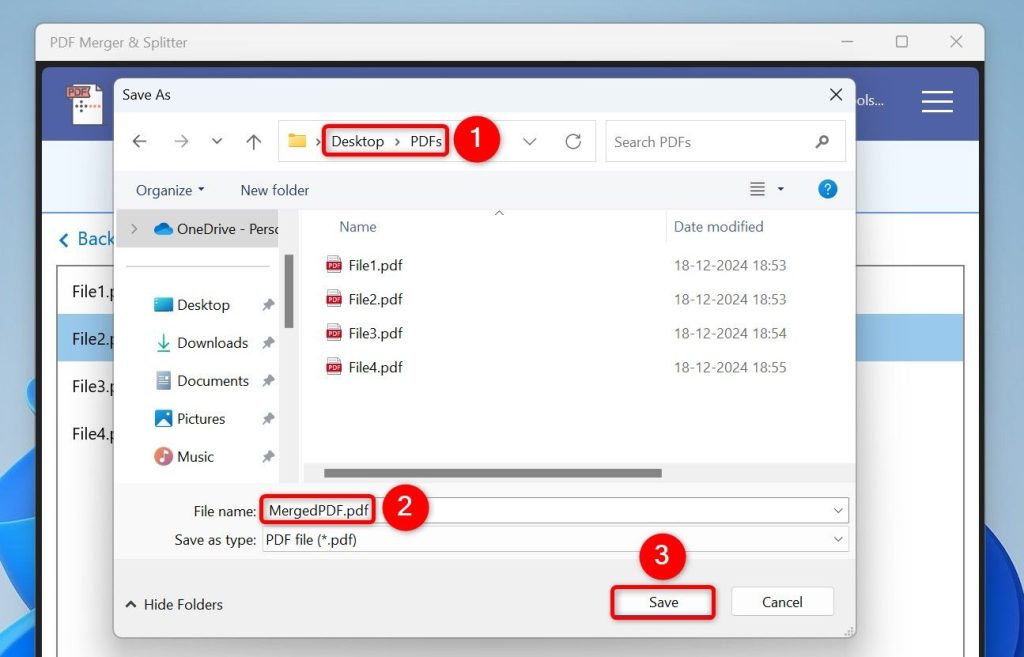
If the file opens but looks like garbage, it’s likely corrupted or not a PDF. Don’t panic — proceed to Step 2.
Step 2: Inspect the File Header with a Hex Editor
A real PDF always starts with the header %PDF‑1.x (where x is a number like 4, 5, 6, or 7). Open your hex editor, then drag the file into it. Look at the very first bytes. If you see %PDF‑1.4, it’s a PDF. If you see something else like PK (zip), ÿØÿÙ (JPEG), or other text, the file may be a renamed archive or image.
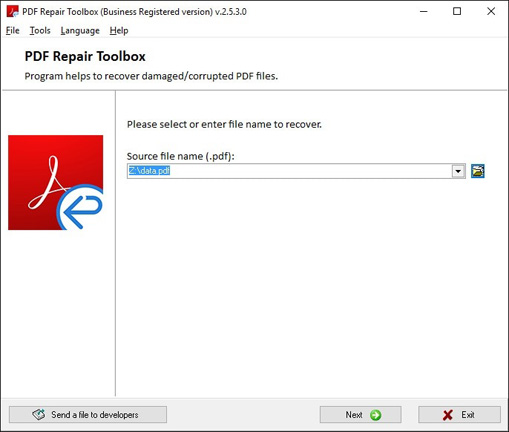
If it’s not a PDF, rename the extension accordingly (e.g., .zip or .jpg) and try opening. If the header looks correct but the file is still broken, it’s probably corrupted and needs a repair tool – the next step.
Step 3: Use an Online PDF Repair Tool
For corrupted files with a valid header, an online tool can often rebuild the internal structure. Try a dedicated service like the one at pdfrepairs.click. Upload the file and let it process. Most tools also let you download the repaired version.
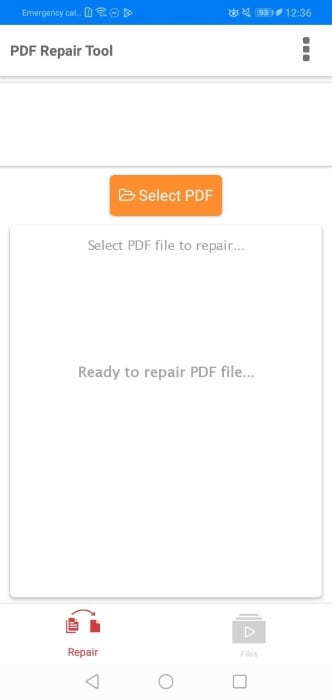
If the online tool fails, check if the file was converted from another format. A common cause is a Word document saved as PDF with errors — you can try to repair pdf converted from word using specialised methods.
Step 4: Try Adobe Acrobat Pro or Command Line
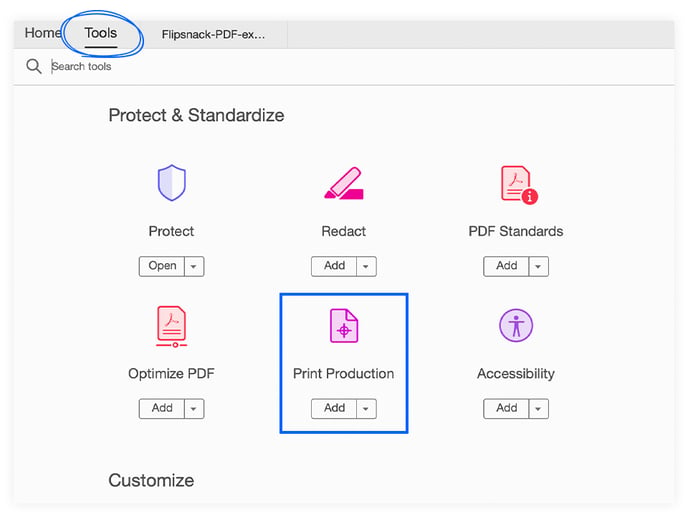
Adobe Acrobat Pro has a built‑in repair: go to Tools > Print Production > Preflight, then click “Fix up” and choose “Repair PDF”. On Windows, you can also run the command line tool pdfrecover (part of Adobe’s SDK) if you’re tech‑savvy. For a simpler approach, re‑save the file as a new PDF using “File > Save As Other > Optimized PDF” – this can fix minor corruption.
If the file still won’t open, it may be damaged beyond a simple repair. You might need to recover from a backup or try the next step for ransomware recovery.
Step 5: Recover After Ransomware or Severe Corruption
If your PDF was encrypted by ransomware or its structure is completely scrambled, try a dedicated recovery tool. At pdfrepairs.click, there’s a guide to recover pdf after ransomware that walks you through decrypting or reconstructing the file. Another option is broken pdf file recovery using a tool like PDF Repair Kit (paid). Always work on a copy, never the original.
Common Pitfalls
- Mistaking a renamed file for a PDF: Always check the header, not just the extension. A .pdf that starts with “PK” is actually a zip archive.
- Overwriting during repair: Always work on a copy. If your repair fails, you can start over without losing the original.
- Assuming all errors are repairable: Some PDFs are encrypted with a password you don’t have, or the file is structurally too damaged. In that case, recovery is impossible without the password or a backup.
Where to Next
Now you know how to tell if a file is really a PDF and how to fix it if it’s corrupted. For more specific problems, check out guides on how to fix pdf eof marker – a common error that means the end-of-file marker is missing – or use a pdf repair online tool for quick fixes. If you frequently work with scanned documents, see the article on repair scanned pdf. And if your PDF came from a camera or SD card, the guide on repair pdf from sd card can help.




