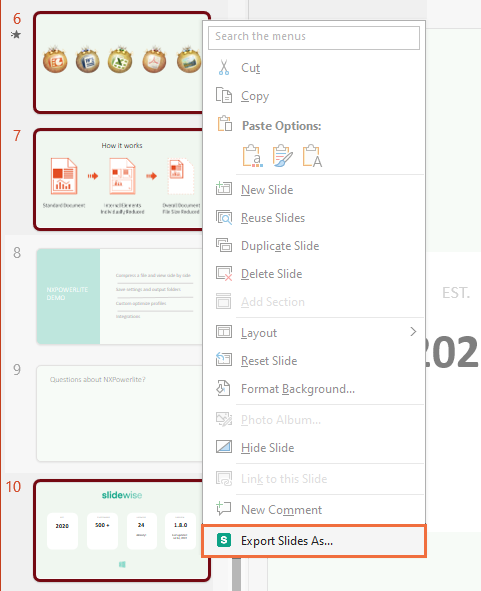
Ever exported a polished PowerPoint presentation to PDF only to find missing fonts, jumbled images, or random blank pages? You’re not alone. This guide is for anyone who needs a reliable, print-ready PDF from PowerPoint – whether you’re a student submitting a report, a professional sharing slides, or just someone tired of fixing the same issues over and over.
By the end, you’ll know exactly why your PDF looks off, how to prevent problems during export, and step-by-step fixes for corrupted or poorly formatted files. No advanced tech skills required – just a bit of patience and the right settings.
What You’ll Need
- Your original PowerPoint file (PPTX or PPT)
- Microsoft PowerPoint (2016 or later recommended)
- A PDF viewer (like Adobe Acrobat Reader or your browser)
- Optional: Adobe Acrobat Pro or a reliable online PDF repair tool
- Optional: A font manager if you’re working with custom fonts
Step 1: Export with the Right Settings
The easiest fix is to avoid problems in the first place. Instead of using “Save As PDF,” go to File > Export > Create PDF/XPS Document. Click “Options” and check these settings:
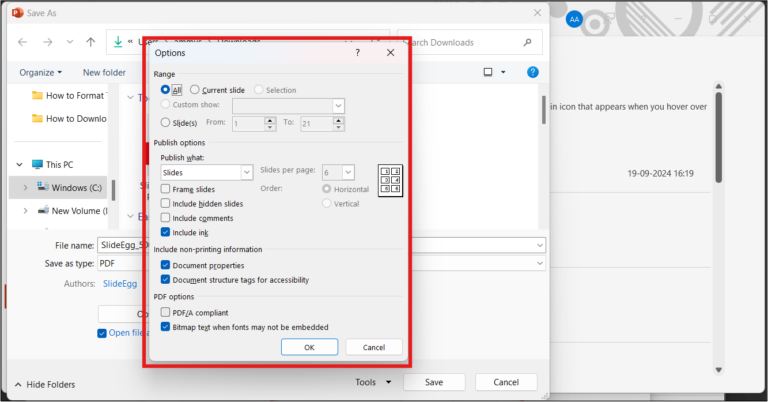
- Under “Include non-printing information,” uncheck “Document properties” and “Document structure tags” unless needed.
- Select “ISO 19005-1 compliant PDF” for archiving (better compatibility).
- Check “Bitmap text when fonts may not be embedded” to preserve text.
- Set “Publish what” to “Slides” rather than “Handouts” or “Outline.”
Click OK, then Publish. This often solves the most common issues like missing fonts and misaligned elements.
Step 2: Embed or Substitute Fonts
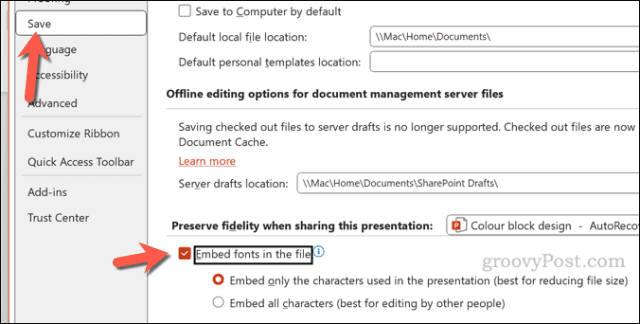
If your PDF still shows weird characters or substituted fonts, fonts aren’t embedded. In PowerPoint, go to File > Options > Save and check “Embed fonts in the file.” Choose “Embed all characters” to avoid missing glyphs. If you’re using a less common font, consider switching to a standard web-safe font like Arial or Times New Roman before exporting.
If you’re already stuck with a badly exported PDF, you can also use a tool to recover missing fonts – check out our guide on how to recover pdf fonts.
Step 3: Fix Image and Chart Issues
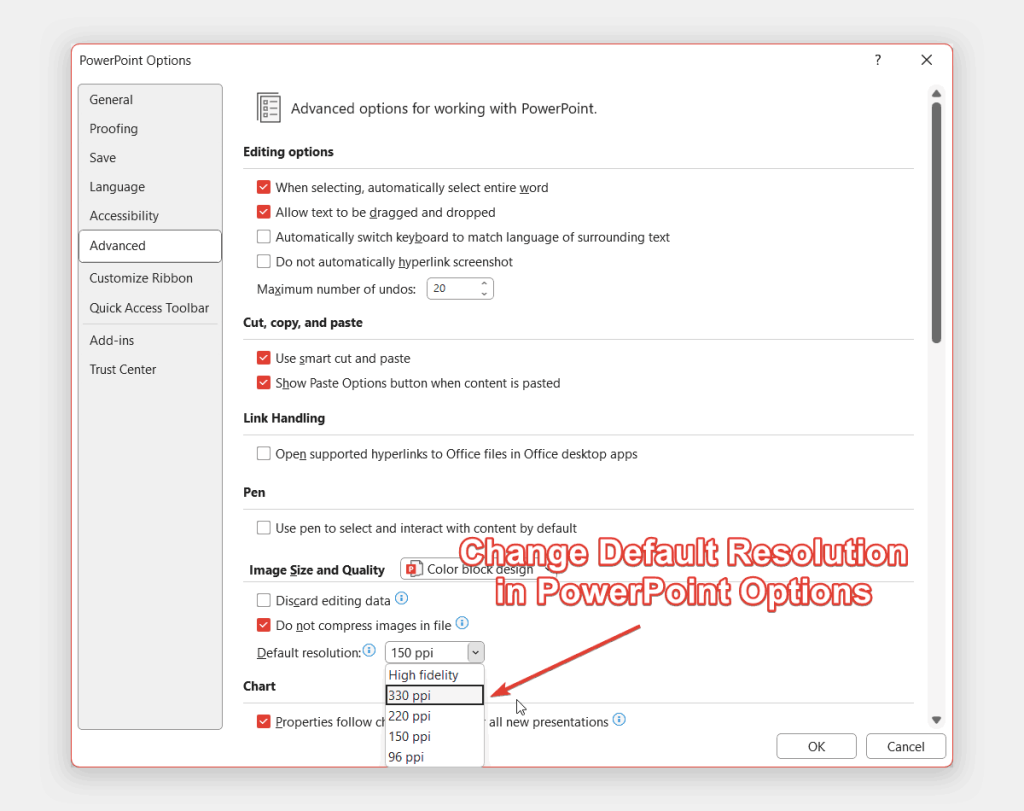
Images turned into blurry messes? Charts missing data? This usually happens when PowerPoint compresses images during export. To prevent it, right-click each image, select “Format Picture,” go to “Picture Size & Position,” and set resolution manually. Alternatively, export your slides as high-resolution PNGs first, then combine them into a PDF using a tool like Adobe Acrobat. For charts, copy them as images (Ctrl+C, then Paste Special as PNG) before exporting.
If your PDF already has low-res images, you can use a repair tool to upscale them. Our article on how to fix damaged pdf for printing offers specific techniques for print-quality recovery.
Step 4: Repair Corrupted or Broken PDFs
Sometimes the PDF itself is corrupted – maybe it won’t open, or pages are missing. Try opening it in a different viewer first. If that fails, use a dedicated tool. Adobe Acrobat Pro has a “Save As Other > Optimized PDF” feature that often fixes minor corruption. For quick fixes, try an online service like the one described in our pdf repair online guide.
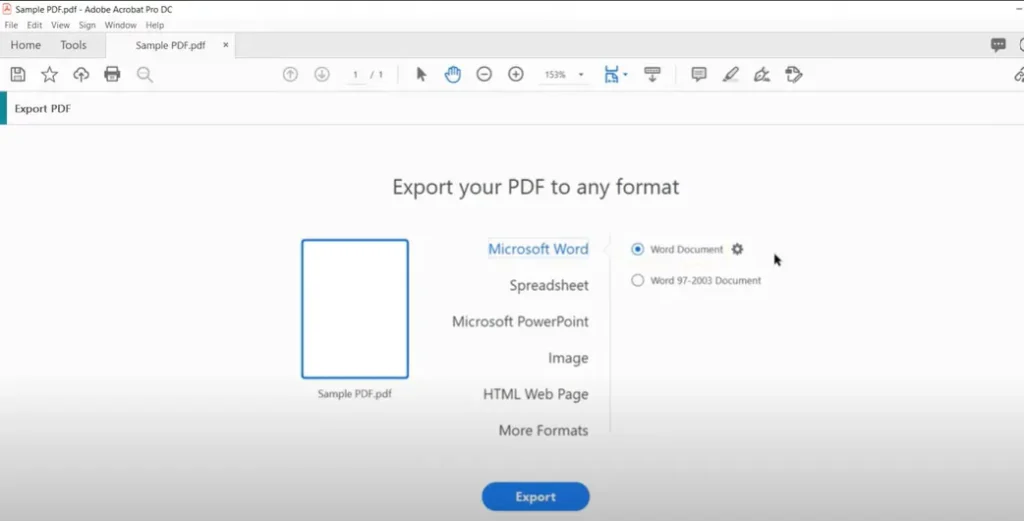
If you’re dealing with missing pages, the repair pdf and recover pages guide walks through advanced recovery steps.
Step 5: Validate the Final PDF
Open your repaired PDF and scroll through every slide. Check for:
- All text is readable and in the right font.
- Images and graphics are sharp and not stretched.
- Hyperlinks actually work.
- File size is reasonable (not bloated).
If you plan to print it, you can also run the preflight check in Adobe Acrobat Pro or use the tips in our repair pdf for printing guide to ensure everything is print-ready.
Common Pitfalls
Font substitution is the #1 complaint. Always embed your fonts or use standard ones – otherwise, the recipient sees a completely different layout.
Another common issue: hyperlinks break because PowerPoint converts them to images when you use “Save As PDF” instead of Export. Always use the Export method described in Step 1.
Finally, don’t overlook image resolution. PowerPoint defaults to 220 DPI – for high-quality print you need at least 300 DPI. Change this in Registry (advanced) or use the PNG-then-PDF workaround.
Where to Next
Now that your PDF is clean, explore other common fixes like repairing scanned PDFs or recovering a corrupted file after a crash. Bookmark this guide for next time you need to fix a PDF exported from PowerPoint – it’ll save you hours of frustration.




