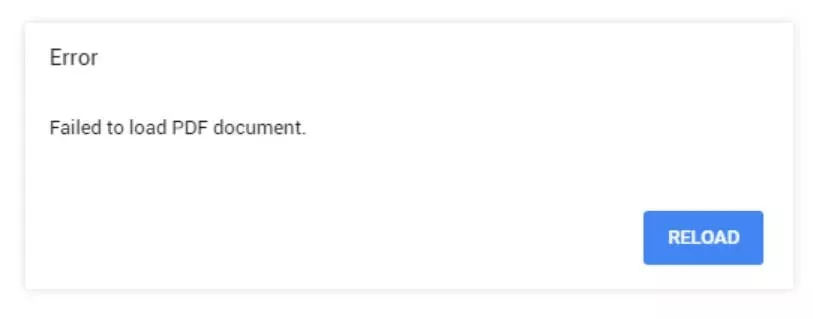
Ever tried uploading a PDF to a website, form, or email, only to get a frustrating error message? You’re not alone. PDF upload errors are super common, and they can happen for a bunch of reasons—file too big, corruption from a bad download, or even a mismatch in PDF version. This guide is for anyone who’s stuck with a PDF that just won’t upload. By the end, you’ll know exactly what’s causing the error and have a step-by-step plan to fix it, whether you need to use an online tool, desktop software, or a quick browser tweak.
We’ll start with the quick checks (like file size and browser issues), then move into actual PDF repair techniques. Even if you’re not super techy, these steps are designed to be easy to follow. So grab your PDF and let’s get it uploading again.
What You’ll Need
- The PDF file that’s failing to upload
- A computer with internet access (for online tools)
- A PDF viewer (like Adobe Acrobat Reader or any browser)
- Optional: qpdf command-line tool (for advanced repair)
- File compression tool (like 7-Zip or built-in OS tools)
Step 1: Check the File Size Limit
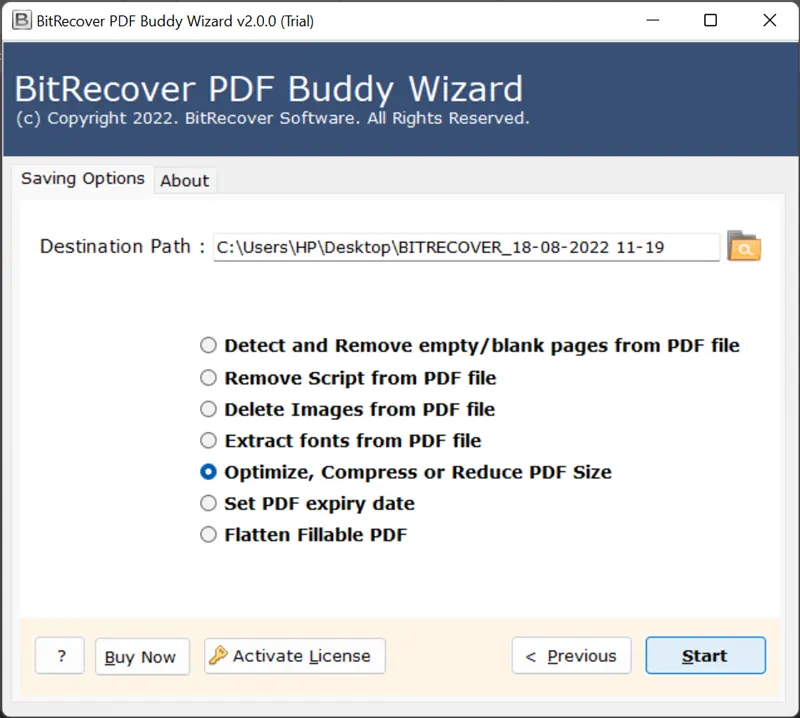
Most websites and email services have a maximum file size for uploads. Gmail, for example, caps attachments at 25MB. If your PDF is larger, you’ll get an error. Right-click the file and select Properties (Windows) or Get Info (Mac) to see its size. If it’s too big, compress it using an online PDF compressor or simply reduce the image quality if it has scanned images. You can also split the PDF into smaller parts using a tool like qpdf.
Step 2: Try a Different Browser or Upload Method
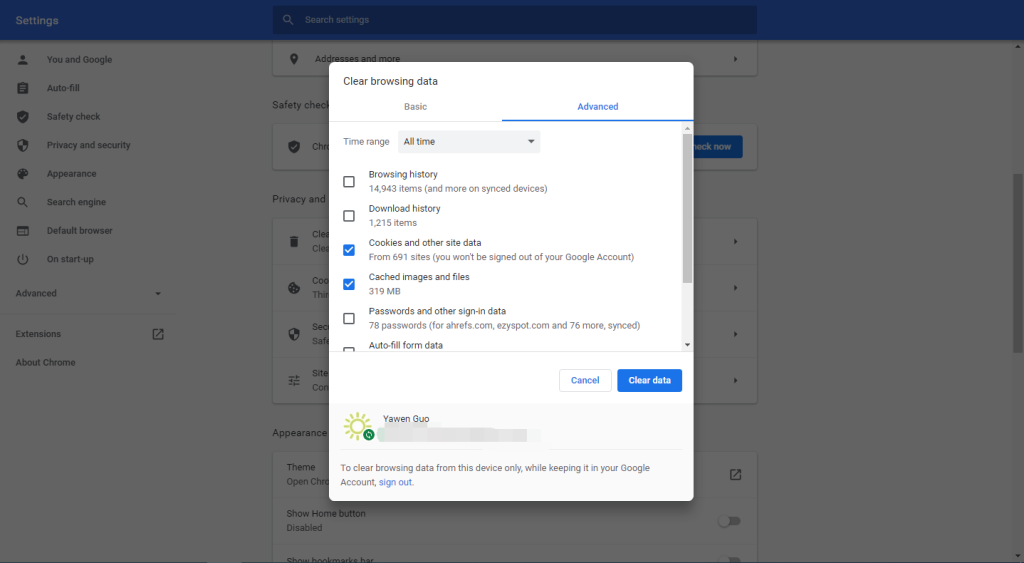
Sometimes the issue isn’t the PDF at all—it’s your browser. An outdated browser or a cache problem can cause upload failures. First, clear your browser’s cache and cookies. Then try uploading using a different browser (e.g., switch from Chrome to Firefox). If you’re using a website upload form, try dragging and dropping the file directly onto the page instead of clicking the ‘Choose File’ button. Alternatively, upload via a cloud service like Google Drive or Dropbox and share a link.
Step 3: Validate the PDF for Corruption
If the size is fine and the browser isn’t the problem, the PDF might be corrupted. Corruption can happen from incomplete downloads, virus infections, or faulty storage devices. To check, try opening the PDF yourself—if it gives an error or looks garbled, it’s likely corrupted. You can use an online validator like the one at PDFRepairs.click’s online PDF repair tool without watermark to test. Another quick method: open the PDF in a text editor (like Notepad) and see if the first line starts with ‘%PDF’. If not, the header is damaged and you’ll need to fix PDF header.
Step 4: Repair the Corrupted PDF
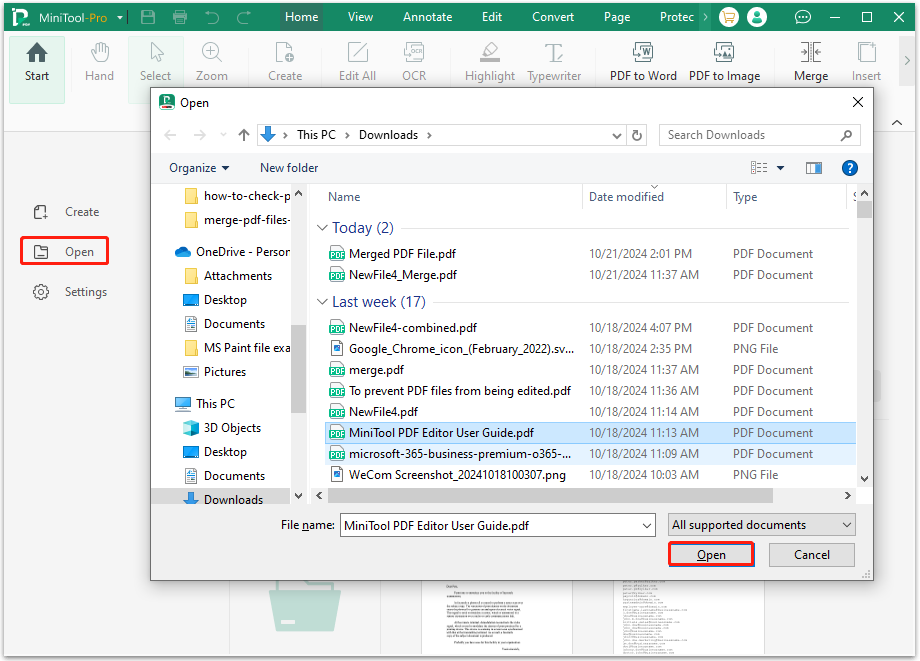
If the PDF is corrupted, you have a few repair options. The easiest is to use an online service that can rebuild the file structure without watermark. For a more thorough repair, try qpdf repair PDF—a free command-line tool that can linearize and fix syntax errors. On Windows, you can use Adobe Acrobat’s ‘Save As’ feature to re-save the PDF, which often fixes minor corruption. If you have PDF recovery tips from a previous bad download, you can try recovering the original source file.
Step 5: Check for Special Characters in the Filename
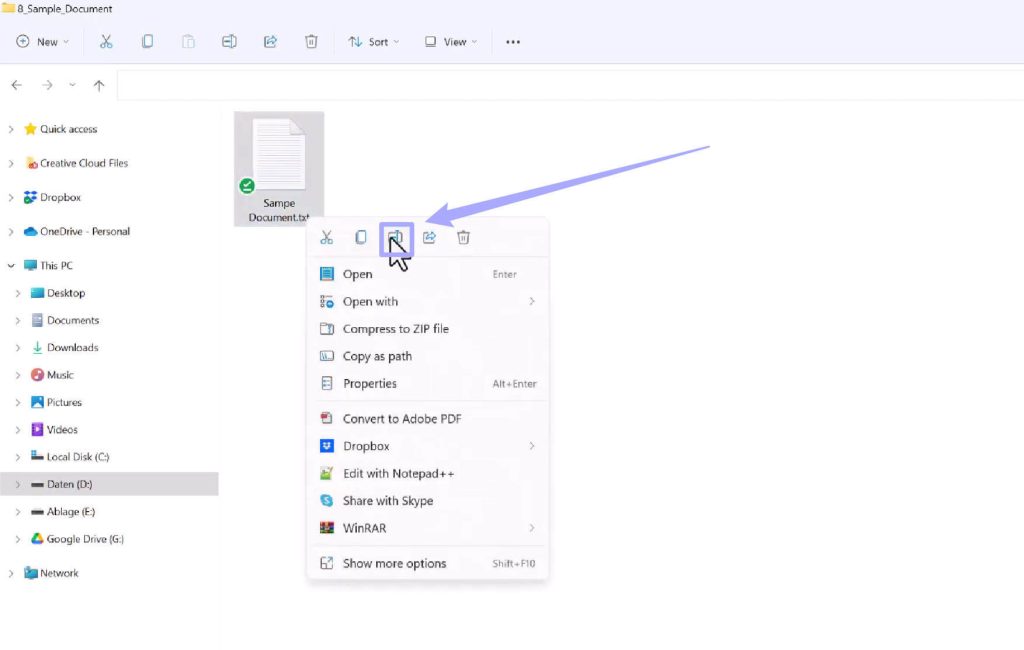
Websites often reject files with special characters in their names—like #, &, %, or even spaces. Rename your PDF to something simple, like ‘document.pdf’ (use only letters, numbers, underscores, or hyphens). Then try uploading again. This tiny fix solves a surprising number of upload errors.
Step 6: Re-upload the Repaired PDF
After you’ve applied one or more of the fixes above, try uploading your PDF again. If it still fails, consider converting it to a different format (like a Word document or image) and re-saving as PDF. This process can strip out corruption. Use a tool like Google Docs or a dedicated converter. Also, ensure your internet connection is stable—a dropped upload can cause partial files.
Common Pitfalls
- Ignoring file size limits: Many users forget that the file size limit applies to the original file, not just the compressed one. Always check the specific website’s upload limit.
- Using the wrong repair tool: Not all online repair services work without watermark or preserve formatting. Stick to reputable sites like those mentioned in our fix PDF document guide.
- Not clearing browser cache: A full cache can cause uploads to fail silently. Always clear cache or use incognito mode before troubleshooting.
Where to Next
Once your PDF uploads successfully, you might want to learn how to prevent future corruption. Check out our guides on PDF recovery tips to keep your files safe. If you frequently deal with fix PDFs from messaging apps, those often get corrupted during transfer. For more advanced repairs, explore the qpdf repair PDF approach. And if you ever need a quick online fix, our online PDF repair tool without watermark is always available.




