So you’ve got a PDF that just won’t open. Maybe it throws an error, shows garbage text, or sends your reader into an endless loading loop. I’ve been there, and it’s frustrating—especially if that file contains important information. This guide is for anyone who needs to salvage a damaged PDF, whether you’re a student trying to open a lecture handout, an office worker with a corrupted report, or just someone who downloaded a file that turned out broken. By the end of these steps, you’ll have either a working PDF or at least the text and images extracted from it.
We’ll start with the simplest fixes—like trying a different viewer or using built-in repair options—then move to more powerful tools like online services and command-line utilities. You won’t need any special skills, just a bit of patience. Let’s get that file open.
What You’ll Need
- The damaged PDF file on your computer
- A working internet connection (for online tools)
- Patience – not every method works 100% of the time
- Optional: a PDF recovery tool or command-line utility like qpdf
Step 1: Try a Different PDF Reader
Before diving into repair tools, try opening the PDF in a different reader. Sometimes the issue is with the software, not the file. If you’re using Adobe Acrobat Reader, switch to a lightweight alternative like SumatraPDF, PDF-XChange Editor, or even your web browser (Chrome, Firefox, Edge all have built-in PDF viewers). Right-click the file, select “Open with,” and pick another app. If it opens, great—you can then save a copy from that reader.
Step 2: Use Adobe Reader’s Built-in Repair
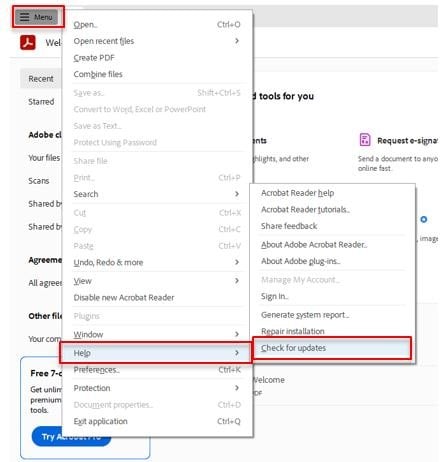
If the file still won’t open, and you have Adobe Acrobat Reader DC, you can try its built-in repair feature. Go to Help > Repair Installation. This fixes common corruption issues within the software itself. Also, try File > Open and select the PDF, but before clicking Open, check the box that says “Open in Repair Mode” (if available). This forces Reader to attempt a recovery.
Step 3: Use an Online PDF Repair Service
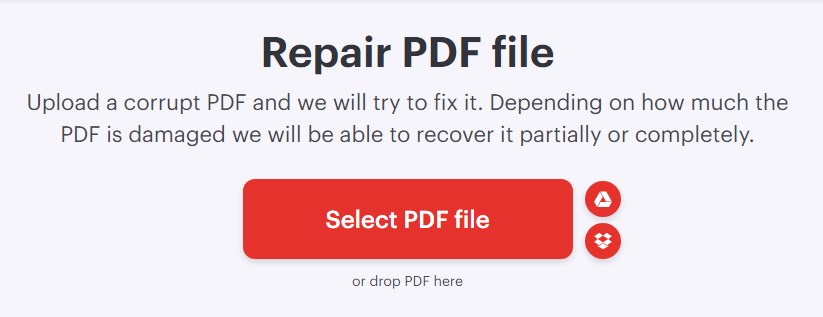
No luck yet? Online repair tools can fix many common issues like broken headers, missing cross-references, or truncated data. Upload your file to a trusted service like iLovePDF, Smallpdf, or PDF2Go. They’ll try to reconstruct the PDF and let you download a repaired version. For a detailed walkthrough, check out our guide on free online pdf repair. Important: avoid uploading sensitive files to unknown sites; use one with a privacy policy.
Step 4: Use qpdf – A Powerful Command-Line Tool
For seriously corrupted files, qpdf is a lifesaver. It’s a free, open-source command-line tool that can parse and linearize PDFs, discarding broken objects. If you’re comfortable with the terminal, install qpdf (available for Windows, Mac, Linux) and run: qpdf --repair damaged.pdf output.pdf. This often recovers a viewable PDF. For a complete tutorial, see our guide on qpdf repair pdf.
Step 5: Extract Content with Ghostscript
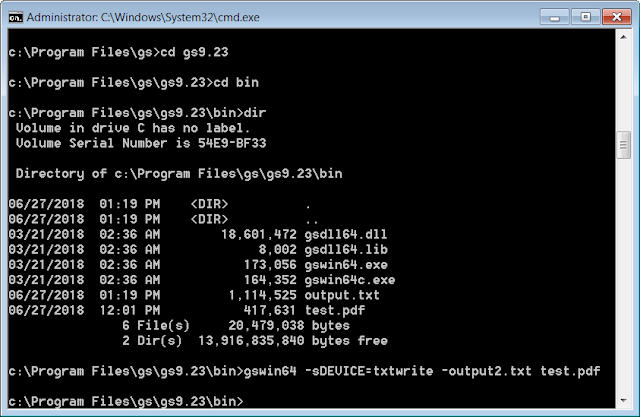
If even qpdf can’t reconstruct the file, you can still recover the content. Ghostscript can render damaged PDFs into images or extract text. Try: gs -dSAFER -dBATCH -dNOPAUSE -sDEVICE=pdfwrite -sOutputFile=repaired.pdf -c .setpdfwrite -f damaged.pdf. This often generates a new, clean PDF. Alternatively, use pdfimages (part of poppler) to extract embedded images. Check our article on repair damaged pdf for more advanced tricks.
Common Pitfalls
- Overwriting the original file before verifying the repair: always work on a copy, so you can try multiple methods.
- Using shady online services that ask for payment or install malware: stick to well-known tools like those mentioned above.
- Expecting 100% recovery: some damage is irreversible. You might only get part of the content, but that’s better than nothing.
Where to Next?
You’ve got your file open—now what? If you want to prevent future headaches, learn how to use a dedicated pdf recovery tool for regular backups. If the file you recovered still has formatting issues, check our guide on how to fix pdf document layout problems. And remember, most PDF errors are fixable with the right approach.




