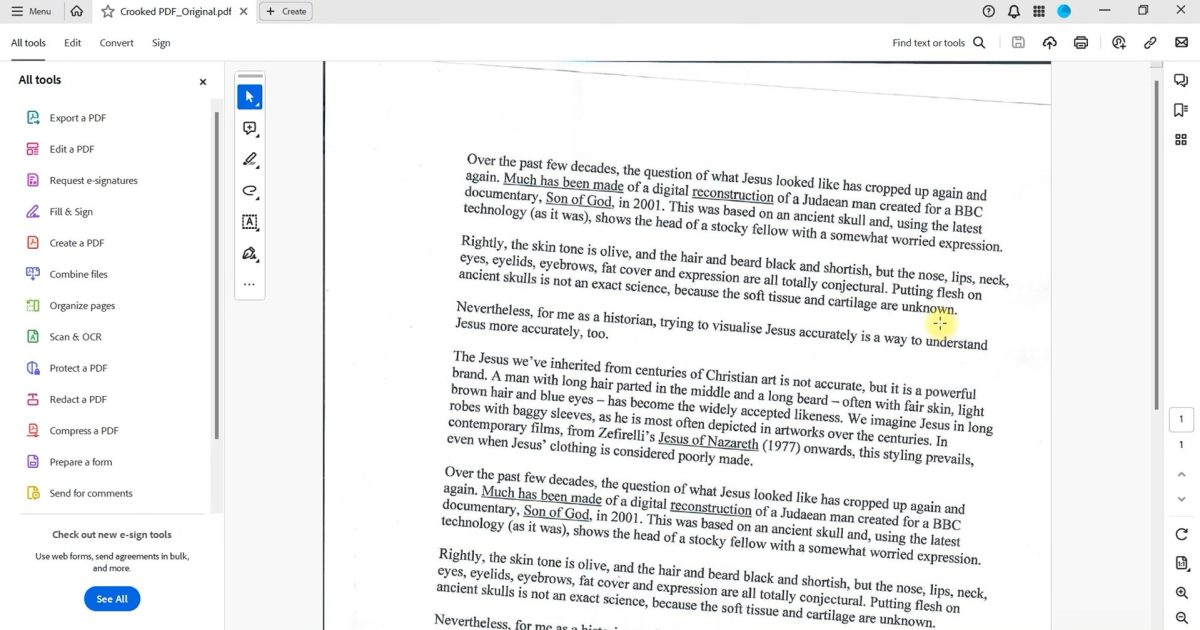
So you’ve got a scanned PDF that’s acting up. Maybe the text is blurry, pages are missing, or the file won’t open at all. Don’t worry—you’re not alone. Scanned PDFs are just images bundled together, and they can get damaged during scanning, saving, or transfer. This guide is for anyone who needs to bring a scanned document back to life, whether you’re a student, office worker, or just someone trying to read a contract. By the end, you’ll have a clean, readable PDF with selectable text and no glitches.
We’ll walk through checking the file, using a quick structural fix, running OCR (optical character recognition) to sharpen text, and final quality checks. You don’t need to be a tech wizard—just follow along. And hey, if you’ve got a different type of corruption, check out our guide on how to repair a scanned PDF file for additional tips. Let’s do this!
What You’ll Need
- Your scanned PDF file (corrupted or low-quality)
- A computer (Windows, Mac, or Linux)
- Adobe Acrobat Reader (free version works fine) or a reliable PDF tool
- Optional: an OCR tool like Adobe Acrobat Pro, ABBYY FineReader, or a free online service
Step 1: Check the PDF for Basic Corruption
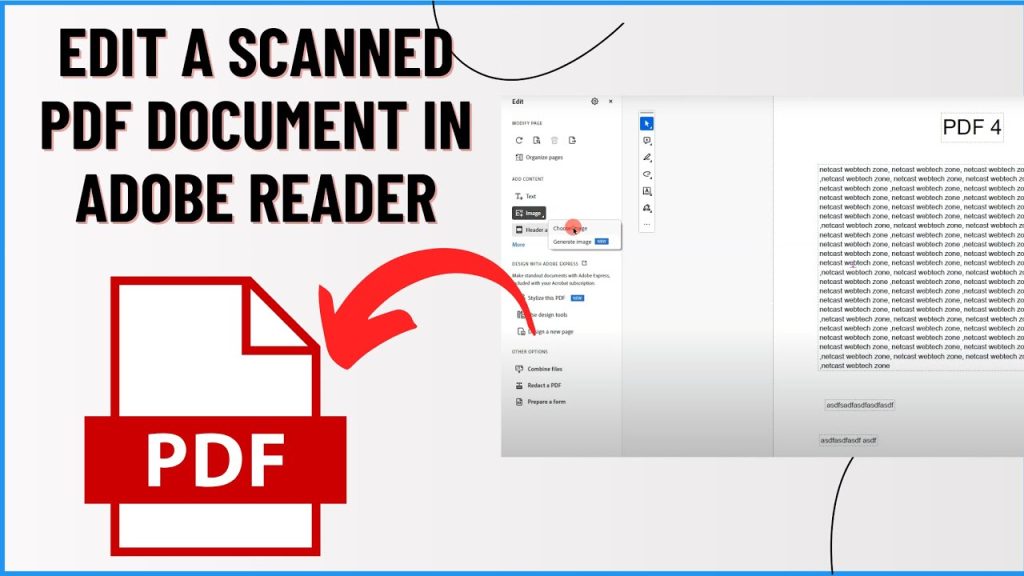
First, see if the problem is a simple upload or read error. Try opening your scanned PDF in Adobe Acrobat Reader. If it throws error messages like “file is damaged” or “cannot open”, then it might be structurally corrupt. If it opens but looks weird (e.g., blank pages), that’s fixable too. For a quick diagnosis, you can also run a free online PDF repair tool to scan the file without changing it. Just upload and see what it reports. If you want more control, use the qpdf command-line tool (super simple: run `qpdf –check input.pdf`). That’ll tell you if the file structure is okay.
Step 2: Use a PDF Fix Tool to Repair Structural Issues
If the file has minor corruption (like a broken cross-reference table), you can fix it with a dedicated PDF fix tool. A common free option is `qpdf`, which handles most structural errors. On your computer, open a terminal (Command Prompt on Windows, Terminal on Mac/Linux) and run: `qpdf –linearize input.pdf output.pdf`. This rebuilds the file and often resolves open failures. Alternatively, use a free online PDF repair service—just search for “free online PDF repair”—they’ll patch the file without you installing anything. I’ve linked to our guide on free online PDF repair if you want step-by-step details.
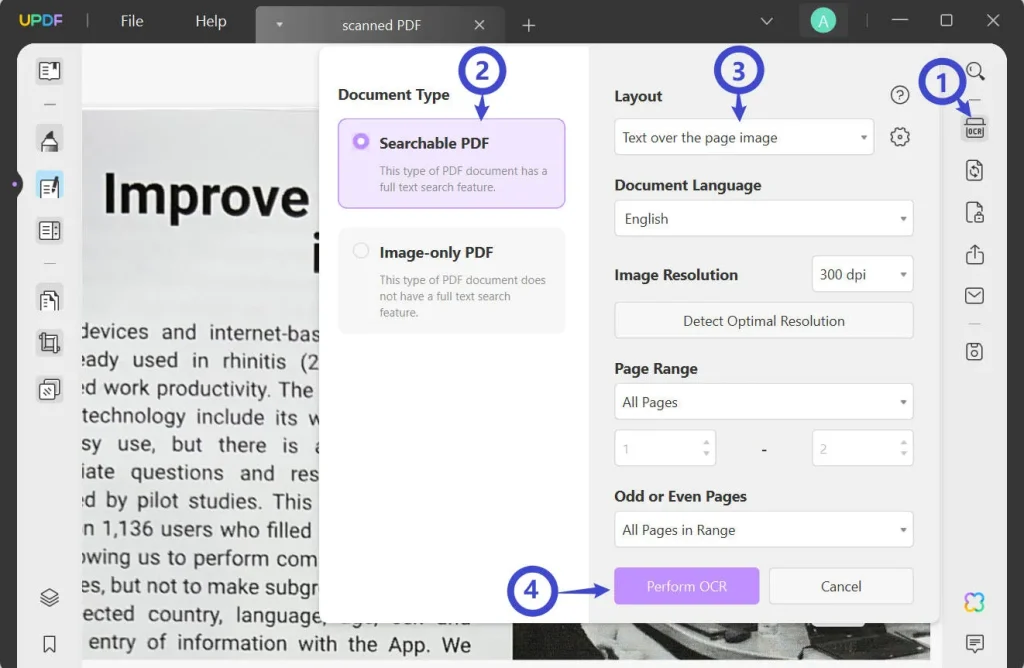
Step 3: Run OCR to Sharpen Text and Make It Selectable
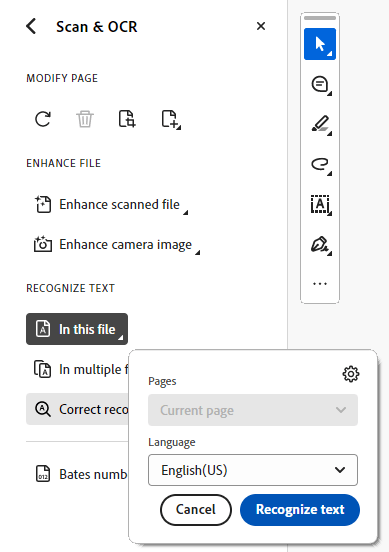
Scanned PDFs are essentially images, so text might appear blurry or unselectable. OCR converts those images into real text. If you have Adobe Acrobat Pro, open the file, go to Tools > Enhance Scans > Recognize Text > In This File. Choose “Editable Text & Images” for the best result. For a free option, try online OCR tools like OnlineOCR.net or even Google Drive (right-click > Open with > Google Docs). This step also fixes a lot of visual noise. If your file still looks messy, you might need to fix a damaged PDF in Adobe Reader first, then re-run OCR.
Step 4: Save and Verify the Repaired PDF
Once you’ve applied the fix and OCR, save the file under a new name (File > Save As) to avoid overwriting the original. Open the new PDF and check that all pages are there, text is selectable, and images are clear. Try copying a few words to confirm OCR worked. If something’s off, go back and tweak OCR settings or try a different tool. Also, if your original had pages missing, you might have used a PDF recovery tips guide that suggests re-scanning—definitely keep that in mind. Finally, test the file by emailing it to yourself or uploading it somewhere to see if it behaves.
Common Pitfalls
- Not backing up the original scanned PDF before attempting repair—always save a copy first.
- Using free online tools that leave watermarks or limit file size—check the fine print before uploading.
- Ignoring page orientation or crooked scans—rotate and straighten pages before running OCR for the best results.
Where to Next
If this guide didn’t solve your problem, don’t give up. You might need a more specialized approach, like using a PDF fix tool for severe corruption or trying professional software. Check out our guides on how to fix damaged PDFs in Adobe Reader and corporate PDF recovery tips for deeper fixes. And remember, for future scans, always save in a high-quality PDF/A format—it’s more stable. You’ve got this!




