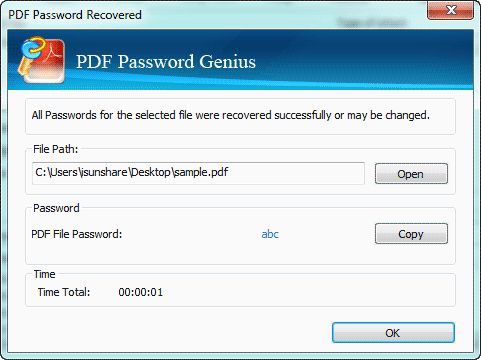
Got a PDF that’s locked up tighter than a drum? Whether it’s a work document you encrypted and forgot the password for, or a file someone sent you with restrictions on printing or editing, you’re in the right place. This guide is for anyone who needs to access the content inside an encrypted PDF but doesn’t have the password handy. We’ll cover methods that work for owner-level passwords (restrictions) and user-level passwords (open passwords), focusing on legitimate recovery options.
By the end of this tutorial, you’ll have a few solid strategies to try: using online unlock services, leveraging Adobe Acrobat’s own tools, and diving into command-line utilities like qpdf for tech-savvy users. We’ll also touch on when it’s time to accept that some PDFs are truly locked. Ready? Let’s crack this thing (legally, of course).
What you’ll need
- The encrypted PDF file (obviously)
- A computer with internet access (for online tools)
- Adobe Acrobat Reader or Pro (free version works for some methods)
- Optional: qpdf (free command-line tool) or other pdf recovery tool
- Patience – recovery can take time, especially with brute-force
Step 1: Identify the type of encryption
Not all PDF encryption is created equal. Open the PDF in Adobe Acrobat. If it asks for a password immediately, that’s a user-level password (you need the password to view). If it opens but you can’t print, edit, or copy text, that’s an owner-level password (permissions restrictions). Knowing this helps you choose the right method. For user-level passwords, you’ll likely need a dedicated recovery tool. For owner-level, you can often remove the password without knowing it.
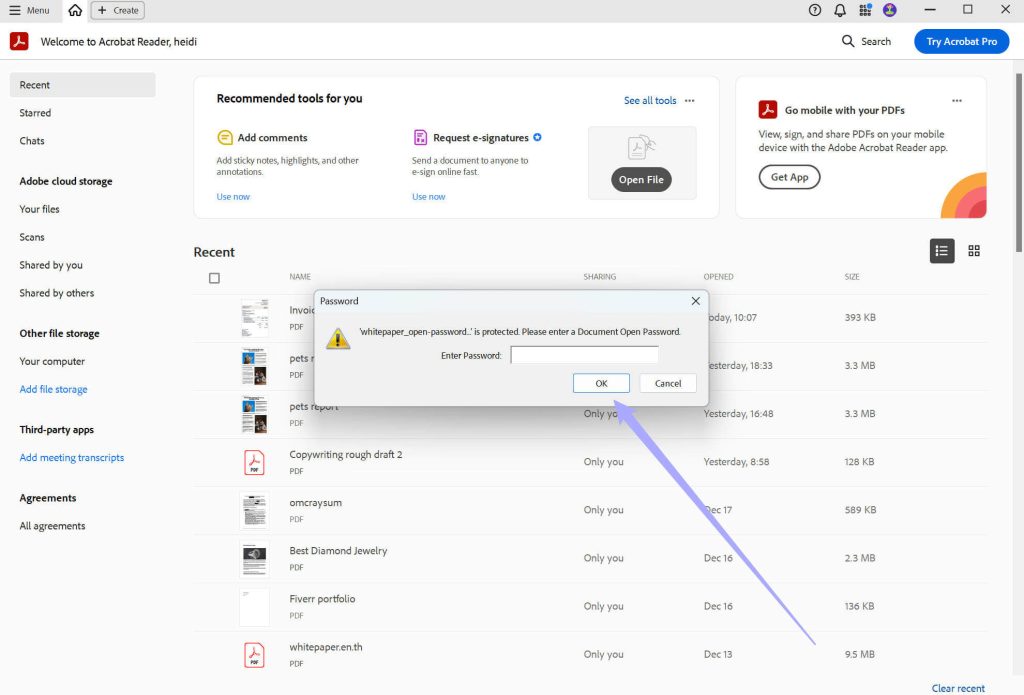
Step 2: Try an online PDF unlocker (for owner-level passwords)
If your PDF only has restrictions (owner-level password), online tools can strip those out instantly. Head to a trusted site like SmallPDF, iLovePDF, or PDFUnlock. Upload your file, and within seconds you’ll get a downloaded version with no restrictions. This works because many owners set a default blank password or a known string. But be careful: never upload sensitive documents to unencrypted sites. For personal files, this is a quick fix.

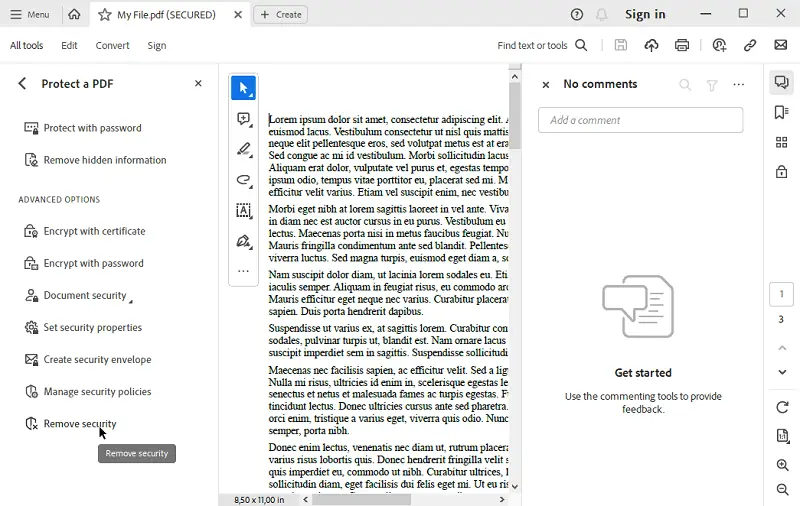
Step 3: Use Adobe Acrobat’s ‘Remove Security’ feature
If you have Adobe Acrobat Pro (not just Reader), you can remove security if you know the owner password or if the PDF was secured with a blank password. Open the PDF, go to ‘Tools’ > ‘Protect’ > ‘Encrypt’ > ‘Remove Security’. If a password dialog appears, try leaving it blank or type ‘password’ or ‘12345’ – sometimes these are default. If it works, save the new unprotected copy. This is a classic ‘fix pdf document‘ technique.
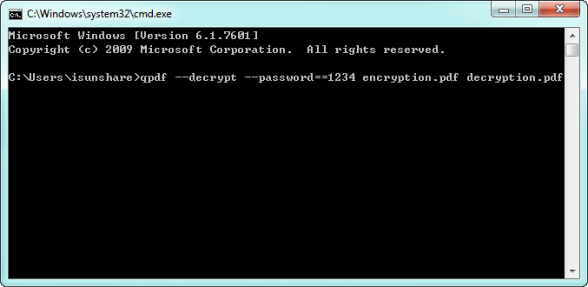
Step 4: Use qpdf for user-level passwords (command line)
qpdf is a powerful, free command-line tool that can handle many encryption types. For user-level passwords, you’ll need to either know the password or use a dictionary attack. First, install qpdf from its official site. Then open a terminal (Command Prompt on Windows, Terminal on Mac/Linux). To remove owner-level password restrictions, run: qpdf --decrypt input.pdf output.pdf. This often works without a password. For user-level, you’ll need to supply the password: qpdf --password=YourPassword --decrypt input.pdf output.pdf. If you don’t have the password, qpdf also has a limited dictionary attack option with --password-file=wordlist.txt. For more details, check out our guide on using a pdf recovery tool.
Step 5: Use a dedicated PDF password recovery tool
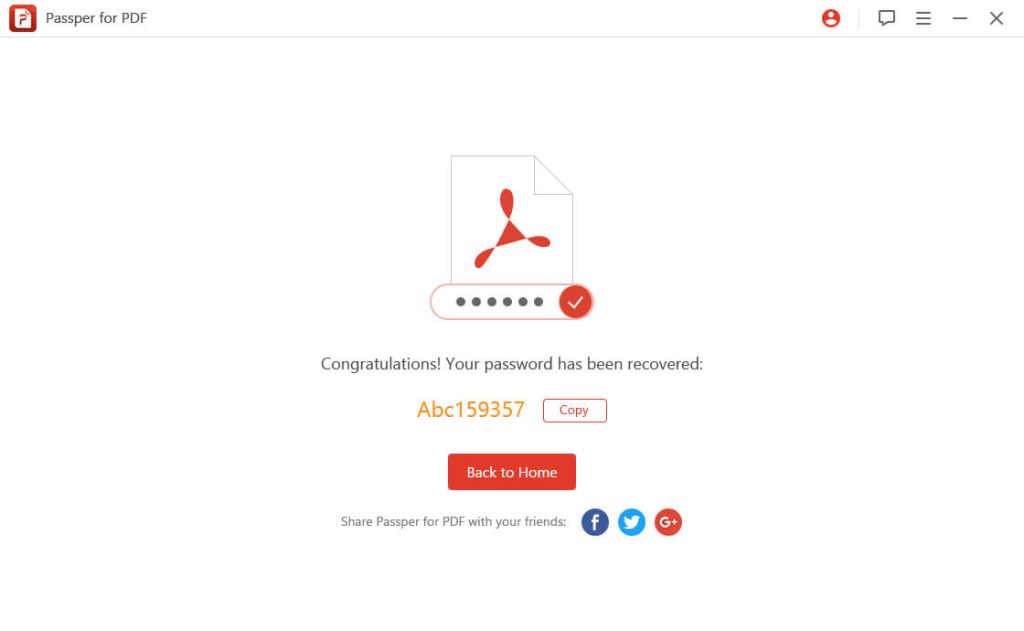
When all else fails, a dedicated tool can brute-force or dictionary-attack the password. Popular options include ‘PDF Password Remover’, ‘Passware Kit’, or ‘Free PDF Password Remover Tools’. These are often not free, but some offer trial versions that recover short passwords. Keep in mind this can take hours or days depending on password complexity. For tips on using such tools, see our pdf recovery tips article. And if the PDF is also corrupted, you may need to first restore damaged pdf before attempting recovery.
Common pitfalls
Here are three things that often trip people up:
- Mixing up encryption types: If you try an online unlocker on a user-level password PDF, it won’t work. Double-check whether you need a password to view the file.
- Trusting shady websites: Some online tools are malware traps. Stick to well-known services with HTTPS. Better yet, use a local tool like qpdf or Adobe for sensitive files.
- Thinking all passwords can be recovered: Strong passwords (20+ random characters) are practically uncrackable. Don’t waste time – if the document isn’t critical, move on.
Where to next
That’s it! You’ve learned how to recover an encrypted PDF using online unlockers, Adobe Acrobat, qpdf, and dedicated tools. If the PDF was also corrupted, check out our guide on free online pdf repair. For more techniques, browse the PDF Repair & Tools section. Happy decrypting, and remember: only use these on files you own or have permission to access!




