So you’re trying to open an important PDF in Adobe Reader and all you get is a pop-up saying “The file is damaged and could not be repaired.” Frustrating, right? This guide is for anyone who’s ever seen that error—whether it’s a work document, a school assignment, or a family recipe. By the end, you’ll have a clear set of fixes to try, from simple file-source checks to using dedicated repair tools. Most of these steps take less than 10 minutes, so let’s get that PDF working again.
You won’t need any special skills—just a little patience. We’ll start with the easiest fixes (checking the file itself) and move up to more powerful methods like online repair tools and content extraction. Even if your PDF is truly broken, you’ll learn how to salvage the text and images inside. Ready? Let’s dive in.
What You’ll Need
- The damaged PDF file (keep a backup copy just in case)
- Adobe Reader (or Acrobat) installed on your computer
- A stable internet connection (for online tools)
- Optional: a text editor like Notepad++ (for manual extraction)
- A few minutes of your time
Step 1: Check the File Source
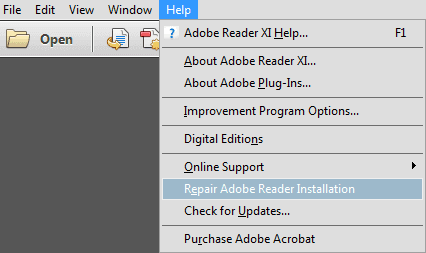
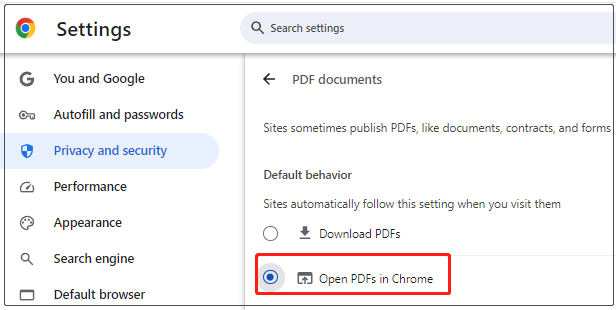
Before you assume the PDF is corrupt, rule out a bad download or transfer. If the file came from an email attachment, download it again. If it’s from a USB drive, copy it to your desktop. Sometimes the “damaged” error just means the file didn’t copy completely. Also, try opening the PDF in a web browser (drag it into Chrome or Edge). If it opens fine there, the problem might be Adobe Reader itself—try reinstalling it.
Step 2: Try Another PDF Viewer
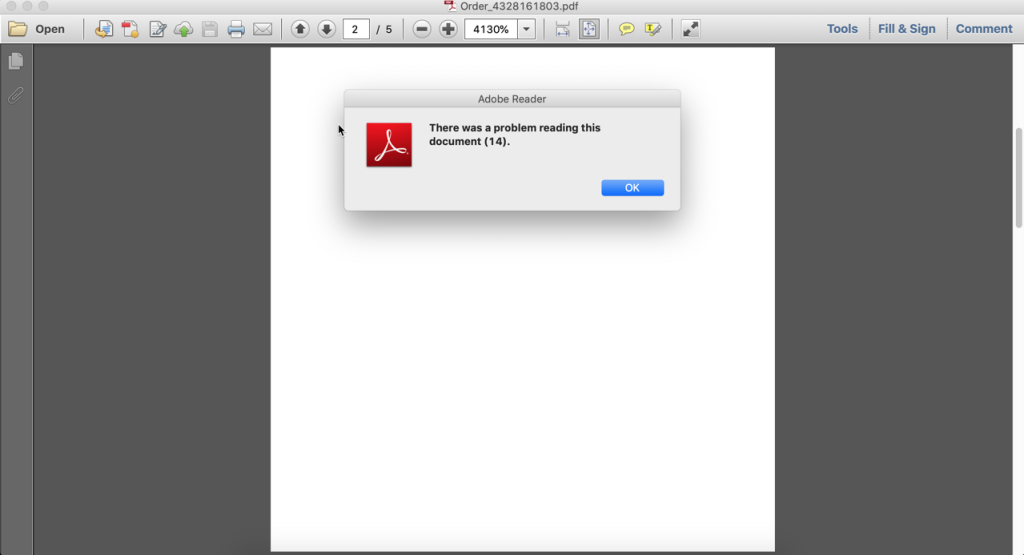
Different PDF readers handle errors differently. If you have another viewer like Foxit Reader, SumatraPDF, or even the built-in browser viewer, try opening the file there. Often these alternatives are more forgiving of minor corruption. If the file opens, you can then re-save it as a clean PDF from that viewer. This is one of the quickest ways to bypass the Adobe Reader error.
Step 3: Use an Online PDF Repair Tool
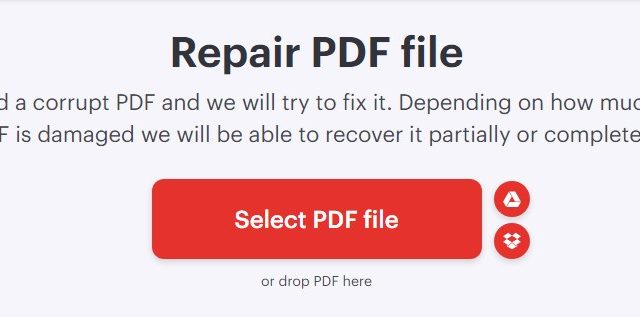
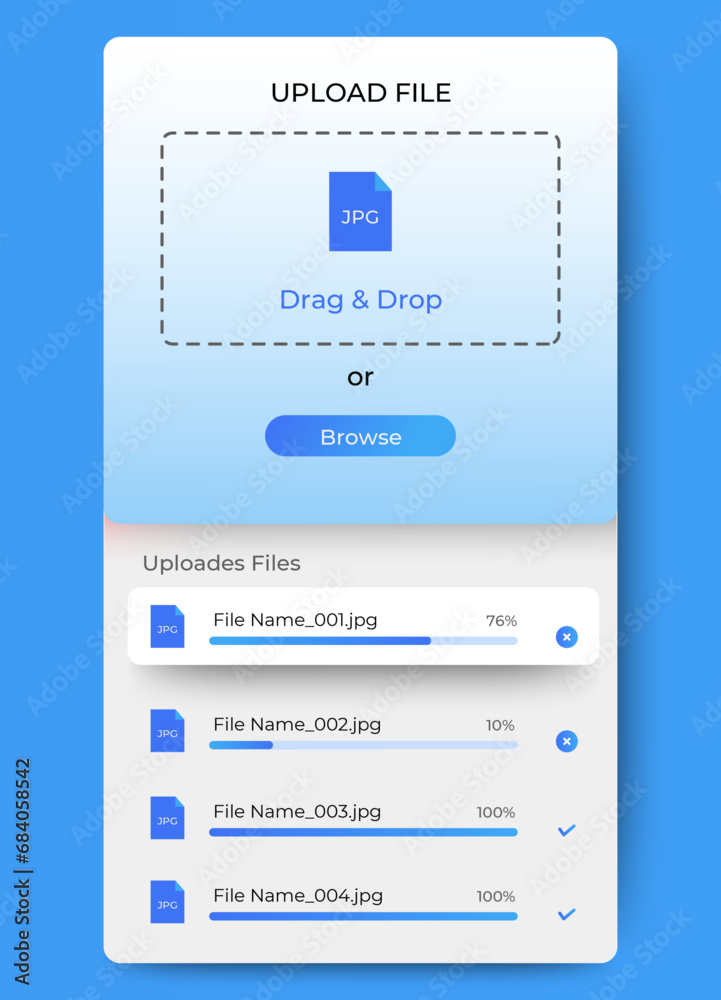
If the file still won’t open anywhere, it’s time to bring in a dedicated repair tool. There are several free online services that can fix a corrupted PDF. Simply upload your file, let the tool analyze it, and download the repaired version. We have a whole guide on using a pdf fix tool that covers the best options in detail. Most of these tools are free and don’t require registration.
Step 4: Use Adobe Acrobat Pro (If Available)
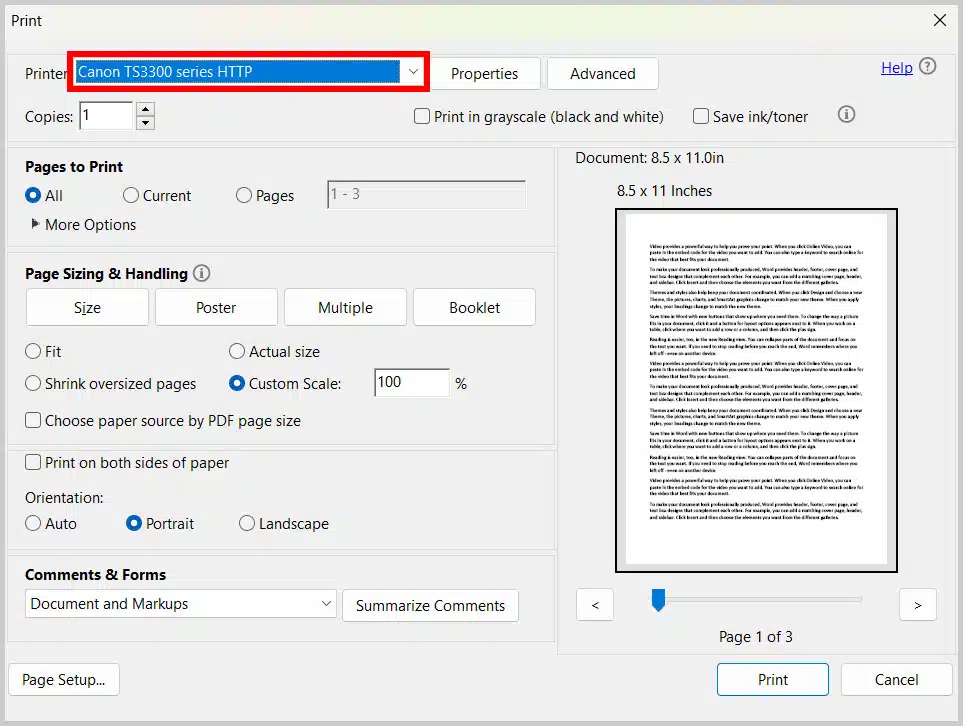
If you have access to Adobe Acrobat Pro (not just Reader), you’ve got a built-in repair feature. Open Acrobat Pro, go to File > Open, select the damaged PDF, and Acrobat will attempt to repair it automatically. You can also use the “Save As Other > Optimized PDF” option to strip out corrupt elements. This method works best for files with minor corruption like a broken cross-reference table.
Step 5: Recover Content Manually
When all else fails, you can still salvage the text and images from the PDF using a text editor. Open the PDF in Notepad++ (or a hex editor) and you’ll see a lot of gibberish—but scattered throughout are the readable strings. Copy those out and paste them into a new document. This is tedious but works for text-heavy files. If you need the images, rename the file extension from .pdf to .zip and unzip it—sometimes the images are stored inside as separate files. Check our guide to repair a damaged PDF for more advanced recovery techniques.
Common Pitfalls
- Pitfall 1: Blaming the PDF when it’s actually Adobe Reader that’s broken. Always test the file in a different viewer first.
- Pitfall 2: Using shady online repair tools that might upload your file to unknown servers. Stick to well-known, reputable services. We recommend the ones listed in our pdf fix tool guide.
- Pitfall 3: Forgetting to back up the original file before trying repairs. If a repair tool modifies the file in place, you might lose the original. Always keep a copy.
Where to Next
If the steps above didn’t fully solve your problem, don’t worry—there are many more ways to repair a damaged PDF or even restore a damaged PDF from scratch. You might also find our tutorials on how to repair a PDF upload error or fix a PDF from WhatsApp helpful if your file came from those sources. And if you prefer offline tools, check out our guide to qpdf repair pdf for a command-line solution. The key is to stay calm and try each method until your content is safe.