
If you’ve ever tried to open a PDF and got a jumble of errors like “Invalid cross-reference table” or “Unexpected EOF”, you’re dealing with a broken PDF structure. This guide is for anyone who has a corrupted PDF that won’t open properly and wants to fix it without expensive software. By the end, you’ll have a working PDF that opens in any reader, using free tools you can run on Windows, Mac, or Linux.
What You’ll Need
- A corrupted PDF file (backup the original first)
- qpdf (free, install from qpdf.sourceforge.net)
- pdftk (free, install from pdftk.com)
- A terminal or command prompt (Command Prompt on Windows, Terminal on Mac/Linux)
- A text editor (like Notepad++ or VS Code) for inspecting the file
Don’t worry if you’ve never used the command line before — we’ll walk through each step slowly.
Step 1: Diagnose the Problem
First, find out what’s wrong. Open your terminal and run qpdf --check broken.pdf. If qpdf is not installed, use pdfinfo broken.pdf from the poppler-utils package. These tools list errors like “xref table not found” or “object missing”. Write down the error — it tells you which part of the structure is damaged.

Common issues include a missing or corrupted cross-reference table, garbled object streams, or a bad file header. Knowing the exact error helps you pick the right fix. For example, if you see “startxref not found”, you need to rebuild the cross reference table.
Step 2: Fix the Cross-Reference Table
The cross-reference table is like a map of where objects are in the file. If it’s broken, the PDF can’t find its pages. To fix it, run: qpdf --linearize broken.pdf fixed1.pdf. This forces qpdf to rewrite the whole file with a fresh, correct cross-reference table. If that fails, try qpdf --replace-input broken.pdf --no-original-objects=first --no-original-objects=last (experimental).
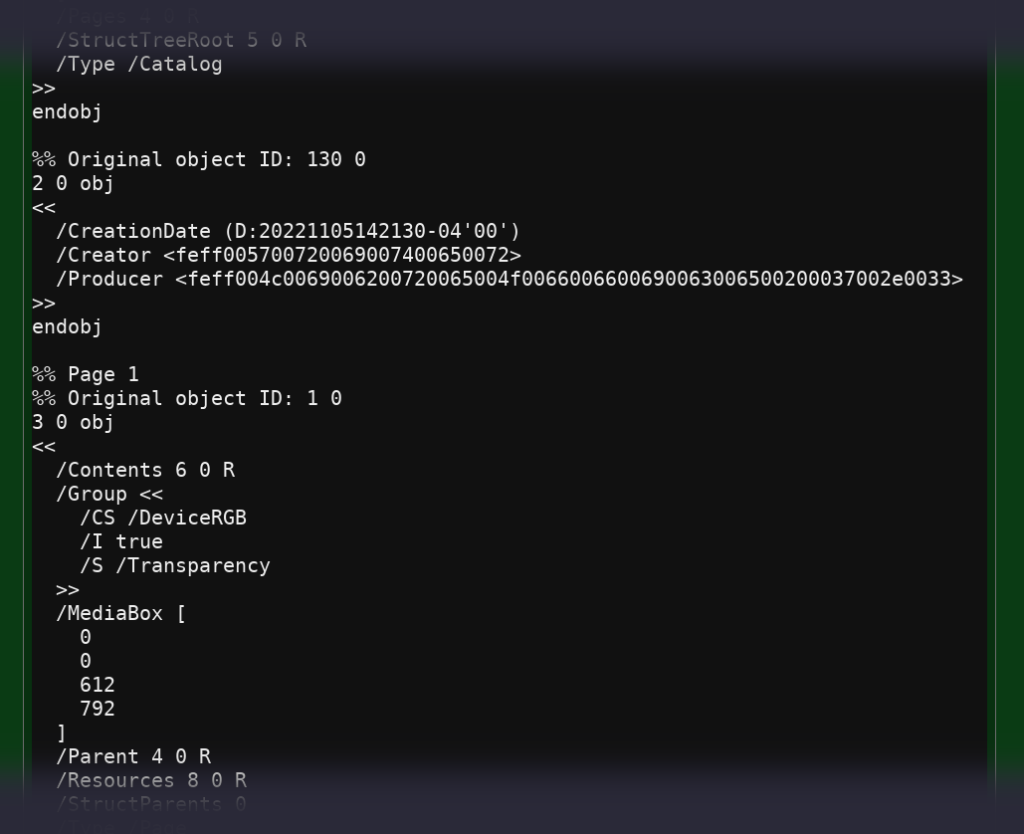
If qpdf gives up, you can rebuild the table manually using the pdftk tool: pdftk broken.pdf output fixed2.pdf. This often works when qpdf doesn’t. If you still see errors, you might need to resort to a lower-level repair, like the one described in our cross reference table repair guide.
Step 3: Repair Object Streams
Modern PDFs compress objects into streams. If a stream is corrupted, the PDF may open blank. Try: qpdf --decode-level=all broken.pdf fixed3.pdf. This decompresses all streams, which can strip out corruption. Then recompress with qpdf --object-streams=generate fixed3.pdf fixed4.pdf.

Some objects might be missing entirely. In that case, you can try an online service — but be careful with sensitive data. For a deep dive on object-level fixes, check our article on PDF syntax repair.
Step 4: Fix the File Header
A PDF must start with %PDF-1.x. If the header is damaged (e.g., from a virus or incomplete download), the file won’t be recognized as a PDF. Open the file in a hex editor or text editor (like Notepad++) and look at the first few bytes. If they’re not %PDF, you can fix it manually: add %PDF-1.4 at the top (save as binary).

After fixing the header, run qpdf --check fixed.pdf again to verify. If you’re dealing with a download corruption, we have a guide on how to recover PDF from USB that covers similar header repairs.
Step 5: Try Online Fallbacks
If command-line tools fail, upload your PDF (after backing up sensitive info) to a free online repair service like PDF24 Tools or iLovePDF. These can fix minor structure issues, though they won’t handle severe corruption. For a list of safe options, see our roundup of free online PDF repair tools.
Common Pitfalls
- Not backing up the original: Always save a copy before repairing. One wrong command can make the file worse.
- Using too many tools in sequence: Each tool rewrites the PDF; multiple conversions can introduce new errors. Stick to one or two steps.
- Ignoring warnings about encrypted PDFs: Some structure fixes require decrypting first. If your PDF is encrypted, check our guide on how to recover encrypted PDF before proceeding.
Where to Next?
Now that you’ve fixed the structure, your PDF should open normally. If you still have issues (like missing text or images), try opening it in a different reader to rule out viewer problems. For recurring corruption, consider using a dedicated PDF fix tool to automate repairs. And if you ever need to open a damaged PDF that won’t cooperate, our guide on how to open a damaged PDF has additional tricks.




