Did you just plug in your USB drive and realize your important PDF files are gone? Maybe you accidentally deleted them, formatted the drive, or the USB got corrupted. Don’t panic — in most cases, those PDFs are still there, just hidden or marked as deleted. This guide is for anyone who’s lost PDFs from a USB stick and wants them back without spending a ton of money or time. By the end, you’ll have your recovered PDFs saved safely to your computer.
We’ll cover free and easy-to-use tools like Recuva or PhotoRec, walk through every step, and point out common mistakes that can ruin your chances. As a bonus, if your recovered PDFs still won’t open, I’ll link to some solid repair options like a dedicated PDF recovery tool or free online PDF repair services. Let’s get those files back!
What You’ll Need
- The USB drive containing the lost PDFs (don’t use it anymore!)
- A computer with Windows, Mac, or Linux
- A free data recovery tool: I recommend Recuva (Windows) or PhotoRec (Windows/Mac/Linux)
- A separate storage location to save recovered files (not the same USB drive)
- Patience — scanning can take a while if the drive is large
Step 1: Stop Using the USB Drive Immediately
The moment you realize files are missing, **do not** save anything new to the USB drive. When you delete a file, its space isn’t erased — it’s just marked as available. Writing new data can overwrite those deleted PDFs, making them unrecoverable. Safely eject the drive and set it aside. If it’s a physically damaged drive, skip to Step 3 and consider cloning it first.
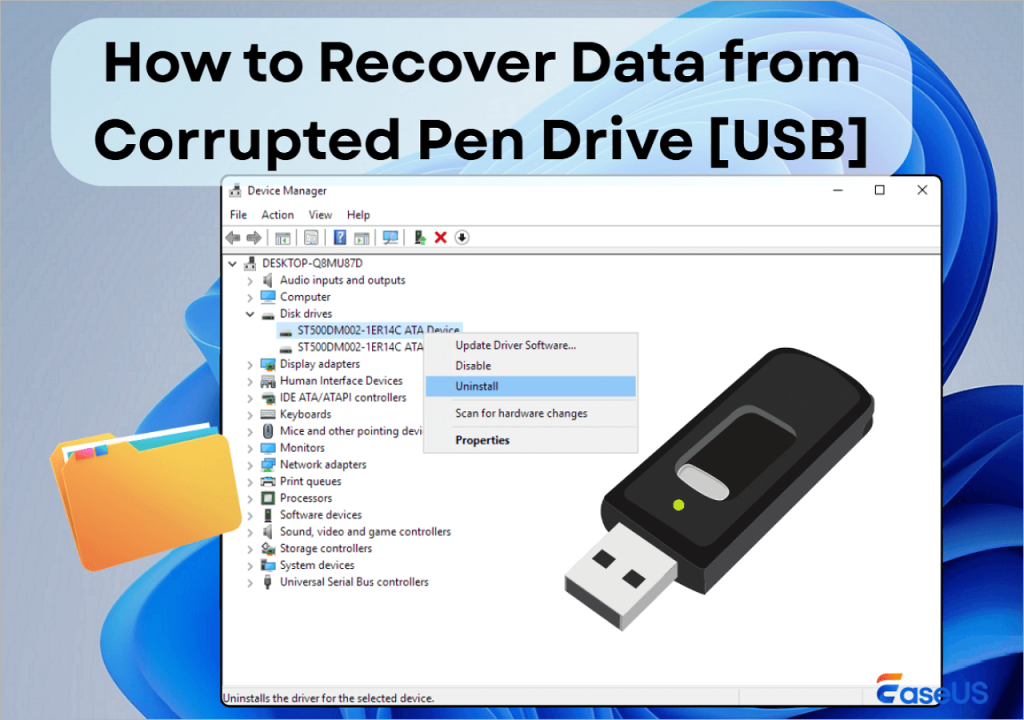
Step 2: Download and Install a Recovery Tool
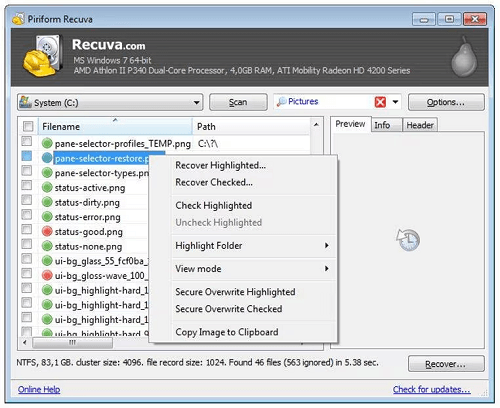
For Windows, download **Recuva** (free version is fine). For Mac or Linux, go with **PhotoRec** (it’s command-line but powerful). Install the software on your computer’s internal drive, not on the USB. Launch the program and select your USB drive as the target. In Recuva, choose “All Files” or “Documents” to focus on PDFs, then select “Deep Scan” for best results.
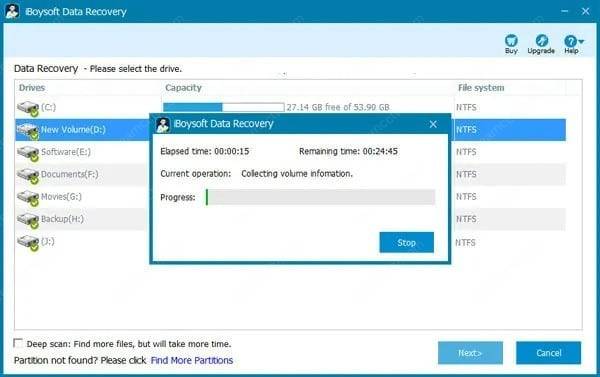
Step 3: Scan the USB Drive
Click “Start” or “Scan” to begin. This process reads every sector of the USB to find traces of deleted files. Deep scan takes longer but catches more pdfs, especially if the drive was formatted. You’ll see a progress bar — let it finish completely. Depending on the drive size, this could be minutes or hours. Go grab a coffee.
Step 4: Preview and Select Your PDFs
Once the scan finishes, a list of recoverable files appears. Use the filter to show only PDFs (file extension .pdf). Many tools let you preview the file to confirm it’s the right one. Look for thumbnails or click “Preview” to see the content. Check the boxes next to the PDFs you want to recover. If a file shows as “Overwritten” or “Unrecoverable”, skip it.
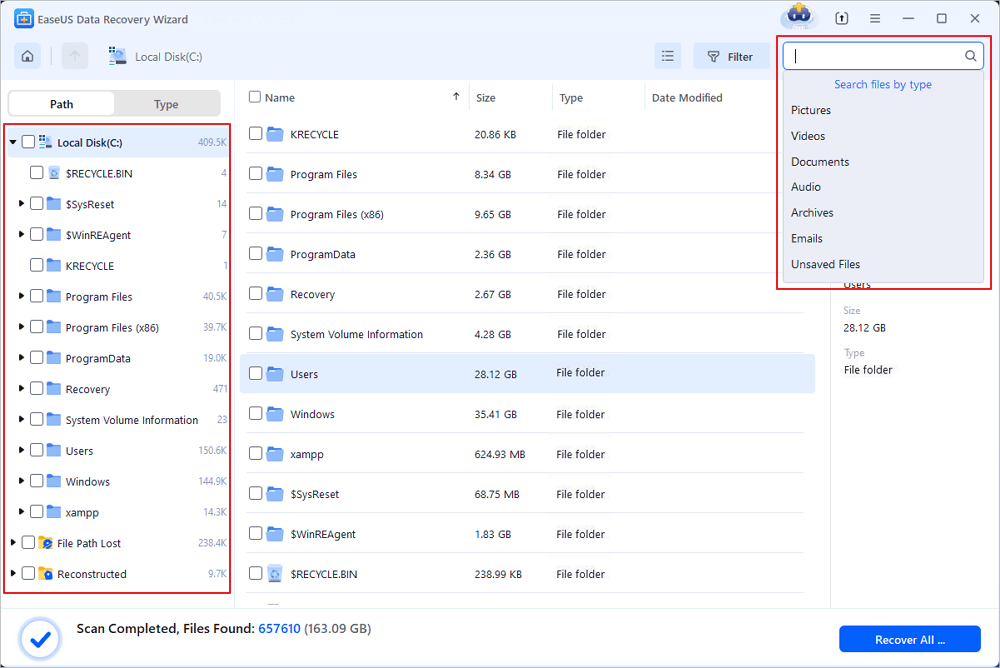
Step 5: Recover to a Safe Location
Click “Recover” and choose a destination folder on your computer’s internal drive — never save back to the same USB drive. If recovery fails, you might try a second tool like PhotoRec. After saving, double-check that the files open correctly. If some PDFs are corrupted, don’t worry — you can often repair them. Check out our PDF recovery tips for more advanced methods.
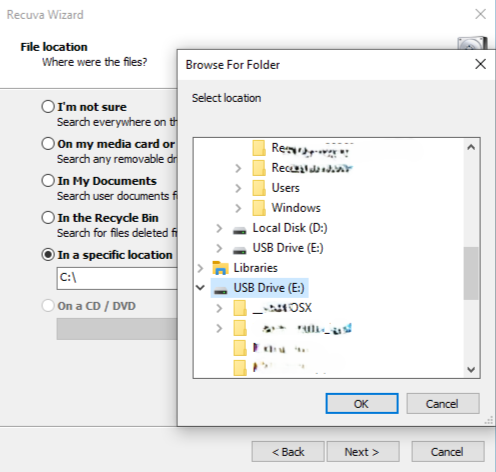
Step 6: Verify and Repair Recovered PDFs
Open each recovered PDF normally. If it opens fine, congratulations! If you get errors like “file damaged” or “can’t be opened”, try to open a damaged PDF in a different viewer first. For stubborn cases, use a dedicated repair service or free online PDF repair to fix the file. For seriously corrupted PDFs, you may need to repair a PDF file online without watermark.
Common Pitfalls
- Using the USB drive after data loss: Every new file written risks overwriting your PDFs. Unplug it immediately.
- Choosing the wrong recovery tool: Some free tools are scams or include malware. Stick with well-known options like Recuva or PhotoRec.
- Saving recovered files back to the USB drive: This can overwrite the very files you’re trying to save. Always save to a separate drive.
Where to Next?
You’ve recovered your PDFs — awesome! If some still aren’t working, check out our guide on how to open a damaged PDF for simple fixes. For future prevention, regularly back up your important files. And if you ever face a stubborn corrupted file, a PDF recovery tool can often save the day. Happy recovering!




