
If you’ve got a folder full of corrupted PDFs—maybe from a failed backup, a bad conversion, or a botched download—manually fixing each one is a nightmare. This guide is for anyone who needs to repair a bunch of PDFs at once without spending hours on individual files. By the end, you’ll have a repeatable process using free tools like Ghostscript and PDFtk that can repair an entire directory in minutes.
You’ll learn how to set up a batch repair script on Windows, macOS, or Linux, verify the output, and avoid common pitfalls. Whether you’re a sysadmin, a researcher, or just someone who downloaded a corrupted archive, this mass pdf repair guide will get your documents back in shape with minimal effort.
What You’ll Need
- A computer running Windows, macOS, or Linux
- Ghostscript (free, open-source) – download from ghostscript.com
- PDFtk (free alternative) – optional, for split/merge repairs
- Python (optional) – for more advanced automation
- A few sample corrupted PDFs to test on
Step 1: Assess the Damage
Before diving into repairs, open a few PDFs to see what’s wrong. Common signs: error messages on open, blank pages, garbled text, or file sizes that are suspiciously small or large. This quick check helps you pick the right repair approach later in your pdf repair workflow.
Step 2: Install Ghostscript
Ghostscript is a powerful command-line tool that can reinterpret and re-output PDFs, often fixing corruption in the process. Download the installer for your OS from ghostscript.com, run it, and note the installation path. Open a terminal or command prompt and type gs --version to verify it’s installed correctly.

Step 3: Repair a Single PDF with Ghostscript
This is the core command for repairing a single PDF. Open your terminal in the folder containing the PDF and run:
gs -dSAFER -dBATCH -dNOPAUSE -sDEVICE=pdfwrite -dPDFSETTINGS=/prepress -sOutputFile=output.pdf input.pdf
Replace input.pdf with your corrupted file and output.pdf with the desired name. The flags disable interactive prompts, force safe mode, and use high-quality settings. If the output is too large, change /prepress to /ebook. Test this on one file first.

Step 4: Build a Batch Script (Windows)
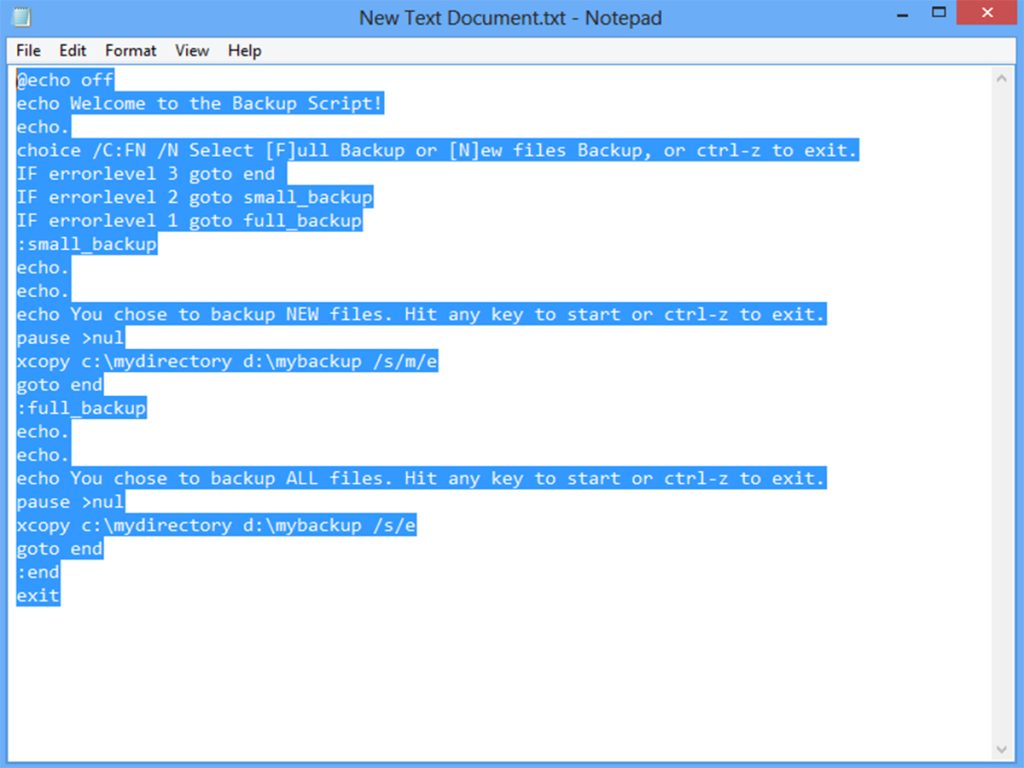
To mass repair all PDFs in a folder, create a batch file. Open Notepad and paste this code:
for %%f in (*.pdf) do gs -dSAFER -dBATCH -dNOPAUSE -sDEVICE=pdfwrite -o “repaired_%%~nf.pdf” “%%f”
Save as repair_all.bat in the folder with your PDFs. Double-click to run. It will create a repaired_ copy of each file. If you get permission errors, run the command prompt as administrator.
Step 5: Automate on macOS/Linux
On Unix-like systems, use a bash one-liner. Open Terminal, navigate to your PDF folder, and run:
for f in *.pdf; do gs -dSAFER -dBATCH -dNOPAUSE -sDEVICE=pdfwrite -o “repaired_$f” “$f”; done
This does the same as the Windows script but with proper escaping. Add echo before the command to preview without executing.
Step 6: Verify Repaired PDFs
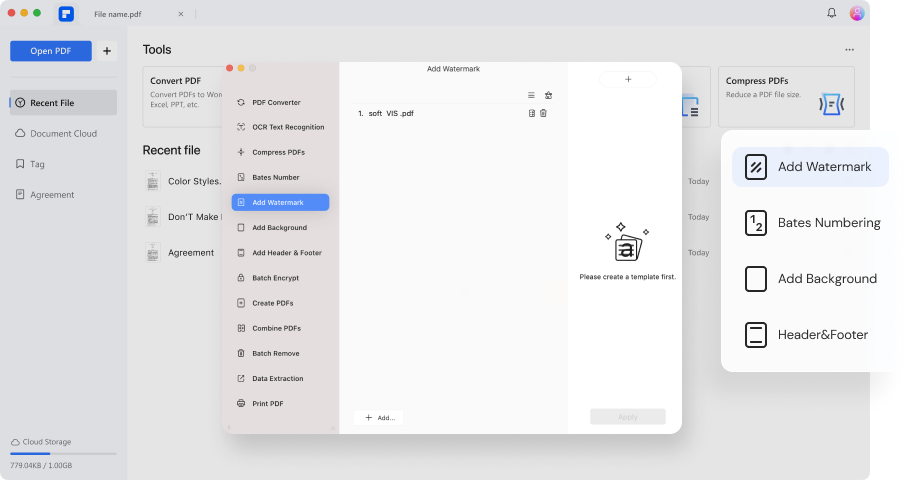
Open a few of the repaired files to confirm they’re good. Check that text is selectable, images render, and the file size is reasonable. If some still fail, try using a different PDF recovery tool or adjust the Ghostscript settings. For particularly stubborn files, refer to our detailed guide on how to fix PDF structure.
Step 7: Alternative Tools (PDFtk, qpdf)
Ghostscript isn’t the only option. PDFtk can repair PDFs by rebuilding the cross-reference table or fixing metadata. For minor corruption, a simple pdftk input.pdf output output.pdf often works. The cross reference table repair pdf technique is especially useful. For linearization issues, qpdf can fix them with qpdf --linearize input.pdf output.pdf. If you prefer a graphical interface, check out free online PDF repair services, but keep in mind they may not handle batch processing easily.
Common Pitfalls
- Oversized output: Using
/prepresscan bloat files. Switch to/ebookor/screenif size matters. - Missing fonts: If text appears wrong, add
-dEmbedAllFontsto force font embedding. More details in our pdf font error fix guide. - Still corrupted: Some files are beyond simple repair. Try qpdf or a dedicated PDF recovery tool, and always keep your original backups.
Where to Next
Now that you can mass repair PDFs, you might also want to learn how to prevent corruption. Check out our workflow for a complete pdf repair workflow, or if you’re dealing with downloads, see our guide on PDF corrupted during download repair. For single-file emergencies, our step-by-step on how to open damaged PDF is a quick reference.




