
You double-click a PDF, Adobe Reader starts loading, and then… nothing. Or maybe you get a cryptic error like “Cannot open file” or “File is damaged.” It’s frustrating, especially when you need that document right now. This guide is for anyone—whether you’re a student, office worker, or casual user—who’s stuck with a PDF that just won’t open in Adobe Reader. By the end, you’ll have a clear set of steps to diagnose and fix the issue, and you’ll know when to use specialized repair tools.
We’ll cover the most common reasons PDFs fail to open: file corruption, outdated software, blocked security settings, and even simple glitches. You’ll learn quick checks first, then move to deeper repairs. If the file itself is damaged, I’ll show you how to use a free online repair service or a dedicated desktop tool. No tech wizardry required—just follow the steps in order, and you’ll likely have your PDF open in minutes.
What You’ll Need
- Adobe Reader (the latest version – we’ll update if needed)
- The problem PDF file (keep a backup copy)
- Internet connection (for online repair tools)
- Optional: Adobe Acrobat Pro or a third-party repair tool like PDF repair software
Step 1: Check if the File Is Truly the Problem
Before diving into repairs, rule out simple issues. First, try opening the PDF in another program: your web browser (Chrome, Edge, Firefox) or a different PDF reader. If it opens fine, the problem is with Adobe Reader, not the file. If it fails everywhere, the file is likely corrupted or incomplete.
Also check if other PDFs open in Adobe Reader. If they do, the issue is isolated to that one file. If no PDFs open, Adobe Reader itself may be broken or outdated.

Step 2: Update or Repair Adobe Reader
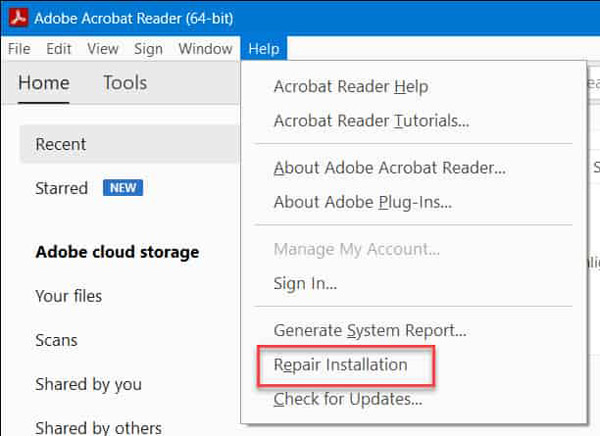
An outdated or corrupted installation of Adobe Reader can cause all sorts of opening failures. Start by checking for updates: open Adobe Reader, go to Help > Check for Updates. Install any available updates and restart your computer. If Adobe Reader won’t even launch, download the latest installer from Adobe’s website and run a repair installation (choose “Repair” when prompted).
If that doesn’t work, try resetting Adobe Reader’s preferences. Hold down Ctrl+Shift (Windows) or Cmd+Shift (Mac) while starting Adobe Reader. You’ll be asked if you want to reset preferences – click Yes. This clears corrupted settings that might block PDF opening.

Step 3: Disable Protected Mode (Temporarily)
Adobe Reader’s Protected Mode (sandboxing) can sometimes interfere with opening certain PDFs. To test, go to Edit > Preferences > Security (Enhanced). Uncheck “Enable Protected Mode at startup” and restart Adobe Reader. Try opening the PDF again. If it works, you’ve found the culprit – but keep this setting off only temporarily for troubleshooting. Re-enable it after you’re done.

Step 4: Repair a Corrupted PDF Online
If the file is corrupted (you’ve confirmed it won’t open anywhere), use a free online repair tool. Go to PDFRepairs.click and upload your file. Their service attempts to rebuild the PDF structure and fix common errors. This is especially useful for minor corruption. For a step-by-step on using such tools, see our guide on free online PDF repair.
After repair, download the fixed PDF and open it in Adobe Reader. If it opens, great! If not, the corruption may be more severe, and you’ll need a desktop repair tool.
Step 5: Use a Desktop PDF Repair Tool
For stubborn corruption, a dedicated repair tool can work wonders. Tools like PDF Repair Kit or Recovery Toolbox for PDF can analyze and fix damaged files. Download and install one, then load your PDF and run the repair. These tools often have a preview feature so you can see if the content is salvageable before saving. Check our article on PDF repair workflow for more details.
If you’re dealing with a PDF that has structural issues, the fix PDF structure guide offers targeted methods.

Step 6: Re-download the PDF (If Applicable)
If the PDF came from an email attachment or a website, it might have been corrupted during download. Try downloading it again. Use a different browser or a download manager to avoid interruptions. Also check if the file size matches the original – a partial download is a common cause.
If you have access to the source, ask the sender to re-save the PDF using a reliable method. If the file originates from a scanner, see our guide on how to open damaged PDF for scanner-specific issues.
Common Pitfalls
- Skipping the obvious: Not checking if other PDFs open. If the problem affects all PDFs, focus on Adobe Reader itself, not the file.
- Ignoring Protected Mode: Many users disable it permanently, which reduces security. Only disable for testing, then re-enable or keep off only if you trust the source.
- Using outdated repair tools: Free online tools may not handle severe corruption. If you’ve tried multiple and still no luck, a professional tool or a PDF damaged in Adobe Reader specific fix may be needed.
Where to Next
You’ve now got a solid troubleshooting path for when a PDF won’t open in Adobe Reader. If you’re still stuck, consider deeper issues like encrypted files or watermarks. Check out our other guides on PDF repair workflow for a comprehensive approach, or dive into specific repairs like fixing a scanned PDF or recovering a corrupted form. And remember: always keep backups!




